
If you’re trying to use multiple Discord accounts on your PC, you’ve probably already hit the same wall most people do: Switching accounts isn’t straightforward.
Sessions collide, logins get messy, and managing more than one Discord account from a desktop setup quickly turns into friction instead of flow.
In this guide you’ll learn what Discord really allows on desktop, how to run multiple Discord accounts at once on your PC, and which setups make sense when you need speed, clarity, and control.
Does Discord allow multiple accounts?
Yes, Discord allows you to have more than one account. There’s no rule that limits you to a single profile, and many professionals use multiple accounts to separate teams, projects, clients, or internal environments.
What Discord does limit is how you manage those accounts on desktop.
Having multiple accounts is allowed. Using them efficiently on a PC is the real challenge. Discord isn’t designed around multi account workflows.
So the answer is simple: You can have multiple Discord accounts.
But managing multiple Discord accounts on desktop is not something Discord fully solves on its own.
That’s why most users who work with more than one account end up relying on alternative setups and external tools to make it usable in real workflows.
Discord Account Switcher: what it is, where to find it, and account limit
Discord does include a built in way to switch between accounts on desktop: the Account Switcher.
You’ll find it in the Discord app. Click on your avatar in the bottom left corner and select “Switch Accounts”. From there, you can add and move between different Discord accounts (up to 5) without logging out each time.
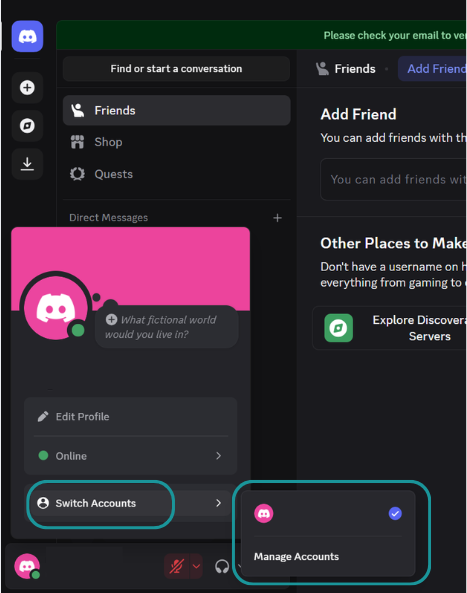
But there’s a key limitation that really matters: You only have one active session at a time.
Even if you add multiple accounts, you’re still working inside a single Discord session. You’re not actually connected to multiple accounts simultaneously, you’re just switching between them.
That makes the Account Switcher useful for occasional access to different accounts. It does not work if you need to actively manage multiple Discord accounts at the same time.
How to run multiple Discord accounts at once
This is where you move from switching accounts to actually actively managing multiple Discord accounts at the same time on the same PC.
Not one session, not one login, not one window, but real parallel access to different Discord accounts from a single desktop setup.
Option 1: Manage all accounts in one place with Rambox
One of the best ways to actively manage multiple Discord accounts on your PC is with Rambox. Rambox is a workspace simplifier that lets you keep all your apps in one place, including Discord. It is a clean and practical way to run multiple Discord accounts at the same time without session conflicts or constant logins.
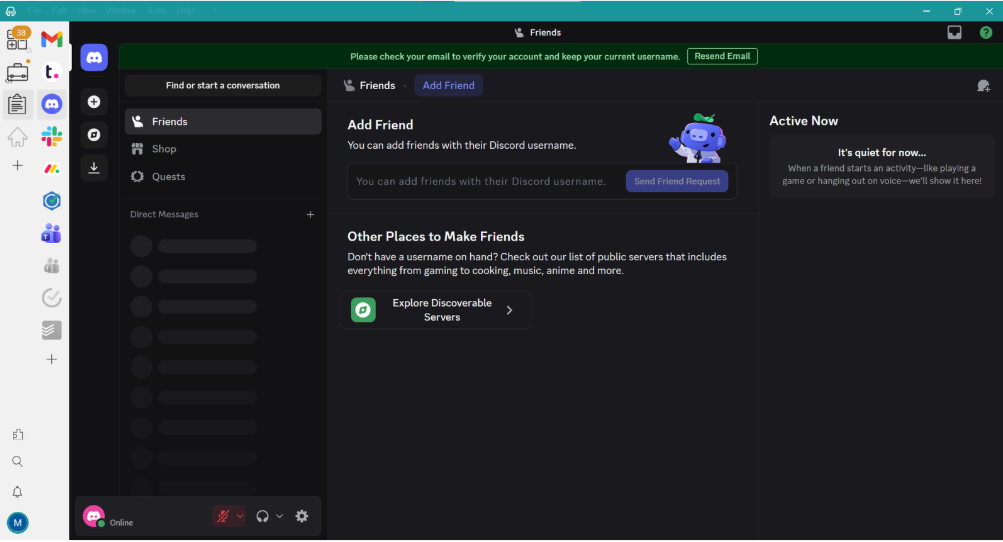

How you organize your Discord accounts is up to you, but there are two setups that work especially well.
Option one: one workspace per team, client, or project.
If you manage Discord accounts for different teams or projects, you can create a workspace for each one and add a single Discord account inside it. Switching context is as simple as clicking on the workspace and then clicking on the Discord app inside that workspace.
Option two: one workspace with all your Discord accounts.
If you prefer having everything in one place, you can add each Discord account as a separate Discord app inside the same workspace. In this setup, each account lives in its own app, and switching between them is just one click.
This same structure also works for the rest of your tools, so you can manage Discord alongside platforms like Slack, WhatsApp, Gmail, or Notion from the same desktop environment.
There is no logging out, no session mixing, and no confusion about which account you are using. Each Discord account has its own isolated session, so you always know exactly where you are working.
Option 2: Discord app + Discord web
A simple way to run multiple Discord accounts at the same time on the same PC is combining the Discord desktop app with the Discord web version.
You log into one account in the desktop app, and a different account in your browser. This gives you two active sessions in parallel, running at the same time, without switching, logging out, or sharing sessions.
It works because each environment keeps its own session:
- Discord desktop app → Account A
- Browser (discord.com) → Account B
This setup gives you real simultaneous access to two accounts, but it has clear limits:
- It doesn’t scale beyond 2 accounts in a clean way
- There’s no structure or organization
- Context switching is manual
- Notifications and workflows are fragmented
It’s useful for basic parallel access, but once you need to manage more accounts, more projects, or more teams, it quickly becomes hard to control and easy to mess up.
Option 3: Use browser profiles
Another way to run multiple Discord accounts at the same time on the same PC is using browser profiles.
Each browser profile works as an isolated session. If you open several profiles at once, you can log into different Discord accounts in each one and keep them active in parallel.
For example:
- Chrome profile 1 → Discord account A
- Chrome profile 2 → Discord account B
- Chrome profile 3 → Discord account C
Technically, this gives you real multi session access. Each window is an independent environment with its own cookies and login state.
The problem is not functionality, it’s usability:
- You end up with many identical windows
- Context switching becomes visual chaos
- It’s easy to lose track of which account is where
- Notifications overlap
- Scaling beyond a few accounts becomes messy
Browser profiles work for a small number of accounts, but they don’t provide structure, clarity, or control. You get parallel sessions, but not a clean workflow.
Option 4: Use different browsers
Another way to run multiple Discord accounts at the same time on the same PC is using different web browsers.
Each browser keeps its own independent session, so you can log into a different Discord account in each one and keep them all active in parallel.
Typical setup:
- Chrome → Discord account A
- Edge → Discord account B
- Firefox → Discord account C
Technically, this gives you real simultaneous sessions. Each browser is its own environment, with separate cookies, logins, and sessions.
But in practice, it creates other problems:
- Workflows get fragmented across tools
- Switching context becomes slower
- Notifications are scattered
- Visual organization is poor
- It doesn’t scale when the number of accounts grows
Using different browsers works from a technical point of view, but it’s not a structured or efficient way to manage multiple Discord accounts as part of a professional workflow.
What’s the best way to manage multiple Discord accounts: comparison table
Here’s a clear comparison of the real options for running multiple Discord accounts on the same PC, based on how they actually work in daily use:
| Parallel sessions | Scales well | Organization | Workflow clarity | Best for | |
| Rambox | Yes | Yes | High | High | Professionals managing multiple teams, projects, or clients |
| Discord app + web | Yes | No | Low | Low | 2 accounts, basic parallel use |
| Browser profiles | Yes | Medium | Low | Low | Small setups with few accounts |
| Different browsers | Yes | Low | Very low | Very low | Temporary setups, not long term workflows |
| Discord Account Switcher | No | No | Medium | Medium | Occasional switching, not simultaneous management |
Summary:
- If you need real parallel management, you need multiple active sessions.
- If you need control, structure, and scalability, you need a centralized setup.
- Most browser based methods technically work, but they don’t create a clean workflow.
Rambox is the only option that combines parallel sessions + organization + centralized control in a single desktop environment.
Common problems when using multiple Discord accounts on desktop, and how to fix them
When you manage multiple Discord accounts on the same PC, most problems don’t come from Discord itself. They come from session confusion, context switching, and lack of separation.
Problem: sending messages from the wrong account
When several sessions look the same, it’s easy to lose track of which account is active. One wrong click can mean replying from the wrong Discord profile.
✔ Fix:
With Rambox, each Discord account lives in its own app and workspace structure. Accounts are visually separated, so you always know exactly which account you’re using before you interact. No shared tabs, no mixed sessions, no confusion.
Problem: overlapping notifications
Messages, mentions, and alerts from different accounts arrive at the same time with no clear context.
✔ Fix:
Use setups where each account has its own notification channel or space, so you can immediately see which account the message belongs to.
Problem: constant logins and re authentication
Switching setups often forces you to log in again, verify devices, or repeat security checks.
✔ Fix:
Rambox uses Profiles to manage sessions properly. With Private profiles, each Discord account runs in its own isolated session, so you stay logged in permanently across accounts without conflicts. No re logins, no session collisions, no shared credentials.
If you want to see our “Profiles” feature in action, head to the video below.
How to add multiple Discord accounts in Rambox
Here’s how to add all your Discord accounts to your Rambox session in 4 simple steps:
- Click on the “+add an app or workspace” button.
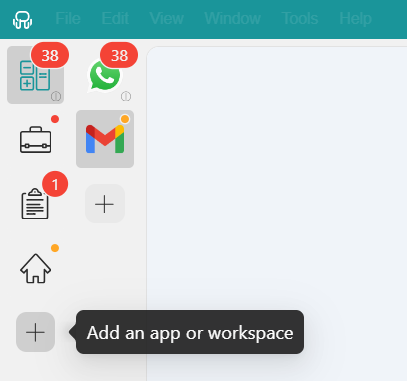
- Type “Discord” in the search bar and select it.

- Customize your Discord settings to your liking. Remember to choose the “Private” profile to access Discord with different credentials.

- Repeat this process to add as many Dicord accounts as you want to your main menu or workspaces.
Once everything is set up, switching between accounts becomes part of your normal workflow instead of a constant interruption.
FAQs about multiple Discord accounts
How to use multiple Discord accounts at the same time?
To use multiple Discord accounts at the same time on the same PC, you need separate active sessions. This can be done with setups like Rambox, browser profiles opened in parallel, different browsers, or combining the Discord desktop app with the web version. The key is session isolation, not account switching.
How to easily switch between Discord accounts?
The easiest technical way to switch is Discord’s Account Switcher, but it only allows one active session at a time. If you need fast switching without logging in and out and without session conflicts, centralized tools like Rambox make the process one click, with each account already logged in and isolated.
Can other people see my other accounts?
No. Discord does not show other users which accounts you have or whether you’re switching between accounts. Each account is treated as a completely separate identity.
What’s the safest way to switch accounts on desktop?
The safest way is using isolated sessions, where each account runs independently. This avoids session conflicts, accidental cross logins, and security issues. Tools that separate sessions properly, instead of sharing one session and switching inside it, reduce errors and account risks in professional setups.