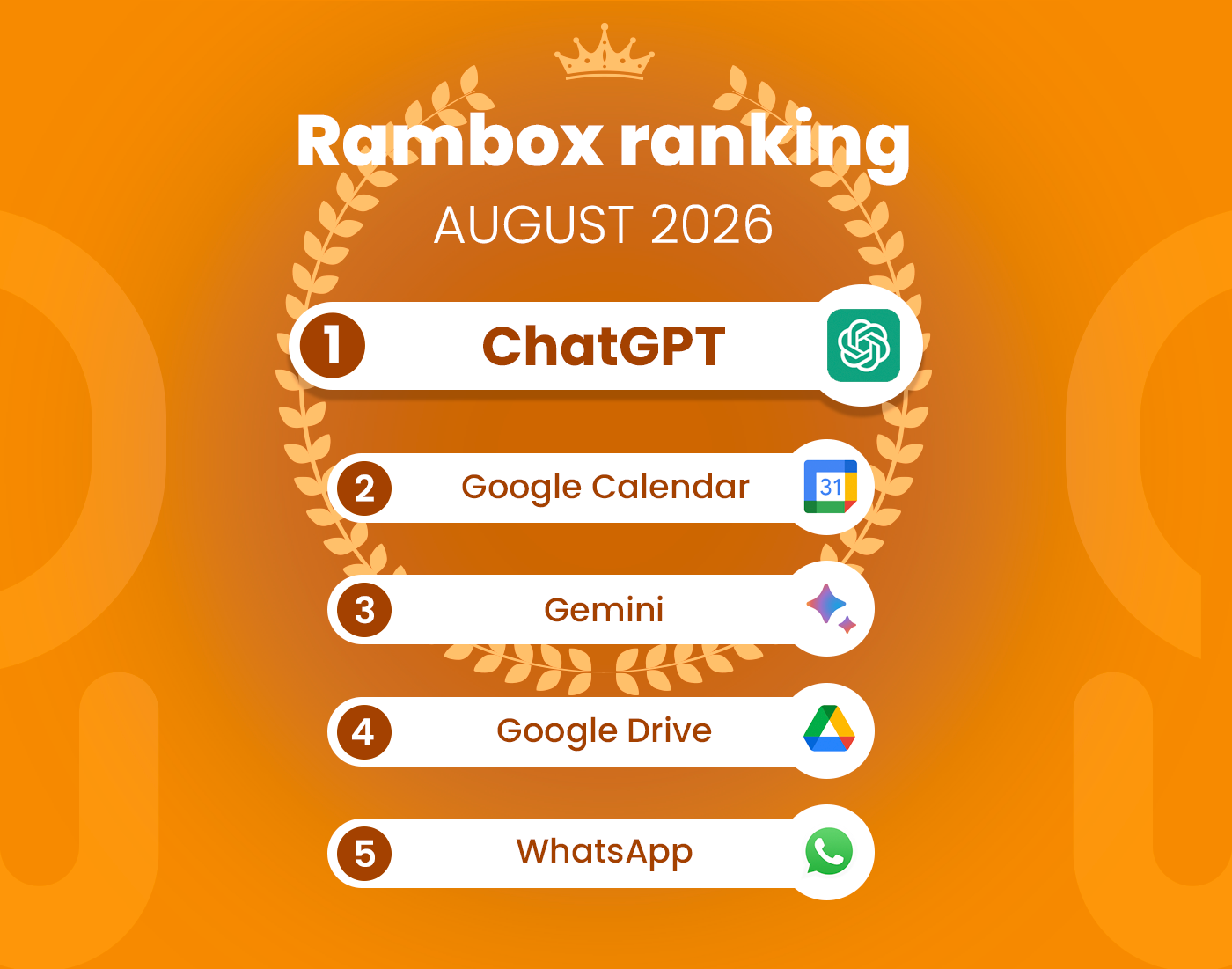
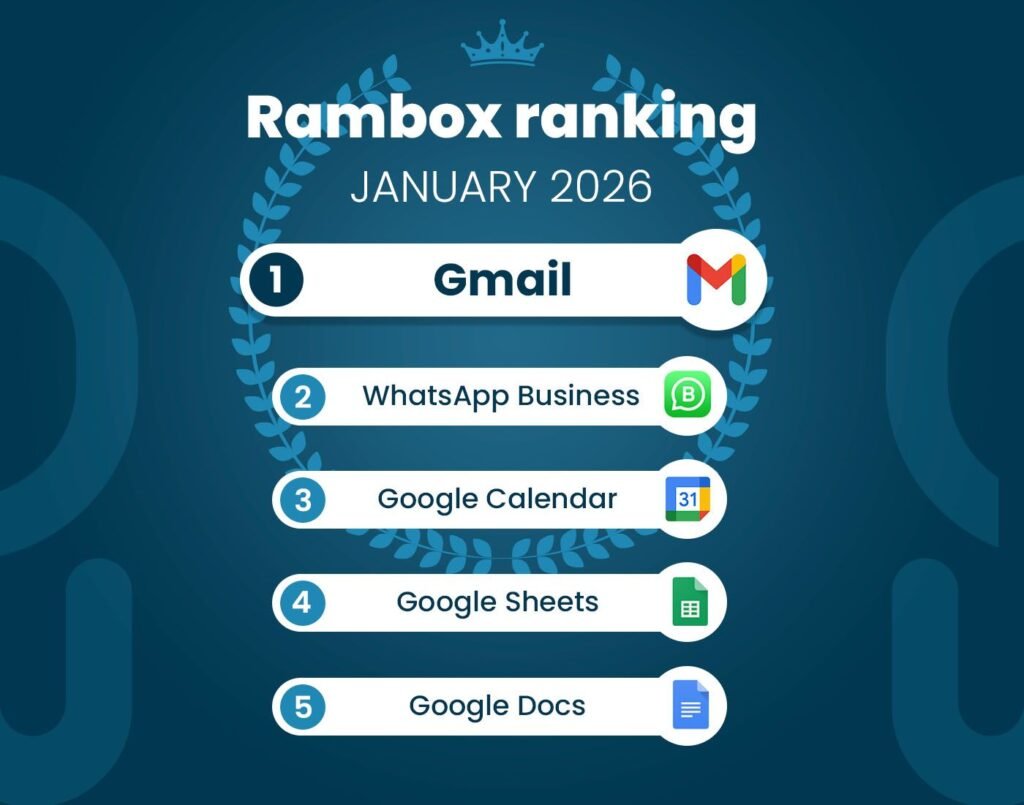
It’s time to unveil the power-packed lineup of January’s most-used apps on Rambox – your favorite workspace simplifier, as 2026 gets underway.
Join us on this exploration, where we first dive into the top 15 most-used apps. Here, we’ll unearth a mix of personal and professional digital applications that are the pillars of our users’ digital workspaces.
But our journey doesn’t end there. Let’s take a closer look at how the Rambox Ranking has evolved since last month, December.
Discover the latest trends and shifts in user preferences as we spotlight the newcomers who have made their mark in the top ranks and reveal our users’ new favorite apps.
Most-used apps on Rambox in January
First, we present the top 15 apps most used by Rambox users based on statistical and impersonal data.
These are the digital frontrunners that shaped our users’ workflows this month.
How has the Rambox Ranking changed in the last month?
January kicks off the year with a few notable shifts, especially in the middle of the ranking, while the very top remains rock solid.
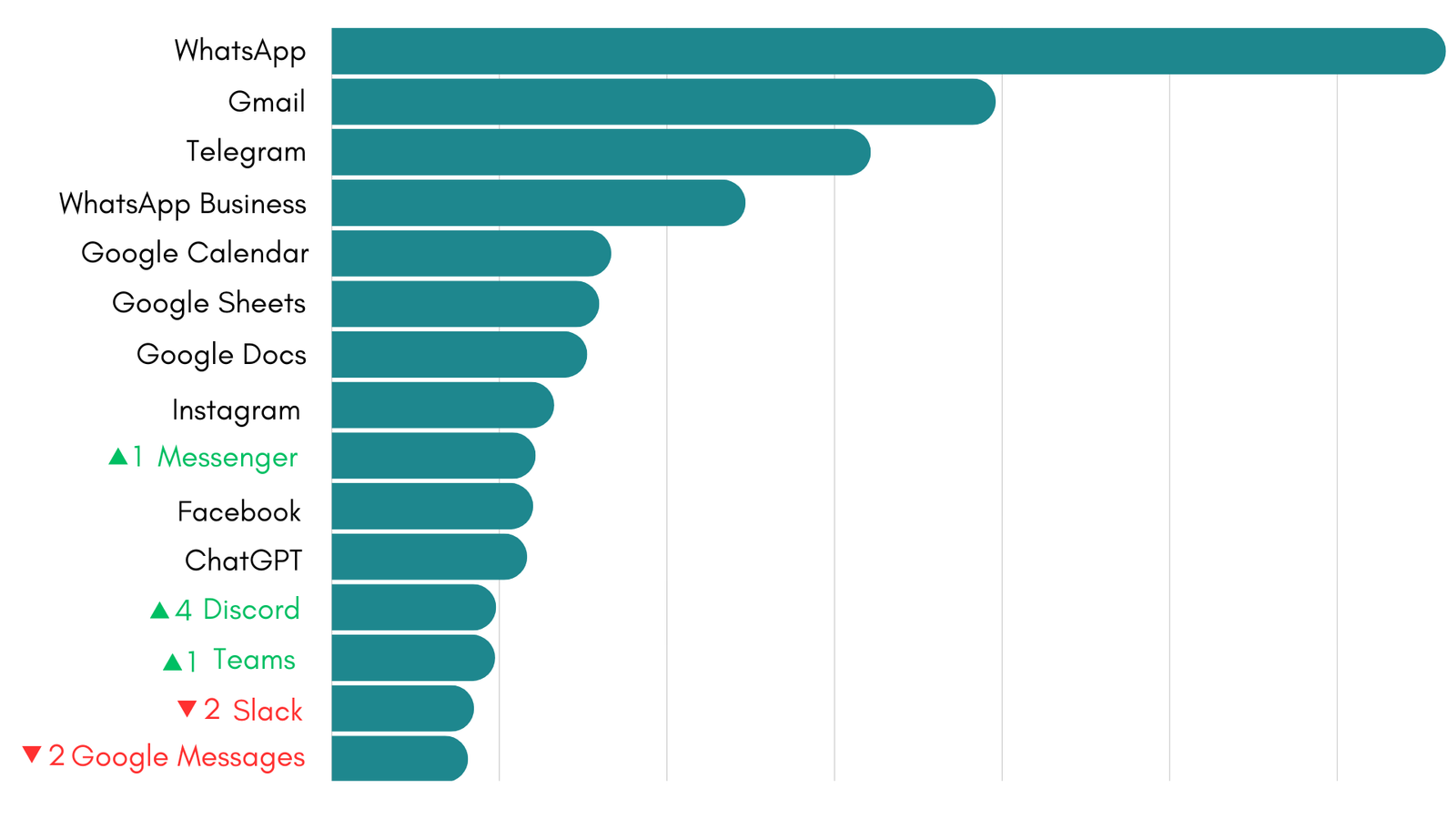
The first three positions stay exactly the same. WhatsApp, Gmail, and Telegram continue to dominate first, second, and third place, confirming their role as everyday essentials for communication and coordination inside Rambox.
Right behind them, WhatsApp Business holds strong in fourth place, keeping its position from last month. Google Calendar also stays put in fifth, showing that planning, deadlines, and time management remain a priority as teams settle into the new year.
From there, stability continues. Google Sheets and Google Docs remain in sixth and seventh place, reinforcing how central collaborative documents and spreadsheets are to daily workflows. Instagram keeps eighth place, while Messenger moves up one position to ninth, slightly overtaking Facebook, which drops to tenth.
Just below, ChatGPT remains steady in eleventh place, suggesting that AI assisted tasks continue to be part of regular work routines, even as day to day communication takes the lead.
The biggest jump this month comes from Discord, which climbs four positions to reach twelfth place. Teams also moves up one spot to thirteenth. On the other hand, Slack falls two positions to fourteenth, and Google Messages drops two spots to close the ranking in fifteenth.
Overall, January reflects a renewed focus on fast communication and team coordination tools, while the most trusted productivity apps continue to anchor how people work inside Rambox as the year gets underway.
How to build a stronger workspace by complementing the top apps
We’re starting the year with a practical approach. If you already use the apps leading the Ranking, the next step is adding the right tools around them.
Below, we show which apps you can add to Rambox to get more value, clarity, and control from the tools you already rely on.
Extending instant messaging and chat
Instant messaging apps are perfect for quick coordination, but they’re not designed to track work, define ownership, or make progress visible over time. As conversations grow, decisions get lost and follow ups rely too much on memory.
To complement chat, the most effective additions are task and work management tools. These apps don’t replace messaging. They sit next to it and give structure to what comes out of conversations: actions, priorities, and deadlines.
- Asana: Helps turn messages into tasks with clear owners, deadlines, and status, so decisions don’t stay buried in chat threads.
- Trello: Offers a visual way to track progress at a glance, ideal for teams that want lightweight structure without extra complexity.
- ClickUp: Brings tasks, docs, and timelines together, making it easier to connect daily conversations with actual execution.
Practical tip:
When a decision or request shows up in chat, move it immediately into a task tool. Keep chat for talking and alignment, and let your task manager handle execution and follow up.
Adding structure to email communication
Email is still the default place for formal communication, requests, and notifications. The problem is that inboxes mix everything together: conversations, tasks, follow ups, and deadlines all compete for attention in the same space.
To complement email, it helps to add tools that organize what email alone can’t. Instead of replacing your inbox, these apps add context, ownership, and clear next steps around incoming messages.
- HubSpot: Connects email conversations with contacts, companies, and deals, so important threads don’t get lost in the inbox.
- Zendesk: Turns incoming emails into tickets with priority, status, and ownership, ideal for support or internal requests.
- Calendly: Removes back and forth emails by letting others book time directly based on your availability.
Practical tip:
If an email requires tracking or follow up, move it out of the inbox as soon as possible. Use email to receive information, and dedicated tools to manage what needs action.
Supporting calendars and planning
Calendars are great for knowing when things happen, but they don’t explain what needs to be done or who is responsible for it. Meetings, deadlines, and time blocks often exist in isolation, disconnected from the actual work.
To complement calendars, it’s useful to add tools that turn scheduled time into clear actions and priorities. These apps help bridge the gap between planning and execution.
- Todoist: Allows you to turn calendar events and deadlines into concrete tasks with priorities and reminders.
- Notion: Works as a central space where meeting notes, planning documents, and task lists live together, making it easier to prepare meetings and capture outcomes afterward.
- Clockify: Helps teams understand how much time is actually spent on planned work versus meetings or unplanned tasks, giving visibility into gaps between planning and reality.
Practical tip:
Use your calendar to reserve time, but rely on tasks and notes to define outcomes. Every meeting or deadline should result in clear next steps, not just a blocked time slot.
Expanding document and spreadsheet workflows
Documents and spreadsheets are great for creating and editing content, but they’re not designed to preserve long term knowledge or manage what happens around those files.
To complement documents and spreadsheets, it helps to add tools that focus on file storage, organization, and document flow:
- Google Drive: Acts as the central storage layer for files and folders, making it easier to manage versions, access permissions, and shared assets connected to Docs and Sheets.
- DocuSign: Adds structure to document approvals and signatures, allowing teams to finalize agreements and documents without manual steps or email back and forth.
Practical tip:
Use Google Drive as the single place for all files, with a clear folder structure that separates drafts, shared materials, and final documents. When a document reaches its final version, move it to a dedicated folder and complete the approval or signature step with DocuSign.
Social media apps are great for publishing and interacting, but they don’t provide much control once activity increases. Posting, replying, planning content, and reviewing results often happen in different places, making it hard to keep a clear overview.
To complement social platforms, it helps to add tools that bring planning, coordination, and visibility to day to day social media work.
- Buffer: Lets you plan and schedule posts in advance, helping maintain consistency and avoid last minute publishing.
- Hootsuite: Centralizes multiple social accounts in one place, making it easier to monitor activity, respond to messages, and coordinate work across teams.
Practical tip:
Separate creation from publishing. Plan content ahead of time, schedule it in batches, and review performance regularly instead of reacting post by post.
Reinforcing AI and assistance tools
AI tools are great at generating ideas, summaries, and quick answers, but on their own they lack context, sources, and follow through. Without supporting tools, AI output often stays as text instead of becoming real, usable work.
To complement AI and assistance tools, it helps to add apps that provide trusted inputs, saved context, and automation, so AI fits naturally into daily workflows.
- Perplexity: Adds sourced answers and real time research, helping validate information instead of relying only on generated text.
- Instapaper: Makes it easy to save and organize articles and references, so research and background material is always accessible when working with AI outputs.
- Zapier: Connects AI output with other tools by triggering actions like creating tasks, updating documents, or sending notifications automatically.
Practical tip:
Treat AI output as a starting point. Pair it with saved sources and automated actions so ideas don’t stop at text and actually move work forward.
Strengthening team collaboration spaces
Team collaboration platforms are great for ongoing discussions and updates, but they often fall short when teams need to think together, explore ideas, or align around complex topics. Text based conversations don’t always work well for planning, mapping processes, or brainstorming.
To complement collaboration spaces, visual thinking tools help teams align before execution starts. They don’t replace chat or task management. They support shared understanding and clearer decision making.
- Miro: Helps teams brainstorm, map processes, run planning sessions, and align visually around ideas that are hard to structure in chat threads.
- Whimsical: Makes it easy to create flowcharts, mind maps, and diagrams quickly, helping teams organize thoughts and clarify processes without friction.
Practical tip:
When discussions become abstract or circular, switch to a visual tool. Align ideas and processes visually first, then move the outcome back into chat or task tools for execution.
Why use these apps in Rambox?
Rambox is the ideal tool for managing all kinds of work apps in one place, from communication and collaboration to planning, documents, social media, and productivity tools.
Rambox includes many features designed to help you stay focused and organized, such as custom notifications, Focus Mode, Profiles and much more! You decide how your workspace behaves, which apps can interrupt you, and which ones stay in the background.
If you want to explore everything Rambox can do and learn how to get the most out of it, don’t miss our video series with practical tips and real use cases:
How to add these apps on Rambox?
Ready to bring these apps together? Setting them up in Rambox only takes a few seconds:
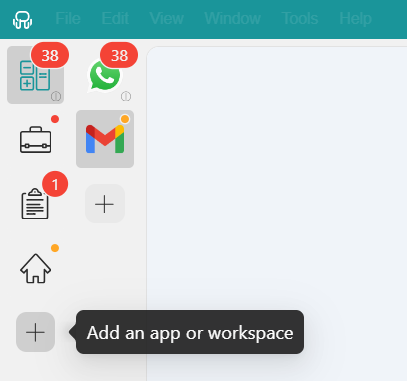
- Click on the “Add an app or workspace” button in your main tab or workspace.
- Type the name of the app you want to add in the search panel at the left.
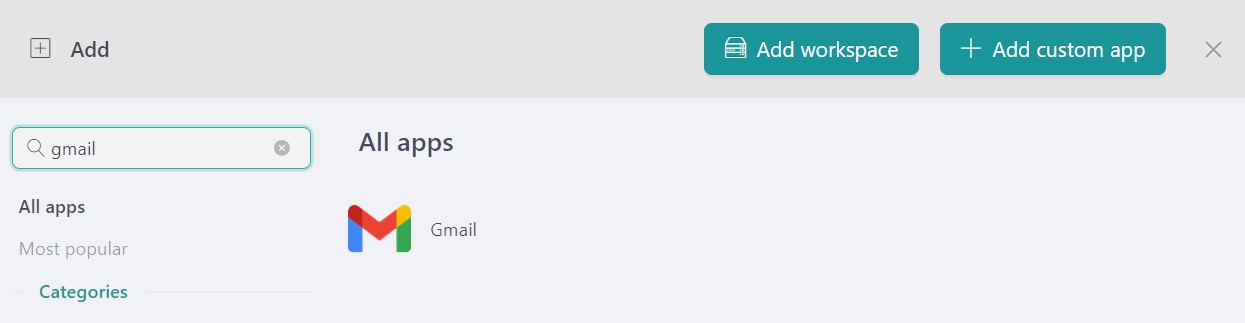
- Configure the application settings to your liking. Remember that you can choose which profile you want to use in the app (inherit from workspace, primary, private, incognito, or a custom profile).

- Click on “+Add,” and that’s it! The app has been added to your Rambox’s workspace!
January opens the year with a clear picture of how Rambox users are organizing their digital workspaces in 2026. The Ranking shows which apps people rely on the most, and the complementary tools highlighted in this post show how to get more value from them, all within a single workspace.
If you are overwhelmed by the number of apps you have to manage, try Rambox for free. All you have to do is download the program, configure it to your liking, and enjoy its functionalities. No cards, no cheating, it’s that simple!