



You’re writing a report on one screen and checking the figures on another. Somewhere behind those windows are your inbox, a few articles you meant to read and another copy of the spreadsheet you already have open. When you need the original source for a figure, which tab do you reach for?
In our ongoing survey of more than 1,700 Rambox users, over 40% named reducing browser tabs and windows as one of the main problems they wanted to solve. It’s easy to see why. A second window is useful when you’re comparing two pages side by side. It becomes harder to work when every window holds a little of everything.
If you have too many tabs open, start with what you’ll need to get back to. Keep pages for your current task together, save articles and references you can close, and give the apps you use every day a fixed place. If the same app keeps appearing in different windows because you need different accounts, a dedicated workspace can help.
Why do browser tabs pile up?
We use tabs for several jobs at once. One holds a document we’re editing. Another reminds us to reply to someone. A third is a shortcut to an app we open every day. Closing any of them can feel like giving up a reminder or losing our place.
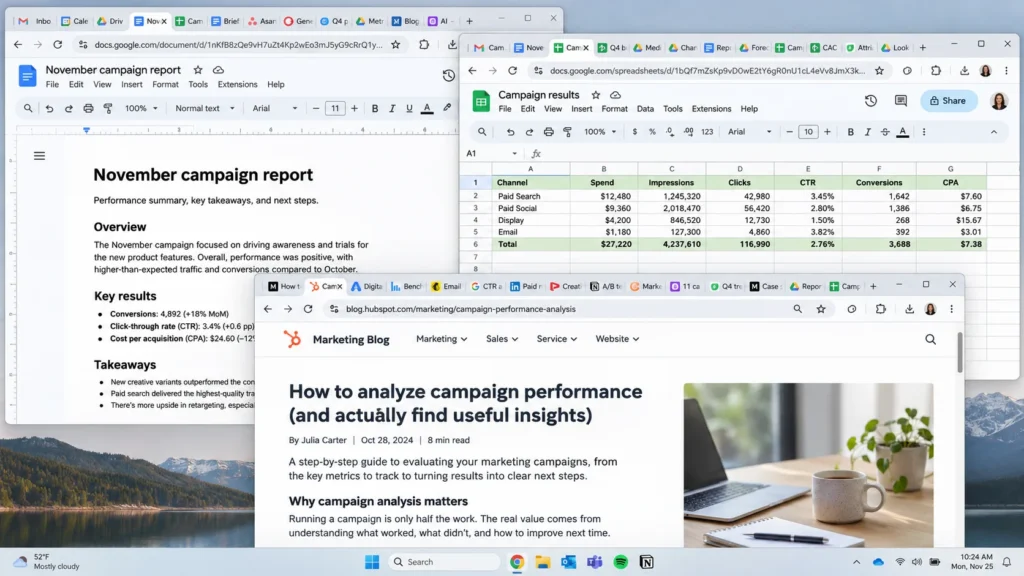
Carnegie Mellon researchers who studied browser tab use found that people feel pressure both to keep tabs open and to close them. People worry about losing information they may need, even as a crowded tab bar makes it harder to find that information.
There’s a performance side, too. Memory use depends on what the pages are doing and how the browser handles inactive tabs. A video call, a live dashboard and a static help page can put different demands on your browser. If it already feels sluggish, start by checking what’s slowing your browser down.
How to reduce browser tabs without losing important pages
Two questions help you decide what can safely go. What’s in the tab, and what are you using it for? The first tells you whether you need the page open. The second tells you where you’ll look for it later.
Decide what to do based on what’s in the tab
Start with one window. If a page contains unfinished work, save your edits first. Then look at the tabs one by one.
- An app you open every day. Pin it if you have a few regular apps, or give it a place in a workspace if you switch between several apps or accounts.
- A page you need for the task at hand. Keep it open and group it with the other pages you’re using, such as a draft and its sources.
- An article you want to read later. Add it to a reading list and close the tab. Choose a time to go through the list.
- A reference you’ll revisit. Bookmark it or link it from the project or task where you’ll need it. A brand guide is easier to find from the project brief than from a row of browser icons.
- A duplicate or a page you’ve finished with. Close it once you’ve checked for unsaved edits, form entries or a filter you still need. A bookmark takes you back to a URL. Save your work before closing the page.
Organize pages around what you’re doing
Where you save a page matters as much as whether you close it. Think about what you’ll be doing the next time you need it. That might be finishing a report at your desk or pulling up a reservation on your phone.
- Working on a client report. Group the draft and the sources you’re using now. Save key links in the project task so you can pick up the report later. Keep the apps and accounts you use every day in a dedicated setup.
- Planning a vacation. Keep the flights and hotels you’re actively comparing together. When you book, save the confirmations and itinerary in a place you can find on the trip.
- Shopping for a new phone. Put the models you’re considering in one group, then keep your shortlist or comparison notes. Close the options you’ve ruled out.
How to keep tabs and windows under control
A one-time cleanup helps. The habits that keep tabs from building up again are the ones you can use while you’re already working.
Search before opening another copy
If you’re about to reopen a dashboard, use Chrome’s tab search and type part of its title or domain. It can find tabs across open Chrome windows, which is especially handy if you can’t remember where you left a page. If you’ve already closed it, check recently closed tabs or your browsing history. See Chrome’s guide to managing tabs.
Group pages around the work you’ll return to
Name the group for the task, such as “November client report,” so you’ll recognize it next week. Collapse it while you work on something else, or save and close it if you want those pages out of the window until you need them again.
Give each window or profile a purpose
A separate window can help when you’re presenting or need two sets of pages visible at once. If work and personal browsing regularly get mixed, separate browser profiles can give each its own bookmarks, history and sign-ins. Creating another window whenever the first one fills up makes it harder to remember where things are.
Spend a minute resetting when you switch tasks
Save anything you need for the next session, close pages you’ve finished with and leave a link or a short note in the relevant task if you’ll be coming back to it. If your reading list grows faster than you use it, pick a time to go through it and remove what no longer matters.
Give the apps you use every day a workspace of their own
If you keep opening new windows just to bring the same inbox, team chat and project board back together, a workspace manager like Rambox can keep those apps grouped by client or project. That leaves your browser tabs for the pages you need for the task at hand. When the task is done, you can close those tabs and still find your everyday apps right where you left them.
When manual tab management becomes a chore
For a short task, a named group or a bookmark folder may be all you need. The turning point comes when getting back to work takes work of its own. You finish a call, reopen the project board, look for the dashboard you were checking and try to remember where you left the draft. If that happens several times a day, a tool that saves the setup can be worth using.
Which tool depends on what you’re rebuilding. A session manager can reopen the pages from a research project together. A workspace manager can keep the apps you use for a recurring job ready the next time you sit down.
Browser tab groups, tab managers, or desktop workspace tools?
Think about what you want to see when you sit down tomorrow. Do you need the pages you were comparing, a whole research session, or the apps already signed in to a particular client’s accounts?
Browser tab groups
A tab group keeps related pages together inside your browser. You can collapse the group to clear space on the tab bar.
Use one when you’re working on a task with a handful of pages you want to keep together. For example, group the three phones you’re comparing so you can switch between their specs and prices. If your browser lets you save and close the group, you can reopen it later.
Tab and session managers
A tab manager helps you find, organize or save open tabs. A session manager can save a set of pages and reopen it together.
Use one when you have many pages to sort through or regularly pause and resume research across projects. For example, save one set of sources for a market analysis and another for a competitor review. If you use several windows, check whether the tool restores the window layout as well as the links. See our comparison of Chrome tab managers.
Workspace organizer vs. workspace manager
A workspace is a place where you keep the apps you use together for a particular client, project or role. A support team’s workspace might include the help desk, the shared inbox and the knowledge base. The tickets change throughout the day, but the tools you need to answer them are always in the same place.
Workspace organizer
A workspace organizer lets you group apps by the work you do with them. At the start of a support shift, you can open your support workspace and find all three tools together. When it’s time to work on a report, you can switch to a workspace with your spreadsheet and analytics dashboard.
Use one when you keep reopening the same set of apps or hunting through tabs to find them. If your accounts and notifications are already set up the way you want, grouping the apps may be all you need.
Workspace manager
A workspace manager also lets you configure how apps behave in each workspace. In Rambox, for example, you can set a default Profile so apps in a client’s Workspace use that client’s sign-ins, schedule notifications for support hours and choose where links from the help desk open.
Use one when switching tasks or clients also means switching accounts or changing which alerts need your attention. If you manage support for two clients, you can give each one a workspace with its own signed-in inbox and notification schedule, then pick up the next shift without setting everything up again.
How to work with fewer browser tabs using Rambox
Rambox is a desktop workspace manager that gives your everyday web apps a place outside the browser. Start with the apps you open every morning. Add them to a Workspace, sign in and check that you can pick up where you left off. You can then close their browser tabs and leave the browser open on the pages you need for today’s task.
What Rambox adds to your work setup
Once your apps are together, you can decide how to move between them and which ones should interrupt you. Here are a few of the features that help, including navigation tools introduced in Rambox 3.
- Workspaces and Profiles. Group the apps for each job. Set a default Profile for the Workspace and override it for an individual app when it needs a separate sign-in.
- Notifications and link handling. Set work hours or mute alerts for a Workspace. For each app, choose whether links that open a new window go to a browser, a pop-up or an in-app tab where available.
- Command Center and Quick View. Search for an app or Workspace by name, or use a visual overview to jump to an app you already have open.
- Focus Mode and Pomodoro. Pause Rambox notifications when you need to concentrate and set timed work sessions and breaks.
- Hibernation. Let selected apps go to sleep after they’ve been idle for a while. Keep apps that need to deliver live alerts awake.
Example: Three Workspaces for two clients and an agency
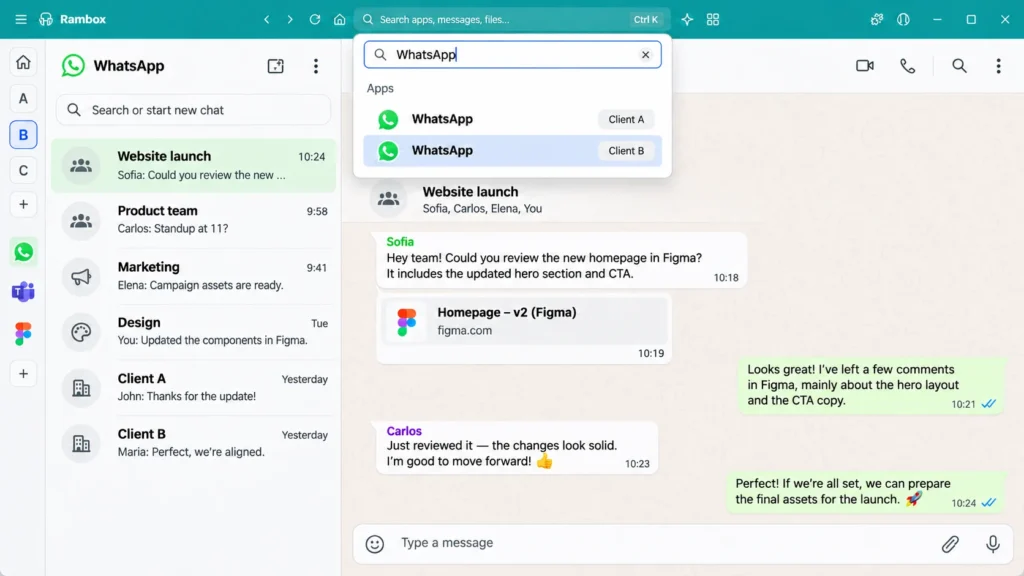
Imagine you handle social media and reporting for one client, a website launch for another and your agency’s internal work. Each job calls for a different set of apps. Here’s one way to arrange them so you can switch jobs without rebuilding a browser window each time.
Workspace A
Context: Client A
What you do here: Social media and reporting
Apps:
- WhatsApp (Client A’s number)
- Gmail (Client A’s inbox)
- Looker Studio
Workspace B
Context: Client B
What you do here: Website launch
Apps:
- WhatsApp (Client B’s number)
- Microsoft Teams
- Figma
Workspace C
Context: Agency
What you do here: Internal coordination
Apps:
- Gmail (agency inbox)
- Slack
- Google Calendar
You’re reviewing a campaign in Looker Studio when Client B sends a question about the launch. Search for “WhatsApp” in Command Center and choose the instance in Client B’s Workspace. After you reply, Figma is there alongside it if you need to check the design. When you return to the campaign, you know where to find both the dashboard and Client A’s inbox.
The browser still has a job here. Keep the draft report and the sources you’re citing in a tab group for this assignment. When the report is finished, you can close the group. Looker Studio and Gmail will still be in the client’s Workspace for next month’s report. If you enable hibernation for an occasional-use app, keep any messaging apps you rely on for live alerts awake.
Try working with fewer browser tabs
Start with the window you have open now. Keep the pages you’re using together, save anything you’ll need later where you’ll look for it, and close what you’ve finished. If the same apps fill the window again tomorrow, those are the ones to try in a workspace. For more ideas, see how to organize work apps by project or client.
Download Rambox and try Pro free for 30 days. Move the apps for one recurring task into a Workspace and see how many tabs you can leave closed the next time you do it.
Frequently asked questions
Already have a window full of tabs? These answers cover how to find a missing page, save a session and free up memory.
How can I find a tab when I have too many open?
Use your browser’s tab search and type part of the page title or site name. In Chrome, tab search can find pages across open Chrome windows. Check History if you’ve already closed the page.
How can I save all my open tabs and restore them later?
Save the tabs in a named bookmark folder if you just need the links. Use a saved group or session manager if you want to reopen the set together. Firefox’s Restore Previous Session can reopen tabs and windows from your last session.
How can I save tabs to read later without leaving them open?
Add individual articles to a reading list and close their tabs. If several pages belong to one project, save them together in a named bookmark folder or add the links to the project itself.
What’s the best way to organize browser tabs for work and personal tasks?
Use separate browser profiles to keep work and personal sign-ins, bookmarks and history apart. Use named groups for temporary tasks. A desktop workspace manager can help if you regularly switch between work apps and accounts and want each setup to have its own settings.
How can I stop opening so many browser tabs?
Search your open tabs before opening another copy. Put articles you’ll read later in a reading list and close groups when the task is done. Give the apps you open every day a fixed place, such as a pinned tab or a desktop workspace.
Can suspending inactive tabs reduce memory use?
Yes. Chrome’s Memory Saver frees memory by deactivating eligible idle tabs. Those pages reload when you return. Activity such as audio or video playback can keep a tab active.