

Last Updated: September 10 2026
Browsers are crucial in our daily lives, whether we’re checking emails, looking up information, or handling various tasks. But with many applications and tabs open at once, your computer’s resources can get stretched thin. If this is already affecting performance, it can also help to understand why your browser is running slowly and what you can do about it. That’s why choosing a browser that uses fewer resources can make a noticeable difference.
In this guide, we’ll explain why some browsers are better at managing resources than others and look at three resource-efficient browsers worth considering in 2026. We’ll also compare their memory-saving features, browser engines, privacy, portability, and overall usability.
Why do some browsers use more resources?
Not all browsers use memory and processing power in the same way. Several factors can make one browser consume more resources than another:
- Features and extensions: Built-in tools and extensions can add functionality, but they can also increase memory and CPU usage.
- Tab management: Browsers use multiple processes to improve stability and security. Keeping many tabs active at the same time can therefore increase memory consumption.
- Rendering engine: The engine determines how the browser processes and displays websites. Different engines and implementations can behave differently depending on the pages you visit and the device you use.
- Background processes: Notifications, extensions, syncing, background tabs, and other services can continue using CPU or memory even when you’re not actively browsing.
- Resource-saving features: Modern browsers increasingly include tools that put inactive tabs to sleep, unload them from memory, or reduce background activity.
Heavy browser usage can contribute to slower performance and higher CPU activity, especially when many tabs and web apps are active at once. If your computer is struggling, reducing unnecessary tabs and background processes is often a better first step than assuming one browser will always use less memory than another.
Do you use your browser for web apps? Here’s a better alternative
Even a resource-efficient browser can struggle when you keep a large number of web apps and tabs active at the same time. Besides using memory and CPU, dozens of open tabs can make your workspace harder to manage.
If much of your browser usage comes from communication, productivity, or business web apps, you can use a workspace simplifier such as Rambox to keep those apps together in one desktop interface.
This lets you access the apps you need without keeping them scattered across multiple browser windows and tab groups.
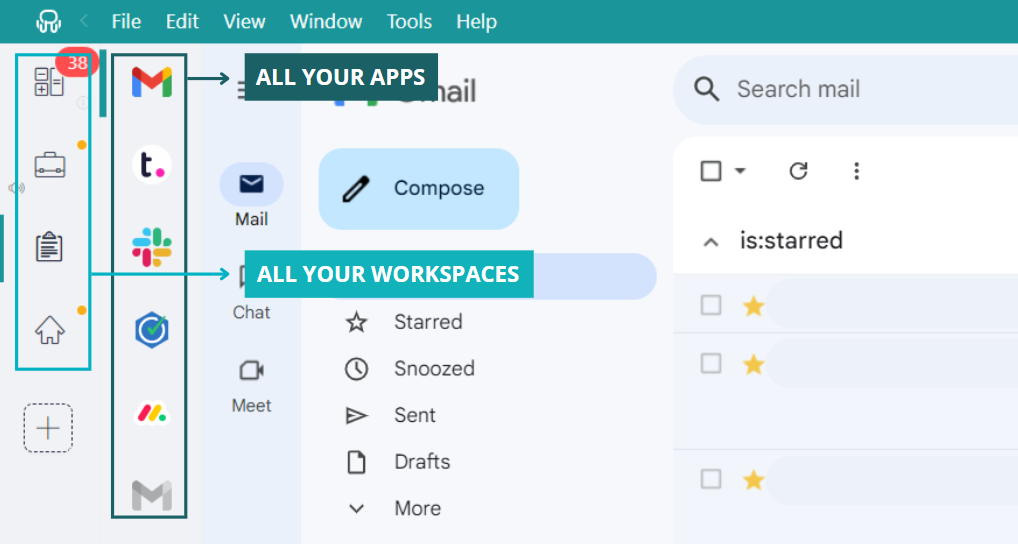
Rambox also gives you several ways to control which apps remain active:
You can enable or disable apps with a right-click, so applications you do not currently need are not left running unnecessarily.
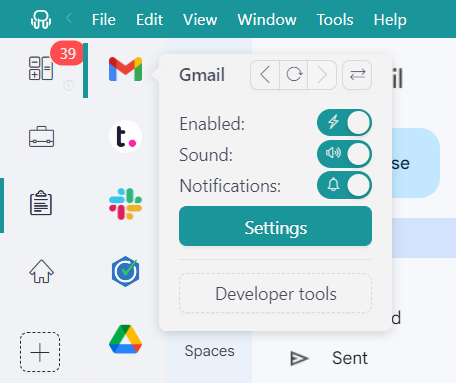
You can also configure hibernation for inactive apps. After a period of inactivity, Rambox can put the app to sleep so it does not continue consuming the same resources in the background.
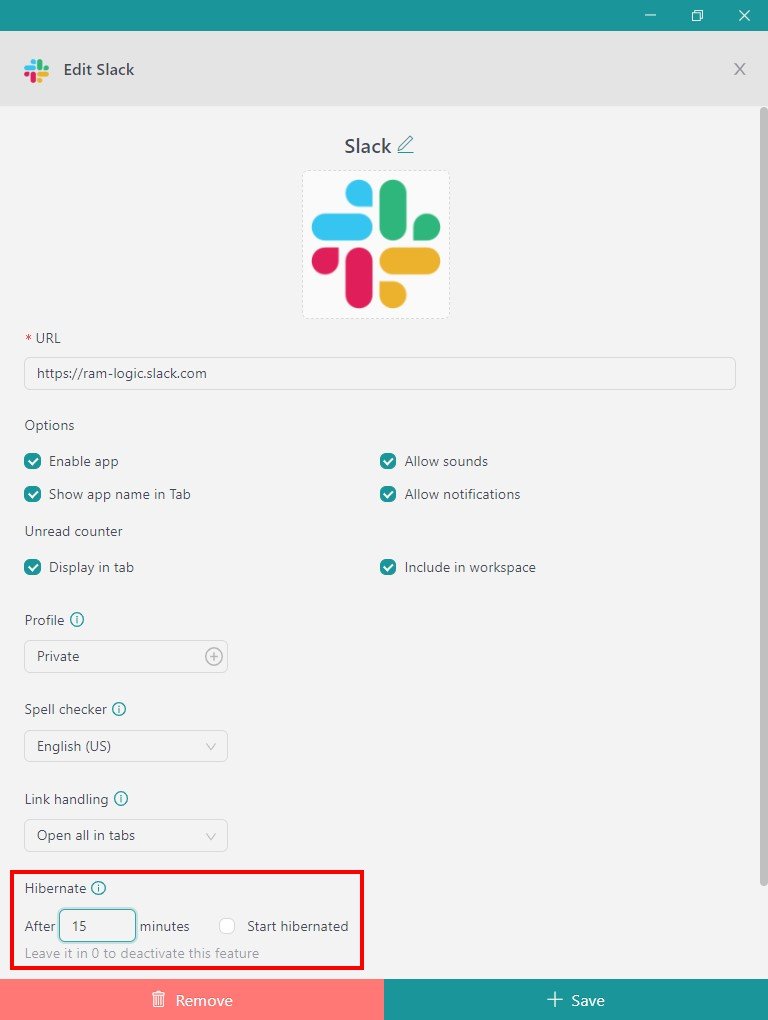
To configure hibernation, open the settings for the app and choose the inactivity period you want to use.
Rambox can also alert you when an app is consuming a high amount of CPU, helping you identify which app may need to be disabled, hibernated, or reloaded.

Rambox is not a replacement for your browser. It can complement it by handling the web apps you use regularly while you keep your browser for general browsing, research, and websites that do not need to stay open all day.

3 resource-efficient browsers to consider in 2026
There is no browser that will use the least RAM in every situation. Memory and CPU usage vary according to your operating system, hardware, extensions, websites, active tabs, and browser settings.
However, current browser features and recent testing make these three strong options if resource efficiency is one of your priorities:
1. Brave
Brave is a Chromium-based browser with a strong focus on privacy and reducing unnecessary page activity. Its built-in Shields feature blocks many ads and trackers before they load, which can reduce the amount of network traffic and processing required on pages that contain them.
Brave also includes a Memory Saver feature that deactivates tabs you are not currently using. When you return to an inactive tab, the page reloads automatically.
In September 2026, Brave published a desktop benchmark comparing Brave, Chrome, Edge, and Firefox on a Mac mini with an Apple M2 chip and 8 GB of unified memory. Across the 50 websites tested, Brave recorded the lowest average memory use of the four browsers.
Because this benchmark was conducted and published by Brave itself, the results should be treated as one controlled comparison rather than proof that Brave will always use the least memory on every computer.
| Pros | Cons |
| Built-in ad and tracker blocking | Some websites may require Shields adjustments to work correctly |
| Memory Saver for inactive tabs | Includes additional features that not every user needs |
| Strong privacy protections by default | Chromium-based, so it does not provide an independent browser engine |
| Compatible with Chromium extensions | Actual resource savings vary depending on the websites you use |
2. Microsoft Edge
Microsoft Edge is another Chromium-based browser, but it includes several performance features designed specifically to reduce the resources used by inactive tabs.
Its Sleeping Tabs feature puts background tabs to sleep after a period of inactivity. This minimizes their CPU activity and allows Windows to reuse some of the memory they were consuming.
Edge also includes Energy Saver, which reduces resource usage by limiting some background and foreground activity. These tools make Edge particularly interesting for Windows users who tend to keep many tabs open throughout the day.
| Pros | Cons |
| Sleeping Tabs reduces resource use from inactive tabs | Includes several Microsoft services and features that some users may not need |
| Energy Saver can reduce background activity | Energy-saving settings can sometimes affect performance |
| Strong integration with Windows | Privacy defaults may require adjustment depending on your preferences |
| Compatible with Chromium extensions | Resource use still depends heavily on tabs, extensions, and websites |
3. Mozilla Firefox
Firefox is the main browser in this comparison that does not use Chromium. Instead, it uses Mozilla’s Gecko rendering engine, making it an interesting option if you want a resource-conscious browser without relying on the Chromium ecosystem.
Firefox can automatically unload inactive tabs when system memory is running low. Unloaded tabs remain visible in the tab bar but stop consuming the same background resources until you open them again.
Since Firefox 140, users can also unload individual or multiple tabs directly from the tab context menu. This makes it easier to free memory manually when you know you will not need certain tabs for a while.
| Pros | Cons |
| Automatic tab unloading under memory pressure | Performance can vary considerably depending on the website |
| Manual unloading of inactive tabs | Some Chromium-focused web apps may behave differently |
| Uses the independent Gecko engine | Does not use the Chrome Web Store extension ecosystem directly |
| Strong privacy controls | May not be the lightest option in every workload |
Which browser used the least resources in recent testing?
Browser benchmarks need context. A result from one computer cannot tell you exactly how much RAM a browser will use on yours.
One of the most recent public comparisons available in September 2026 was published by Brave. The test used an Apple Mac mini with an M2 chip and 8 GB of unified memory running macOS 26.5.1. The browsers used were Brave 1.92.139, Chrome 150.0.7871.184, Edge 150.0.4078.83, and Firefox 146.0.1.
The test loaded 50 popular websites using clean browser profiles and repeated the experiment multiple times. Memory was measured as resident set size across browser processes.
| Browser | Average memory in this test | Layout engine | Main resource-saving feature | Best suited for |
| Brave | Approx. 1,200 MB | Blink | Built-in blocking + Memory Saver | Users who prioritize efficiency and privacy |
| Microsoft Edge | Approx. 1,620 MB | Blink | Sleeping Tabs + Energy Saver | Windows users and heavy tab users |
| Mozilla Firefox | Approx. 1,650 MB | Gecko | Automatic and manual tab unloading | Users who want a non-Chromium browser |
Important: these figures are not the amount of RAM you should expect to see with 10 tabs open. They come from Brave’s specific September 2026 testing methodology and are included only as a current reference point. Different hardware, operating systems, websites, extensions, and settings can produce very different results.
Brave vs. Edge vs. Firefox: Which one should you choose?
If your main priority is reducing unnecessary page activity while maintaining strong privacy protections, Brave is a strong option. Its native blocking and Memory Saver give it several ways to reduce resource usage without relying on extensions.
If you use Windows and regularly work with many tabs, Microsoft Edge is particularly practical because Sleeping Tabs and Energy Saver are built directly into the browser.
If you prefer an alternative to Chromium, Firefox is the clearest choice among these three. Its Gecko engine, tab unloading features, and privacy controls make it a strong option for users who want a different browser ecosystem.
| Browser | Engine | Inactive tab management | Built-in privacy | Best fit |
| Brave | Blink | Memory Saver | Strong | Efficiency + privacy |
| Microsoft Edge | Blink | Sleeping Tabs | Configurable | Windows + many open tabs |
| Mozilla Firefox | Gecko | Tab unloading | Strong | Non-Chromium browsing |
How to reduce browser resource usage even further
Whichever browser you choose, how you use it can matter just as much as the browser itself. A few simple habits can help keep resource consumption under control:
- Close tabs you no longer need instead of leaving them open indefinitely.
- Remove unnecessary extensions, especially ones that continue running in the background.
- Use built-in memory-saving features such as Brave Memory Saver, Edge Sleeping Tabs, or Firefox tab unloading.
- Check the browser’s task manager or system monitor if one website or extension appears to be using an unusual amount of CPU or memory.
- Separate everyday web apps from general browsing if keeping many communication and productivity apps open is creating tab overload.
There is no single browser that uses the least resources in every possible setup. But based on current resource-management features and recent testing, Brave, Microsoft Edge, and Firefox are three strong options to consider in 2026.
And if much of your browser workload comes from web apps that need to stay open throughout the day, Rambox can complement your browser by keeping those apps organized and giving you more control over which ones remain active.
Try Rambox for free, download the app, configure it to your liking, and start managing your web apps from one place. No credit cards, no tricks – it’s that simple!