Do you spend your workday constantly checking your phone to reply to messages? Many companies use Android Messages to communicate with customers, partners, or even internal teams. Even if your phone is a distraction, you still need to keep an eye on it to answer messages on time.
But did you know you can use Android Messages from your PC?
Here’s how to set it up, the different ways you can use it from your computer, and how to pick the option that fits how you work.
Contents
What is Android Messages?
Android Messages, now called Google Messages, is Google’s default texting app for Android phones. It’s what many people use every day to send and receive SMS, MMS, and RCS messages.
Many businesses rely on Android Messages to stay in touch with customers or teams, which means those messages often arrive while you are already working on your PC.
That’s why being able to access Android Messages from your computer can make a big difference in how you handle messages during the day.
Does Android Messages have a desktop app for PC?
No, Google Messages (formerly Android Messages) doesn’t have a native desktop app for PC. Google does not offer an official Windows or macOS app that you can download and install like WhatsApp or Slack.
What Google does offer is a web version of Android Messages that you can use in your browser. You can also install that web version as a desktop app using Chrome or Edge, but under the hood, it’s still the same web app.
Best ways to use Android Messages for PC
There are a few ways to use Android Messages on your PC. Here’s a quick look at the main options, so you can figure out which one works best for how you use your computer every day.
1. Use Android Messages with Rambox
With Rambox, you can add Google Messages (Android Messages) as a desktop app to your workspace and keep it side by side with other apps you already use for work (email, chat, project tools, CRM, and much more).
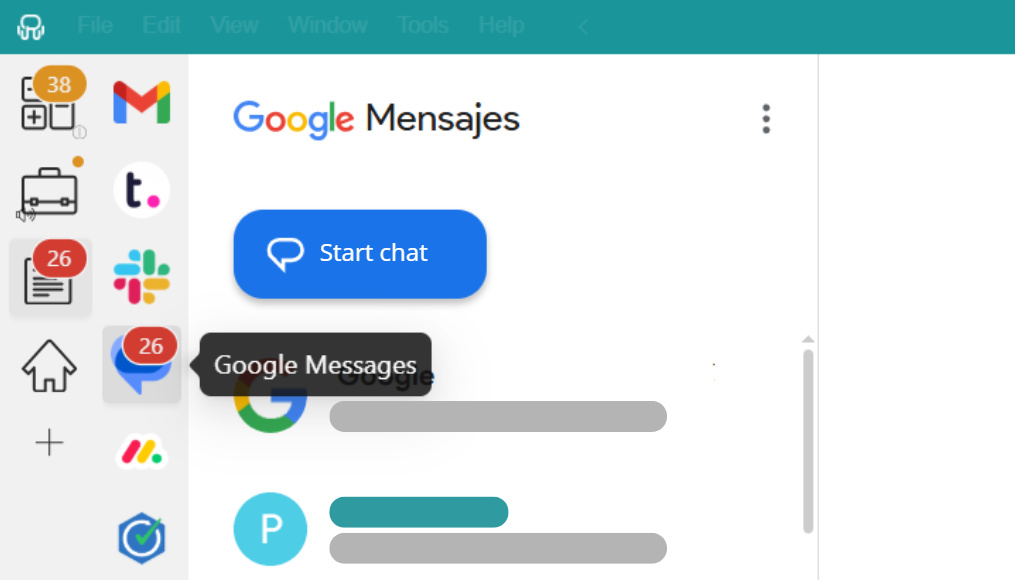

To set it up:
- Sign up and download Rambox on your PC.
- Open Rambox and click “Add an app or workspace”.
- Search for Google Messages.
- Configure the app settings to your liking and click on “Add”.
- On your phone, open the Messages app.
- Tap your profile icon, and choose device pairing.
- Scan the QR on the screen and your conversations will appear.
Want to see how to add apps in Rambox in action? This short step-by-step video shows you how to set it up in minutes:
If Android Messages is something you check often, having it inside Rambox makes your day easier. You reply faster from your keyboard, keep important conversations in sight while you work on other tasks, and stop interrupting your flow by constantly grabbing your phone.
2. Use Android Messages with Google Messages Web
Google offers an official web version of Google Messages (Android Messages) that you can use directly from your browser:
- Go to the Google Messages website.
- On your phone, open the Messages app.
- Tap your profile icon, and choose device pairing.
- Scan the QR code shown on your computer screen, and your conversations will appear in the browser.
This option works well if you only need to check messages from time to time. You open the website, reply to what you need, and close the tab when you’re done.
For daily use, though, it’s easy to forget about it or lose it between tabs. Notifications depend on your browser, and once you close the window, your messages are out of sight. It’s fine for occasional replies, but it’s not the most comfortable setup if messaging is part of your everyday work routine.
3. Use Android Messages as a PWA
You can also use Google Messages (Android Messages) as a PWA, which stands for Progressive Web App. This lets you run Google Messages in its own window on your PC, separate from your browser tabs, even though it’s still a web app underneath.
To set it up:
- Open the Google Messages website in Chrome or Edge.
- From the browser menu, choose the option to install the app.
- After that, Android Messages opens in its own window and you can pin it to your taskbar or dock like any other app.
If you use Android Messages often, this feels better than keeping it lost in a browser tab. You get your own window just for messages. The catch is that if you rely on many web apps during the day, your desktop can quickly fill up with separate app windows and icons, which makes it harder to keep your workspace organized.
Which option is best for using Android Messages on your PC?
Now that you’ve seen the three main ways to use Android Messages on your PC, let’s compare them side by side and see which one fits your daily setup better.
Quick comparison
| Rambox | Google Messages Web | Progressive Web App | |
| Ease of setup | 4/5 ⭐ | 5/5 ⭐ | 4/5 ⭐ |
| Comfort for daily use | 5/5 ⭐ | 2/5 ⭐ | 3/5 ⭐ |
| Keeps everything in one place | 5/5 ⭐ | 2/5 ⭐ | 1/5 ⭐ |
| Reduces tab clutter | 5/5 ⭐ | 1/5 ⭐ | 2/5 ⭐ |
| Good for frequent messaging | 5/5 ⭐ | 2/5 ⭐ | 3/5 ⭐ |
| Fits into a work routine | 5/5 ⭐ | 2/5 ⭐ | 3/5 ⭐ |
| Easy to keep open all day | 5/5 ⭐ | 2/5 ⭐ | 3/5 ⭐ |
| Workspace organization | 5/5 ⭐ | 2/5 ⭐ | 2/5 ⭐ |
| Works well if you use multiple apps at the same time | 5/5 ⭐ | 2/5 ⭐ | 3/5 ⭐ |
Final takeaway
- If you only need to reply to messages once in a while, Google Messages Web does the job. The PWA is more comfortable if you want a separate window just for messages.
- If Android Messages is something you use throughout the day, Rambox is the most convenient option. Having your messages inside the same workspace as the rest of your tools helps you stay organized and avoid the constant back and forth between tabs and windows.
Rambox features that make using Android Messages on PC easier
Using Google Messages (Android Messages) inside Rambox gets even more useful when you take advantage of a few features that are designed to help you stay organized and focused while you work.
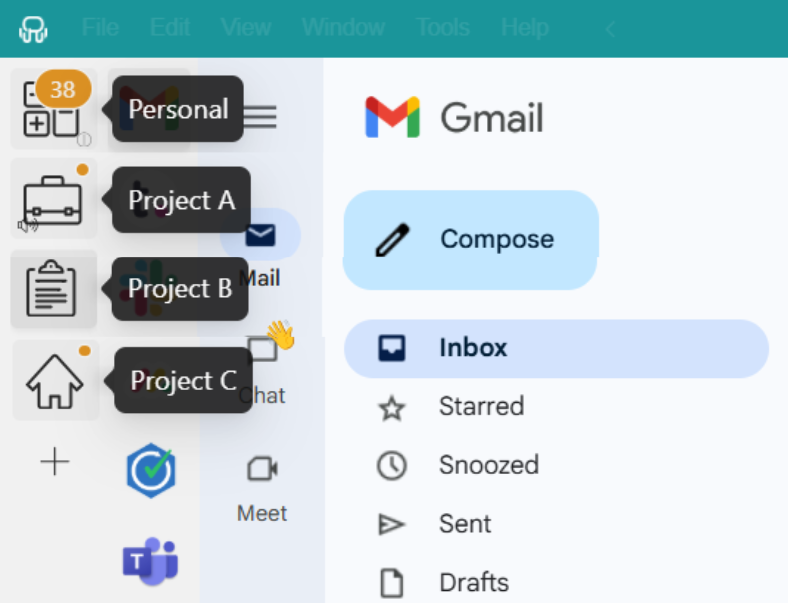
- Rambox workspaces: Workspaces in Rambox work like folders for your apps. You can group Android Messages with related tools, like email or other chat apps, and keep everything in one place. For example, you can have one workspace just for communication and another one for project tools like Trello or Asana, so your apps stay organized and easy to find.
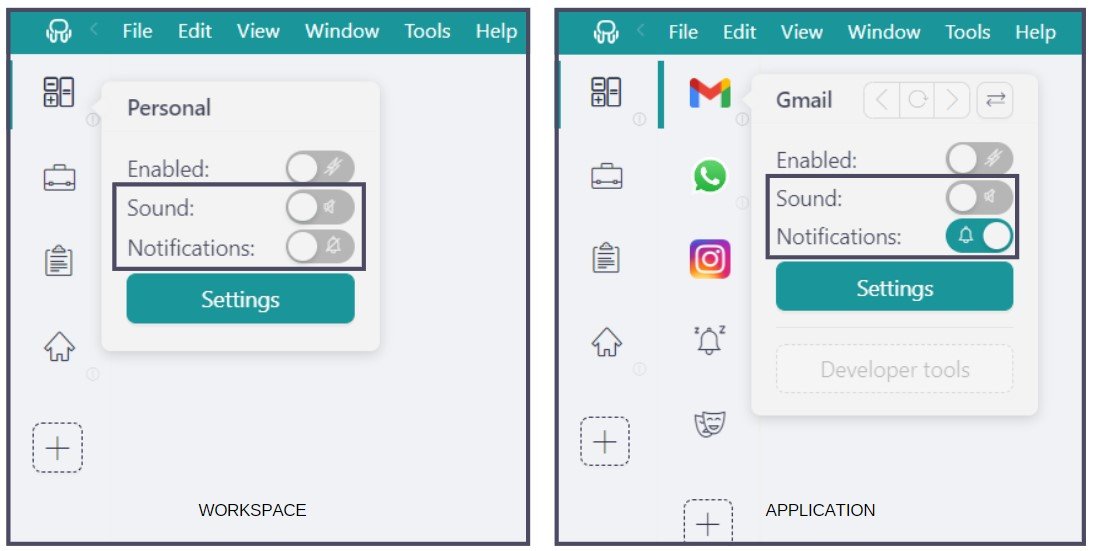
- Customize your notifications: Rambox lets you control how and when you get notifications from Android Messages. With just a right-click on the app, you can choose whether you want desktop notifications, sound alerts, or turn notifications off completely.
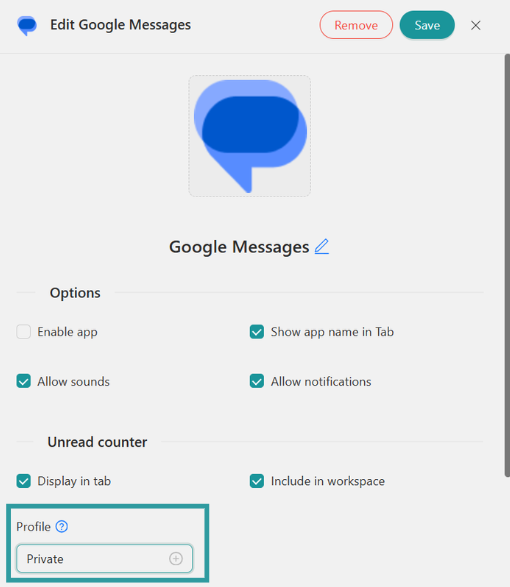
- Profiles for multiple Google Messages accounts: Rambox Profiles let you control how sessions behave inside the app. By using Private profiles, you can stay logged into multiple Google Messages accounts. Each account keeps its own session, so there’s no need to log out or re-authenticate when switching.
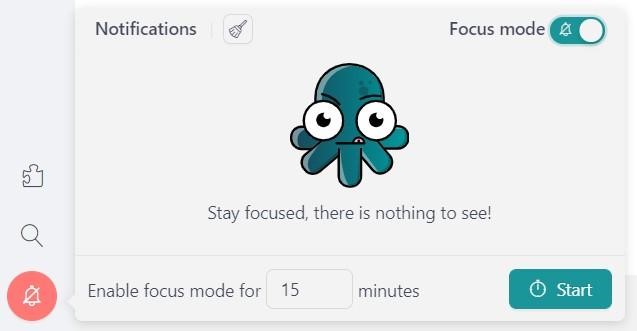
- Focus mode: With just one click, Rambox silences all notifications and sounds across every app. You’ll find the Focus Mode toggle right next to your profile picture, in the Notification Center. Once activated, Rambox mutes everything until you turn it off again. Otherwise, you can set a custom Focus Session timer to end it after a set period automatically.
All these features work together to help you handle messages without letting them take over your day, so you can stay responsive without losing focus on what you’re working on.
Sounds good, right? Try Rambox for free! Just sign up, download the app and you can start enjoying all its features. No cards, no cheating, it’s that simple!
FAQs about Android Messages for PC
These are some of the most common questions people have when they start using Android Messages on their PC.
Does Android Messages on my PC work if my phone is turned off?
No. Your phone needs to be on and connected to the internet for Android Messages to work on your PC. Your computer is basically syncing with your phone, so if your phone is off or has no connection, messages won’t load or send.
Will I receive SMS and RCS messages on my PC?
Yes. When you use Android Messages on your PC, you can receive and send both SMS and RCS messages. What you see on your computer is the same conversation list you have on your phone, so everything stays in sync.
Can I send files and photos from Android Messages on my PC?
Yes. You can send photos and files from Android Messages on your PC, just like you do from your phone. The experience is very similar to the mobile app, so sharing images or attachments from your computer is easy.