
If you work remotely, you already know how easy it is to lose time jumping between tools, tabs, and platforms. The apps you use every day for remote work should help you stay organized and productive, but with so many options, it is hard to know which ones actually make your day easier.
Here you will find a clear selection of the best apps for remote work in 2026, plus ready to use stacks that help you organize tasks, stay focused, and build a daily setup that fits how you really operate.
Contents
Quick comparison table
First, a quick overview. This table lets you see at a glance what each app is best for, where it works, and how it fits into a remote setup. It is the fastest way to compare tools before diving into the full list.
| Best for | Platform | Free plan | Why it matters for remote teams | |
| Rambox | Centralizing all tools | Windows, macOS, Linux | Yes | One workspace for all your apps, fewer tabs, less context switching |
| Slack | Team communication | Web, desktop | Yes | Fast messaging, channels, integrations |
| Zoom | Meetings & calls | Web, desktop | Yes | Stable video calls and screen sharing |
| Notion | Docs & knowledge | Web, desktop | Yes | Notes, docs, databases, team knowledge in one place |
| Asana | Task management | Web, desktop | Yes | Clear ownership, deadlines, and workflows |
| Google Drive | Files & collaboration | Web, desktop | Yes | Easy sharing, real time editing |
| Zapier | Automation | Web | Limited | Connect apps and automate repetitive tasks |
| Calendly | Scheduling | Web | Yes | Simple meeting booking without back and forth |
| Toggl Track | Time tracking | Web, desktop | Yes | Track time and productivity easily |
| Miro | Visual collaboration | Web, desktop | Yes | Whiteboards for brainstorming and planning |
Core Categories of Remote Work Tools
Not all tools solve the same problem, and that is where many remote setups start to break. Some apps help you communicate, others help you organize work, others store information, and others simply keep everything connected. When you mix too many tools that do the same thing, you create friction instead of productivity.
A clean remote setup usually covers a few core needs:
- Communication.
- Task management.
- Documentation.
- File storage.
- Automation.
- Scheduling.
- Collaboration spaces.
Once you understand these categories, it becomes much easier to choose tools that actually complement each other instead of overlapping.
The 10 Best Apps for Remote Work in 2026
Let’s get to the point! Here are the 10 apps I consider essential for working remotely. With just these tools on your computer, you can cover all the core categories mentioned before, without turning your setup into a mess of overlapping platforms.
1. Rambox
One of the hardest parts of working remotely is dealing with too many apps at the same time. Your browser is full of tabs, you have several desktop apps open, and everything feels scattered. Rambox fixes this by putting all your apps in one single place, so you work from one interface instead of constantly switching between tabs and apps.
If you want to see the difference clearly, here is a simple “before and after” example of using Rambox:

Beyond having all your tools together, Rambox also helps you stay organized. You can group your apps into workspaces, like folders, so everything has its place. For example:
- Client 1 with Monday, Teams, and Canva.
- Client 2 with Gmail, Trello, and Figma.
It makes your day feel much more structured and a lot easier to manage.
You also get things like notification control, focus mode, and even proxies for overcoming regional restrictions.
👉🏼 If you want to go deeper, check out How to tackle remote work challenges with Rambox to see how to build a simpler and more productive remote setup.
2. Slack
Slack is a team communication app that brings messages, files, and updates into one single place. Instead of long email chains, conversations are organized in channels, so it is easy to separate projects, clients, and internal topics and always know where each conversation belongs.
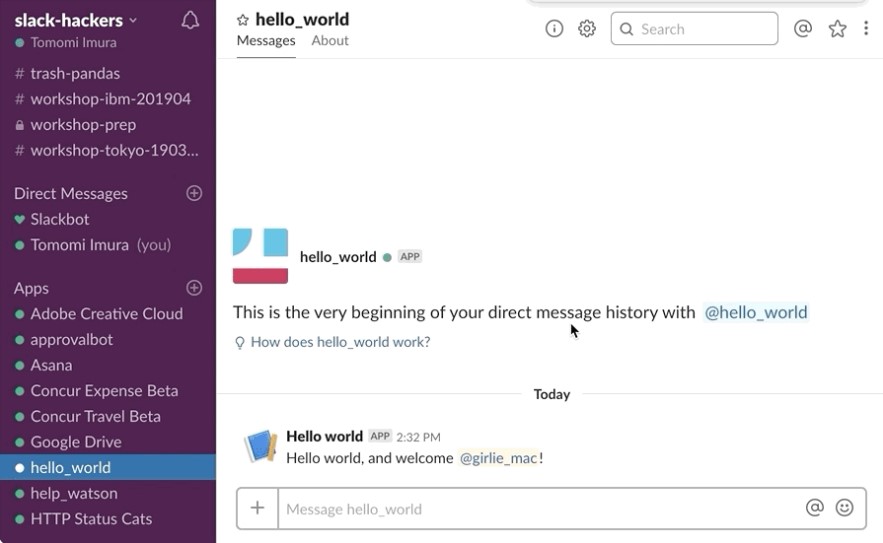
Source: Slack Design
Some of the things you can do with Slack:
- Create channels for teams, projects, or specific topics
- Send direct messages for quick conversations
- Share files and links easily
- Make voice and video calls
- Connect other tools like Google Drive, Asana, Notion, or calendars
- Control notifications so you are not interrupted all day
For remote teams: Slack keeps communication clear and organized without relying on meetings all the time. Everyone knows where to talk, where to find information, and how to stay connected.
3. Zoom
Zoom is a video meeting and calling app designed for online communication. It allows you to meet with teammates, clients, or partners in real time, whether it is a quick catch up, a team meeting, or a full presentation.
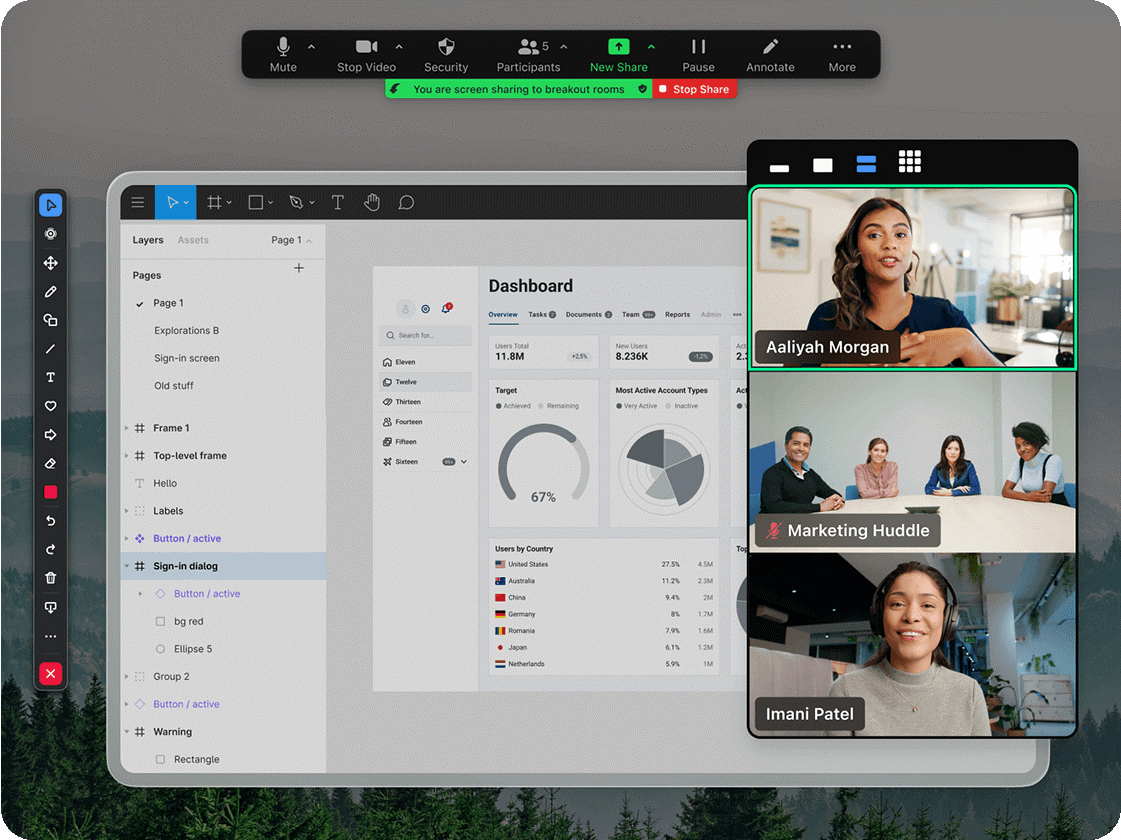
Source: Zoom
With Zoom, you can:
- Join and host video meetings easily
- Share your screen for presentations or demos
- Record meetings to review later
- Use chat during calls for links and quick messages
- Schedule meetings and send invites
- Join calls from desktop or mobile
For remote teams: Zoom is a reliable way to stay connected face to face when real time interaction matters. It works well for team meetings, client calls and onboarding sessions.
4. Notion
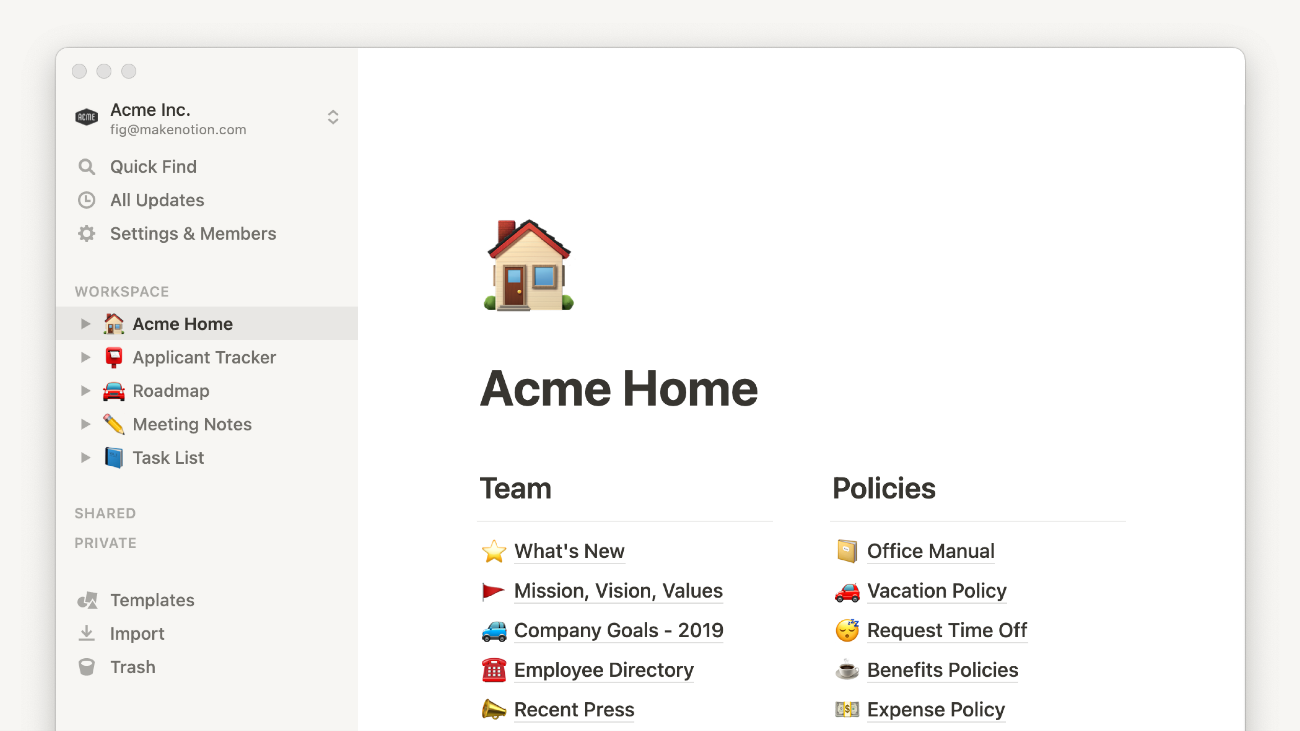
Notion is an all in one workspace for notes, documents, and shared knowledge. It lets you keep information, ideas, and work organized in a single place instead of spreading everything across different docs, folders, and tools.
Source: Notion
With Notion, you can:
- Create notes, docs, and shared pages
- Build simple databases for tasks, content, or projects
- Organize information with folders and pages
- Share content with your team easily
- Work together in real time
- Keep everything searchable and connected
For remote teams: Everyone knows where to find resources, guidelines, project info, and shared knowledge, which makes collaboration smoother and workdays much more organized.
5. Asana
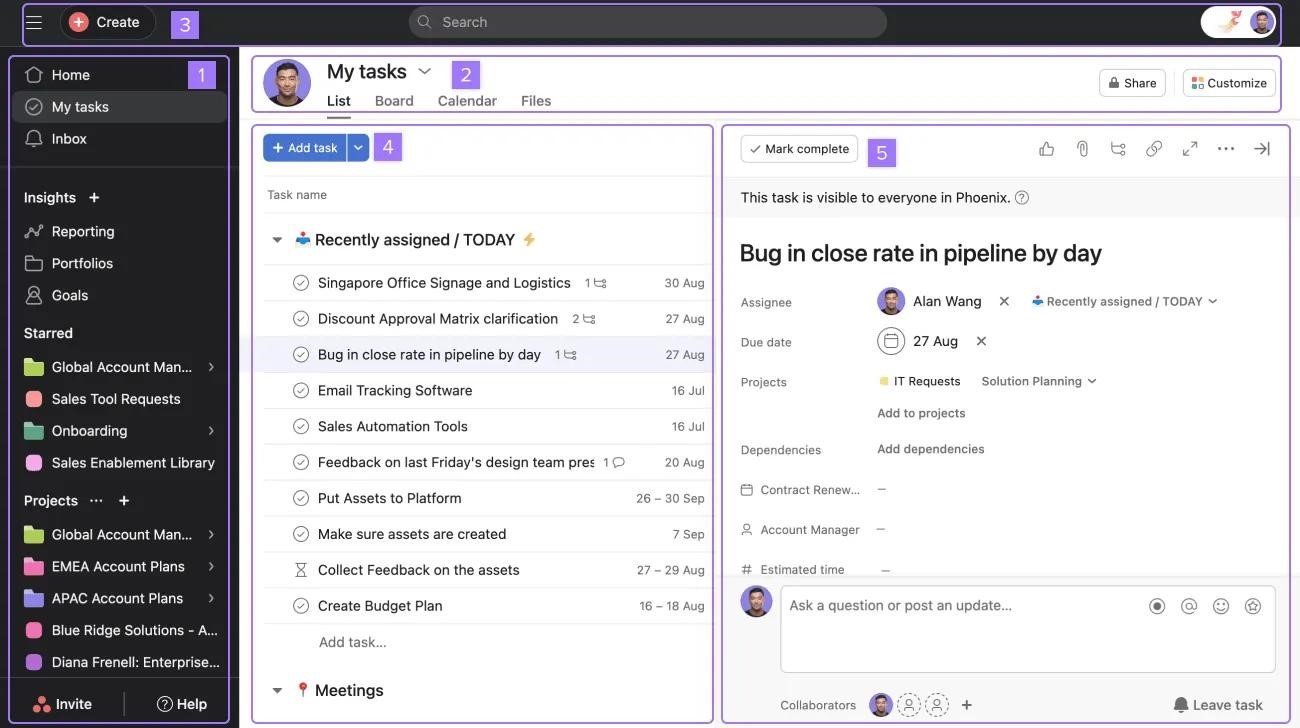
Asana is a task and project management app that helps you organize work, track progress, and keep everyone aligned. Instead of tasks living in chats, emails, or notes, everything is clearly structured in projects and timelines.
Source: Asana Help Center
With Asana, you can:
- Create tasks and subtasks
- Assign work to specific people
- Set deadlines and priorities
- Organize tasks in lists, boards, or timelines
- Track project progress in real time
- Connect it with tools like Slack, Google Drive, and calendars
For remote teams: you always know who is doing what, what is coming next, and what is blocked. It removes confusion, reduces follow ups, and helps teams work in a more organized way.
6. Google Drive
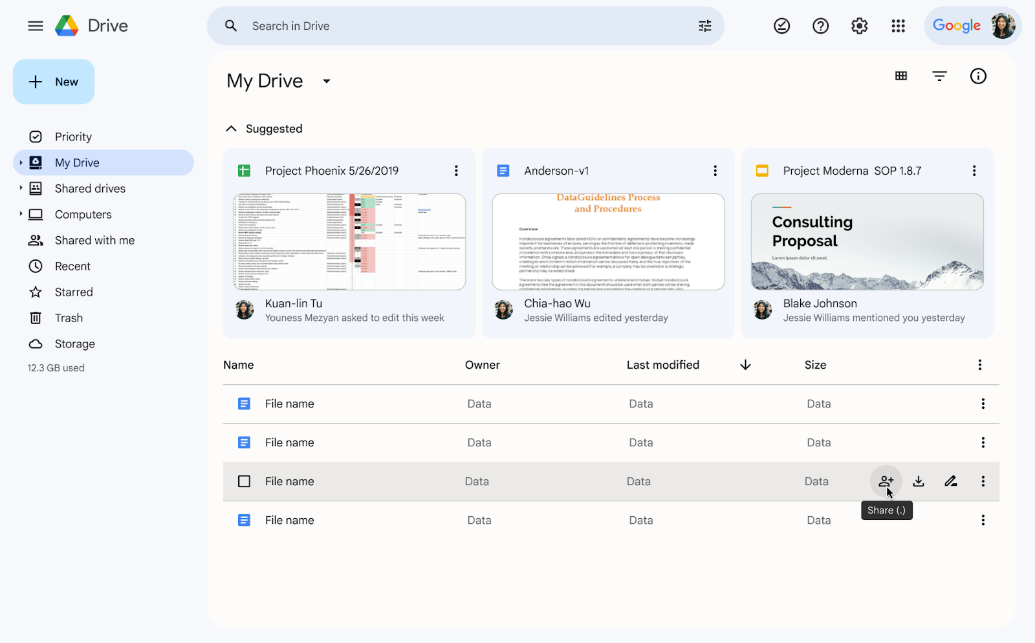
Google Drive is a cloud storage and file sharing platform that lets you store documents, spreadsheets, presentations, and files in one secure place. Instead of sending files back and forth by email, everything lives online and is always accessible.
Source: Google Help
With Google Drive, you can:
- Store files in the cloud
- Share folders and documents with others
- Edit files together in real time
- Control access and permissions
- Keep everything synced across devices
- Work with Docs, Sheets, and Slides directly
For remote teams: Everyone works on the same files, always on the latest version, without confusion or duplicates. It keeps documents organized, accessible, and easy to manage.
7. Zapier
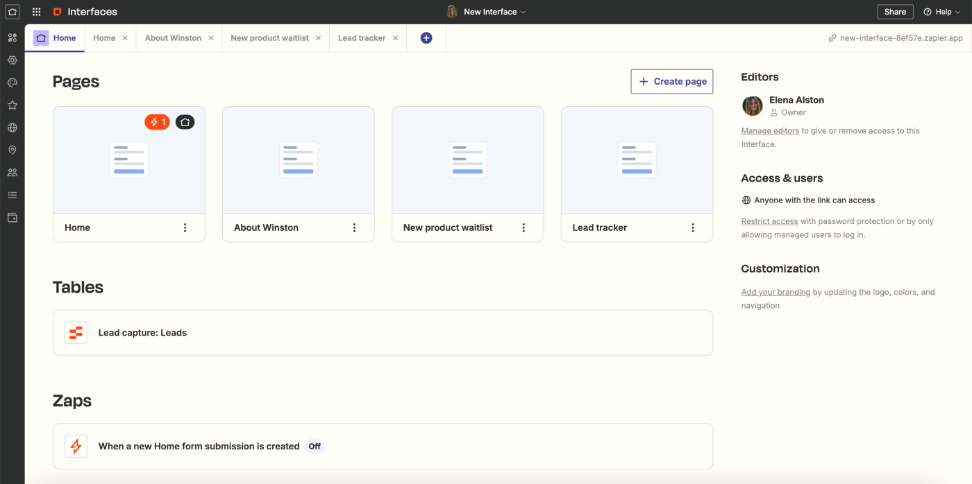
Zapier is an automation tool that connects your apps and makes them work together without manual effort. It lets you automate repetitive tasks, so you stop copying, pasting, and updating the same information across different platforms.
Source: Zapier
With Zapier, you can:
- Connect different apps without coding
- Create automatic workflows between tools
- Sync data between platforms
- Trigger actions when something happens in another app
- Automate repetitive admin tasks
- Save time on daily operations
For remote teams: It removes a lot of invisible friction. Things just happen in the background: updates move between tools, tasks are created automatically, and information flows without manual work.
8. Calendly
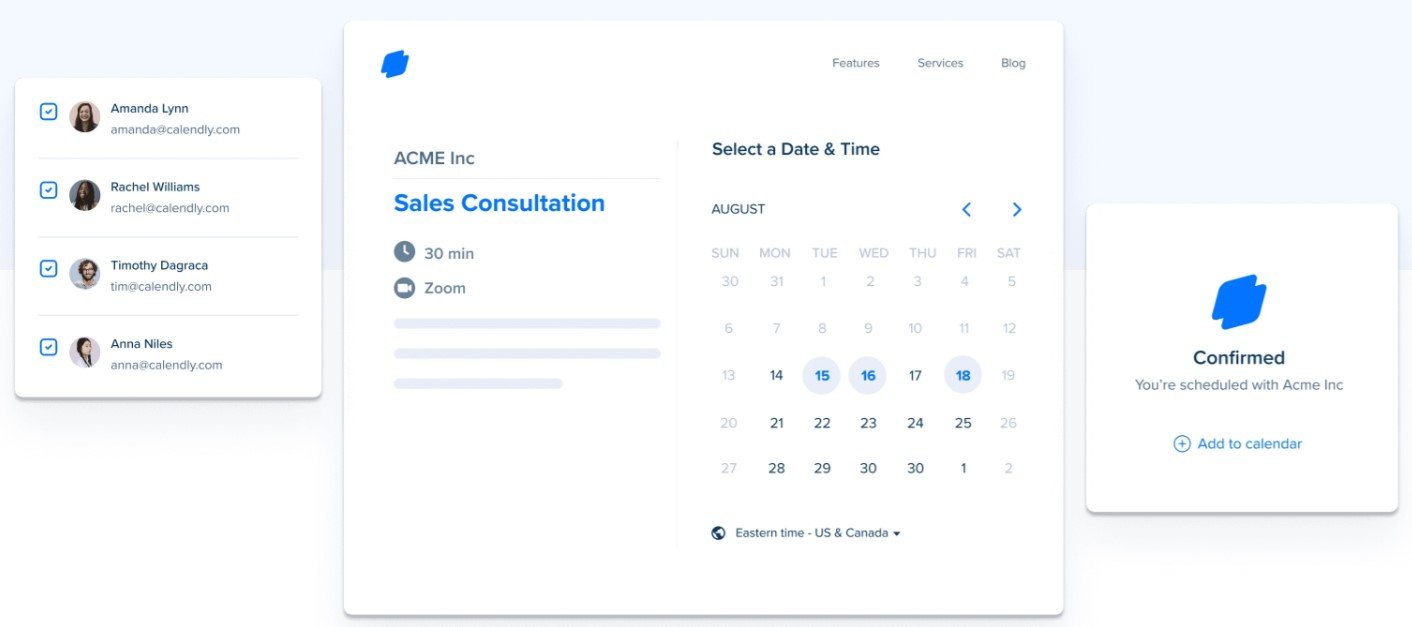
Calendly is a scheduling app that removes the back and forth of finding a time for meetings. Instead of endless messages trying to coordinate availability, you simply share a link and people book a time that works for both sides.
Source: Calendly
With Calendly, you can:
- Share your availability with a personal booking link
- Let others book meetings based on your calendar
- Sync with Google Calendar and other calendars
- Set different types of meetings
- Add buffers between meetings
- Automate confirmations and reminders
For remote teams: Calendly saves time, avoids confusion, and makes it easy to organize meetings with teammates, clients, and partners without filling chats and emails with coordination messages.
9. Toggl Track
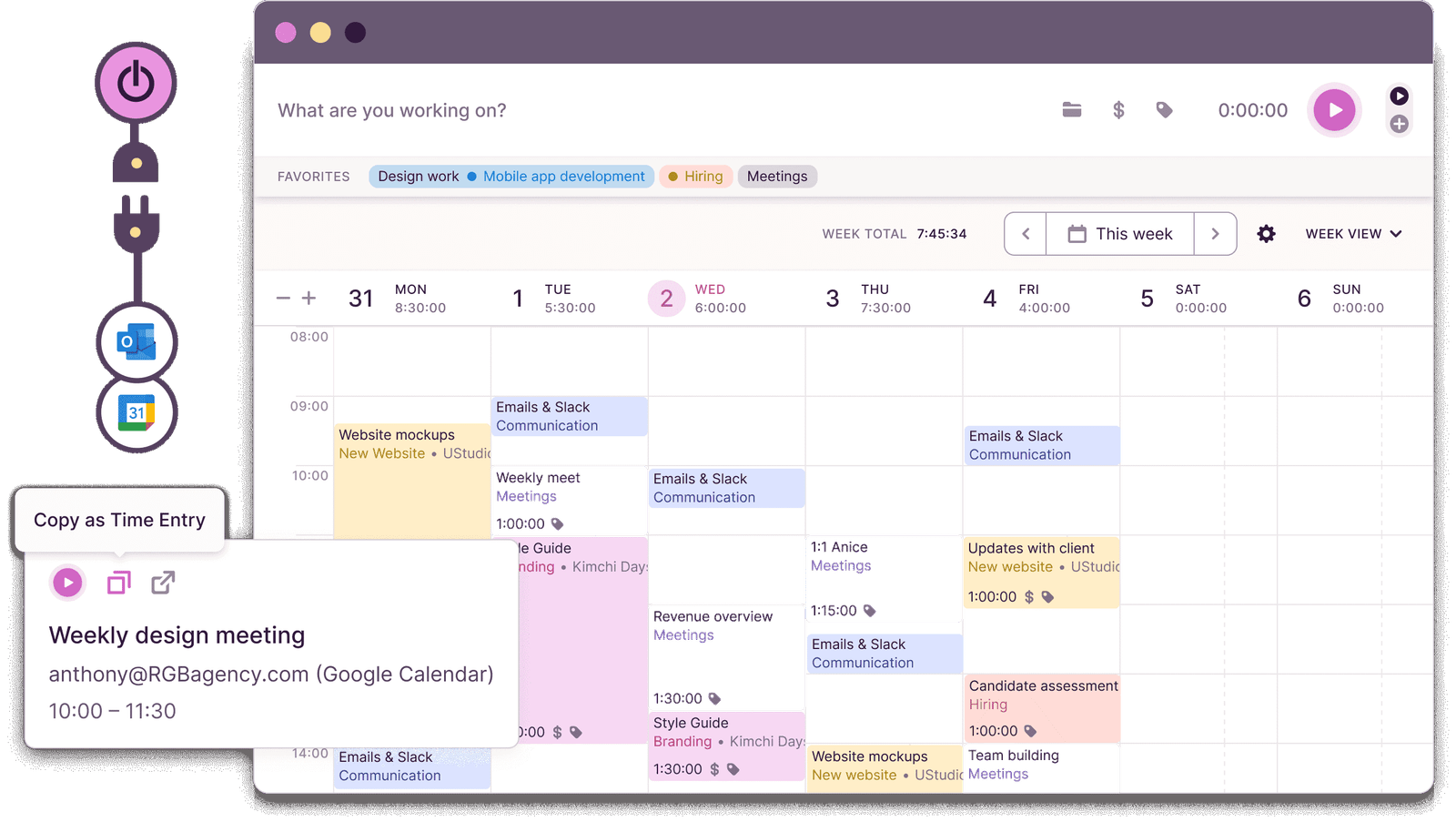
Toggl Track is a time tracking app that helps you understand how you actually spend your day. It lets you track tasks, projects, and activities in a simple way, without turning time tracking into a complicated process.
Source: Toggl Track
With Toggl Track, you can:
- Track time with one click
- Organize work by projects and clients
- See reports and summaries of your activity
- Track productivity patterns
- Use it on desktop, web, or mobile
- Export data for billing or reporting
For remote teams: You can see where your time goes, spot inefficiencies, and manage workloads better. It is especially helpful for teams that bill by hours or work on multiple projects.
10. Miro
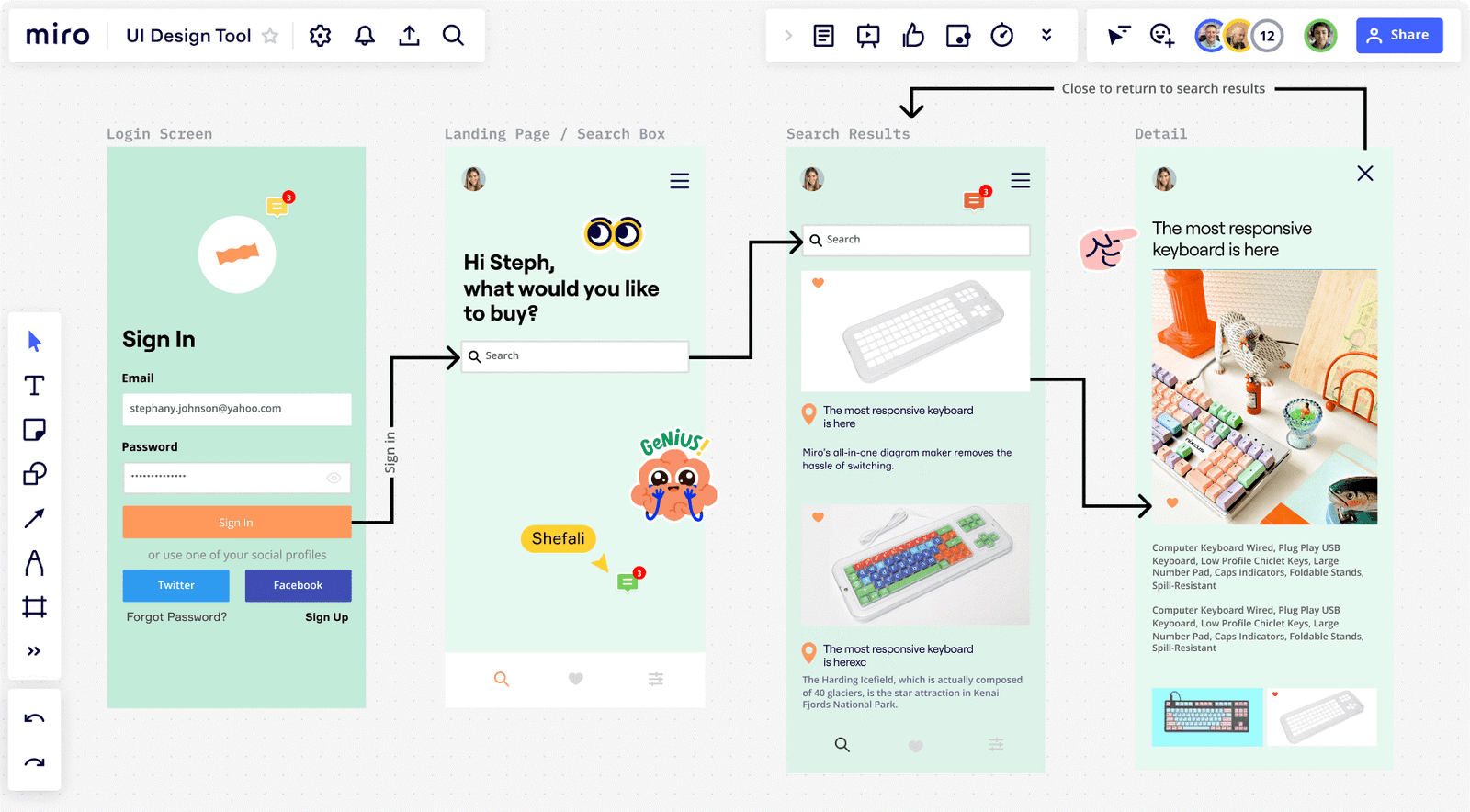
Miro is a visual collaboration tool that works like an online whiteboard. It gives teams a shared space to brainstorm ideas, plan projects, map processes, and work visually, even when everyone is in different locations.
Source: Miro
With Miro, you can:
- Create shared boards for brainstorming and planning
- Add notes, diagrams, and visual elements
- Work together in real time
- Organize ideas and workflows visually
- Share boards with teammates and clients
- Use templates for meetings, workshops, and planning sessions
For remote teams: It makes collaboration more natural, helps people think together, and turns abstract ideas into something visual and easy to understand, even when the team is fully distributed.
Ready to Use Remote Work Stacks
I want to make this easy for you, so I’ve put together ready made setups you can use as they are, depending on how you work and who you work with. Each stack combines the right apps to cover all the key needs of a remote setup, without overcomplicating your day.
Stack A: Solo freelancer
If you work on your own, the goal is simple: stay organized, stay focused, and avoid wasting time managing tools instead of doing real work. This stack gives you everything you need without making your setup heavy or complicated.
| What it’s for | Why it’s useful | |
| Rambox | Your base workspace | Keeps all your tools in one place so you are not jumping between tabs and apps all day. One interface, one workspace, everything visible and under control. |
| Slack | For client communication and quick conversations | Much cleaner than email threads, with all messages, files, and updates in one place. |
| Notion | For notes, project info, ideas, documentation, and personal organization | Your personal workspace where everything important lives. |
| Google Drive | For file storage, contracts, documents, proposals, and shared folders with clients | Easy access from anywhere, always updated. |
| Calendly | For scheduling calls without back and forth emails | Clients book time with you and your calendar stays clean and organized. |
| Toggl Track | For time tracking, billing, and understanding where your time actually goes | Ideal if you work with multiple clients or projects. |
| Zapier | For automating repetitive tasks | Moving data between tools, creating tasks, saving files, or sending notifications automatically. |
✔️ Why this stack works for a solo freelancer
It covers everything a freelancer need: communication, organization, files, scheduling, automation, and time control, without duplication and without unnecessary tools. It keeps your setup simple, your work structured, and your day focused on delivering work.
Stack B: Small team under 15 people
When you work in a small team, the challenge changes. It’s not just about personal organization anymore. You need visibility, coordination, shared information, and tools that help everyone stay aligned without creating chaos.
| What it’s for | Why it’s useful | |
| Rambox | Central team workspace | Everyone works from the same interface, with all apps in one place. No tab chaos, no tool switching, no lost platforms. |
| Slack | Team communication | Daily conversations, updates, files, and quick decisions in one clean space instead of scattered emails. |
| Asana | Task and project management | Clear task ownership, deadlines, priorities, and project visibility for the whole team. |
| Notion | Shared knowledge and documentation | Team docs, processes, project info, internal guides, and onboarding content in one shared space. |
| Google Drive | File storage and collaboration | Shared folders, documents, and real time collaboration on files and resources. |
| Zoom | Meetings and calls | Simple video calls for internal meetings, client calls, and team syncs. |
| Zapier | Automation | Connects tools and automates repetitive work between apps, reducing manual tasks for the team. |
| Calendly | Scheduling | Easy booking for client calls and internal meetings without back and forth coordination. |
✔️ Why this stack works for a small team
It gives structure without complexity. Everyone knows where communication happens, where tasks live, where files are stored, and where information is documented. It keeps the team aligned, reduces friction, and lets people focus on working instead of managing tools.
How to choose the right apps for remote work
Choosing tools for remote work is not about picking the most popular apps or the ones with the longest feature lists.
Here’s how to choose the right apps for remote work:
- Start from your real needs, not from tools
- Make sure every app solves a clear problem
- Avoid using multiple tools for the same task
- Keep your setup simple and easy to manage
- Choose apps that work well together
- Think in workflows, not isolated tools
- Prioritize clarity and ease of use over features
Common Mistakes When Choosing Remote Work Apps
Most remote setups do not fail because of bad tools, but because of bad decisions when choosing them.
Here are some of the most common mistakes that end up creating chaos instead of productivity:
- Choosing apps because they are popular, not because you actually need them
- Using multiple tools that do the same thing
- Adding new tools without removing old ones
- Overcomplicating simple processes
- Ignoring how tools work together
- Choosing tools that are hard to use instead of easy to adopt
Why Putting Everything in One Workspace Helps
Working remotely feels much harder when your tools are spread everywhere. Tabs in your browser, different desktop apps, multiple logins, and constant switching from one place to another. It breaks your focus, slows you down, and makes even simple tasks feel heavier than they should. Having everything in one workspace changes that. You work from a single place, stay more focused, and your day feels simpler and more organized.
All the apps mentioned in this article can be used inside Rambox, so instead of jumping between tools, you can manage everything from one single interface.
To add any app to Rambox, you only need to follow three simple steps:
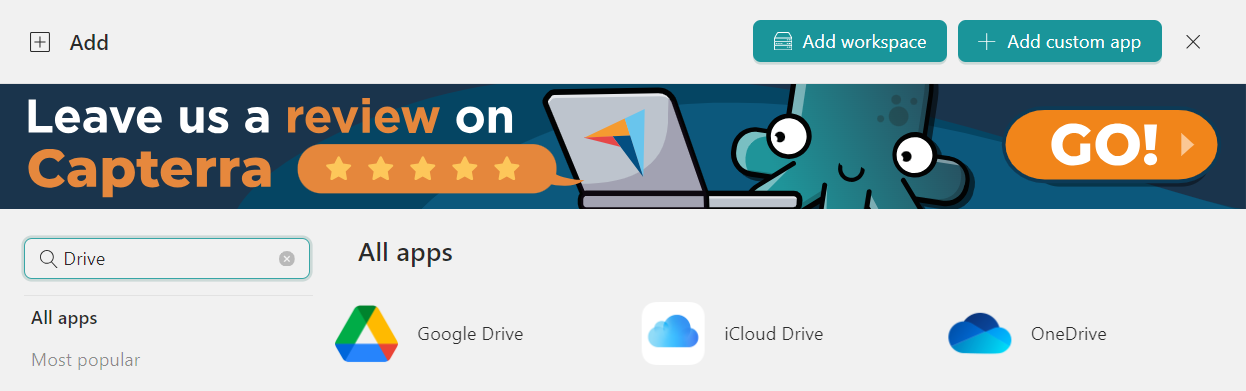
- Click the “+ Add an app or workspace” button on your main panel.
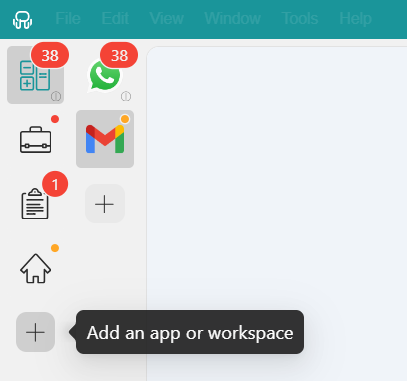
- Type the name of the app you want to add into the search bar and select it from the list of predefined services.
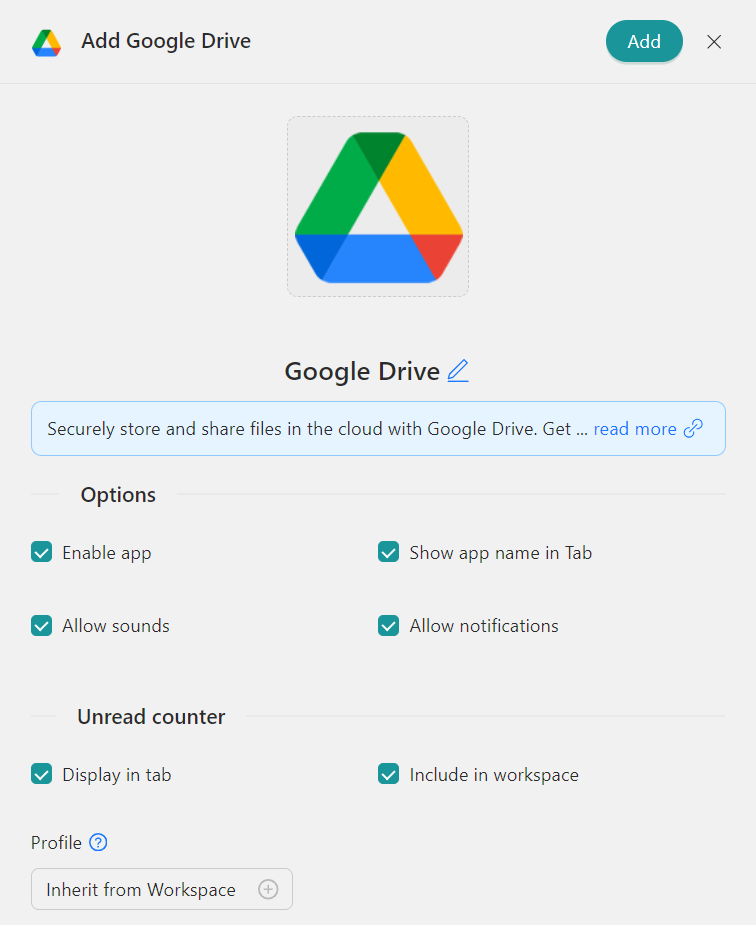
- Customize the app settings: enable OS notifications, app sounds, assign a specific profile, and more. Then, click on “Add” and the app will be added to your workspace.
That’s it! That’s how easy and simple you can work with your apps in Rambox.
Try Rambox for free! Just sign up, download the app, and start simplifying your workflow today.
FAQs about apps for remote work
Which app is best for a work from home job?
There is no single “best” app, because it depends on how you work. What matters is having the right combination: one place to organize your tools, one way to communicate, one system for tasks, and one space for files and information.
Which app is best for a work from home job?
A good stack for a small team is one that keeps things clear and simple. You need a central workspace, one communication tool, one task manager, one place for files, and one space for shared knowledge.
How many tools do remote teams really need?
Fewer than most people think. Most remote setups work well with a small group of well chosen apps that cover communication, organization, files, scheduling, and coordination. Adding more tools usually creates more friction, not more productivity.
What should I prioritize: chat, tasks, or docs?
You need all three, but structure matters more than the tools themselves. Chat is for communication, tasks are for execution, and docs are for knowledge. When each one has a clear role and does not overlap with the others, your workflow becomes easier to manage and much more efficient.