Last Updated: September 14, 2026
If you work in marketing, customer support, content production, or manage social media for different brands, you may need more than one Snapchat account. You might handle different clients, separate personal and professional activity, or use individual accounts for different projects.
The challenge is not creating separate accounts. It is keeping their sessions organized when you need to use several of them from the same computer. Repeated logins, different browser windows, and scattered sessions can quickly make the workflow harder to manage.
In this guide, we’ll explain how multiple Snapchat accounts actually work, why Public Profiles are different from separate accounts, and the main ways to manage several Snapchat sessions on your PC.
Can you have more than one Snapchat account?
Yes, you can have more than one Snapchat account.
Snapchat’s own support documentation acknowledges that a person can have more than one account. However, each Snapchat account remains separate, with its own login information, settings, activity, and session.
Snapchat does not document an official multi-account selector for separate personal accounts comparable to the account-switching systems available in some other messaging or social platforms.
That means the main challenge for users who work with several accounts is deciding how to keep those sessions separate and easy to access, especially on a computer.
Public Profiles are not the same as multiple Snapchat accounts
This distinction is important because Snapchat has a Profile Switcher, but it does not work as a switcher between separate Snapchat accounts.
Snapchat’s Profile Switcher is designed for users who are eligible to manage multiple Public Profiles. From the profile management page, eligible users can move between their Public Profiles or create an additional one.
A Public Profile is a public-facing presence associated with Snapchat features such as public Stories, Lenses, subscribers, and audience insights. It is not another independent Snapchat account with a separate username and login session.
So if you manage several completely separate Snapchat accounts, the Public Profile Switcher does not solve the problem of keeping those account sessions open independently.
How to manage multiple Snapchat accounts on your PC
If you regularly work with several separate Snapchat accounts, there are a few practical ways to keep the sessions organized on your computer.
The right option depends on how many accounts you use, how often you switch between them, and whether you want the sessions grouped in one interface or spread across different browser environments.
1. Keep separate Snapchat sessions organized in Rambox
One option is to use Rambox to organize separate Snapchat web sessions alongside the rest of your work apps.
Instead of spreading your accounts across different browser windows, Rambox lets you create separate app instances and organize them inside the same desktop interface.
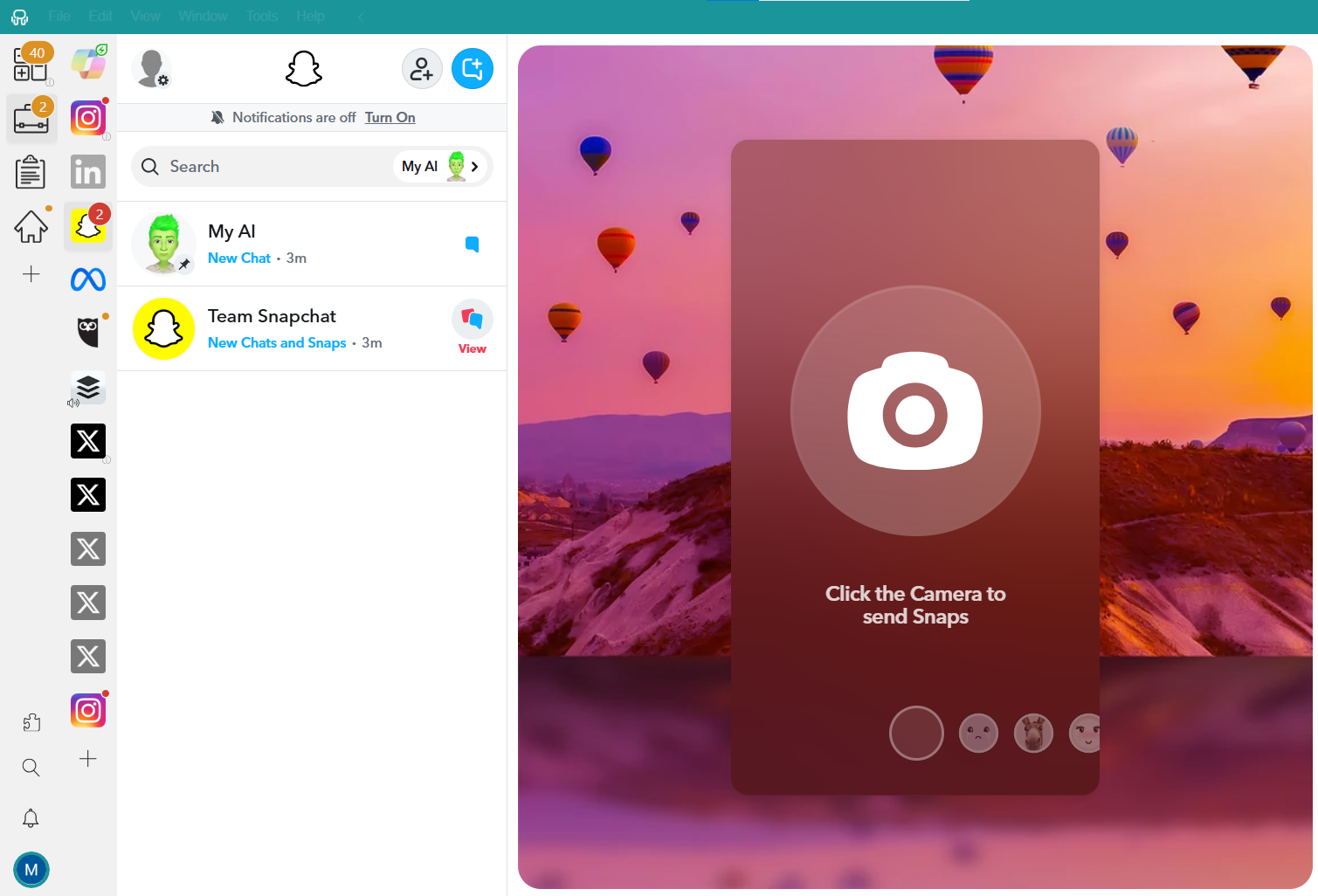
This can be useful if you manage different brands, clients, or projects. For example, you can create one Workspace for your social media tools and include Snapchat alongside apps such as LinkedIn, Instagram, X, or Buffer.
Alternatively, you can create a Workspace dedicated to Snapchat and keep separate Snapchat instances grouped together.
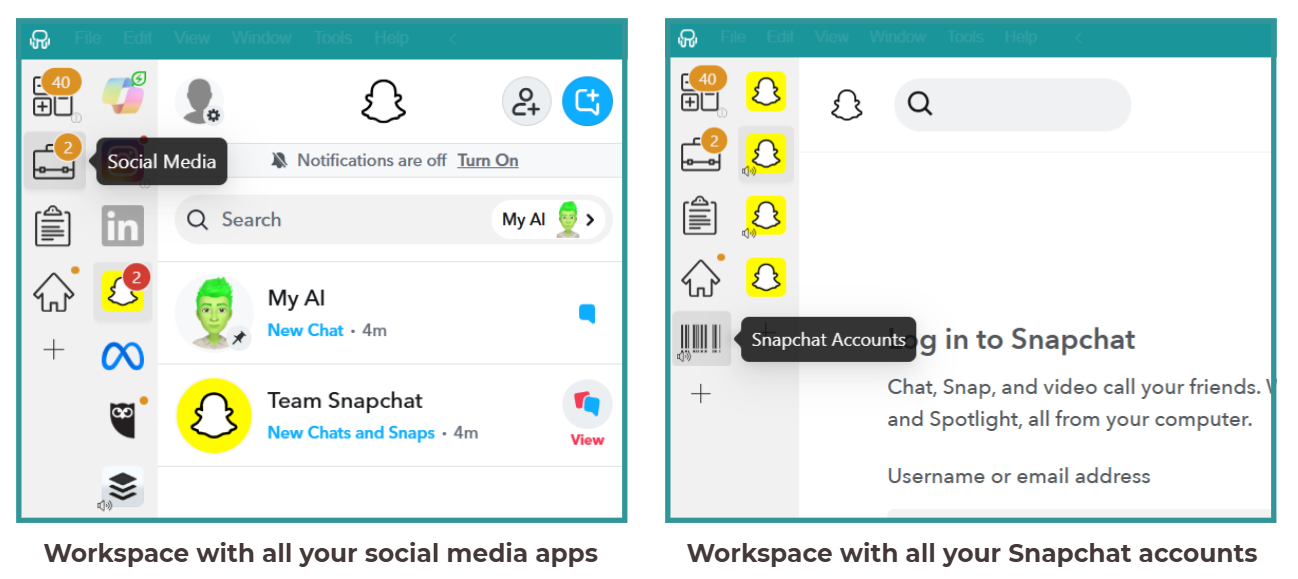
The number of app instances available depends on your Rambox plan, so check the current plan limits before deciding how many Snapchat sessions you want to organize.
To add Snapchat to Rambox:
- Sign up and download Rambox.
- Click the “+ Add an app or workspace” button in the main panel.
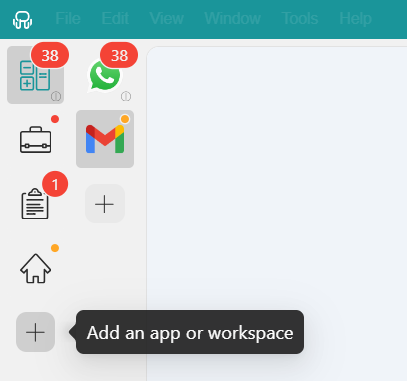
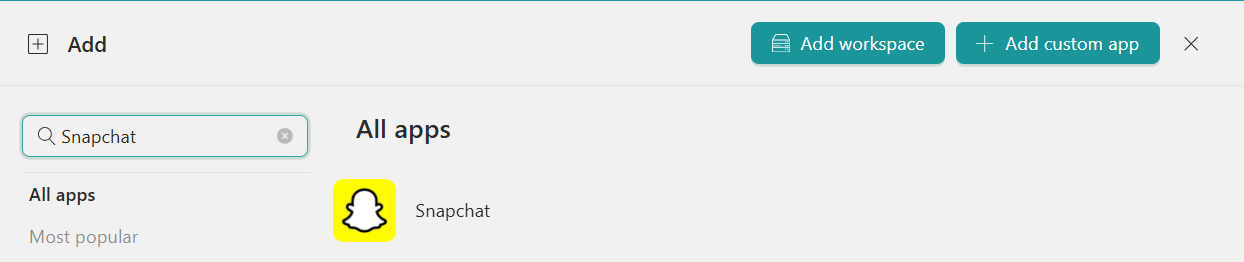
- Type “Snapchat” in the search bar and select it from the list.
- Customize the Snapchat settings you want to use, including notifications, sounds, and session options.
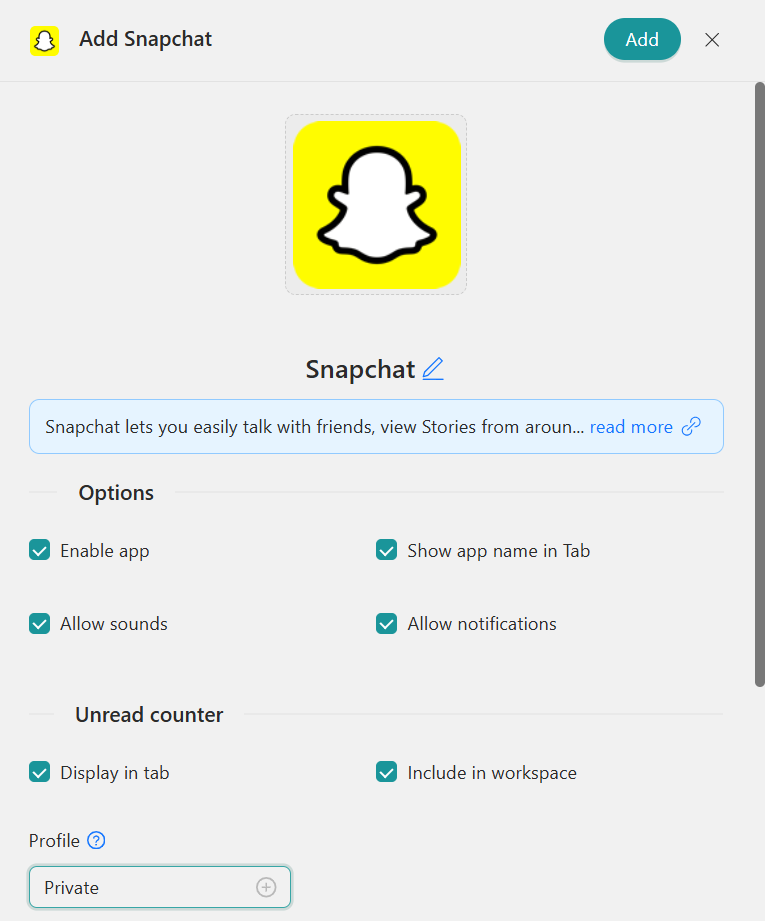
- Click “+ Add” to create the Snapchat app instance.
Repeat the process for the separate Snapchat sessions you want to organize.
When using Snapchat through any third-party environment, use Snapchat’s normal web login and avoid unauthorized plugins, modified Snapchat clients, emulators, or tools that request your Snapchat credentials outside the official login flow.

2. Use different browser profiles
Another way to manage separate Snapchat sessions on your PC is to use different browser profiles.
Browser profiles keep cookies, logins, and browsing data separated. This can let you maintain a different Snapchat Web session in each browser profile without mixing their session data.
For example:
- Chrome: create separate Chrome profiles for the accounts you need to isolate.
- Edge: use separate Edge profiles with independent browsing data.
- Safari: use separate profiles where supported by your macOS version.
This can work well for a small number of accounts, but each profile usually adds another browser window to your desktop. If you already use many work tools, the setup can become cluttered quickly.
3. Use different browsers
You can also use a different supported browser for each Snapchat Web session. For example, you could keep one session in Chrome, another in Edge, and another in Safari.
Because each browser maintains its own cookies and session data, the accounts remain separated.
The disadvantages are mostly practical:
- More resource usage: running several full browsers at the same time can increase memory and CPU consumption.
- More windows to manage: it can become difficult to remember which account is open in which browser.
- Less convenient at scale: this can work for a small number of accounts but becomes harder to manage as your setup grows.
Can you stay logged in to multiple Snapchat accounts at the same time?
Snapchat does not document a built-in multi-account switcher that keeps several separate personal accounts available inside one Snapchat session.
Snapchat for Web also has an important limitation: you can only be logged in to Snapchat for Web on one computer at a time. Signing in on another computer logs you out of the previous one.
However, on the same computer, separate browser environments can keep session data isolated. This is why browser profiles, different supported browsers, or separate web-app instances can be useful when you need to organize different Snapchat logins.
The important distinction is that these methods separate browser sessions; they do not create an official Snapchat multi-account feature.
What are the risks when managing multiple Snapchat accounts?
The main risk is not simply having more than one Snapchat account. Problems can arise when Snapchat detects activity that violates its Community Guidelines or Terms of Service, suspicious activity, compromised accounts, banned devices, or unauthorized third-party software.
Snapchat specifically warns against unauthorized third-party apps, plugins, tweaks, and emulators. Using them can cause login problems and may result in an account being locked.
To reduce unnecessary account problems:
- Use Snapchat’s official login flow when accessing your account.
- Avoid unauthorized Snapchat clients, plugins, modifications, and emulators.
- Do not share your Snapchat password with tools that ask for it outside Snapchat’s normal authentication process.
- Avoid spam or other activity that violates Snapchat’s rules.
- Verify your email address or phone number to improve account security.
No setup can guarantee that an account will never face a security check or lock, so the safest approach is to follow Snapchat’s official security guidance and Terms of Service.
How to create multiple Snapchat accounts
Each Snapchat account needs its own account setup. Snapchat lets you sign up using a phone number, or you can choose to sign up with an email address instead.
Snapchat also notes that while you can have more than one account, only one email address and/or mobile number can be verified per account at a time. If the same contact information is verified on a newer account, it may be removed from the previous one.
For a cleaner setup:
- Use a separate email address for each account you want to keep independently verified.
- Follow Snapchat’s normal sign-up process.
- Create a unique, strong password for every account.
- Store your credentials securely in a password manager.
- Enable the available account security and verification options.
Keeping login details clearly separated also makes it easier to identify which account belongs to each client, project, or use case.
What’s the best way to manage multiple Snapchat accounts on PC?
All three methods can be useful depending on how many accounts you manage and how frequently you use them.
| Method | Pros | Cons |
| Rambox | Keeps separate Snapchat web sessions alongside your other work apps | Requires installing Rambox |
| Separate app instances help organize different sessions | Available app instances depend on your Rambox plan | |
| Workspaces can separate clients, projects, or teams | ||
| Keeps your work apps in one interface | ||
| Browser profiles | Separate cookies and login sessions | Creates additional browser windows |
| Easy to configure for a small number of accounts | Can become cluttered as the number of profiles increases | |
| Different browsers | Simple way to isolate a few sessions | Running several browsers can increase resource usage |
| Each browser maintains its own cookies | Easy to lose track of which account is open where |
If you only manage one or two additional accounts, browser profiles or separate browsers may be enough. If you already work with many web apps and want the sessions grouped in one interface, Rambox can offer a more centralized workflow.
Best practices to keep multiple Snapchat sessions organized
If you use Rambox to organize Snapchat alongside your other work apps, several features can help keep the sessions easier to distinguish.
Session Management
Rambox’s Session Management lets you assign different Profiles to app instances. When you need an isolated session for a Snapchat instance, you can use the Private profile and then sign in through the Snapchat interface.
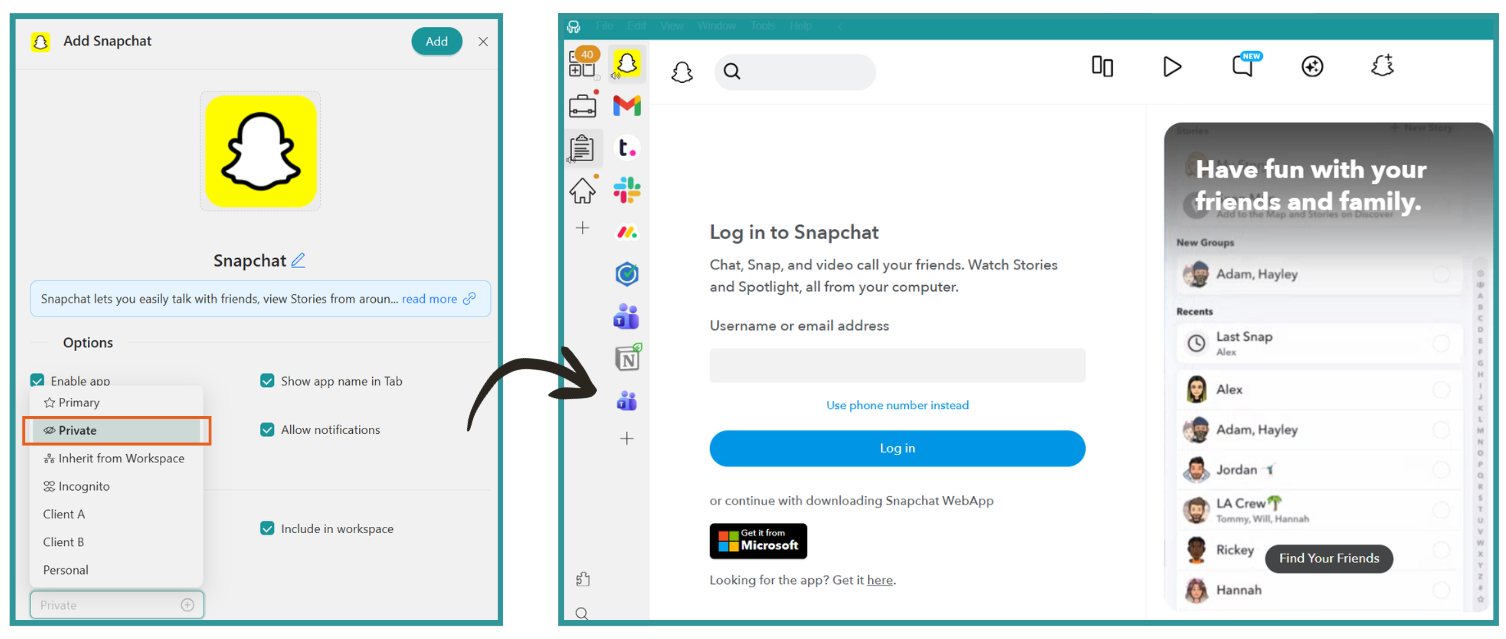
Keeping different Snapchat instances separated can make it easier to distinguish client, project, test, or personal sessions.
Workspaces
If you manage social accounts for different clients, markets, or campaigns, Workspaces can help group the tools related to each context. For example, a client Workspace could contain Snapchat alongside email, Drive, Slack, TikTok, and other tools used for that account.
Notification control
Rambox also lets you configure notifications for individual apps and Workspaces, mute apps when you need to focus, and review supported alerts through the Notification Center.

These features do not change Snapchat’s own account rules, but they can make your desktop workflow easier to organize when you work with several separate sessions.
FAQ: Multiple Snapchat accounts
Can you link multiple Snapchat accounts?
Snapchat does not document a feature for combining several independent Snapchat accounts under one login or account dashboard. Each account has its own login and session.
Do not confuse this with Snapchat’s Profile Switcher, which is designed to manage eligible Public Profiles rather than separate Snapchat accounts.
Can I have a second Snapchat account?
Yes. Snapchat’s support documentation acknowledges that users can have more than one account. Keep the login and verification information for each account clearly separated so that you can manage them independently.
Does using multiple Snapchat accounts increase the risk of account locks?
Having separate accounts is not listed by Snapchat as an automatic reason for an account lock. Snapchat does, however, warn that suspicious activity, spam, banned devices, and unauthorized third-party apps or plugins can lead to security checks or account locks.
Use Snapchat’s official login process and avoid unauthorized clients, plugins, tweaks, and emulators.
Can I create a Snapchat account without a phone number?
Yes. During the Snapchat sign-up process, you can choose “sign up with email instead” if you do not want to use a phone number.
Remember that only one email address and/or mobile number can be verified per Snapchat account at a time.
If you regularly manage several Snapchat accounts alongside other web apps, Rambox can help you keep those sessions organized in one desktop workspace.
Try Rambox for free and organize your Snapchat sessions alongside the rest of your work apps.