Seeing Desktop Window Manager (dwm.exe) using a big chunk of your GPU can be alarming. You open Task Manager, move a window around, and suddenly the GPU column jumps to 20%, 40%, or even higher.
The tricky part is that high GPU usage from DWM doesn’t always mean there’s a real problem. Sometimes it’s caused by a driver setting, a display configuration, or even a single app forcing Windows to redraw the screen constantly.
In this guide, you’ll learn how to tell the difference between normal behavior and a real issue, how to quickly identify what’s triggering the spikes, and the safest fixes to bring GPU usage back under control.
Contents
- What is Desktop Window Manager (dwm.exe), and why does it use your GPU?
- When “high GPU” is actually normal (and when it’s not)
- Quick diagnosis (2 minutes)
- The most common causes (mapped to what you’ll notice)
- Fixes, from safest to most invasive
- Update Windows (and reboot properly)
- Update GPU drivers the safe way (or roll back if it started after an update)
- Reset NVIDIA Control Panel global 3D settings
- NVIDIA power management mode and why it changes the % you see
- Turn off Hardware-Accelerated GPU Scheduling (HAGS)
- Check HDR and display settings (resolution + scaling)
- Multi-monitor fixes (high refresh + mixed displays)
- Make sure your monitor is connected to the correct port
- Reduce visual effects (if you’re on older hardware)
- Background apps and overlays that can trigger constant composition
- Run system checks (SFC) and malware scan if behavior is unexplained
- Last resort: System Restore
- FAQ about desktop window manager high GPU
What is Desktop Window Manager (dwm.exe), and why does it use your GPU?
Desktop Window Manager, or dwm.exe, is the Windows process that draws everything you see on the screen. It handles windows, animations, transparency, taskbar previews, and the general desktop appearance.
Instead of each app sending graphics directly to the display, Windows uses DWM to combine all visual elements into a single image. This makes the interface smoother, but it also means the process relies on your GPU.
When “high GPU” is actually normal (and when it’s not)
Not every spike in DWM GPU usage is a problem. Moving windows, switching between apps, or playing a video can temporarily push the percentage up, especially on high refresh rate monitors. These short jumps are part of how Windows renders the desktop.
On most systems, this is what normal behavior looks like:
- Idle desktop: around 0% to 3%
- Moving or resizing windows: short spikes to 10% or 20%
- High refresh rate monitors or animations: brief jumps up to 30% can be normal
A real problem follows a different pattern. The system stays heavy even when you are not doing much, and the numbers do not go back down after you stop interacting with the screen.
This is what abnormal behavior looks like:
- Idle usage above 10% with nothing open
- Spikes reaching 40% or more from simple tasks
- Stuttering, slow response, or fans running constantly
Quick diagnosis (2 minutes)
You can usually pinpoint what is causing DWM GPU spikes in 2 minutes. The idea is simple: confirm it is really DWM, figure out what triggers the jump, and run one quick isolation test to narrow it down.
Confirm it’s DWM and not another process
Open Task Manager and sort processes by the GPU column. Make sure the usage you see is actually coming from Desktop Window Manager (dwm.exe) and not from a browser or another app.
If another program is using most of the GPU, the problem is not DWM itself, even if the desktop feels slow. In that case, focus on the app at the top of the list first.
Identify the trigger
Now check when the GPU percentage goes up. Try a few simple actions and watch how DWM reacts.
Move a window around the screen, resize it, or switch between two apps. Open a video or scroll through a page with animations. If the spikes appear only during these actions and drop right after, the behavior is likely normal.
Pay attention to specific situations. Does it happen only with a second monitor connected? Only with HDR enabled? Only when a certain app is open? These details will point you to the real cause much faster than random tweaks.
✔ Bonus: if a specific app is the trigger
Rambox can help in this situation by letting you run multiple apps inside a single workspace and monitor them individually.
You can enable or disable apps one by one, check how each of them affects DWM, and even use the inject JavaScript and CSS code option to reduce animations or live elements that force constant redraws.
The fastest isolation test
Close everything you can for a moment. Leave only the desktop visible and watch the GPU usage for a few seconds. If the numbers go back to the normal idle range, one of the apps you closed is the trigger.
Open your apps again one by one. Each time you launch something, check how DWM reacts. This simple process quickly reveals whether the issue is tied to a specific program, a browser tab, or a display setup.
If the usage stays high even with all apps closed, the cause is more likely related to drivers, Windows settings, or the monitor configuration.
The most common causes (mapped to what you’ll notice)
High GPU usage from DWM usually falls into a few clear categories. Matching what you see on your PC with one of these patterns makes the fix much easier.
| What you notice | Most likely cause |
| Spikes started right after a Windows or GPU driver update | Graphics driver conflict or a new default setting such as Hardware Accelerated GPU Scheduling |
| Problem appears only with two monitors, mixed refresh rates, or HDR | Display configuration is forcing Windows to redraw the screen more than necessary |
| Usage jumps only when certain apps are open | Those apps are triggering constant composition through animations, overlays, or live content |
| Percentage looks high but performance feels normal | The GPU is running at low power clocks, making light activity appear larger in Task Manager |
Fixes, from safest to most invasive
Now let’s move to the practical part. The smartest way is to start with the simple and safe fixes, check if they work, and only then move to the deeper ones.
Most people solve the issue within the first few steps, without reinstalling drivers or touching advanced settings. After each fix, take a quick look at Task Manager and see if DWM behaves better.
Update Windows (and reboot properly)
Many DWM problems come from bugs that Microsoft has already fixed, so the first step is to update Windows.
- Open Settings, go to Windows Update, and click Check for updates.
- Install everything that appears, including optional driver updates if Windows offers them.
When the installation finishes, restart your PC. Do not use sleep or hibernate. A full reboot ensures that display drivers and system components load cleanly.
Update GPU drivers the safe way (or roll back if it started after an update)
Graphics drivers have a direct impact on DWM. An outdated or buggy driver is one of the most common reasons for high GPU usage.
To update your driver safely:
- Download the driver from the official source for your GPU
- NVIDIA users can use GeForce Experience or the NVIDIA driver page
- AMD users can use Adrenalin Software or the AMD support site
- Intel graphics users can use Intel Driver and Support Assistant
- Install the driver and restart your PC
- Check Task Manager again to see if DWM usage improved
If the issue started after a recent driver update, roll back instead:
- Open Device Manager
- Expand Display adapters
- Right click your GPU and select Properties
- Go to the Driver tab
- Click Roll Back Driver
- Restart the PC and test again
Reset NVIDIA Control Panel global 3D settings
Custom settings in the NVIDIA Control Panel can affect how Windows renders the desktop. Options like Low Latency Mode, Vertical Sync, or Power Management may force DWM to behave in ways it was not designed for.
To restore the default settings:
- Open NVIDIA Control Panel
- Go to 3D Settings and then Manage 3D settings
- Select the Global Settings tab
- Click the Restore button at the bottom
- Confirm and restart your PC
After the reboot, check if the GPU spikes disappear. Many users find that a simple reset of these global settings fixes the problem instantly.
NVIDIA power management mode and why it changes the % you see
NVIDIA cards reduce their clock speeds when the system is not under load. This saves power, but it can make Task Manager show a high percentage even when the real workload is small.
If the power mode is set to the default Normal, the GPU may stay in a low clock state while you move windows. Because the base clock is low, light activity can look like 20% or 30% usage.
To test this behavior:
- Open NVIDIA Control Panel
- Go to Manage 3D settings
- Find Power management mode
- Change it to Prefer maximum performance
- Click Apply and restart the PC
If the percentage drops after this change, the previous number was mostly a reporting effect, not real heavy usage.
Turn off Hardware-Accelerated GPU Scheduling (HAGS)
Hardware Accelerated GPU Scheduling is meant to improve performance, but on some systems it has the opposite effect and makes DWM use more GPU than necessary.
To disable it in Windows 11:
- Open Settings
- Go to System and then Display
- Click Graphics
- Select Change default graphics settings
- Turn off Hardware Accelerated GPU Scheduling
- Restart the PC
To disable it in Windows 10:
- Open Settings
- Go to System and then Display
- Click Graphics settings
- Turn off Hardware Accelerated GPU Scheduling
- Restart the PC
After the reboot, check Task Manager again. Many users see an immediate drop in DWM usage.
Check HDR and display settings (resolution + scaling)
HDR and incorrect scaling can force Windows to redraw the screen more often, which increases DWM GPU usage.
To check HDR:
- Open Settings
- Go to System and then Display
- Turn off Use HDR if it is enabled
- Test the system for a few minutes to see if usage improves
To check resolution and scaling:
- In Display settings, set Display resolution to the Recommended value
- Set Scale to the Recommended percentage
- Avoid custom scaling unless you really need it
Wrong resolution or nonstandard scaling can create extra work for the GPU, especially on high refresh rate monitors.
Multi-monitor fixes (high refresh + mixed displays)
Using more than one monitor can increase DWM workload, especially when the displays have different refresh rates or resolutions.
Try these checks:
- Set both monitors to the same refresh rate if possible
- Avoid mixing 60Hz and 144Hz on older GPUs
- Test with one monitor disconnected to see if the spikes disappear
- Disable HDR on secondary displays
- Update monitor drivers if the manufacturer provides them
If usage drops with a single monitor, the issue is related to how Windows is synchronizing the displays rather than to DWM itself.
Make sure your monitor is connected to the correct port
On desktop PCs, plugging the monitor into the wrong port can force Windows to use the integrated GPU instead of the dedicated graphics card. This often leads to higher DWM usage and poor performance.
Check this quickly:
- The monitor cable should be connected to the graphics card ports, not the motherboard
- Use DisplayPort or HDMI on the dedicated GPU
- Avoid using both integrated and dedicated outputs at the same time
If the cable is connected to the motherboard, move it to the GPU and restart the PC. Many users see an instant improvement after this simple change.
Reduce visual effects (if you’re on older hardware)
Visual effects make Windows look better, but they also require extra GPU work. On modern systems this is rarely an issue, yet on older or low power hardware it can push DWM usage higher than needed.
To reduce these effects:
- Open System Properties and go to Advanced system settings
- Under Performance, click Settings
- Select Adjust for best performance
- Apply the changes and restart the PC
This disables animations, transparency, and other effects that can force constant screen updates. If DWM usage drops after this step, your hardware may struggle with the default visual settings.
Background apps and overlays that can trigger constant composition
Some apps keep redrawing the screen even when you are not interacting with them. Live dashboards, video calls, animated interfaces, or notification overlays can force DWM to work nonstop.
To test this:
- Close apps that show live content or video
- Pause apps that update in real time
- Check again if GPU usage drops
If you work with many apps during the day, Rambox can help you manage them in one place. Rambox is a workspace simplifier that brings your all your apps into a single desktop interface, so you do not need to keep multiple browser windows open.
And if a specific app inside Rambox is using too many resources, you can use the inject JavaScript and CSS code feature to change its behavior.
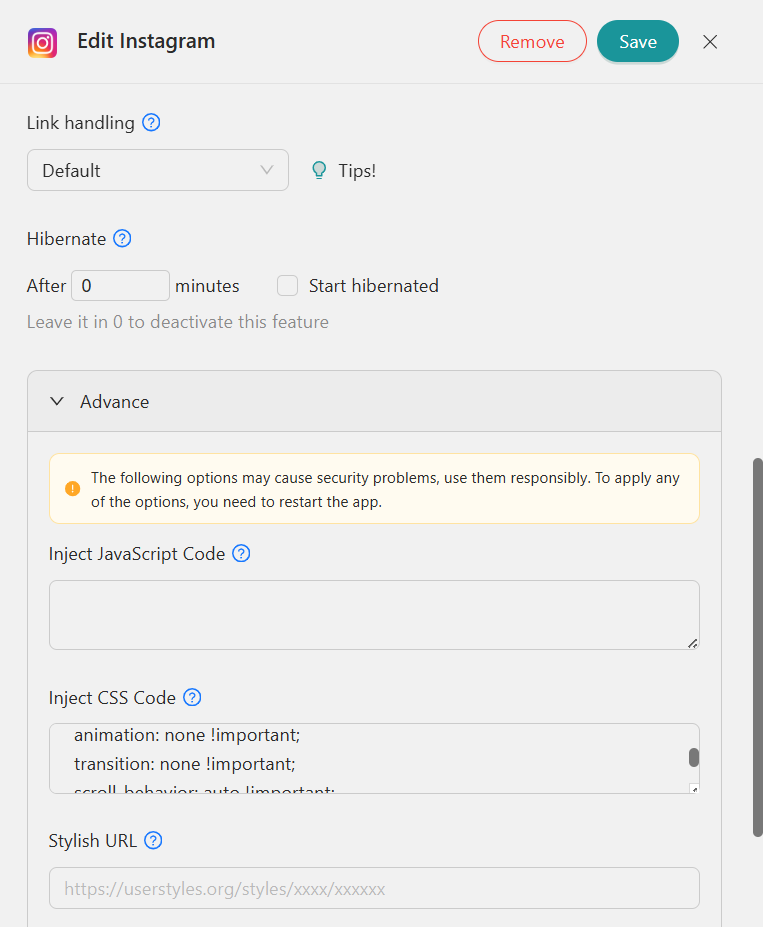
This lets you pause heavy animations, stop background video, or remove visual effects that keep forcing constant redraws, without changing anything in Windows itself.
And it is easy to do. Just open the app settings in Rambox, go to the Advanced section, and you will see a field where you can paste the JavaScript or CSS code. Save the changes, reload the app, and take another look at the GPU usage.
Bonus: inspect your applications
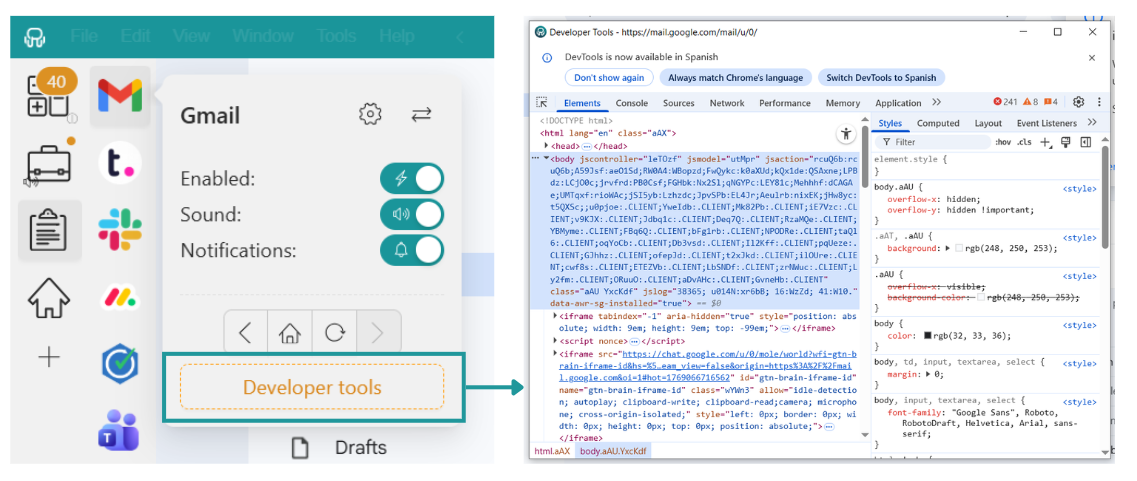
Besides injecting code, Rambox also lets you open the “Developer Tools” to take a closer look at what is happening inside any app. You can inspect the app, see how your JavaScript or CSS changes are working, and tweak them until you get the result you want.
To open it, just right click the app icon in Rambox and select “Developer Tools”.
If you are overwhelmed by the number of applications you have to work with, and need help optimizing your time and resources, try Rambox for free!
All you have to do is sign up, download the app, configure it to your liking, and enjoy its functionalities. No cards, no cheating, it’s that simple!

Run system checks (SFC) and malware scan if behavior is unexplained
If none of the previous steps helped, it is worth checking the system itself. Corrupted Windows files can sometimes affect how DWM works.
To run a system check:
- Open Command Prompt as administrator
- Type sfc /scannow and press Enter
- Wait for the scan to finish
- Restart the PC
It is also a good idea to run a full malware scan with Windows Security or your antivirus. Malicious software can force constant screen activity and make DWM usage stay high.
Last resort: System Restore
If the problem appeared suddenly and nothing else worked, going back to a previous restore point can save you a lot of time.
To use System Restore:
- Open Control Panel and search for Recovery
- Select Open System Restore
- Choose a restore point from before the issue started
- Follow the steps and restart the PC
This will not affect your personal files, but it will undo recent driver or system changes that might be causing DWM to misbehave.
FAQ about desktop window manager high GPU
These are the questions most people ask when they see DWM using more GPU than expected. If you still have doubts after the fixes above, this section can help you understand what is normal and what is not.
Why does dwm.exe spike when I move a window?
Moving or resizing windows forces Windows to redraw the screen in real time. That work is handled by DWM, so short spikes are completely normal, especially on high resolution or high refresh rate displays.
Why is it higher on a high refresh rate monitor?
A 120Hz or 144Hz monitor refreshes the image more often than a 60Hz screen. DWM has to render more frames per second, which naturally increases GPU usage even if nothing else changed.
Does disabling transparency help?
On modern hardware, transparency usually has little impact. On older or low power systems, turning it off can reduce the load because Windows stops applying blur and glass effects.
Is it safe to disable HAGS or HDR?
Yes. Both features are optional. Disabling them does not harm the system and can solve conflicts with certain drivers or GPUs. You can enable them again at any time.
Why did it start after a driver update?
New drivers sometimes change power management or rendering behavior. If the issue appeared right after an update, rolling back to the previous driver often fixes it.