
Last updated: August 25, 2026
Google Calendar works well in a browser, but that setup can become inconvenient when your calendar is part of your everyday workflow. If you check meetings throughout the day, manage different schedules or rely on reminders, keeping Calendar buried among browser tabs adds unnecessary friction.
Although Google does not provide a traditional desktop app for Windows or Mac, there are several ways to make Google Calendar easier to access from your computer. Some simply give you a faster shortcut, while others create a more app-like experience or integrate your calendar with the rest of your desktop tools.
Quick Answer: Is there an official Google Calendar app for desktop?
Not exactly. Google does not offer a standalone Google Calendar app for Windows or Mac, but you can still use it very comfortably from your desktop.
You can install it as a web app, create a shortcut, add it to your Mac Dock, sync it with Apple Calendar or Outlook, or use it in Rambox if you want Google Calendar to stay alongside your other work apps and accounts.
Ways to use Google Calendar on your desktop
There are several ways to use Google Calendar from your desktop, and the best one depends on how you work. If you only want faster access, a shortcut may be enough. If you prefer a more app-like experience, you can install it as a web app or add it to your Mac Dock. You can also sync it with Apple Calendar or Outlook, or keep it together with your other work apps in Rambox.
Install Google Calendar as a web app with Chrome or Edge
A web app is probably the closest option to having a traditional Google Calendar desktop app. It opens in its own window and can be launched from your desktop or app menu, without keeping Calendar inside a normal browser tab.
In Chrome:
- Open Google Calendar.
- Click the three-dot menu.
- Go to Cast, save, and share.
- Select Install page as app.
- Follow the on-screen instructions.
Chrome then treats the site more like an application, with its own window and shortcut. Google documents this option in its current guide to installing web apps in Chrome.
Microsoft Edge offers a very similar option. Open Google Calendar and go to:
Settings and more > More tools > Apps > Install this site as an app
Once installed, you can also pin it to the taskbar or Start menu, or create a desktop shortcut.
This setup works well if you want quick access and a cleaner, app-like window without installing another calendar application.
Put Google Calendar on your desktop with a shortcut
If you do not need a separate app window, a desktop shortcut is the simplest option.
In Chrome:
- Open Google Calendar.
- Click the three-dot menu.
- Go to Cast, save, and share.
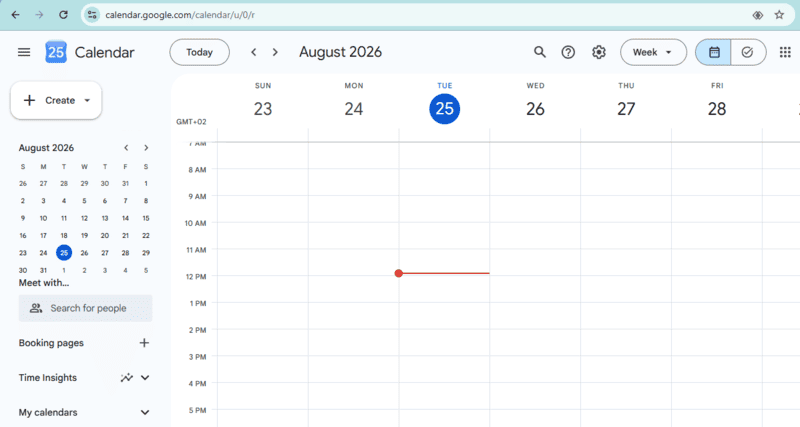
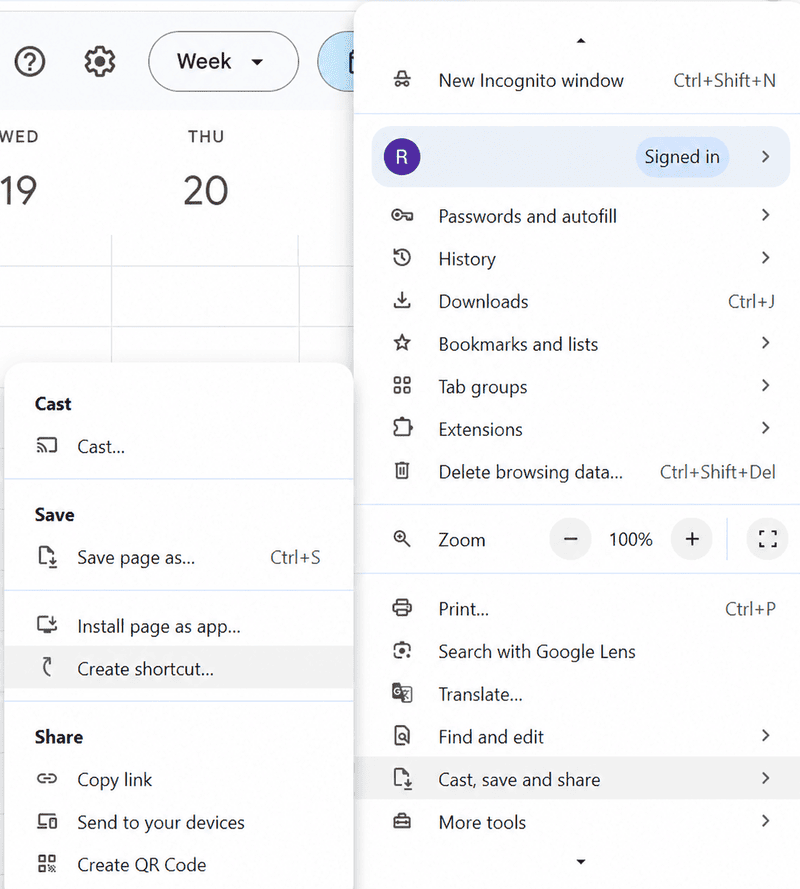
- Select Create shortcut.
- Give it a name and click Create.
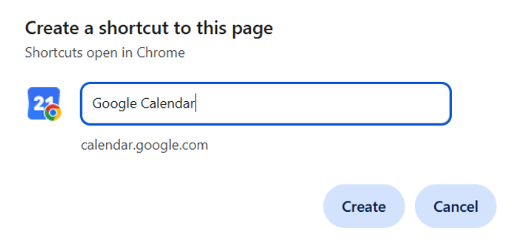
A desktop shortcut gives you faster access to Google Calendar, but it does not install Calendar as a standalone app. When you open it, Google Calendar still runs through Chrome.
For occasional calendar checks, this may be all you need. If you prefer a more app-like experience that stays separate from your regular browser tabs, one of the other options below may be a better fit.
Add Google Calendar to your Dock with Safari on Mac
If you use a Mac with macOS Sonoma 14 or later, Safari lets you turn Google Calendar into a web app and add it directly to your Dock.
- Open Google Calendar in Safari,
- then go to: File > Add to Dock from Safari’s sharing options.
You can choose the name and icon before adding it. Once saved, Google Calendar opens in its own window and can be launched directly from the Dock, Spotlight or the Applications folder.
Unlike a normal bookmark, the Safari web app works independently from your main browser window, giving Google Calendar a more dedicated desktop experience.
Sync Google Calendar with Apple Calendar
Want to manage all your events in one place? Syncing Google Calendar with Apple Calendar on your Mac is a simple way to do it. Keep in mind, though, that this does not give you a standalone Google Calendar app. Instead, you access your Google events through Apple Calendar.
Here’s how to set it up:
- Open Calendar on your Mac.
- Go to Calendar > Add Account.
- Select Google and click Continue.
- Sign in to your Google account.
- Follow the on-screen instructions and make sure Calendars is enabled.
Once connected, your Google Calendar events will appear alongside your other calendars in Apple Calendar.
Use Google Calendar with Outlook on Windows
If you already use Outlook on Windows, you can subscribe to your Google Calendar and view both calendars in the same place. This is useful if Outlook is already part of your daily workflow and you do not want to keep Google Calendar open separately.
To add your Google Calendar to the new Outlook:
- Open Google Calendar and find the calendar you want to add under My calendars.
- Click the three-dot menu next to the calendar and select Settings and sharing.
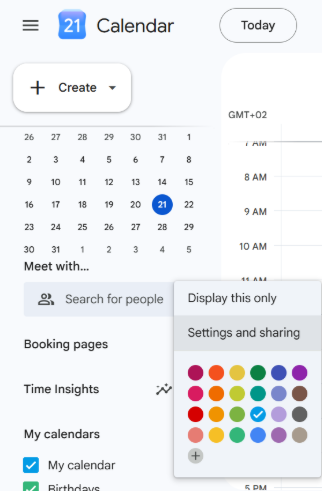
- Scroll down to Integrate calendar.
- Copy the Secret address in iCal format.
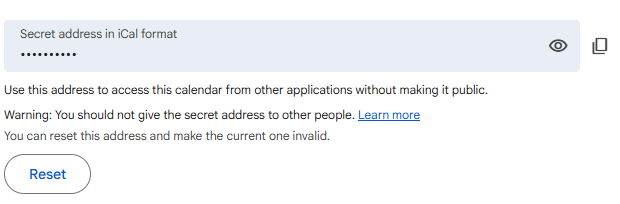
- Open Outlook and go to Calendar.
- Select Add calendar > Subscribe from web.
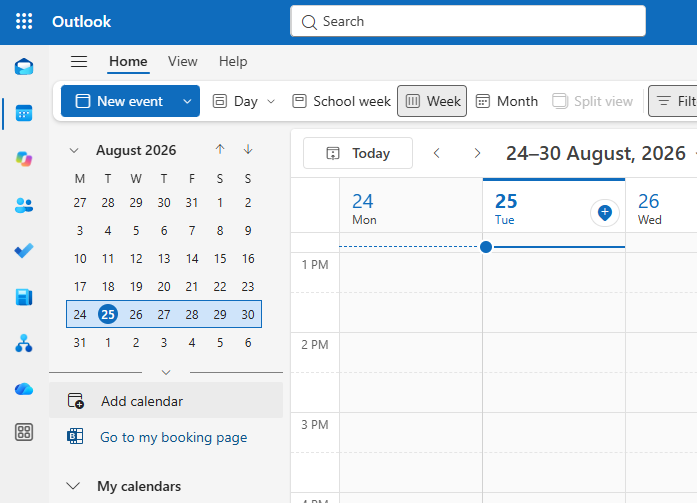
- Paste the iCal address and select Import.
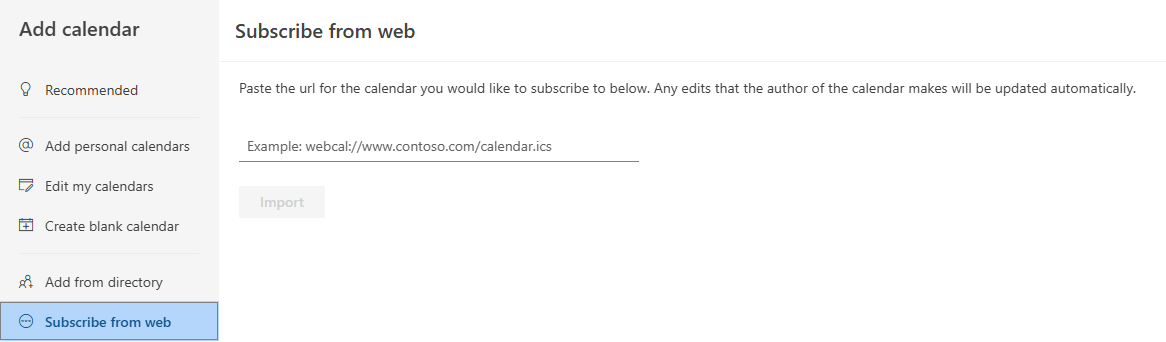
Microsoft provides the same process in its current guide to viewing Google Calendar in Outlook.
Once subscribed, your Google Calendar will appear alongside your Outlook calendars and updates from Google Calendar can refresh automatically in Outlook. Microsoft notes that these updates are not always immediate and, in some cases, may take more than 24 hours.
It is also worth keeping one limitation in mind: subscribing through iCal is mainly a way to view your Google Calendar in Outlook, not a full two-way sync. If you simply import an .ics file instead of subscribing, Outlook creates a static snapshot that will not update automatically.
For users who already organize most of their day in Outlook, this is a practical way to keep Google Calendar visible without opening another browser tab. Use Google Calendar in Rambox
Use Google Calendar in Rambox
Another option is to add Google Calendar to Rambox, where it can stay alongside the other apps you use throughout the day, rather than opening in another browser tab or separate window.
This setup is particularly useful if Calendar is part of a broader workflow involving Gmail, Drive, communication apps or multiple Google accounts. We’ll look at how to set it up and organize those accounts later in the article.
Want to try this setup? Download Rambox for Windows, macOS or Linux and add Google Calendar alongside the apps you already use. Rambox has a free Basic plan, while new accounts can also test Pro features for 30 days without a credit card.
Which Google Calendar desktop setup should you choose?
The best setup depends on what matters most in your day-to-day use of Google Calendar.
- Quick access: a desktop shortcut is the simplest option. If you want Calendar in its own window, a Chrome or Edge web app or Safari’s Add to Dock on Mac offers a more app-like experience.
- OS integration: Apple Calendar is the natural choice on Mac if you already manage your schedule there. On Windows, Outlook can display your Google Calendar alongside your other calendars.
- Multiple accounts: browser-based options work well for simple setups, but switching between several Google accounts can become less convenient. Rambox is more suitable when you need to keep different accounts or sessions separated.
- Daily workflow: if Calendar is only something you check occasionally, a shortcut or web app is probably enough. If it stays open all day alongside Gmail, Drive, messaging apps and other tools, Rambox can keep that workflow together in one desktop environment.
So there is no single “best” Google Calendar desktop setup. The right choice depends on whether you value speed, system integration, account separation or having your work apps organized in one place.
How to use Google Calendar as a desktop app with Rambox
If Google Calendar is part of your daily workflow, Rambox gives it a dedicated place on your desktop without separating it from the rest of your work apps. This becomes especially useful when you use more than one Google account or regularly move between Calendar, Gmail, Drive and communication tools.
Instead of managing each service in a different browser tab or window, you can organize them inside the same Rambox environment and decide which apps share a session, which stay separate and how their notifications behave.
Add Google Calendar to Rambox
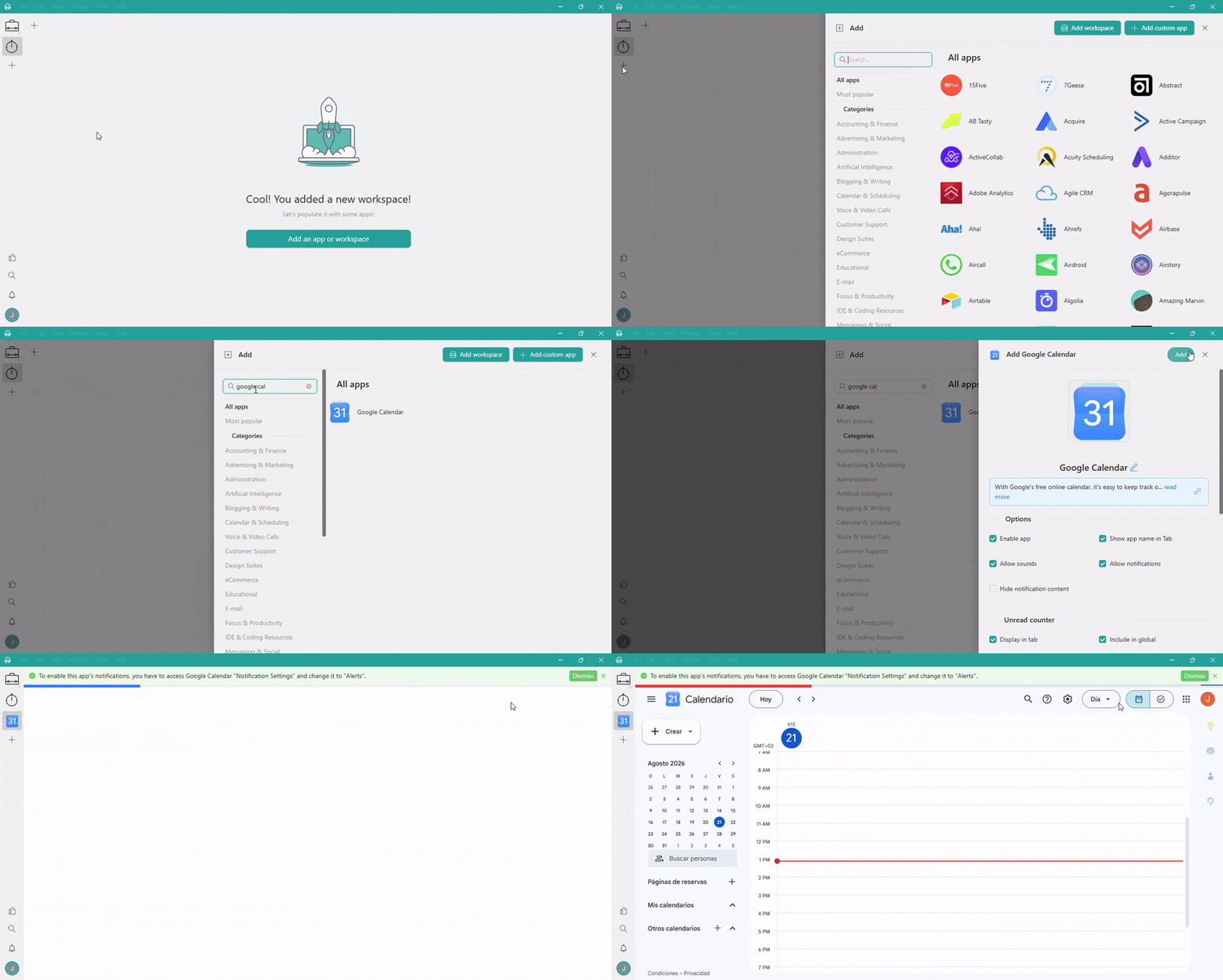
Google Calendar is available in Rambox’s app catalog, so you do not need to configure it as a custom app.
To add it:
- Open Rambox and click the + button in the main tab bar or inside an existing Workspace.
- Search for Google Calendar in the app catalog.
- Select Google Calendar.
- Review the app settings and click Add.
- Open the app and sign in to your Google account.
Rambox’s current support guide explains the same process for adding and configuring apps.
From the app settings, you can also configure options such as notifications, sounds and the Profile used for that Calendar instance.
For a single Google account, that may be all you need. If you work with several accounts, Rambox can also keep those sessions separate.
Keep multiple Google accounts separated with Profiles
Switching between personal, work or client Google accounts in the same browser can become confusing. Rambox Profiles let you control which session each app uses.
For example, you could create:
- a Work Profile for your company Google Calendar;
- a separate Profile for your personal account;
- another Profile for a client account.
Each Google Calendar instance can then stay logged in with the account assigned to that Profile, so you do not have to sign in and out every time you switch calendars.
Profiles can also be shared between apps. If Gmail and Google Calendar use the same Work Profile, they can share the same Google session. Alternatively, a Private Profile keeps an app isolated from the others.
Profiles are available with Rambox Pro and Enterprise. The free Basic plan supports up to two instances of the same app, while Pro adds multi-login and unlimited instances. Compare Rambox plans and features.
Group Calendar with Gmail, Drive, Meet and other apps using Workspaces
Profiles separate or share sessions. Workspaces organize the apps themselves.
For example, you could create a Work Workspace containing Google Calendar, Gmail, Drive and the communication tools you use for that job. A different Workspace could hold your personal apps or those of another project.
You can also assign a Profile to an entire Workspace. Apps configured to Inherit from Workspace can then use the same Google session. Rambox specifically supports this type of setup for apps such as Gmail, Google Calendar and Google Drive, so you do not need to log into each one separately. Learn how Rambox Workspaces work.
This is where Rambox becomes more useful than simply creating a Google Calendar shortcut: Calendar becomes part of an organized work environment instead of another isolated desktop window.
Control calendar notifications from one workspace
When Calendar sits alongside several other work apps, notifications can quickly become another source of distraction.
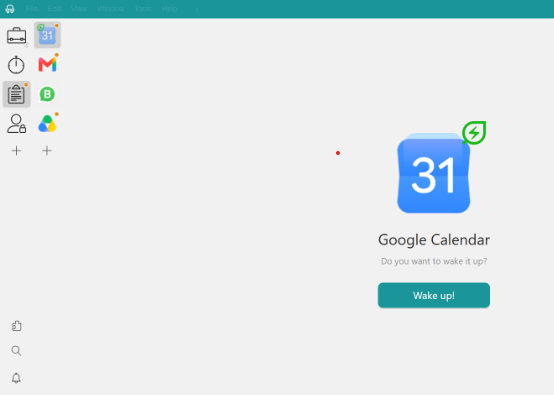
Rambox lets you enable or mute notifications and sounds at both the app and Workspace level. This means you can keep Google Calendar alerts active while adjusting the rest of the apps around it, or mute an entire Workspace when you do not want work notifications.
Workspaces can also have Work hours, so notifications and sounds from the apps inside that Workspace are only active during the schedule you define. Outside those hours, Rambox mutes them while unread counters can remain visible.
This gives you more control over when your work Calendar and related apps demand your attention, without having to manage each tool separately.
FAQs
Is there a Google Calendar desktop app for Windows 11?
No, Google does not offer a standalone Google Calendar app for Windows 11. You can use Calendar in your browser, install it as a web app with Chrome or Edge, create a shortcut, or use it through a desktop workspace such as Rambox.
Is there a Google Calendar app for Mac?
There is no official downloadable Google Calendar app for macOS either. You can access it in a browser, add it to your Dock as a Safari web app, sync your Google account with Apple Calendar, or use Google Calendar in Rambox. Safari web apps are available from macOS Sonoma 14 onward.
Can I install Google Calendar as an app with Chrome or Edge?
Yes. Although you are not installing a native Google Calendar application, Chrome and Edge can turn the website into a web app that opens in its own window and can be launched more like a regular desktop app.
How do I put Google Calendar on my desktop or taskbar?
The simplest option is to create a Google Calendar shortcut from Chrome. If you want a more app-like setup, install Calendar as a web app instead. On Windows, installed web apps can also be pinned for quicker access, so you do not need to search for Calendar in your browser every time.
Can I add Google Calendar to the Mac Dock?
Yes. On macOS Sonoma 14 or later, open Google Calendar in Safari and choose File > Add to Dock. macOS saves it as a web app that can be opened independently from Safari from the Dock, Applications folder or Spotlight.
Can Google Calendar work offline on desktop?
Yes, but with limitations. Google Calendar supports offline access in Chrome once you enable it in Calendar settings. You can view previously synced events, but while offline you cannot create or edit events, email guests or access Tasks. Offline Calendar support is not available through Firefox, Safari or Edge.
Can I use multiple Google Calendar accounts on one computer?
Yes. Google lets you sign in to multiple Google accounts at the same time and switch between them without repeatedly signing out.
If you need several calendars to remain open separately throughout the day, Rambox provides another approach. You can run multiple instances of the same app, and with Rambox Pro or Enterprise, Profiles can keep different Google sessions separated so each Calendar instance stays connected to the right account.
Keep Google Calendar connected to your daily workflow
If you only need faster access to Google Calendar, a shortcut, web app or native calendar integration may be all you need. But if Calendar stays open throughout your workday alongside Gmail, Drive, messaging apps or multiple Google accounts, Rambox gives you a more organized way to keep everything together.
Download Rambox and build your desktop workspace around the apps you actually use every day.