

If you spend a lot of time working on Linux, you’ve probably experienced how quickly your screen can get crowded. A few terminals open, a browser with multiple tabs, documentation, messaging apps, maybe a code editor… Linux workspace managers help bring order to that chaos.
They control how windows are arranged on your screen and how your virtual workspaces are organized, making it much easier to move between tasks and keep your setup structured.
In this guide, we’ll walk through the 8 best Linux workspace managers, what makes each one different, and how to choose the right option for your workflow.
Let’s dive in!
Contents
- What’s a Linux workspace manager?
- Why use a workspace manager on Linux?
- Types of Linux workspace managers: tiling vs floating
- The 8 Best Linux Workspace Managers in 2026
- Other notable Linux workspace managers
- Quick Comparison of the best Linux workspace managers
- How to choose the right Linux workspace manager?
- How to install a Linux workspace manager
- Pro Tip: Managing apps across Linux workspaces
- FAQS about Linux workspace managers
What’s a Linux workspace manager?
A Linux workspace manager is a tool that controls how windows are organized on your screen and how you switch between different workspaces. Instead of constantly dragging, resizing, and stacking windows, these managers help keep everything arranged in a more structured way.
Many Linux workspace managers focus on keyboard shortcuts and smart layouts. This means you can move between applications, split windows, or jump to another workspace in seconds, without interrupting your workflow.
Some workspace managers automatically arrange windows so they fit neatly side by side, while others allow a more traditional setup where you can move windows freely around the screen.
In simple terms, a Linux workspace manager helps you keep your desktop organized and makes it easier to move between tasks throughout the day.
Why use a workspace manager on Linux?
Working with many applications at the same time can quickly become difficult to manage. Multiple terminals, browser windows, editors, and communication tools can pile up on the screen, making it harder to stay focused on what you’re doing.
A workspace manager helps keep everything organized. Windows can be arranged automatically, and switching between tasks becomes faster and more predictable. Instead of searching for the right window, you can jump directly to the workspace where your tools are already grouped.
Many users also prefer workspace managers because they make it easier to work with the keyboard. Simple shortcuts allow you to move windows, open new workspaces, or switch between tasks in a few seconds.
For developers, system administrators, and anyone who spends long hours on Linux, this kind of setup often leads to a cleaner desktop and a smoother workflow throughout the day.
Types of Linux workspace managers: tiling vs floating
Linux workspace managers usually follow two main approaches when it comes to organizing windows: tiling and floating.
- Tiling workspace managers arrange windows automatically so they fit together without overlapping. Each new window takes a portion of the screen, and the layout adjusts as you open or close applications.
- Floating workspace managers work more like traditional desktop environments. Windows can overlap, and you can move or resize them freely using the mouse. This style feels familiar to users coming from operating systems like Windows or macOS.
Some workspace managers allow you to combine both styles. For example, you might keep most windows arranged in a tiling layout while allowing certain applications to float when needed.
The choice:
Tiling tends to favor keyboard driven workflows and structured layouts, while floating offers more flexibility for manual window placement.
The 8 Best Linux Workspace Managers in 2026
Linux has many workspace managers, but some are clearly more popular and widely used than others. The ones in this list stand out for their performance, flexibility, and active communities.
Here are eight Linux workspace managers worth checking out.
i3
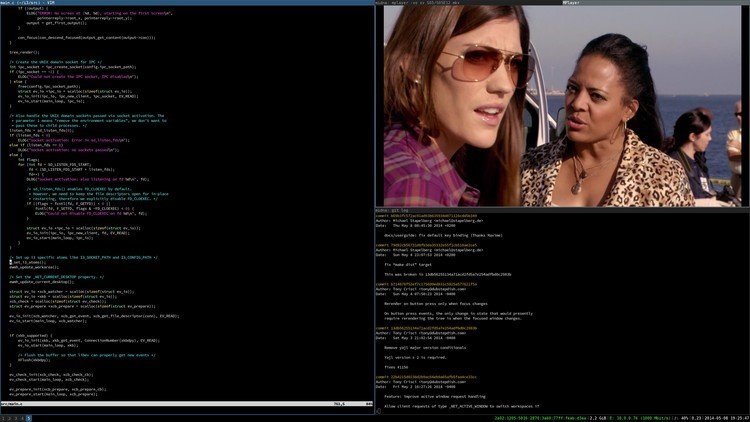
i3 is one of the most widely used tiling window managers on Linux. It focuses on speed, simplicity, and a keyboard driven workflow. Windows are arranged automatically so they don’t overlap, helping you keep your screen organized even when many applications are open.
Key features
- Automatic tiling window layout
- Keyboard focused workflow
- Simple configuration using a text file
- Lightweight and fast performance
- Strong community and extensive documentation
| Pros | Cons |
| Very fast and lightweight | Minimal graphical interface |
| Easy to learn compared to many tiling managers | Customization requires editing config files |
| Highly customizable | No native Wayland support |
| Stable and widely supported across Linux distributions | Can feel minimal for new Linux users |
Best for
Developers, system administrators, and Linux users who want a fast and reliable tiling window manager with a simple configuration system.
Sway
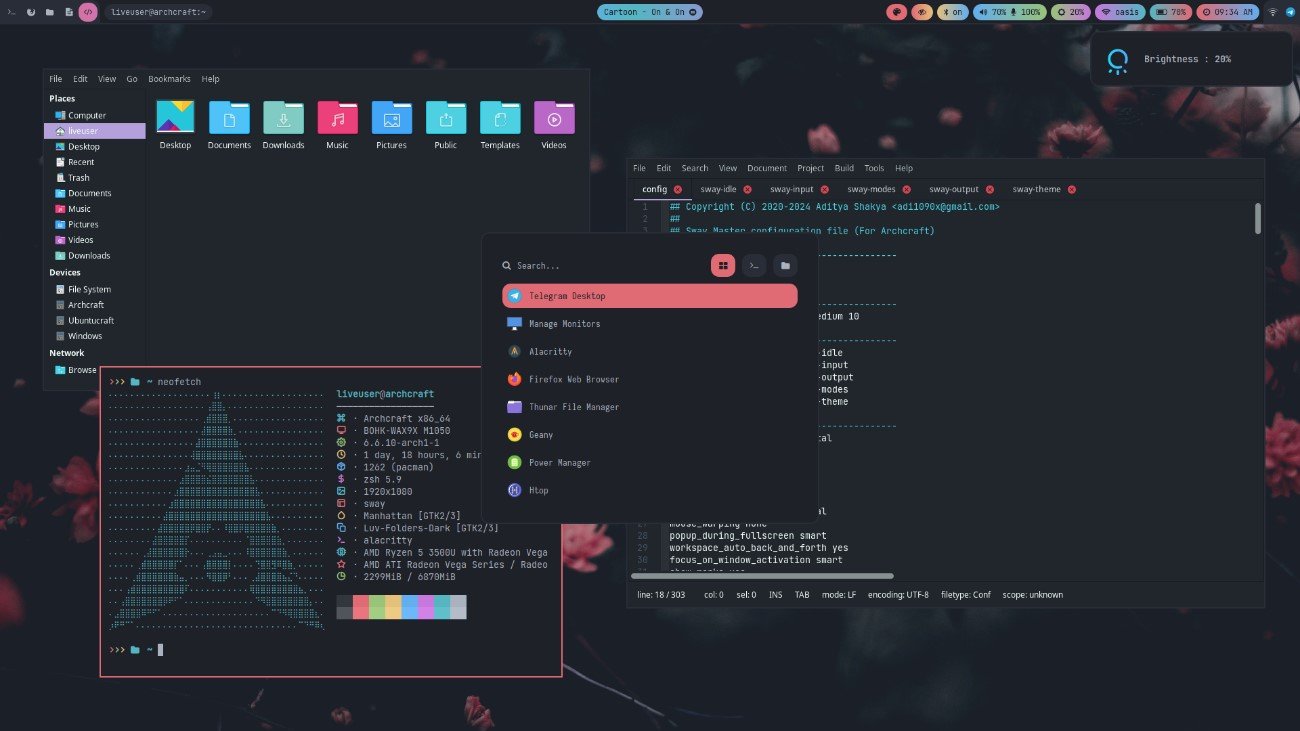
Source: Archlinux
Sway is a tiling workspace manager designed as a modern alternative to i3. It follows the same workflow and configuration style, but it runs on Wayland instead of X11. This makes it a popular choice for users who want an i3 like experience on newer Linux graphics systems.
Key features
- Tiling window management similar to i3
- Native support for Wayland
- Compatible with many i3 configuration concepts
- Keyboard focused workflow
- Lightweight and efficient performance
| Pros | Cons |
| Native Wayland support | Some applications still behave better on X11 |
| Familiar workflow for i3 users | Smaller ecosystem compared to i3 |
| Lightweight and efficient | Requires Wayland compatible tools |
| Active development and community | May require additional setup for some hardware |
Best for
Linux users who like the workflow of i3 but want a workspace manager built for Wayland and modern Linux environments.
Hyprland
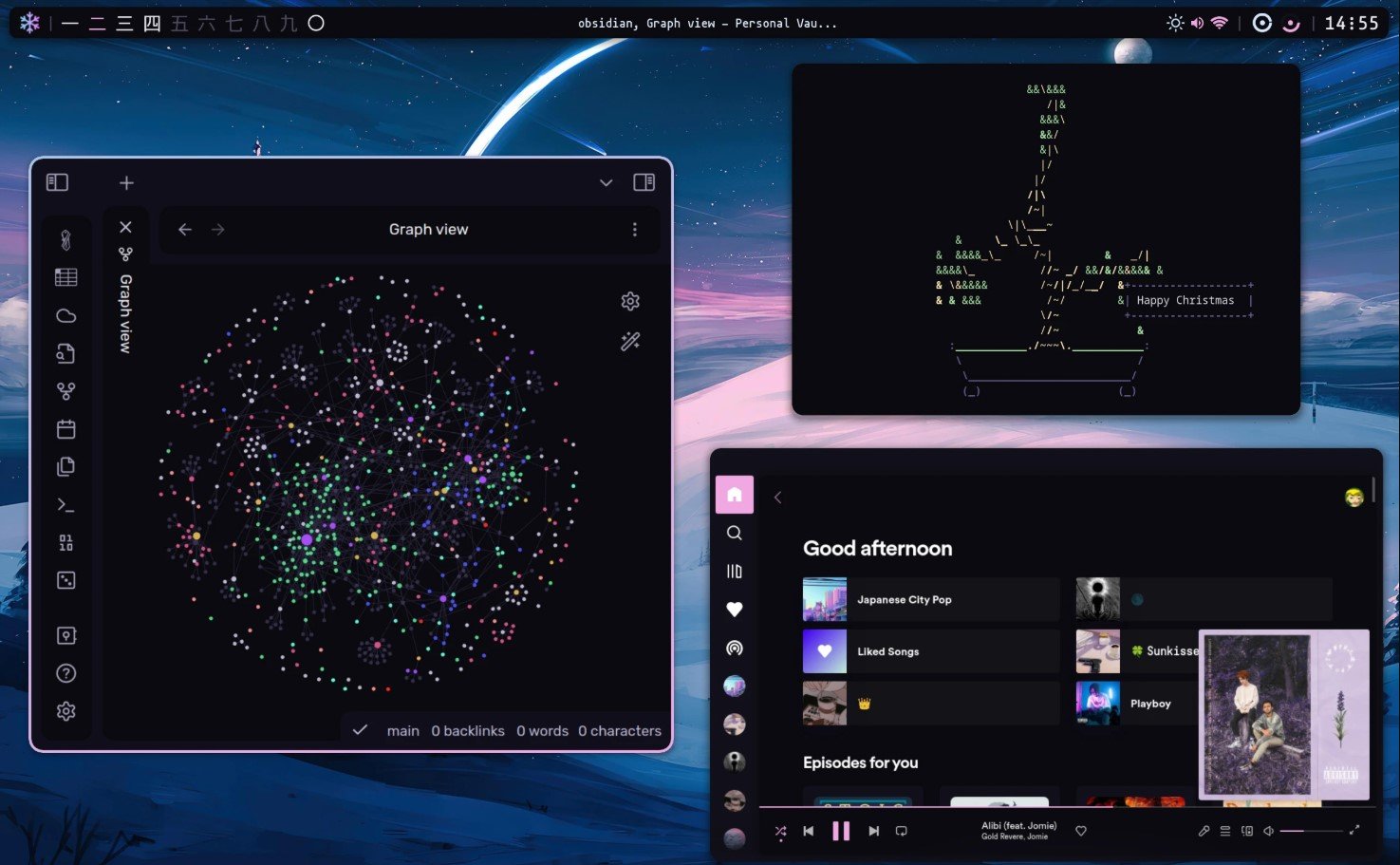
Hyprland is a modern tiling workspace manager built for Wayland. It’s known for combining a powerful tiling workflow with smooth animations and a highly customizable interface. In recent years, it has become popular among Linux users who want both productivity and a more polished desktop experience.
Key features
- Dynamic tiling window management
- Native Wayland support
- Smooth animations and visual effects
- Highly customizable configuration
- Active development and growing community
| Pros | Cons |
| Modern Wayland based architecture | Requires newer hardware and drivers |
| Smooth animations and visual polish | Configuration can be complex for beginners |
| Very flexible and customizable | Still evolving compared to older managers |
| Strong momentum in the Linux community | Some tools may need additional configuration |
Best for
Linux users who want a modern Wayland based workspace manager with tiling layouts, strong customization options, and a more visually refined desktop experience.
bspwm
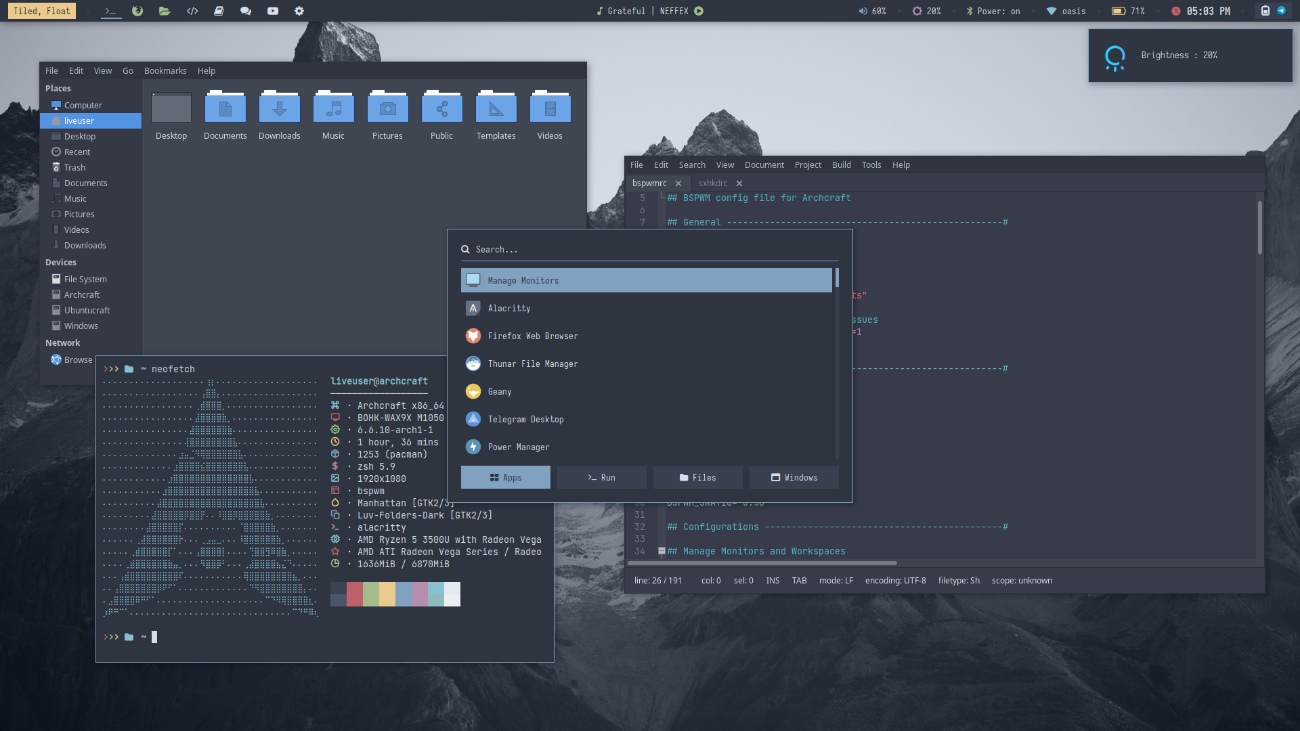
Source: Archlinux
bspwm is a tiling workspace manager that organizes windows using a binary tree structure. Instead of handling everything internally, it focuses only on managing windows and relies on external tools for things like keybindings and status bars. This modular design makes it very flexible for users who like to build their own Linux setup piece by piece.
Key features
- Binary tree based tiling window management
- Lightweight and minimal design
- Controlled through external commands
- Works well with customizable tools and scripts
- Flexible and modular architecture
| Pros | Cons |
| Lightweight and efficient | Requires additional tools for keybindings |
| Highly customizable workflow | Initial setup can take time |
| Clean and minimal design | Less beginner friendly |
| Works well with scripting and automation | Documentation can be more technical |
Best for
Linux users who enjoy building a highly customized desktop environment and prefer a modular tiling workspace manager that can be extended with external tools.
Awesome WM
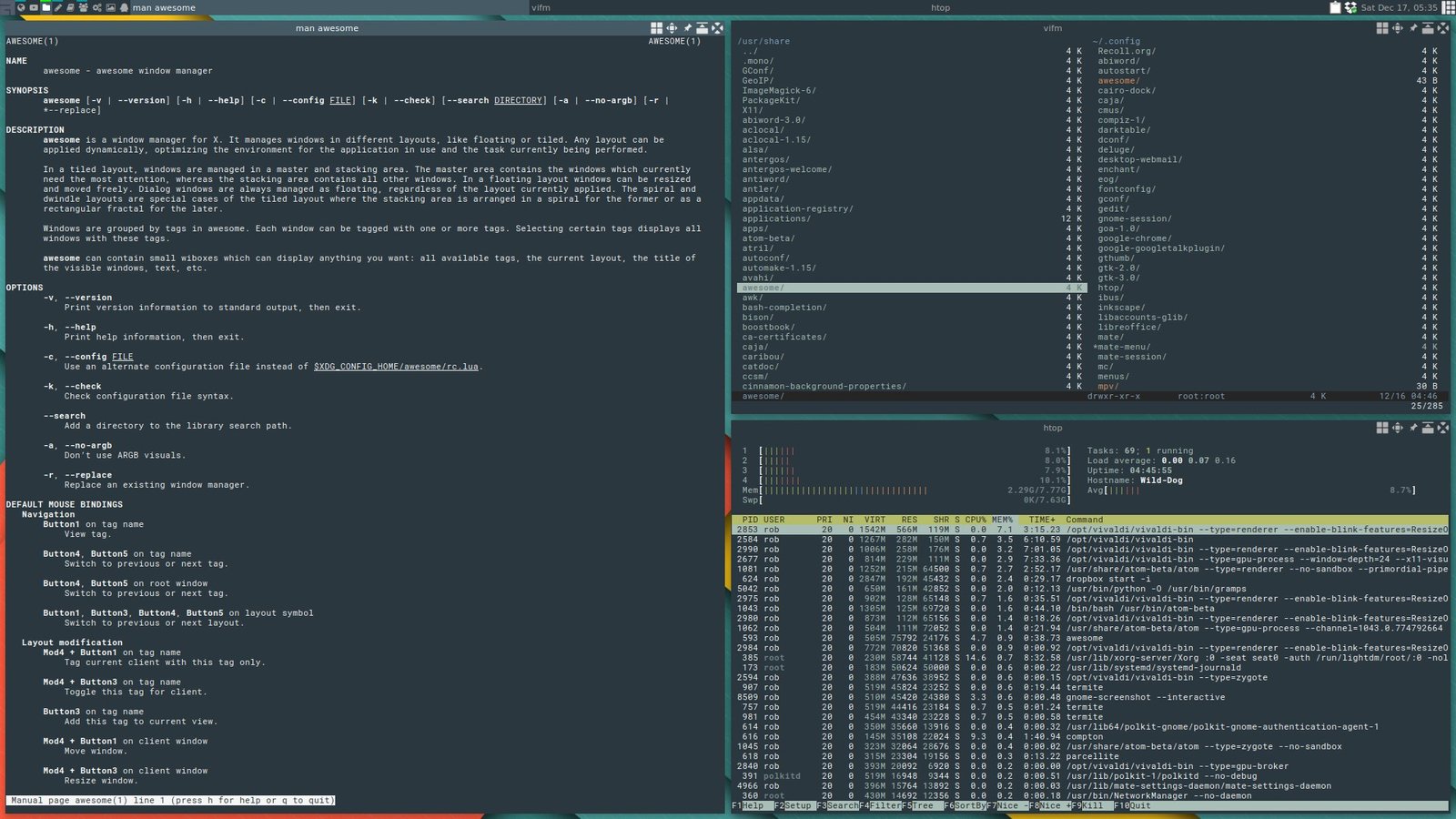
Awesome WM is a highly customizable tiling workspace manager that can also support floating layouts. It’s designed for users who want full control over their desktop. Almost every part of the environment can be configured, which makes it a favorite among advanced Linux users.
Key features
- Dynamic tiling and floating window layouts
- Configuration based on Lua scripting
- Highly customizable desktop components
- Built in widgets and status bar system
- Flexible workspace and window management
| Pros | Cons |
| Extremely customizable | Steeper learning curve |
| Supports both tiling and floating layouts | Requires learning Lua for deeper customization |
| Powerful scripting capabilities | Configuration can take time |
| Active community and documentation | May feel complex for beginners |
Best for
Advanced Linux users who want deep customization and are comfortable configuring their desktop through scripting.
Qtile
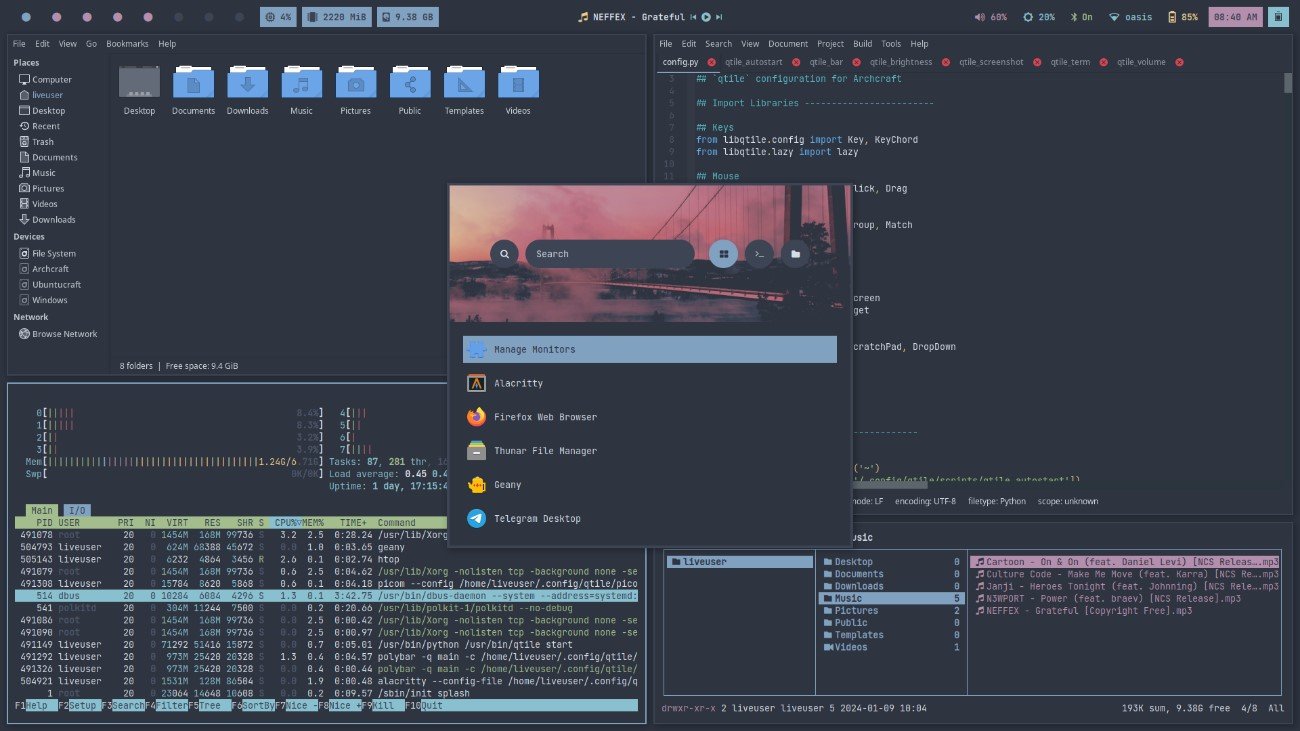
Source: Archlinux
Qtile is a tiling workspace manager configured entirely in Python. Instead of editing simple configuration files, you define your setup directly in Python code. This makes it especially appealing to developers who prefer to customize their environment using a programming language.
Key features
- Configuration written in Python
- Tiling and floating window layouts
- Highly customizable through code
- Lightweight and fast performance
- Works on both X11 and Wayland
| Pros | Cons |
| Configuration using Python | Requires basic Python knowledge |
| Very flexible customization | Setup may take time for new users |
| Supports tiling and floating layouts | Smaller community than some older managers |
| Good performance and stability | Documentation can be technical |
Best for
Developers and Linux users who want to configure their workspace manager using Python and prefer a highly customizable setup.
Xmonad
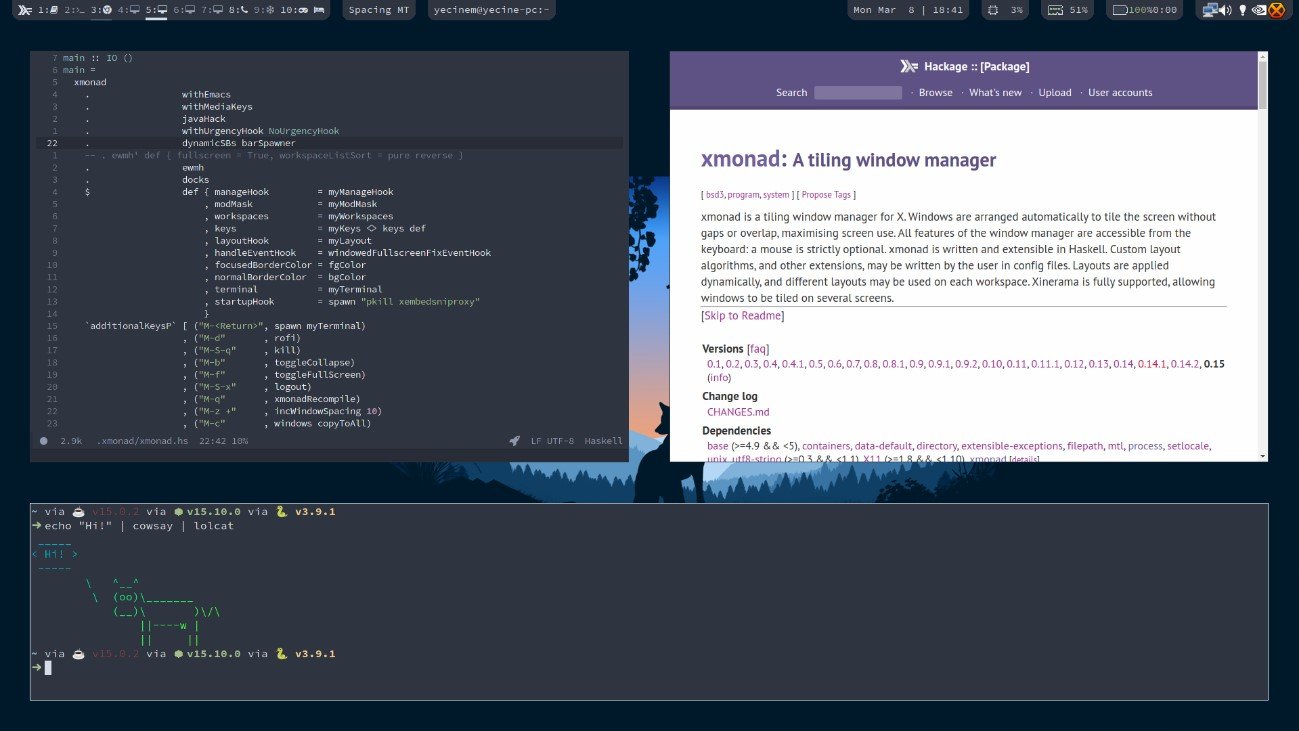
Xmonad is a tiling workspace manager known for its stability and performance. It’s configured using Haskell, which gives advanced users a powerful way to customize their desktop environment. Thanks to its minimal design and efficient window management, it’s often chosen by users who want a reliable and distraction free workspace.
Key features
- Automatic tiling window management
- Configuration written in Haskell
- Extremely lightweight and stable
- Keyboard driven workflow
- Highly customizable through code
| Pros | Cons |
| Keyboard‑driven workflow | Haskell for deeper customization |
| Configuration written in Haskell | Setup may take time for new users |
| Extremely lightweight and stable | Smaller community than some older managers |
| Highly customizable through code | Documentation can be technical |
Best for
Experienced Linux users and developers who want a highly stable tiling workspace manager and are comfortable customizing their setup using Haskell.
Dwm
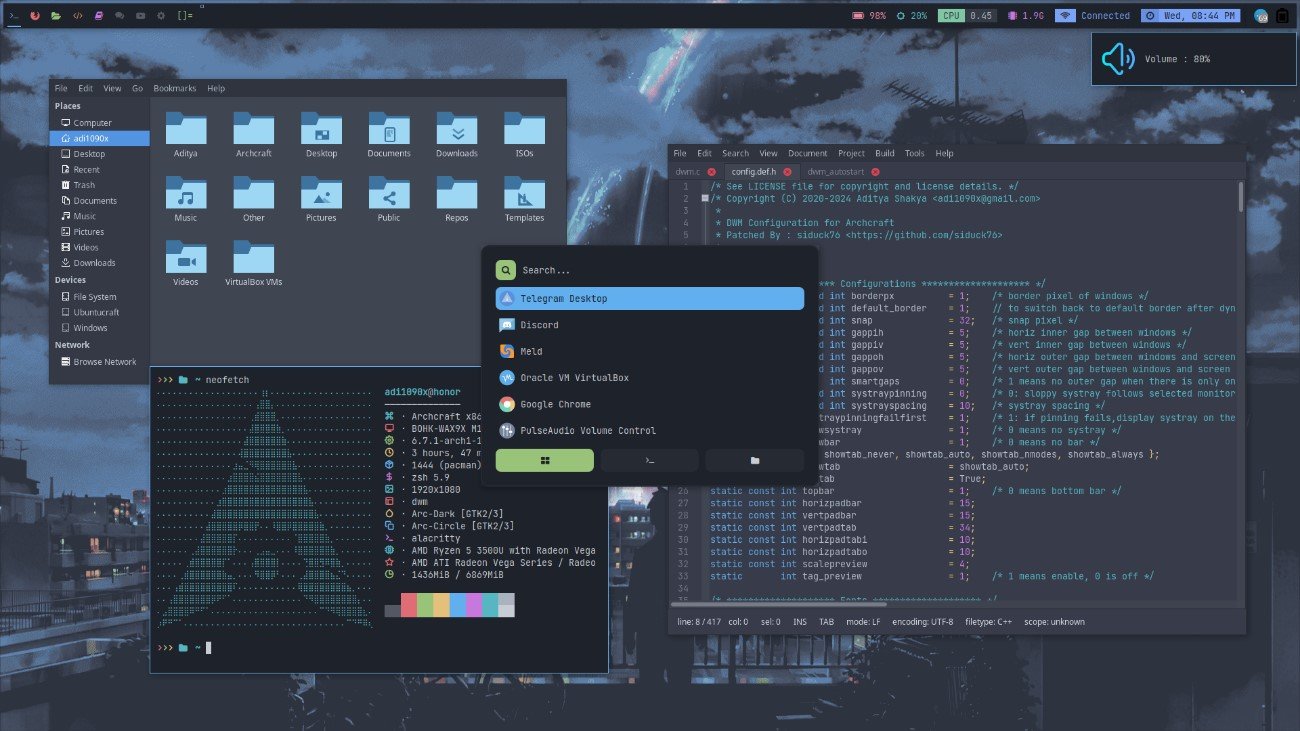
Source: Archlinux
Dwm is an extremely minimal tiling workspace manager developed by the suckless project. It follows a very simple philosophy: keep the code small, fast, and easy to understand. Instead of editing configuration files, customization is done by modifying the source code and recompiling the manager.
Key features
- Automatic tiling window layout
- Extremely lightweight design
- Configuration through source code
- Very small codebase
- Fast and efficient performance
| Pros | Cons |
| Extremely lightweight and fast | Customization requires editing and compiling code |
| Very small and simple codebase | Not beginner friendly |
| Highly efficient performance | Fewer built in features |
| Clear and minimal design philosophy | Requires technical knowledge to configure |
Best for
Advanced Linux users who prefer a minimal system and are comfortable customizing their setup directly through the source code.
Other notable Linux workspace managers
The workspace managers above are some of the most popular options today, but they’re not the only ones available in Linux. There are many other tools that people still use depending on their preferences and workflow.
- Herbstluftwm: A tiling workspace manager that gives you a lot of control over how windows are arranged.
- Spectrwm: A lightweight tiling manager designed to stay simple and easy to use.
- IceWM: A fast window manager that follows a more traditional desktop style.
- Fluxbox: A minimal floating window manager known for its speed and low resource usage.
- Openbox: A lightweight window manager often used in minimal Linux setups.
While these managers may not be as widely used as the ones in the main list, they are still solid options and may fit better depending on how you like to set up your Linux desktop.
Quick Comparison of the best Linux workspace managers
Choosing a Linux workspace manager often comes down to a few practical things: how easy it is to learn, how much you can customize it, whether it supports Wayland, and how lightweight it is.
The table below gives a quick overview of the eight workspace managers covered in this guide.
| Ease of Use | Customization | Performance | X11 | Wayland | |
| i3 | 4/5⭐ | 4/5⭐ | 5/5⭐ | Yes | No |
| Sway | 4/5⭐ | 4/5⭐ | 4/5⭐ | No | Yes |
| Hyprland | 3/5⭐ | 5/5⭐ | 4/5⭐ | No | Yes |
| bspwm | 3/5⭐ | 4/5⭐ | 5/5⭐ | Yes | No |
| Awesome WM | 2/5⭐ | 5/5⭐ | 4/5⭐ | Yes | No |
| Qtile | 3/5⭐ | 5/5⭐ | 4/5⭐ | Yes | Partial |
| Xmonad | 2/5⭐ | 5/5⭐ | 5/5⭐ | Yes | No |
| Dwm | 1/5⭐ | 4/5⭐ | 5/5⭐ | Yes | No |
| Herbstluftwm | 3/5⭐ | 4/5⭐ | 5/5⭐ | Yes | No |
| Spectrwm | 4/5⭐ | 3/5⭐ | 5/5⭐ | Yes | No |
| IceWM | 5/5⭐ | 3/5⭐ | 4/5⭐ | Yes | No |
| Fluxbox | 4/5⭐ | 3/5⭐ | 4/5⭐ | Yes | No |
| Openbox | 4/5⭐ | 4/5⭐ | 4/5⭐ | Yes | No |
How to choose the right Linux workspace manager?
With so many options available, the best Linux workspace manager usually depends on how you like to work and how much customization you want in your setup.
Here are a few things worth considering:
- Ease of use: If you’re new to tiling window managers, options like i3 or Sway are usually easier to start with.
- Customization: If you enjoy tweaking your environment, tools like Awesome WM, Qtile, or Xmonad give you much more control over how everything behaves.
- Display server support: If your system uses Wayland, workspace managers like Sway or Hyprland are designed to work with it.
- Configuration style: Some managers use simple configuration files, while others rely on scripting languages such as Python, Lua, or Haskell.
- Learning curve: Some tools work well with minimal setup, while others require more time to configure and learn.
In the end, the right choice is the one that fits your workflow and helps you manage your daily tasks on Linux more comfortably.
How to install a Linux workspace manager
Installing a Linux workspace manager is usually quick and simple. Most of them are available in the official repositories of popular Linux distributions, so you can install them with your package manager.
The process usually looks like this:
- Install the workspace manager from your distribution’s software repository.
- Log out of your current desktop session.
- On the login screen, select the workspace manager you just installed.
- Start the new session and begin setting up your environment.
The exact steps may vary depending on the Linux distribution you use, but in most cases it only takes a few minutes to get started.
Pro Tip: Managing apps across Linux workspaces
A Linux workspace manager helps you organize windows and workspaces. But many tools we use every day are not traditional desktop apps. Services like Gmail, WhatsApp, Google Calendar, or Notion usually run in the browser. After an hour, it’s easy to end up with dozens of tabs open, which can become hard to manage even if your workspaces are well organized.
This is where Rambox can help.
Rambox is a workspace simplifier that lets you run multiple apps in one place. Instead of opening each service in a separate browser tab, you can access them all from a single interface. Each service runs in its own app inside Rambox, which keeps your browser cleaner and your tools easier to access.
Want to see how it works? Check out this short video that shows the before and after of using Rambox.

Because of this, Rambox and Linux workspace managers complement each other very well.
- The workspace manager organizes your windows and workspaces.
- Rambox organizes the apps you use inside those windows.
For example, a simple setup could look like this:
- Workspace 1: Terminal and code editor
- Workspace 2: Browser for research and documentation
- Workspace 3: Rambox with Slack, Gmail, Trello, and other project management tools
In this setup, the workspace manager helps you move between tasks, while Rambox keeps your apps grouped in a single window. This makes your Linux desktop easier to navigate and reduces the number of browser tabs you need to keep open.
Pro tip:
In Rambox, you can group and organize your apps into folders using the “Workspaces” feature. You can also customize the layout of your workspaces so you can view multiple applications at the same time. Discover why Rambox is the best digital workspace and how to customize it to your liking.
FAQS about Linux workspace managers
Workspace Managers vs Desktop Environments: What’s the Difference?
In simple terms, a desktop environment gives you a complete desktop experience, while a workspace manager focuses mainly on how windows are organized.
Can you use a workspace manager with any Linux distribution?
In most cases, yes. Workspace managers are available in the software repositories of many Linux distributions, including Ubuntu, Fedora, Debian, and Arch Linux.
Once installed, you can usually select the workspace manager from the login screen when starting a new session.
Do all Linux workspace managers work with Wayland?
No, not all of them do. Some workspace managers were built for X11, which has been the traditional display system in Linux for many years.
Before choosing a workspace manager, it’s a good idea to check whether it supports the display system you are using.
What is the easiest Linux workspace manager for beginners?
Many people consider i3 to be one of the easiest tiling workspace managers to start with. It has a simple configuration file, good documentation, and a large community.
Sway is also a good option, especially if you want something similar to i3 but designed for Wayland.