

Every month, we look at the most used apps based on real activity inside Rambox.
This ranking shows which tools are being used the most and how different types of apps shape daily workflows. You can also explore the full ranking and previous months here.
Below, you’ll find this month’s top apps, followed by a breakdown of the most relevant changes and patterns.
Most-used apps on Rambox in April
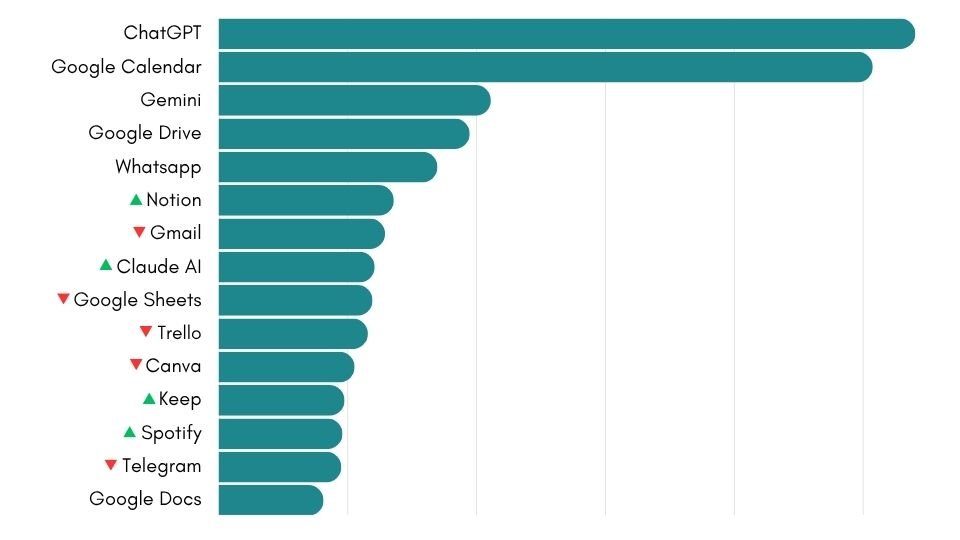
Below is the list of the most used apps on Rambox in April 2026. The ranking is based on aggregated usage data and reflects which apps are being used the most.
How has the Rambox Ranking changed in the last month?
Compared to March, April’s ranking remains relatively stable, with very few changes in terms of entries and exits. Only one new app enters the top 50 (Google Messages), while Deepl drops out of the list.
Most of the movement happens within the ranking itself.
Among the most notable changes, Notion moves slightly up, while Claude AI gains visibility and enters the top 10. This reinforces the strong presence of AI tools in the ranking, following the pattern already observed in the previous month.
In fact, all AI tools in the ranking improve their use this month. Tools such as Gemini, Claude, Microsoft Copilot and DeepSeek all move up, further strengthening the presence of AI across different levels of the list.
On the other hand, some apps lose positions compared to March. Gmail and Telegram move slightly down, while tools like WhatsApp Business, Dropbox and Zoom also drop in the ranking. Outlook 365 shows one of the most notable decreases this month.
Overall, the ranking remains stable, with most changes occurring within a relatively small range of positions rather than through major shifts in the list.
Bringing all these tools together
Rambox brings all these apps together in one place, helping you organize them into different workspaces, manage multiple accounts and reduce the need to switch between tabs or windows.
Instead of switching between tools, you can keep everything accessible and organized in a single environment.
If you want to explore everything Rambox can do and learn how to get the most out of it, don’t miss our video series with practical tips and real use cases:
How to add these apps on Rambox
Ready to bring these apps together? Setting them up in Rambox only takes a few seconds:
- Click on the “Add an app or workspace” button in your main tab or workspace.
- Type the name of the app you want to add in the search panel at the left.
- Configure the application settings to your liking. Remember that you can choose which profile you want to use in the app (inherit from workspace, primary, private, incognito, or a custom profile).
- Click on “+Add,” and that’s it! The app has been added to your Rambox’s workspace!
Want to see how to add apps in Rambox in action? This short step-by-step video shows you how to set it up:
If you want to be more productive and reduce the chaos of tabs and multiple accounts, try Rambox free for 30 days, with no credit card required, and start working in a more organized way in just a few minutes.