

Do you ever find yourself working with what feels like a hundred Chrome tabs open at once?
Gmail, WhatsApp Web, Slack, Trello, Monday, Asana, and whatever else you need for the day all end up living in the same browser window. Everything becomes harder to manage. Your tabs are no longer clearly identified, switching between tasks takes more effort, and your browser can start to feel slower than usual.
So what can you do to fix this? Today I want to recommend tab managers for Chrome.
Contents
- What a tab manager actually does (and what it doesn’t solve)
- The real problem: Chrome tabs become workspaces
- The smarter alternative to traditional tab managers
- Best tab manager for Chrome: 15 top tools compared
- Comparative recap: Which Chrome tab manager is right for you
- Combine Rambox and your tab manager for Chrome
- Tips to avoid Chrome tab overload
- FAQs about tabs managers for Chrome
- What is the best tab manager for Chrome right now
- Do Chrome tab managers slow down the browser
- Is it safe to use a tab manager extension
- Can a tab manager help with memory usage in Chrome
- Do I still need a tab manager if I use Rambox
- What is the difference between Chrome tab groups and a tab manager
- How many tabs are “too many” in Chrome
What a tab manager actually does (and what it doesn’t solve)
A tab manager is designed to bring some structure back to your browser when too many tabs start to pile up. It helps you group pages, save sessions for later, close what you do not need, and keep everything a little more organized. This can make Chrome feel lighter and easier to navigate, especially when your workday involves switching between many tasks.
Even with these benefits, a tab manager does not fully solve the deeper issue behind tab overload. If your browser has become the place where every app and task lives, the clutter tends to return. A tab manager can help you deal with the symptoms, but it cannot prevent the way most of us work from creating new tabs over and over again.
The real problem: Chrome tabs become workspaces
Most of us do not think of Chrome as just a browser anymore. It slowly turns into a workspace without us even noticing. Email, chat apps, project tools, documents, news, reminders, everything ends up open in a tab because it is the fastest way to move through the day.
The problem is that Chrome was never meant to hold all of that at the same time.
A better way to start fixing this is to go back to using the browser for what it does best, which is searching for things. The moment you move your everyday apps somewhere else, tabs stop multiplying and your workflow feels lighter. But then another question shows up. Are you supposed to download a desktop app for every service you use? And what about the ones that don’t even offer a desktop version, like Gmail?
Don’t worry. There’s an easier way to bring all your apps together without filling Chrome with tabs. Keep reading and meet Rambox.
The smarter alternative to traditional tab managers
Once you realize that Chrome turns into a workspace instead of a simple browser, the next step is finding a better place for all the apps you use every day. That’s where Rambox makes a real difference.
Rambox is a workspace simplifier that lets you keep all your apps in one clean and organized interface. It comes with +700 preconfigured apps, so adding what you use every day takes just a moment and everything is ready to go.
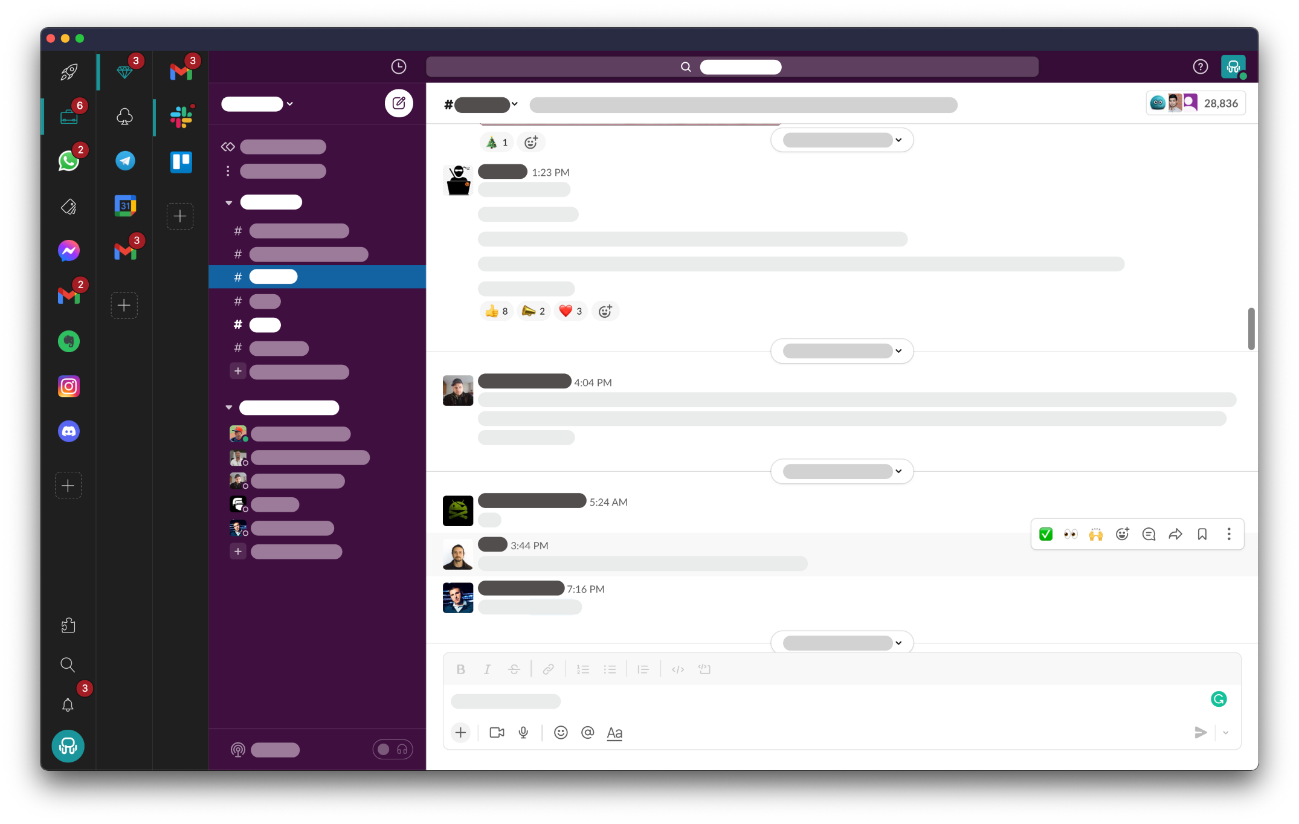

If you want a clearer picture of what this change looks like, here’s a short video that shows the difference between having all your apps scattered across browser tabs and having them organized inside Rambox.
If you’d like to try this setup yourself, try Rambox for free! No cards, no commitments. See how much lighter your workflow feels when your apps have a dedicated home outside the browser.
Best tab manager for Chrome: 15 top tools compared
Now that your everyday apps have a cleaner place to live in Rambox, it is time to organize what actually stays inside the browser. That is where a good tab manager can make a real difference.
Chrome will always be the place where you search, read, compare and open new pages throughout the day, and tabs can still pile up quickly. To help you keep that part of your workflow under control, here is a look at 15 of the most useful tab managers for Chrome and what each one can help you with.
1. OneTab
OneTab is one of the simplest ways to clean up a crowded browser. With a single click, it turns all your open tabs into a list so you can save them, restore them, or keep them out of sight until you need them again.
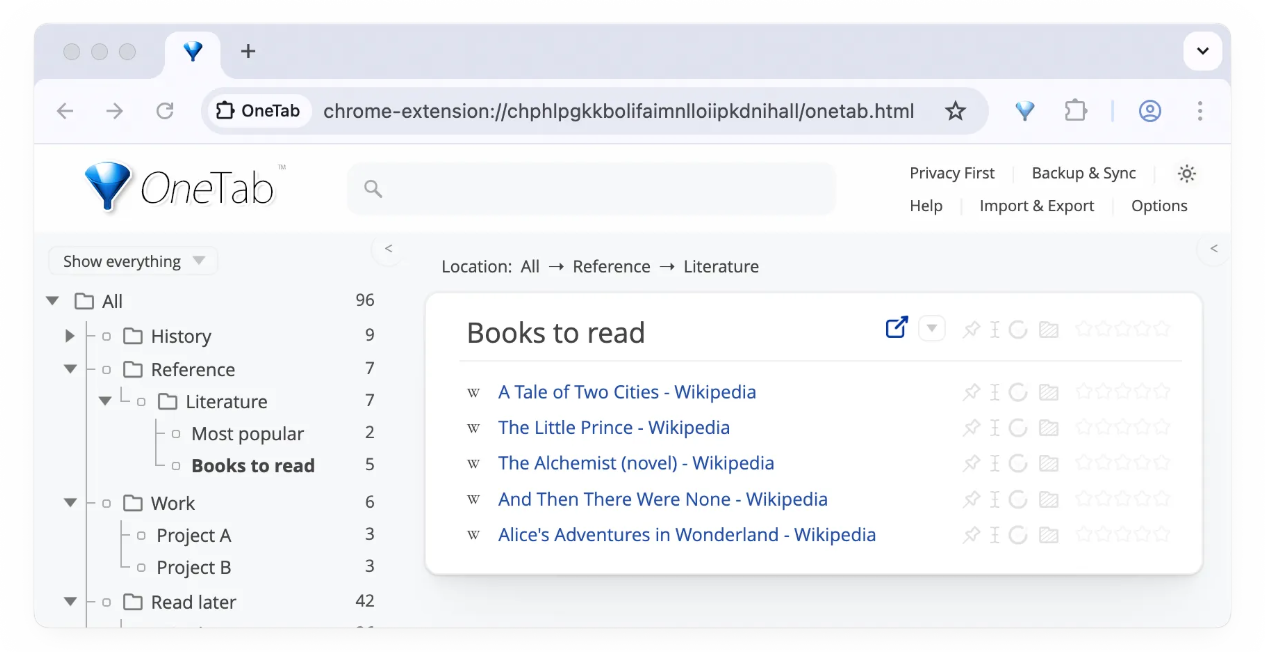
Source: OneTab Help
Great for those moments when your tab bar is completely full but you are not ready to close anything. OneTab gives you an instant reset and makes Chrome feel lighter almost immediately.
It is fast, very easy to understand, and perfect for users who want a no drama solution that just works.
Potential limitations
It is not designed for organizing your work into groups or workspaces, so if you want more structure, you may prefer a more advanced tab manager.
2. Session Buddy
Session Buddy is a powerful tool for saving and restoring groups of tabs, making it easy to pause a research session and come back to it later without losing anything.

Source: Chrome Web Store
Great when you work in clear phases or switch between multiple projects during the day. You can open a full set of tabs, save it with a name, close everything, and restore it whenever you need to continue.
It feels reliable and practical, especially if your browser crashes or you accidentally close a window. Session Buddy keeps a backup of your sessions so you can recover your work in seconds.
Potential limitations
Sessions are stored locally, so you cannot sync your saved work across devices.
3. Tab Manager Plus
Tab Manager Plus gives you a quick visual overview of everything you have open in Chrome. It shows your tabs in a clean grid, making it easier to find what you need and close what you don’t.
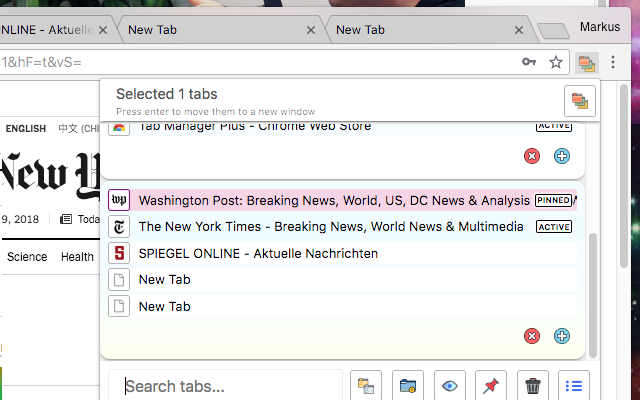
Source: Chrome Web Store
Great when you work with many tabs at once and want a faster way to navigate them. You can search, filter, highlight duplicates, and rearrange tabs with simple actions that keep everything under control.
It is lightweight, fast, and very easy to use, which makes it a good choice if you want more organization without changing how you normally work in the browser.
Potential limitations
Performance can slow down when you have a very large number of tabs open. It also doesn’t save sessions automatically, so your layout resets when you close Chrome, and it may feel limited if you need deeper organization or project based workflows.
4. Toby for Chrome
Toby for Chrome replaces your new tab page with a clean board where you can save and organize the tabs you want to return to later. Instead of keeping everything open, you can drop tabs into collections and come back to them whenever you need.
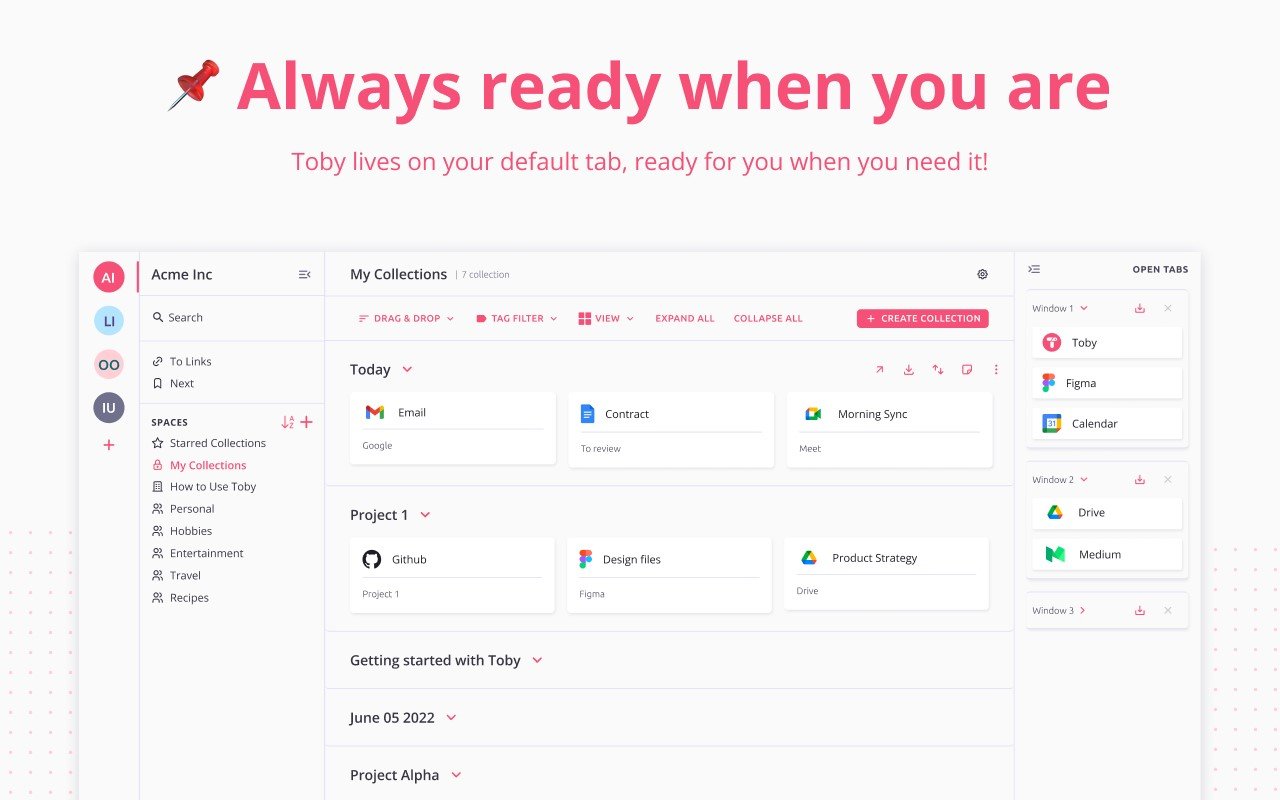
Source: Chrome Web Store
Great when you work on multiple projects or research topics and want each one to have its own space. You can group tabs by task, drag and drop them into collections, and keep your browser focused on what you’re doing right now.
It feels visual, simple, and helpful if you like having your resources laid out in a way that’s easy to scan. Many users use it as a smarter version of bookmarks because it keeps things much more organized.
Potential limitations
It doesn’t import your existing bookmarks, and it requires creating an account to sync your collections across devices.
5. Workona
Workona is built for managing large sets of tabs across different projects or areas of work. It turns your browser into a structured workspace where each project has its own group of tabs that you can open, close, and restore whenever you need.
Great when you juggle multiple clients, tasks, or research topics and want clear separation between them. You can switch workspaces in seconds and keep only the tabs that matter for the task you’re working on right now.
It feels organized and powerful, especially if your day is divided into different types of work. Many people use it as a way to keep their browser clean without losing track of everything they need.
Potential limitations
It can feel heavy if you prefer a simple tab list instead of full workspace management, and performance may slow down when you load several large workspaces at once.
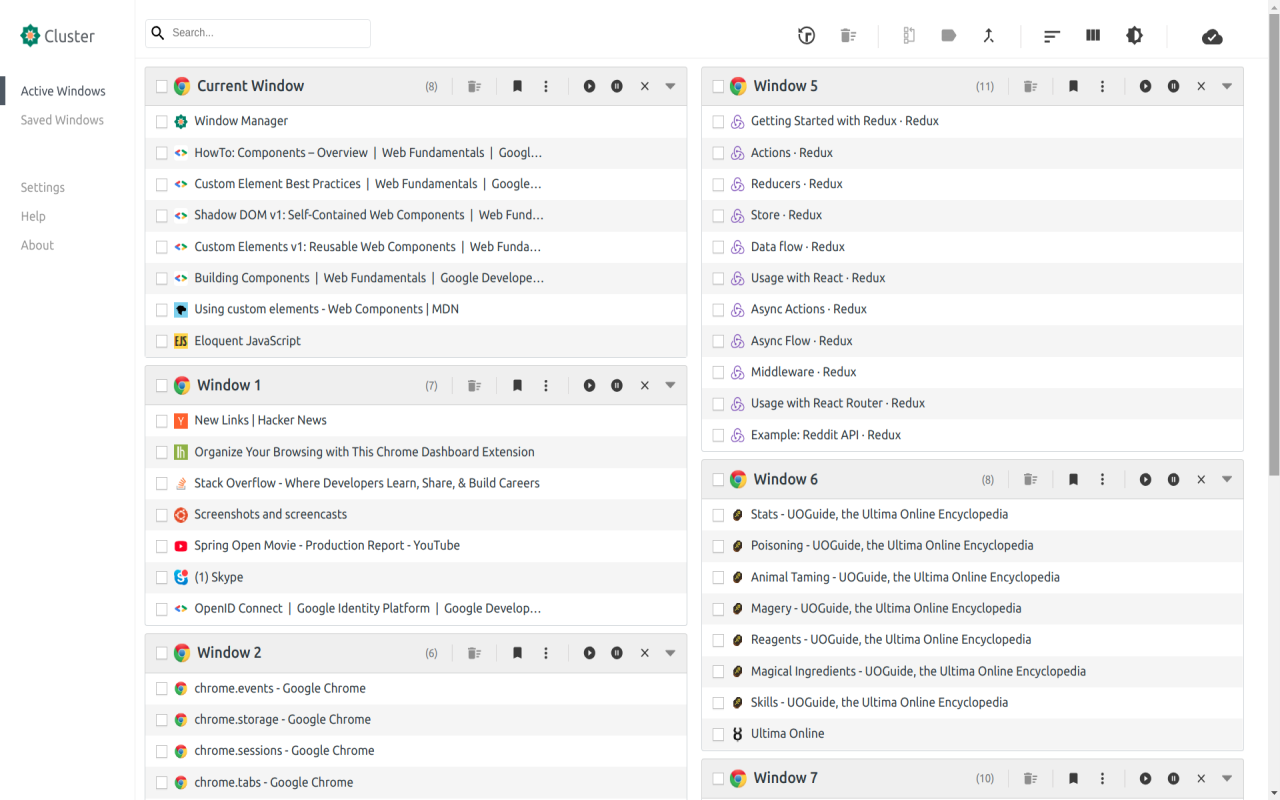
6. Cluster Window and Tab Manager
Cluster Window and Tab Manager gives you a clear overview of all your open tabs and windows, letting you sort, search, and clean up your browser when things start to pile up. It also includes tab suspension, which helps keep Chrome responsive by unloading tabs you are not using.
Source: Chrome Web Store
Great when you jump between several windows or need a quick way to reorganize everything. You can sort tabs by domain, close groups you do not need anymore, and save sessions to return to them later.
It feels practical and efficient, especially if you like having a full picture of your browser instead of navigating one window at a time. The suspension feature can also help if you tend to keep many tabs open for long periods.
Potential limitations
The interface is functional but a bit dated, and the extension has not received frequent updates in recent years.
7. Tabs Outliner
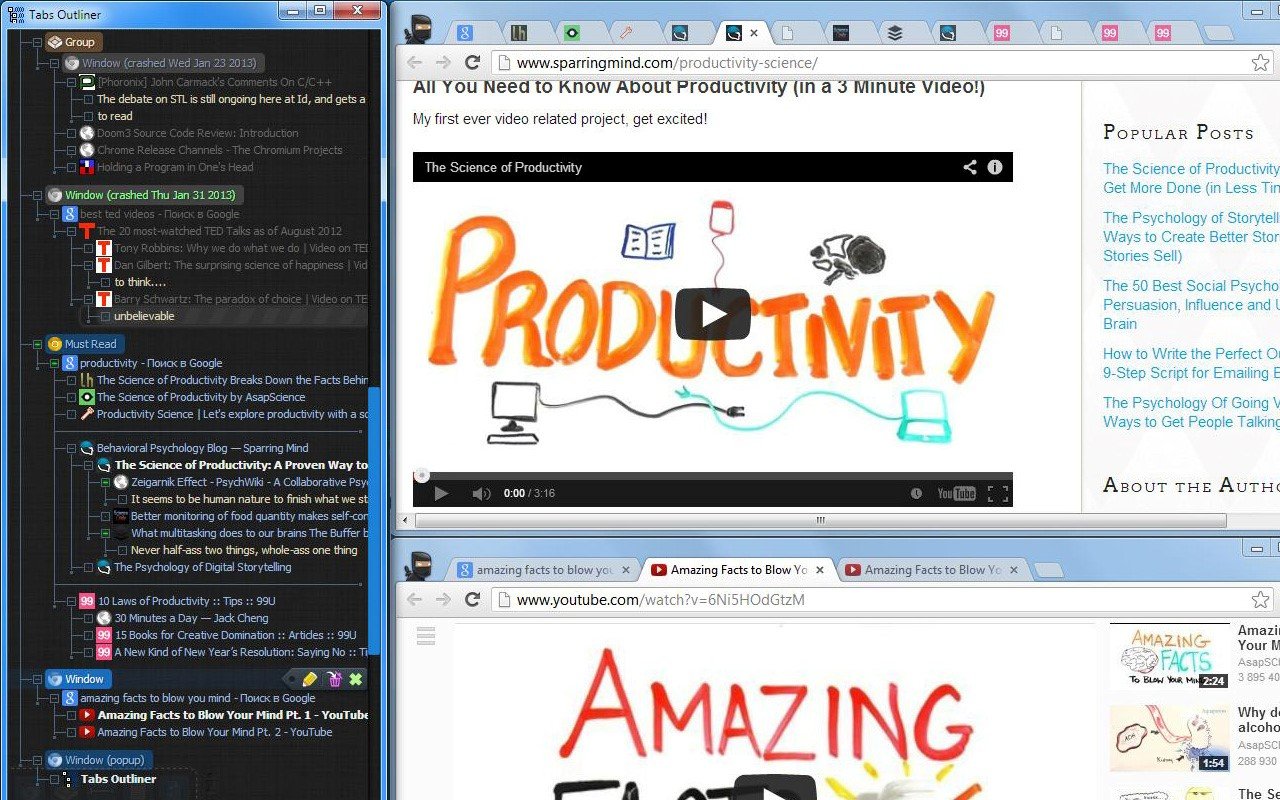
Tabs Outliner is a Chrome extension that combines tab management, session management and a tree-style structure to organize open and saved tabs and windows.
Source: Chrome Web Store
This makes it ideal if you often end up with dozens or hundreds of tabs; you get a full overview and can drag-and-drop to reorganize, annotate tabs, or close-save windows while keeping their context.
Many users praise it because it lets you treat your tabs like a working notebook. You can have live tabs and saved trees side by side. That helps a lot if you switch between multiple projects or deep research sessions.
Potential limitations
Sometimes the interface can feel overwhelming due to the many features and tree structure. Also, because it stores a lot of data when you save sessions, performance or stability may vary depending on how many entries you have saved over time.
8. Tabli
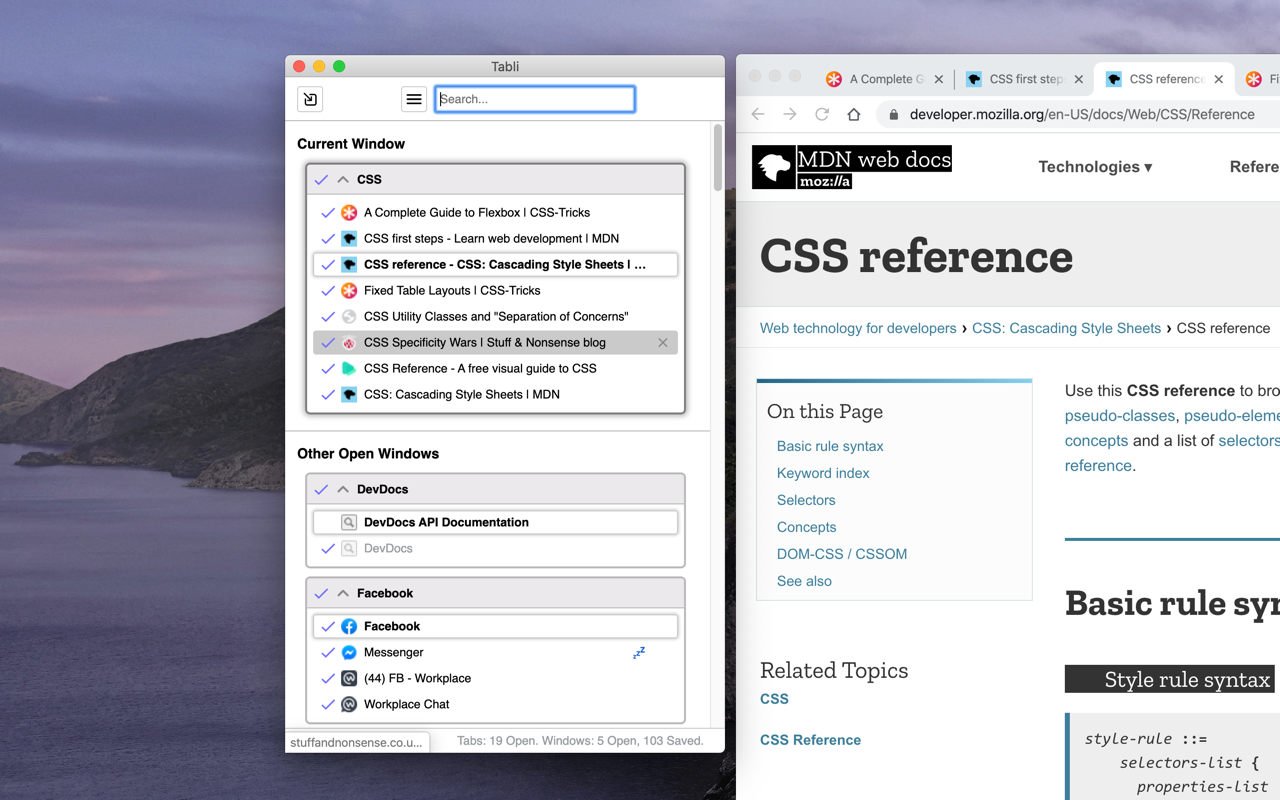
Tabli is a free tab manager for Chrome that gives a quick, searchable overview of all your open windows and tabs.
Source: Chrome Web Store
Great for when you juggle multiple windows or projects at once and need to jump between tabs fast. You can use Tabli’s popup to search, switch, close or restore windows and tabs, which helps avoid losing track when things get crowded.
It feels simple and efficient, especially if you like having a clean overview of everything at a glance without complex configurations.
Potential limitations
If you work with a lot of saved sessions or many tabs, Tabli can feel basic compared with more advanced tab managers, it doesn’t provide fancy workspace grouping or tree-style organization.
9. Quick Tab
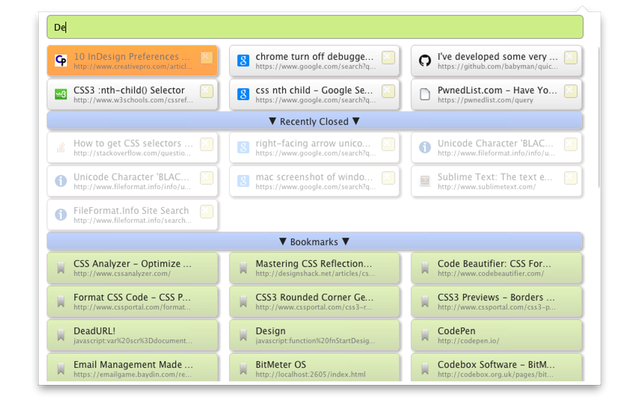
Quick Tabs is a Chrome extension that lists all your open tabs across windows in a “most recently used” order, so you can quickly find and switch to the tab you need without digging through a crowded tab bar.
Source: Chrome Web Store
Great when you often have many tabs open and want to jump between them fast using keyboard shortcuts instead of scrolling through tabs. Quick Tabs shows a popup with a searchable list of titles and URLs and lets you switch with minimal keystrokes.
It feels efficient and lightweight, ideal if you value speed and simplicity over heavy organization features. Quick Tabs works quietly in the background and shows results instantly, which makes it good for instant tab access while you work.
Potential limitations
It doesn’t provide advanced tab grouping, session saving or workspace features, it focuses solely on fast tab switching and search.
10. Tab Wrangler
Tab Wrangler automatically closes tabs in Chrome that haven’t been used for a while, helping you keep your browser clean when tabs pile up. It moves closed tabs to a safe list called the Tab Corral, so you can reopen any you need.
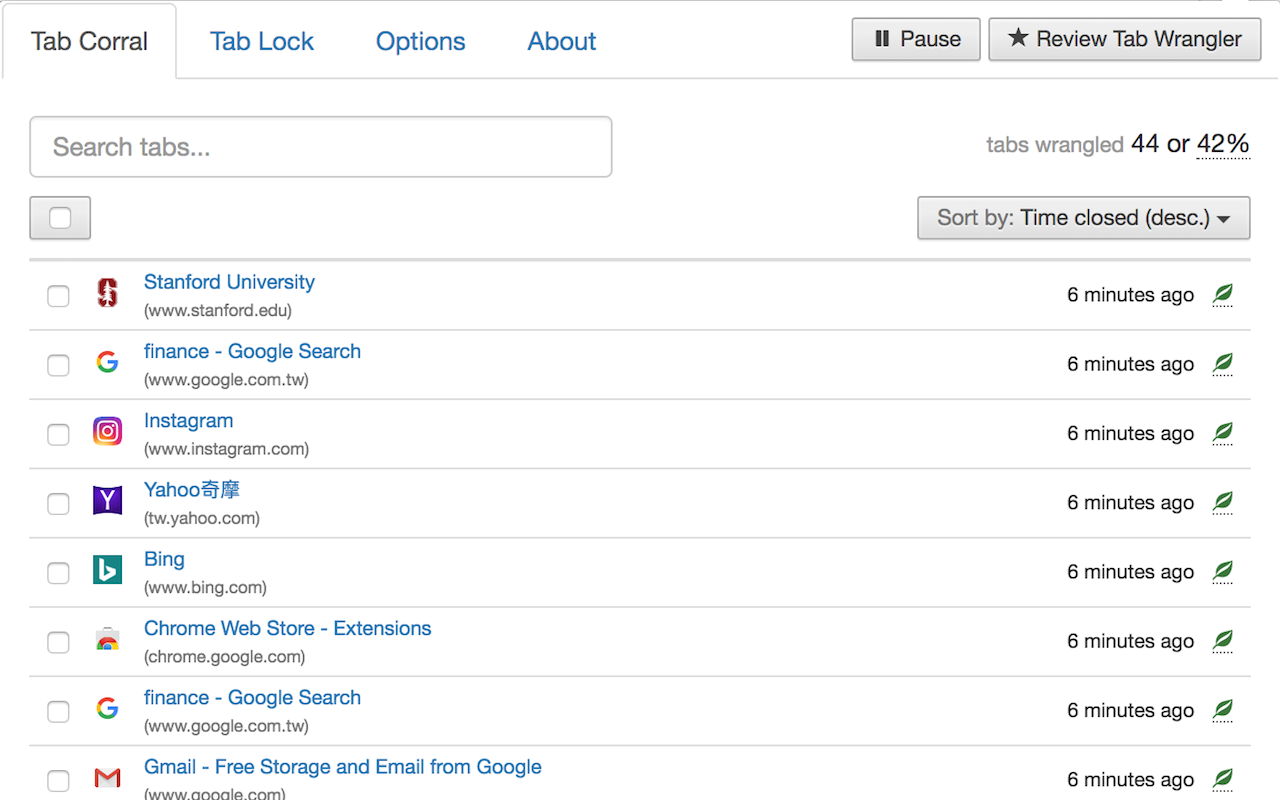
Source: Chrome Web Store
Great when you tend to accumulate many tabs just to forget about them later. It gives you a way to clean up automatically without losing the possibility to go back to a tab if you need it again.
It works quietly in the background, requires minimal configuration, and provides quick tab cleanup without complicating your workflow. It’s ideal if you want to keep Chrome from getting overloaded without investing time in manual tab management.
Potential limitations
If you forget to adjust its settings, you might lose tabs you planned to revisit later. Also, because it closes tabs automatically based on inactivity, it may not suit workflows where you frequently leave tabs idle but return to them later.
11. Tab Resize
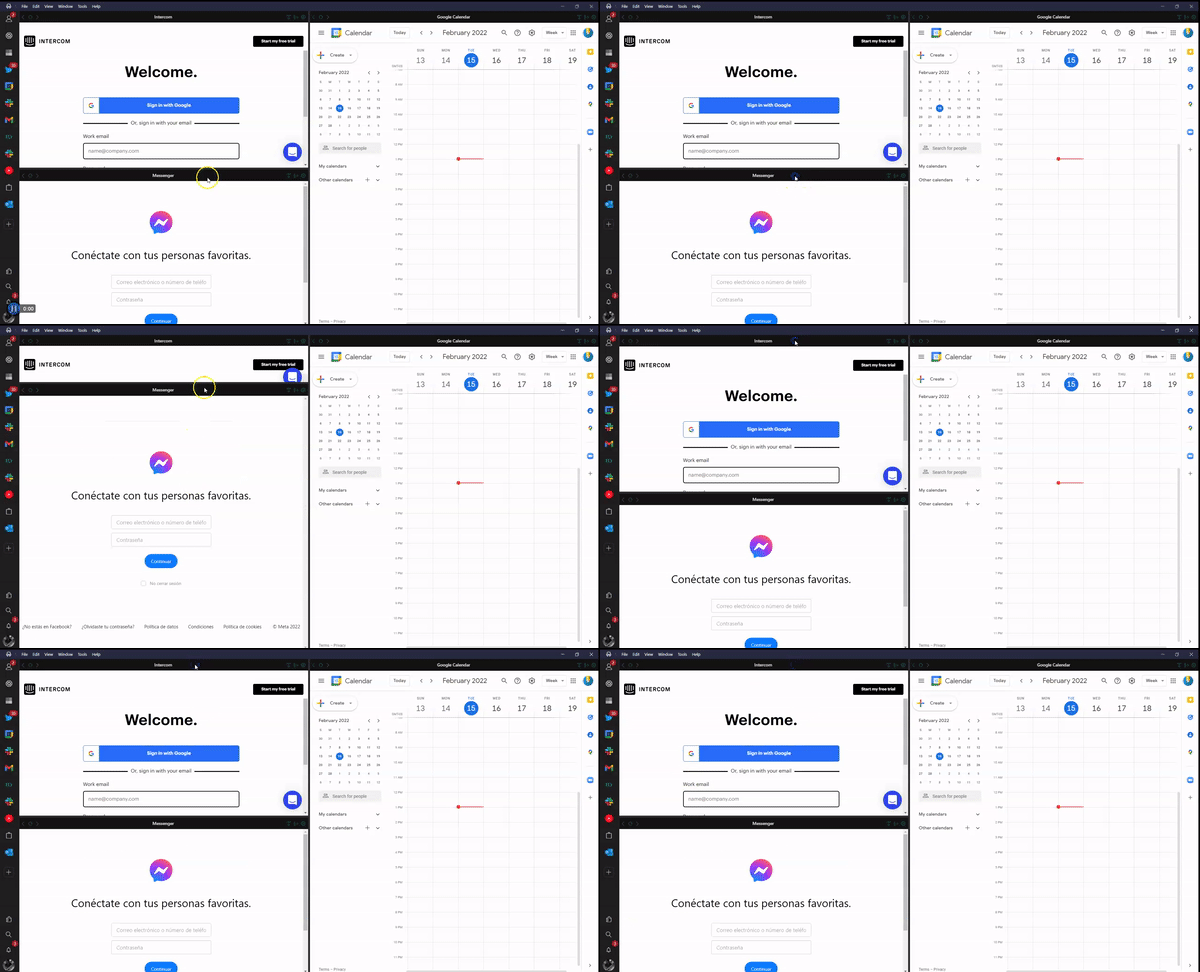
Tab Resize is a Chrome extension that lets you quickly arrange your open tabs into preset layouts across separate windows, so you can see several pages at once without manually resizing everything.
Great when you need to compare information, follow a tutorial while you work, or keep documents, dashboards and tools visible side by side. With a couple of clicks or shortcut keys you can move from a single window to a clean layout with two by two or similar arrangements.
It feels straightforward and practical if you like visual control over your workspace. Tab Resize includes ready made layouts, lets you create your own, and supports multiple monitors so you can spread your tabs across different screens more easily.
Potential limitations
Tab Resize focuses on layouts and window resizing rather than on things like tab grouping or session saving, so you may still want another tool if you need deeper tab organization.
And if you want this same split view idea outside the browser, Rambox includes a Tiles layout that lets you place several apps side by side in one workspace, using vertical or horizontal splits to build the layout you prefer.
12. Tree Style Tab
Tab Tree shows your open tabs in a simple vertical list, making it easier to see everything at once without scrolling through a crowded tab bar. It organizes tabs in a tree style view, so you can expand or collapse groups and keep related pages together in a way that feels much more natural than the default Chrome layout.
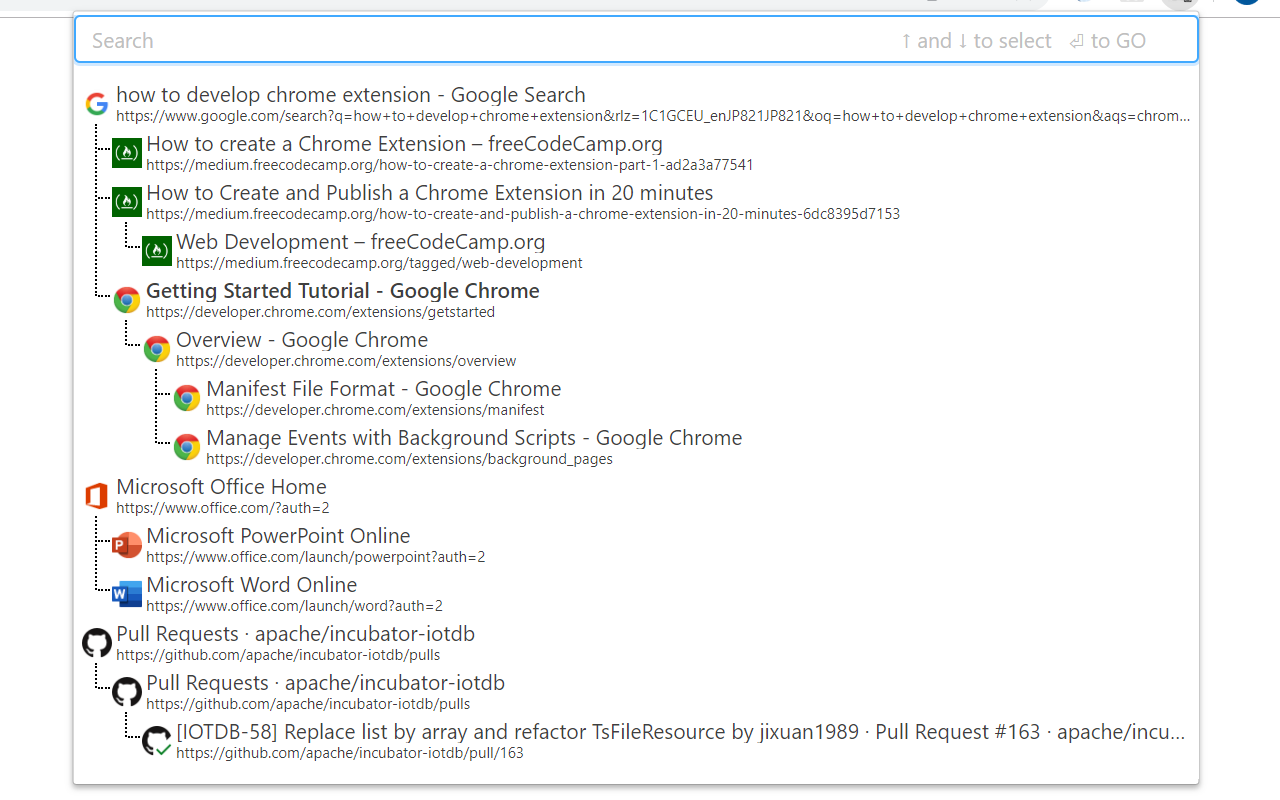
Source: Chrome Web Store
Great when you open many tabs from the same page or jump between different topics during the day. Instead of losing track of where each tab came from, Tab Tree gives you a clear structure that helps you stay oriented while you work.
It feels light, clean and helpful if you prefer having your tabs in a vertical space rather than squeezed into tiny icons at the top of the browser. Collapsing groups also keeps your workspace tidy when things start to grow.
Potential limitations
It focuses on a tree style layout, so it does not include advanced session saving or workspace features.
13. The Marvellous Suspender
The Marvellous Suspender is a Chrome extension that suspends inactive tabs so they stop using memory, helping your computer run more smoothly when you have many pages open at once. It is a privacy friendly fork of the original The Great Suspender, focused on keeping the same idea without tracking issues.
Great when you often leave a lot of tabs open in the background and notice that Chrome starts to slow down. You can let the extension suspend tabs automatically after a period of inactivity and wake them when you click them again, so your browser feels lighter while you work.
It feels useful if you like to keep everything open for reference but do not want to think about manual tab cleanup. You set it once, adjust a few options, and it quietly reduces memory use while you focus on your tasks.
Potential limitations
When a tab is suspended you may lose things like text in forms, page position or media playback, and some users report that history navigation can behave differently in certain cases.
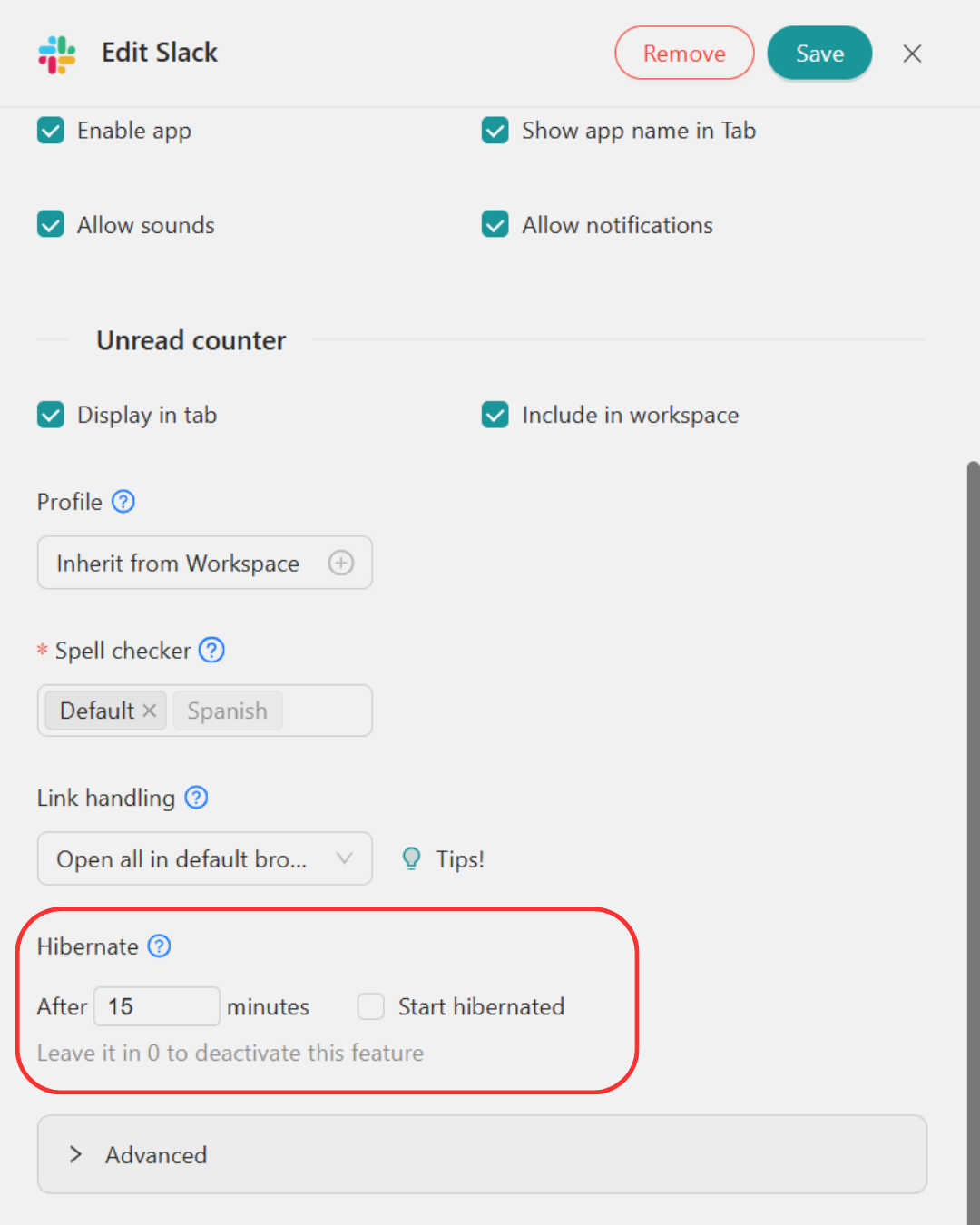
Rambox includes a similar feature by letting you set apps to hibernate after a period of inactivity. It frees up memory without removing anything, and you choose which apps should hibernate and which ones should stay active.
14. Tabs Aside
Tabs Aside is a Chrome extension that lets you set your current tabs aside, save them into collections and bring them back later with a click. It brings back the classic Tabs aside idea from old Microsoft Edge, turning your open tabs into temporary sets that you can restore when you need them again.
Great when you have a group of tabs you want to clear out of the way without losing them. You can save them as a named collection, organize them into groups and subgroups, and search through them instead of keeping everything open all the time.
It feels flexible and modern, with options like dark mode, search and appearance settings, and it also syncs across devices so you can access your saved collections wherever you sign in.
Potential limitations
Tabs Aside focuses on saving and restoring sets of tabs rather than managing the tabs that stay open in your current window, so if you want a live overview of active tabs you might still need another tool for that part of your workflow.
15. Simple Window Saver
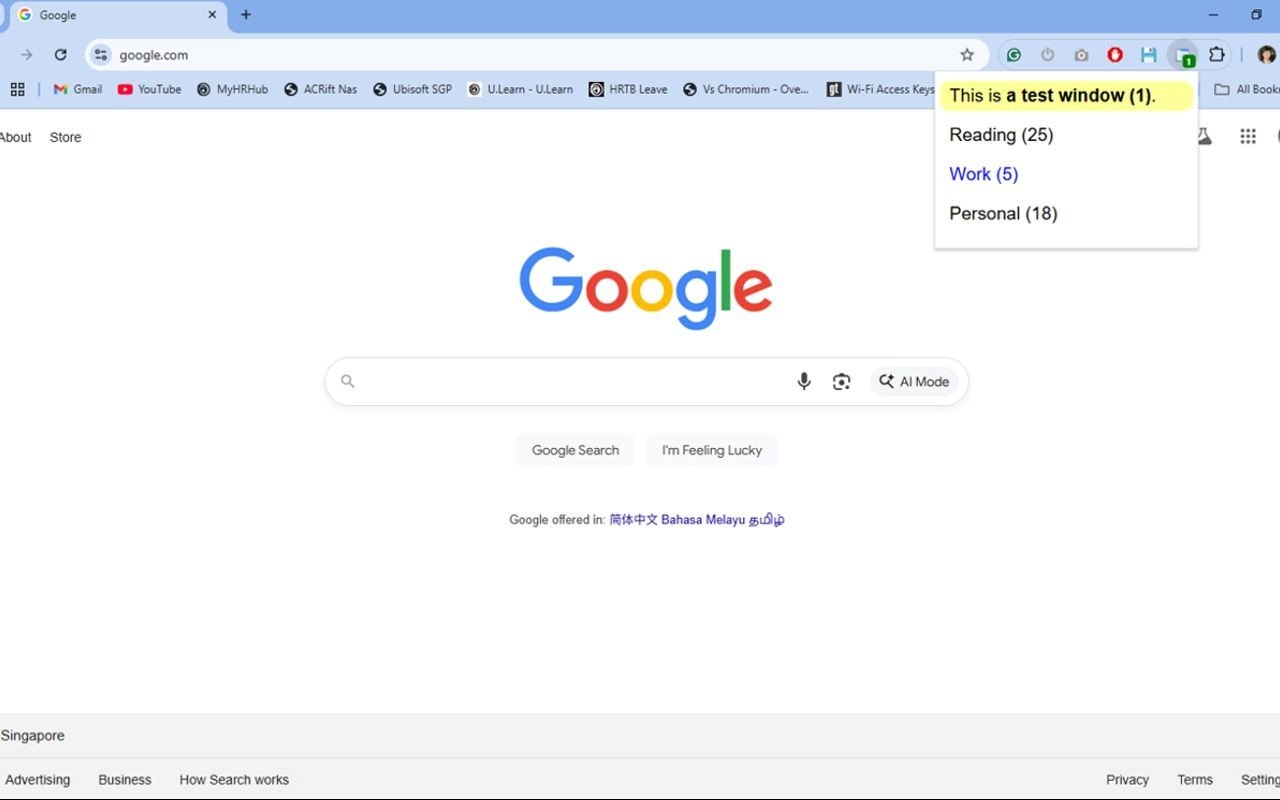
Simple Window Saver is a Chrome extension that lets you save and restore whole browser windows, so you can keep different sets of tabs for work, personal use or specific tasks and reopen them later with the same structure. Simplicity is the main goal, and it remembers when you saved a window and tracks changes to it.
Source: Chrome Web Store
Great when you like to separate your browsing into different windows, for example one for work tools, one for communication and one for a personal project. You can save each window and restore it whenever you want to continue exactly where you left off.
It feels very straightforward if you just want a way to bookmark entire windows instead of individual pages.
Potential limitations
It does not support tab groups or incognito windows and it is focused on saving and restoring windows rather than offering deeper features like tab search, vertical views or advanced session management.
Comparative recap: Which Chrome tab manager is right for you
After going through all these tools, the real question is simple: which one fits the way you work. Each tab manager solves a slightly different problem, so the best choice depends on what slows you down during the day.
Here is a quick recap that helps you see where each option stands and which one matches your workflow.
| Use case | Best options | Why they fit |
| Heavy research sessions | Session Buddy, Tabs Outliner, Workona | They save and restore large sets of tabs, keep context intact and help you continue long research without losing anything |
| Minimalist workflows | Quick Tab, Tabli, OneTab | They stay out of the way, load fast and focus on quick access or instant cleanup |
| Visual and structured organization | Toby for Chrome, Workona, Tabs Outliner | They create collections or tree views that make your tabs easier to understand at a glance |
| Multitasking and split view work | Tab Resize, Cluster | They let you arrange several tabs at once and keep more than one page visible without juggling windows |
| Memory saving and lighter browsing | OneTab, The Marvellous Suspender, Tab Wrangler | They reduce memory use by suspending or consolidating tabs so Chrome feels smoother |
| Managing multiple windows | Tabli, Cluster, Workona | They help you jump between windows, reorganize them and restore full sets when you need them |
| Best all around | Tab Manager Plus | It works fast, offers a clear overview and fits most workflows without adding complexity |
| Long term project workflows | Workona | It gives each project its own space with tabs you can open, close and restore whenever you need |
Combine Rambox and your tab manager for Chrome
Once your everyday apps live comfortably in Rambox, your browser starts to feel lighter right away. But you can take things even further by using a simple tab manager alongside it.
Rambox keeps your communication tools, project apps and daily platforms in one place, while a tab manager helps you handle whatever still belongs inside Chrome, like research, articles, quick tasks or pages you open on the fly.

This combination works well because each tool takes care of a different part of your workflow. Rambox gives your apps a dedicated home so they stop filling your browser with tabs, and the tab manager keeps the remaining tabs organized so you can move faster without letting things pile up again.
It is an easy way to get a cleaner setup without changing how you like to work.
Tips to avoid Chrome tab overload
Even with Rambox and a good tab manager, tabs can still grow faster than expected if you are not paying attention. The key is to build a few small habits that keep your browser under control without extra effort. These ideas help you stay organized and avoid ending the day with a tab bar that feels endless.
- Close what you already finished: If a tab is no longer useful, close it right away. Leaving it open “just in case” is the quickest path back to clutter.
- Use bookmarks for long term stuff: Anything you know you will need again later is better saved as a bookmark or inside a dedicated collection instead of becoming a permanent tab.
- Keep research in sessions: When you start a research task, let your tab manager save it as a session. That way you can pause it, close everything and return whenever you want.
- Separate apps from browsing: Your browser should be the place where you search for things, not where all your daily tools live. Keeping communication and work apps in Rambox prevents tab overload from happening in the first place.
- Review your tabs a couple of times a day: A quick look every morning and afternoon helps you remove what is no longer relevant. It takes seconds and keeps Chrome feeling light.
FAQs about tabs managers for Chrome
What is the best tab manager for Chrome right now
There is no single winner for every user. Tools like OneTab and Session Buddy are great for saving sessions, while Tab Manager Plus and Workona shine when you need visual workspaces. The best tab manager for Chrome is the one that fits your workflow and device limits.
Do Chrome tab managers slow down the browser
Most modern tab managers are lightweight, but installing many extensions at once can add overhead. To keep Chrome fast, use only one main tab manager, keep it updated, and remove extensions you no longer use.
Is it safe to use a tab manager extension
Well known tab managers from the Chrome Web Store are generally safe, but you should always review permissions, check recent reviews, and avoid extensions that have not been updated for a long time or request unnecessary access.
Can a tab manager help with memory usage in Chrome
Yes. Many tab managers reduce memory usage by suspending inactive tabs or converting them into a list you can restore later. This keeps Chrome responsive while still letting you come back to your research or projects.
Do I still need a tab manager if I use Rambox
If you move your main work apps into Rambox, you may need fewer tabs in Chrome, so a tab manager becomes less important. Still, if you do heavy research inside the browser, combining Rambox with one simple tab manager can give you the best of both worlds.
What is the difference between Chrome tab groups and a tab manager
Chrome tab groups are a native feature to color label and collapse tabs. A tab manager usually goes further, adding search, sessions, suspension, keyboard shortcuts, and advanced organization that Chrome cannot provide on its own.
How many tabs are “too many” in Chrome
It depends on your device, but once you cannot read tab titles and Chrome starts to feel slower, you are over the limit. At that point a tab manager or a workspace app like Rambox can help you regain control and keep only what you really need open.