

Evernote is one of the most popular note taking apps, but it’s far from the only option. If you’re looking for an Evernote alternative, you’ll quickly run into dozens of tools that all promise to help you save notes, ideas, and documents. The problem is not finding options. The problem is knowing which ones are actually worth your time.
In this post, you’ll find a curated list of 10 free Evernote alternatives, a clear comparison of what each app does well and where it falls short, so you can choose the one that fits how you take notes and organize your work.
Contents
- Why people are looking for an Evernote alternative
- What to look for in a good Evernote alternative?
- The best way to work with note-taking apps on your PC
- Quick comparison of the best Evernote alternatives
- Top 10 (and free) Evernote alternatives
- Best Evernote alternative by use case
- How to choose the right Evernote alternative for your workflow
- How to add these Evernote alternatives to Rambox
- FAQs about Evernote alternatives
Why people are looking for an Evernote alternative
Most note taking apps look fine at first, but problems show up with daily use. These are the main reasons people start searching for an Evernote alternative:
- Device limits on free plans: Evernote now restricts how many devices you can use without paying, and that frustrates people who want flexibility.
- Price increases: When the cost goes up without a clear benefit, many reassess whether the tool still makes sense.
- Search feels weak as notes grow: When you have lots of mixed content, finding what you need fast becomes harder.
- Missing features people actually use: Things like block-level editing, better markdown support, or lightweight tagging can be deal-breakers.
What to look for in a good Evernote alternative?
Before picking any note taking app, it helps to know what actually matters in daily use. These are the points that make the difference once your notes start to grow:
- Reliable sync across devices: Your notes should stay up to date on desktop and mobile without manual refreshes or conflicts.
- Offline access: You should be able to read and edit your notes without an internet connection and sync later.
- Flexible organization: Folders, tags, or both. The system should adapt to how you organize information.
- Support for attachments: Images, PDFs, and links are part of real note taking, not extras.
- Cross platform support: Windows, macOS, and mobile apps should offer a consistent experience.
- Export and portability: You should be able to move your notes if you decide to change tools in the future.
- A free plan you can really use: The free version should allow proper testing, not just a short demo.
The best way to work with note-taking apps on your PC
Your notes usually live next to email, chat, documents, and tasks, so having everything scattered across separate windows makes simple things slower than they should be. A workspace that keeps all your tools in one place helps you stay focused and avoid constant context switching.
With Rambox, your note taking app is always available in your main workspace. You can open tools like OneNote, Google Keep, or Zoho Notebook alongside your email or chat apps and move between them without losing what you were doing.
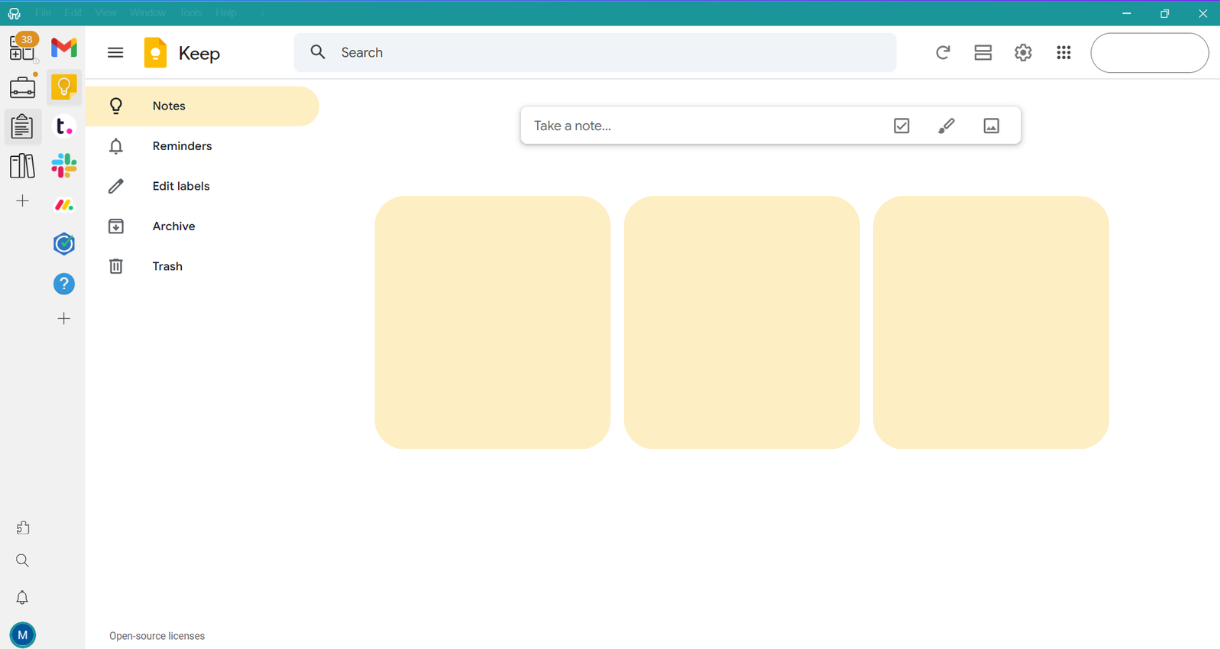

Sounds good, doesn’t it? The best thing is that you can try Rambox for free. Just create an account, download the app, and start using your note taking tools from one single place.
No cards, no cheating, it’s that simple!
Quick comparison of the best Evernote alternatives
Before going into each app, here’s a quick table comparing the Evernote alternatives I selected, based on the features that matter most when you use notes:
| App | Sync across devices | Offline access | Flexible organization | Support for attachments | Cross platform support | Export and portability | Free plan |
| Microsoft OneNote | ✔️ | ✔️ | ✔️ | ✔️ | ✔️ | ✔️ | ✔️ |
| Joplin | ✔️ | ✔️ | ✔️ | ✔️ | ✔️ | ✔️ | ✔️ |
| iCloud Notes | ✔️ | ✔️ | Basic | ✔️ | Apple only | Limited | ✔️ |
| Google Keep | ✔️ | Limited | Basic | Limited | ✔️ | Limited | ✔️ |
| Simplenote | ✔️ | ✔️ | Basic | ❌ | ✔️ | ✔️ | ✔️ |
| Zoho Notebook | ✔️ | ✔️ | ✔️ | ✔️ | ✔️ | ✔️ | ✔️ |
| Standard Notes | ✔️ | ✔️ | Basic | Limited | ✔️ | ✔️ | ✔️ |
| Dropbox Paper | ✔️ | Limited | Basic | ✔️ | ✔️ | ✔️ | ✔️ |
| Notejoy | ✔️ | Limited | ✔️ | ✔️ | ✔️ | ✔️ | ✔️ |
| WorkFlowy | ✔️ | ✔️ | Outline based | ❌ | ✔️ | Limited | Limited |
Top 10 (and free) Evernote alternatives
After going over what to look for in a notes app and comparing the main options side by side, let’s get down to business. These are the top 10 Evernote alternatives I’ve picked and why.
1. Microsoft OneNote
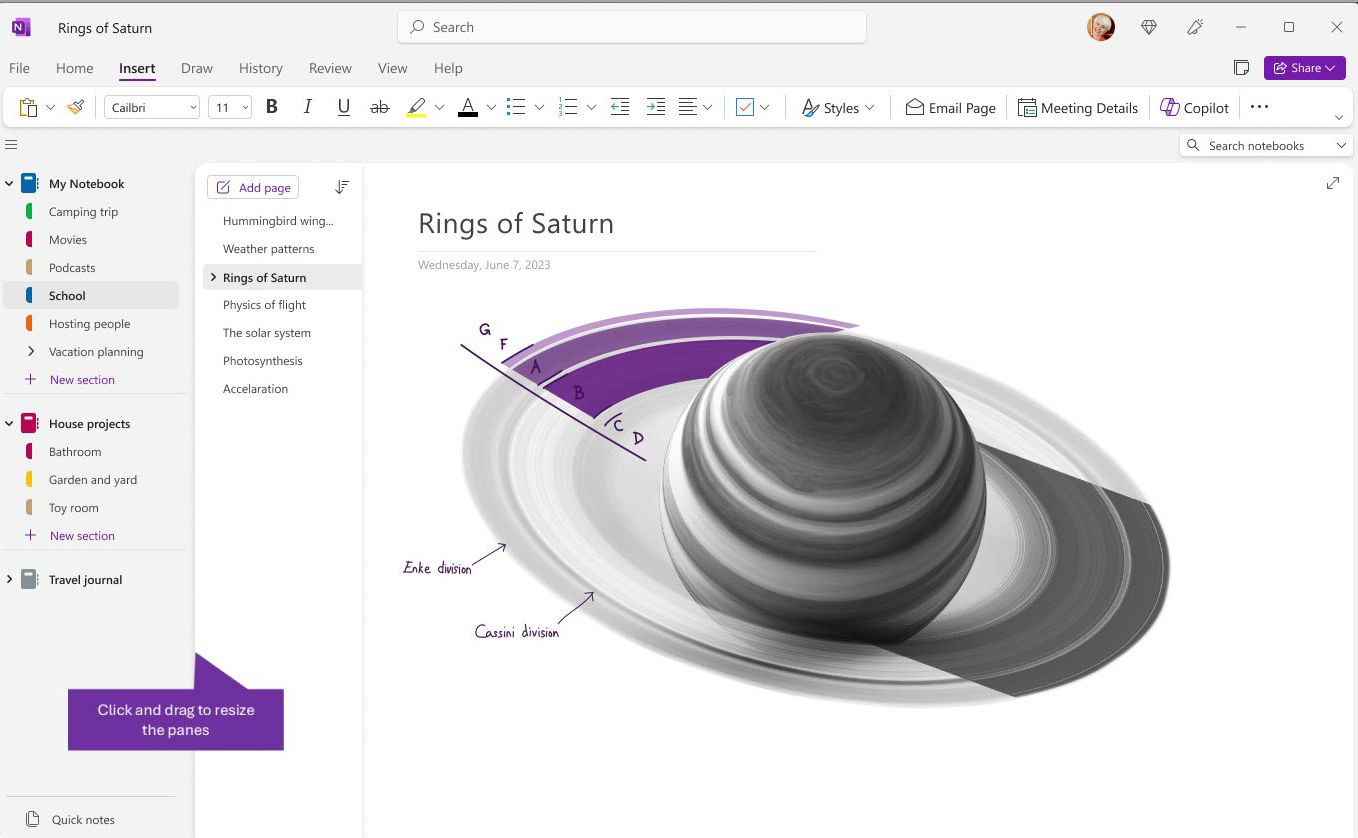
If you want a full featured note taking app OneNote is one of the best options.
Source: Microsoft Support
It handles long notes, images, PDFs, and mixed content without problems, and it scales well when your note library grows. The notebook, section, and page structure makes it easy to separate work notes from personal stuff without creating a mess.
OneNote works across Windows, macOS, mobile, and web, and syncing is stable as long as you use a Microsoft account. Offline access works well on desktop, so you can keep working even without an internet connection and sync later. Search is fast, even with large note collections, and attachments are handled without friction.
Where OneNote may fall short: flexibility
The structure is fixed, and if you prefer tag only systems or markdown style notes, it can feel restrictive. The interface can also feel heavy if all you want is a fast place to dump short notes.
2. Joplin
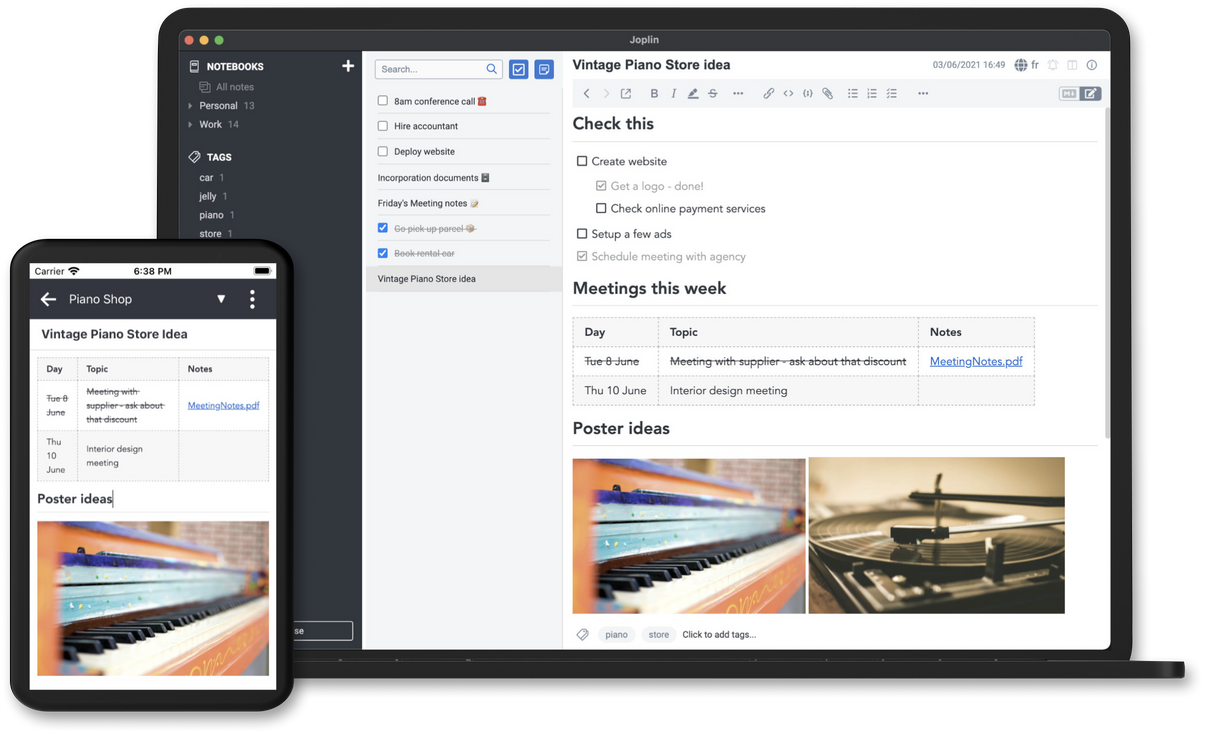
Joplin is a good choice if you want more control over your notes and how they are stored. It works well with long notes, supports images and attachments, and handles large note libraries without slowing down too much. The folder and tag system gives you more freedom than rigid notebook structures, especially if you like keeping things well categorized.
Source: Joplin
Joplin works on Windows, macOS, Linux, mobile, and web. Offline access is solid, and you can sync your notes using different services or keep everything local if you prefer. Search works well even with many notes, and exporting your content is straightforward, which makes it easier to move away later if you ever change tools.
Where Joplin can fall short: interface and ease of use
It feels more technical than most note taking apps, and the experience is not as polished as more mainstream tools.
3. iCloud Notes
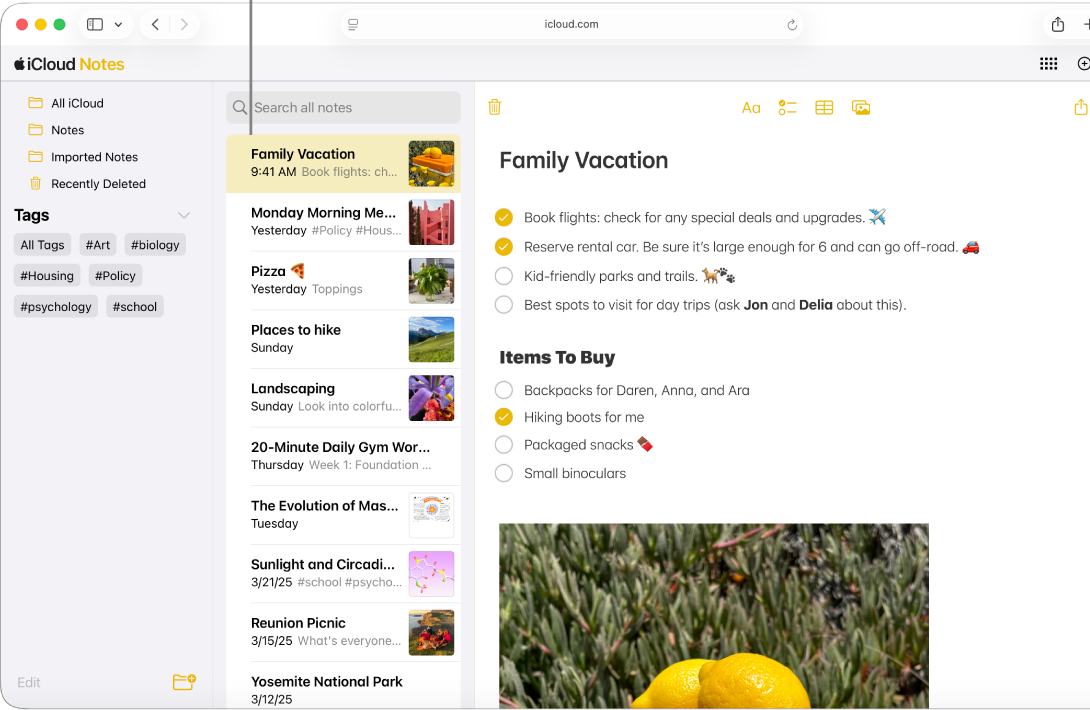
iCloud Notes is a solid option if you work mainly on Apple devices and want a notes app that integrates with the built-in Notes app on iPhone, iPad, and Mac. It handles text notes, images, checklists, and file attachments without extra setup, and it syncs your content across your devices through iCloud.
Source: Apple Support
On Apple devices, notes that have already been downloaded remain available even when you’re offline, and any edits you make will sync back to iCloud once you’re connected again. Search works as expected for everyday note finding.
Where iCloud Notes falls short: cross-platform support
Outside Apple devices, the experience is limited to the web version, which still needs an internet connection. The organization system is simpler compared to other tools that offer more advanced tagging or nested structures.
👉🏻 If you want to use iCloud Notes on a Windows device, don’t miss our guide on how to get iCloud Notes on Windows and how to make the web version feel closer to a desktop app.
4. Google Keep
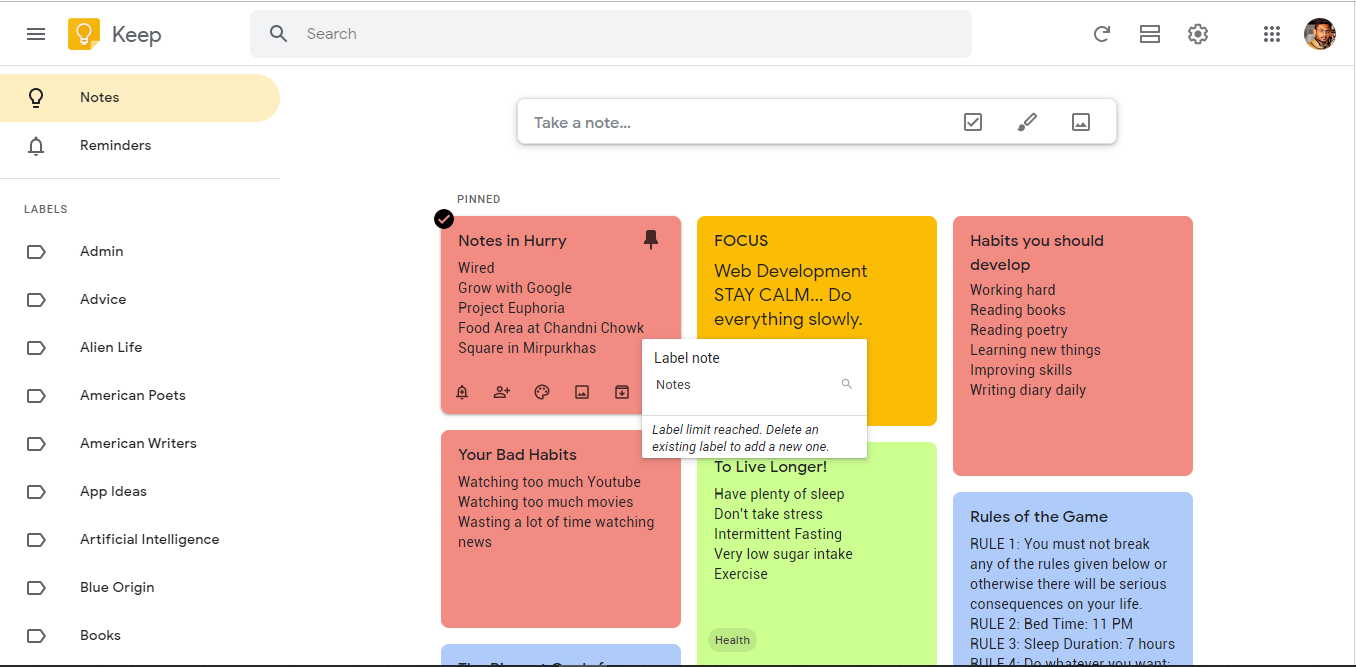
Google Keep works well if you want a fast, lightweight way to capture short notes, lists, and reminders. It’s designed for quick input rather than long documents, which makes it great for to do lists, ideas, and small bits of information you want to grab on the go. Notes sync instantly with your Google account, so everything stays available across devices.
Source: Software Advise
It runs on web, Android, and iOS, and syncing is reliable as long as you’re signed in to the same Google account.
Where Google Keep falls short: offline use on desktop
On PC and Mac, Google Keep runs in the browser and needs an internet connection to work. It’s also not built for long notes or complex note libraries.
👉🏻 If you use Google Keep on your computer, you don’t have to keep it lost in a browser tab. Learn how to get Google Keep as a desktop app on Windows & Mac.
5. Simplenote
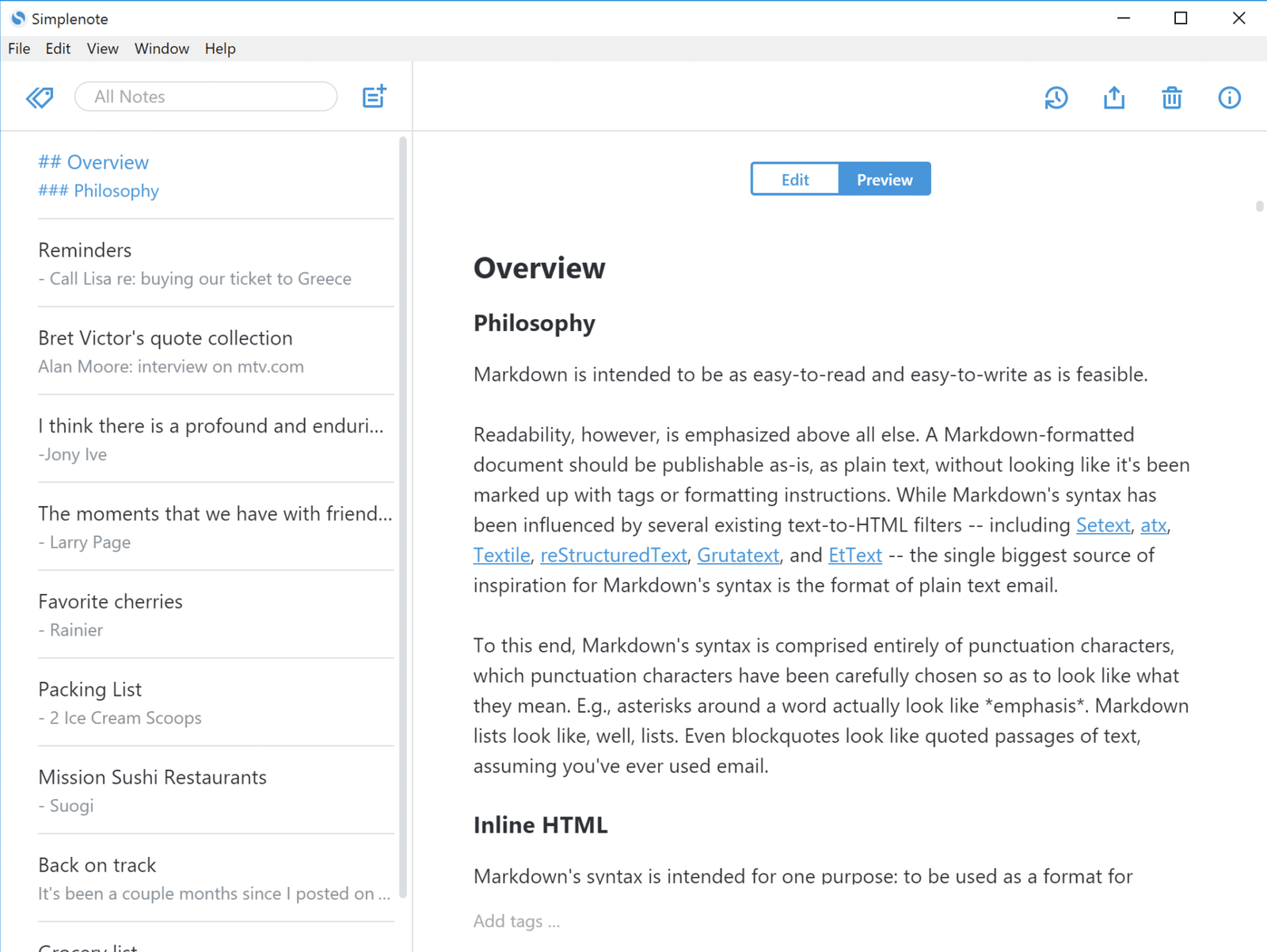
Simplenote is a good fit if you mainly work with plain text notes and want something fast that opens instantly. It’s focused on writing and quick capture, without extra features getting in the way. This makes it easy to use for ideas, drafts, and short notes you want to access from anywhere.
Source: Simplenote
It runs on Windows, macOS, Linux, iOS, Android, and web, and syncing is reliable across devices. Offline access works on desktop and mobile, and your notes sync automatically once you’re back online. Search is fast even with large note collections, but there is no support for file attachments or rich media.
Where Simplenote falls short: when you need more than text
You can’t add images, PDFs, or other files, and organization is basic compared to tools that offer folders, nested structures, or more advanced ways to manage larger note libraries.
6. Zoho Notebook
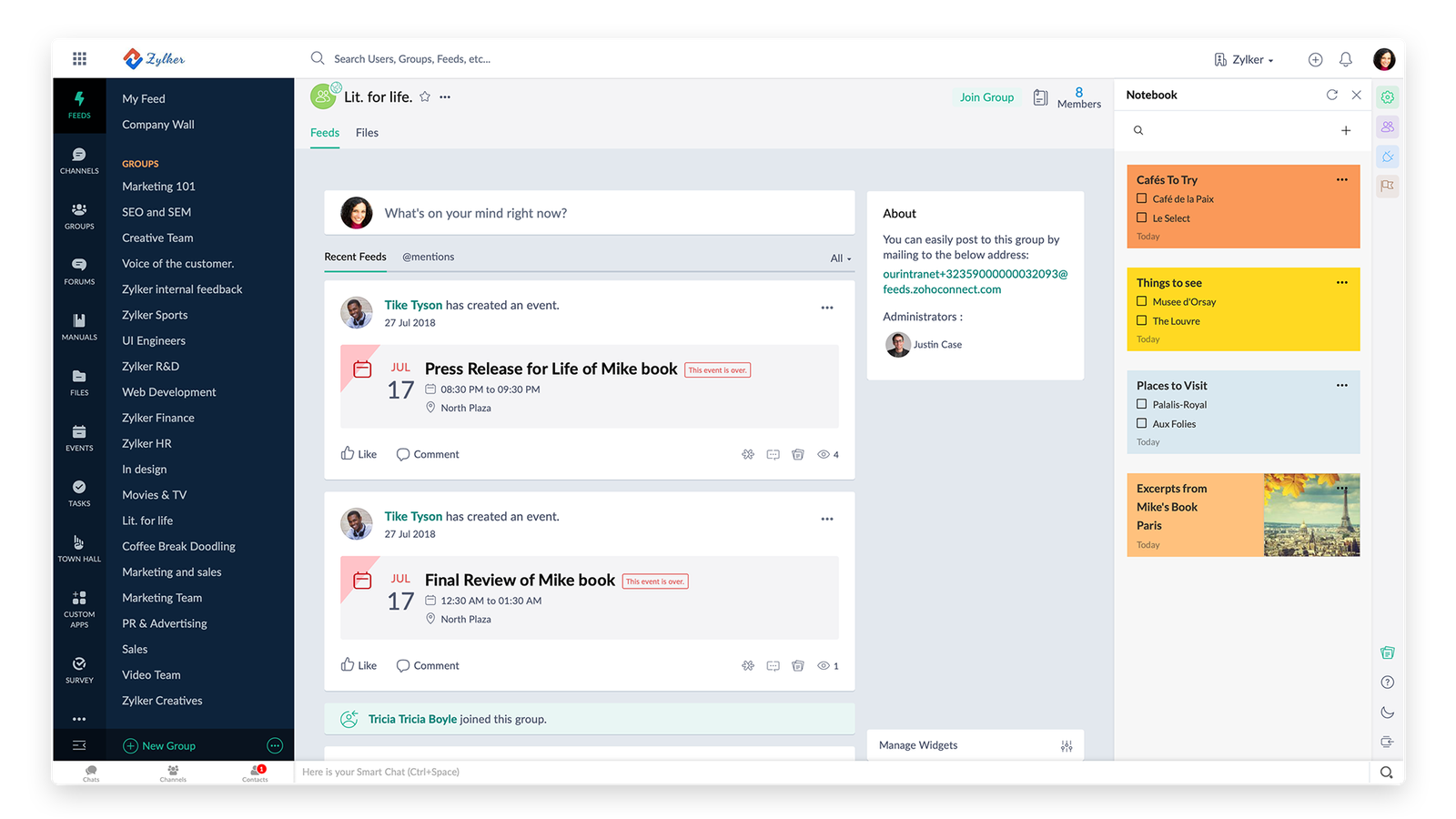
Zoho Notebook works well if you like a more visual way of organizing notes. It uses different note types for text, checklists, images, and files, which makes it easy to separate content without mixing everything into long text notes. For everyday note taking, it feels lighter than more complex tools.
Source: Zoho
It runs on web, Windows, macOS, iOS, and Android, and syncing works well across devices with a Zoho account. Offline access is available on mobile apps, and on desktop you rely on the web version. Attachments are handled without issues, and exporting notes is possible if you want to move your content elsewhere later.
Where Zoho Notebook falls short: advanced organization and search
Once your notes grow into hundreds or thousands, finding specific content can take more steps than in tools with stronger search and filtering options.
7. Standard Notes
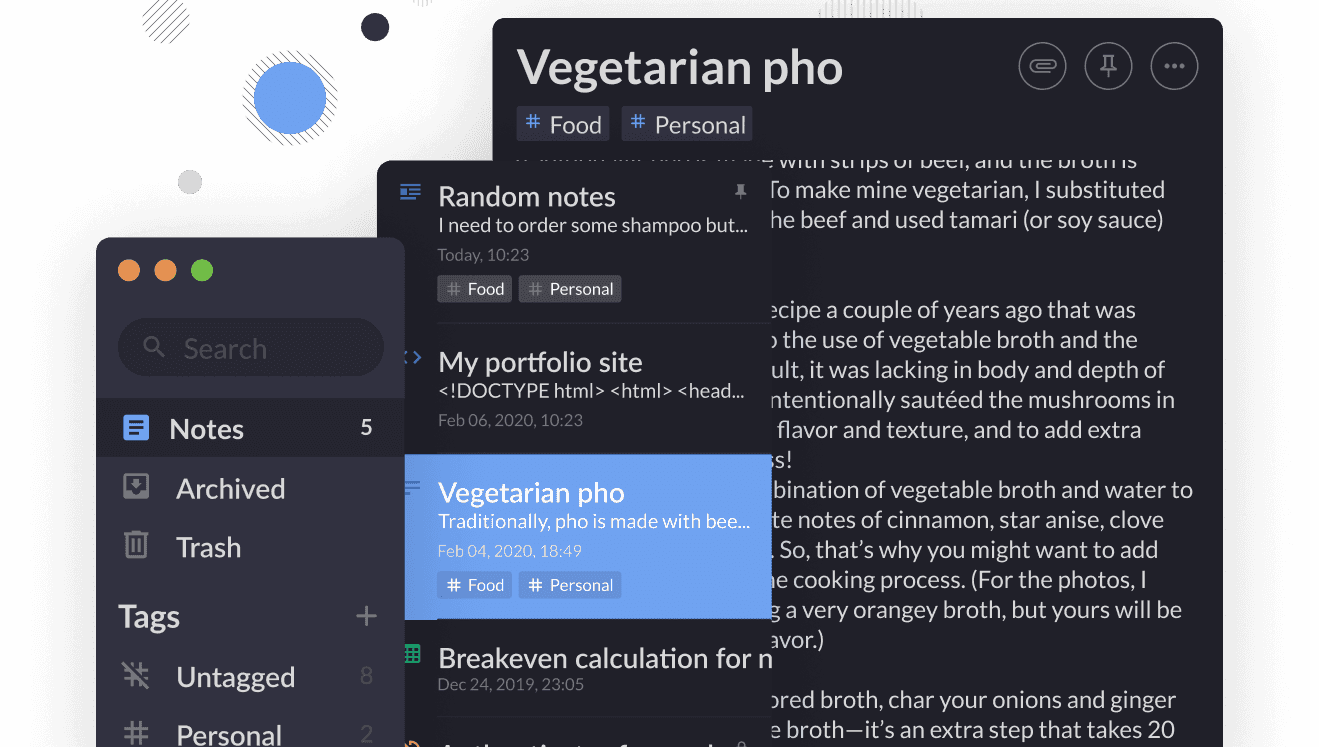
Standard Notes is a good option if privacy matters to you and you mainly work with text based notes. Notes are stored with end to end encryption, so only you can read them. It handles long notes well and stays fast even when your library grows, which makes it suitable for personal knowledge bases and writing.
Source: Standard Notes
It runs on Windows, macOS, Linux, iOS, Android, and web, and syncing works across devices. Offline access works on desktop and mobile, and notes sync once you reconnect. Search works fine for text, and exporting your notes is possible if you want to keep local backups or move to another tool later.
Where Standard Notes falls short: features
The free version is very basic. Attachments, richer editors, and more advanced organization options are behind a paid plan, which can be limiting if you want more than plain text notes.
8. Dropbox Paper
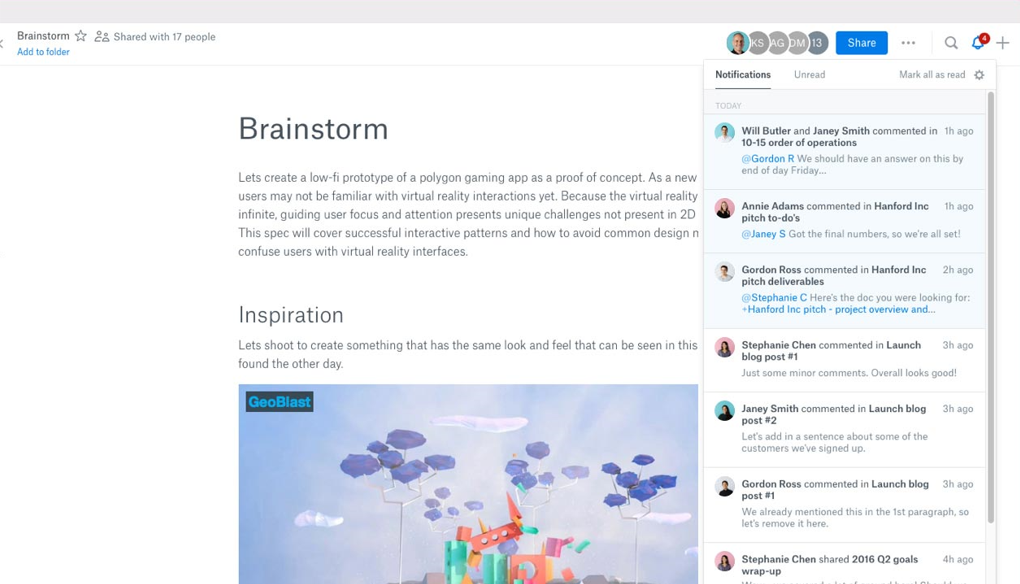
Dropbox Paper works well if you take notes in a more document style way and often collaborate with other people. It’s closer to a lightweight writing and collaboration tool than a classic personal notes app. You can mix text, images, checklists, and comments in the same document, which makes it useful for meeting notes or shared docs.
Source: Dropbox Paper
It runs in the browser and inside Dropbox apps on desktop and mobile. Syncing works through your Dropbox account, and you always see the latest version of each document. Offline access on desktop is limited because you’re working with the web version, and Paper is less practical for personal note libraries that grow over time.
Where Dropbox Paper falls short: long term note management
There are no real notebooks or tag systems like in traditional note taking apps, and search and organization become harder once you have lots of documents spread across folders.
9. Notejoy
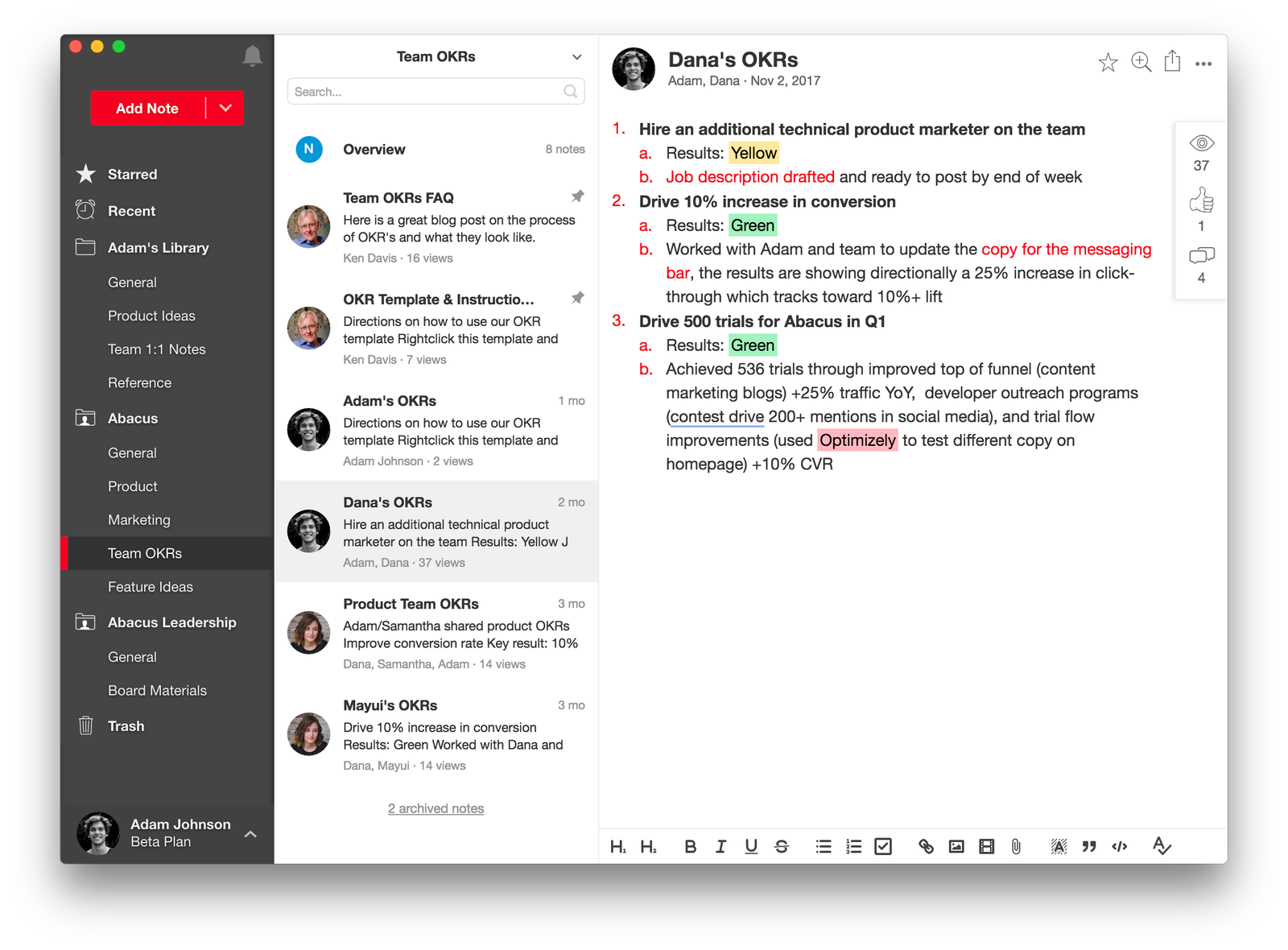
Notejoy is built with teams in mind, but it can also work for personal notes if you like a clean, document based layout. It handles long notes, images, and attachments well, and the interface stays readable even when your notes start to grow. It’s a good option if you often share notes or collaborate with others.
Source: Notejoy
It runs on Windows, macOS, iOS, Android, and web, and syncing works across devices. Offline access is limited on desktop since most of the experience depends on the web version. Search works well for everyday use, and exporting your notes is possible if you need to move your content elsewhere.
Where Notejoy falls short: storage and collaboration features
The free tier limits library storage and file upload size compared to paid plans, and some collaboration and advanced features (like larger library capacities and more expansive team tools) are only available on paid plans.
10. WorkFlowy
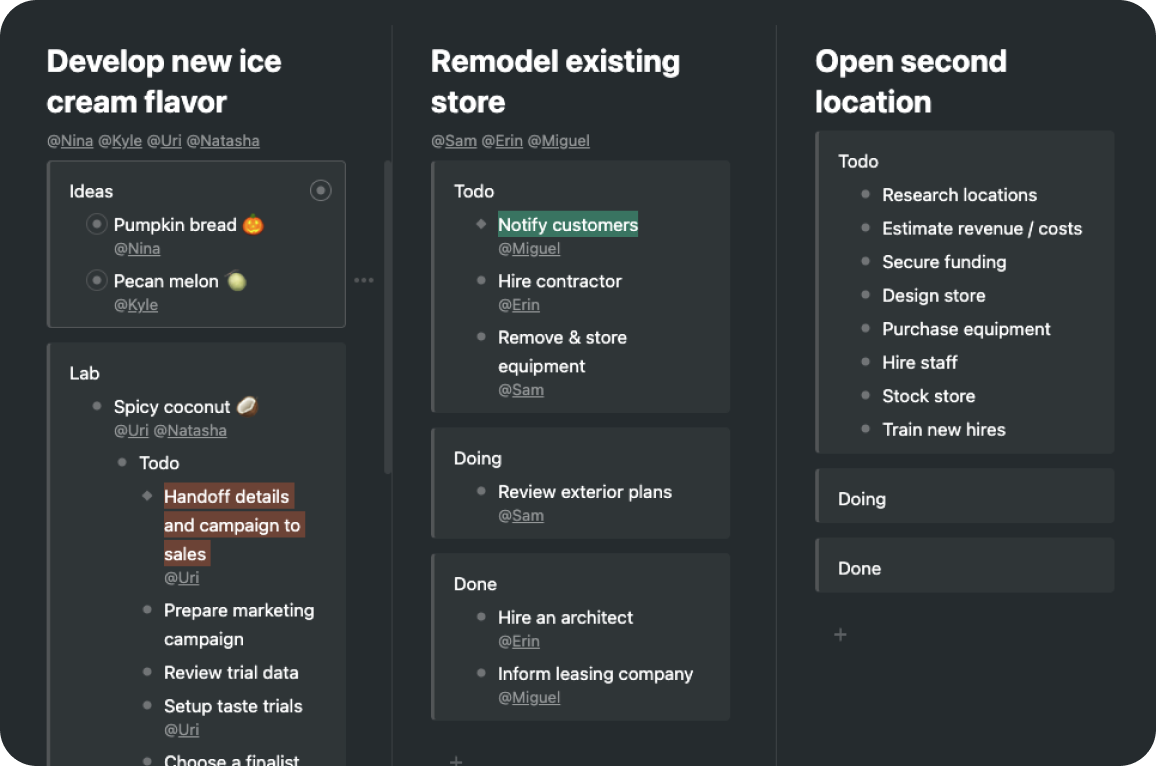
WorkFlowy is a good choice if you like organizing your notes as lists and outlines. Everything lives inside nested bullets, which makes it easy to break ideas into smaller pieces and keep large projects structured. It works well for planning, brainstorming, and keeping structured notes without distractions.
Source: WorkFlowy
It runs on web, Windows, macOS, Linux, iOS, and Android, and syncing works across devices. Offline access works on desktop and mobile, and your changes sync once you reconnect. Search is fast even with large outlines, and exporting your content is possible if you want to move your notes to another tool later.
Where WorkFlowy falls short: file support and rich content
You can’t attach files or images in the same way as in full note taking apps, and the free plan has limits on how much content you can add each month, which can be restrictive over time.
Best Evernote alternative by use case
Not everyone uses a notes app in the same way. Some people want a fast place for short notes. Others need long documents, privacy, or shared notes with a team. Here’s a quick way to see which of the free Evernote alternatives fits each common use case.
| Best option | Why | |
| Simple personal notes | Google Keep | Fast capture for short notes, lists, and reminders without setup. |
| Long notes and mixed content | Microsoft OneNote | Handles long documents, images, and PDFs well, even with large note libraries. |
| Privacy and local control | Joplin | Lets you keep notes local or choose how and where to sync them. |
| Text only writing | Simplenote | Lightweight and focused on plain text across all platforms. |
| Visual note organization | Zoho Notebook | Different note types make it easier to separate content visually. |
| Encrypted personal notes | Standard Notes | End to end encryption by default for private notes. |
| Collaborative documents | Dropbox Paper | Designed for shared documents and real time collaboration. |
| Team knowledge bases | Notejoy | Built around shared notes and team workflows. |
| Outline based notes | WorkFlowy | Nested lists are great for structured thinking and planning. |
How to choose the right Evernote alternative for your workflow
Before picking one of these Evernote alternatives, think about how you take notes, where you take them, and what you expect the app to handle for you over time.
Ask yourself things like:
- Do you move between desktop and mobile and expect your notes to be there instantly?
- Do you need to read or edit notes without internet and sync later?
- Do you prefer folders, tags, or simple lists?
- Do you save images, PDFs, or links inside your notes?
- Do you use Windows, macOS, and mobile devices in your workflow?
- Do you want the option to move your notes to another tool later?
- Do you want a tool you can use for free long term, or just test before upgrading?
Answering these questions makes it much easier to narrow the list down to one or two apps that actually fit how you work, instead of picking the one with the longest feature list.
How to add these Evernote alternatives to Rambox
Have you decided which alternative to Evernote is best for you? Remember, with Rambox, you can add all these apps to your main menu for easy access with just a click!
- Click on your main panel’s “+ Add an app or workspace”
- Type the name of the app in the search bar and select it.
- Customize your app settings to your liking: Decide if you want to receive OS notifications, hear the app’s sounds, assign a specific profile, and other options Rambox offers.
- And voila! You’re all set to use your favorite note-taking app right from your desktop.
Want to see how to add apps in Rambox in action? This short step-by-step video shows you how to set it up in minutes:
Try Rambox for free! Just sign up, download the app and you can start enjoying all its features.
FAQs about Evernote alternatives
Can I move my notes from Evernote?
Yes. Many alternatives offer ways to import Evernote notes, though the method varies by app:
- Microsoft OneNote has an official Evernote importer that lets you bring notebooks and notes into OneNote directly.
- Some tools don’t have dedicated importers but allow you to export your Evernote notes as ENEX or HTML files and then import them manually or via third-party converters.
Is there an Evernote alternative that works offline?
Yes. Several alternatives let you use and edit notes without an internet connection, syncing later once you reconnect:
- Microsoft OneNote: Works offline on desktop; changes sync via OneDrive when you go online.
- Joplin: Fully usable offline, with optional sync services you choose.
- Simplenote: Offline editing works and syncs once reconnected.
- Standard Notes: Lets you edit locally offline and sync later.
- WorkFlowy: Offline support exists in native apps (desktop and mobile).
Apps that run mainly in a web browser may require internet access on desktop (e.g., Google Keep, Dropbox Paper), so offline use depends on the specific app and platform.
Which Evernote alternative works best on Mac and Windows?
Several alternatives offer strong cross-platform support:
Best all-around on both Mac and Windows:
- Microsoft OneNote: Full native apps on both platforms with similar features and stable syncing.
- Joplin: Cross-platform desktop apps that behave similarly on Mac, Windows, and Linux, plus mobile versions.
Good cross-platform but with limitations:
- Simplenote: Works consistently across platforms, focused on text notes.
- WorkFlowy: Cross-platform outline tool with apps on Mac and Windows.
- Zoho Notebook and Standard Notes also support both, though organization options and advanced features vary.