

Last updated: September 7, 2026
Google Keep is a simple yet powerful note-taking app that helps you effortlessly organize your ideas, to-dos, and reminders. With its seamless integration across devices and other Google services, many users look for a way to use Google Keep directly from their desktop.
This guide will walk you through setting up Google Keep on your PC. Keep reading to discover how to easily use the Google Keep desktop app on your Windows or Mac.
Is there a Google Keep app for desktop?
Unfortunately, no. Like other popular Google apps like Gmail, Google Keep doesn’t have an official desktop app. It’s only available for download on tablets and mobile devices.
But don’t worry! There are some easy workarounds to use Google Keep on your computer as if it were a desktop app. In the next few steps, we’ll guide you through setting it up on both Windows and Mac so you can enjoy all its features from your desktop.
How to get Google Keep desktop app on Mac & Windows
The best way to use Google Keep as a desktop app is by using Rambox.
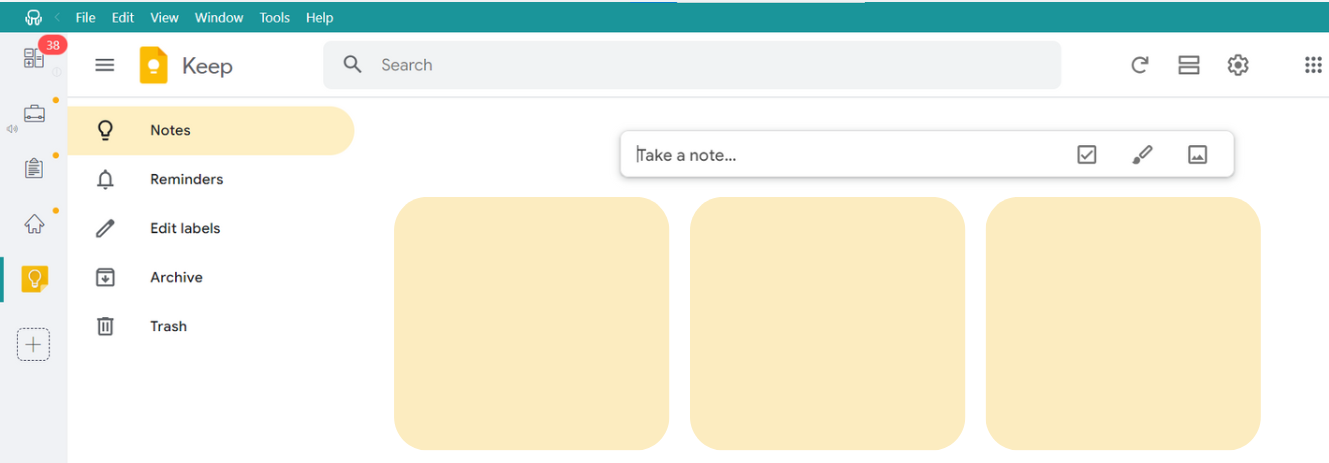
Rambox is a handy workspace simplifier that keeps all your favorite apps in one place, making it super easy to manage everything from a single window.
Getting started with the Google Keep app on Rambox is a breeze – no complicated setup is required! Just follow these four simple steps:
- Sign up and download Rambox for free (available for Windows, Mac & Linux).
- Click on the “+ Add an app or workspace” button in the main panel.
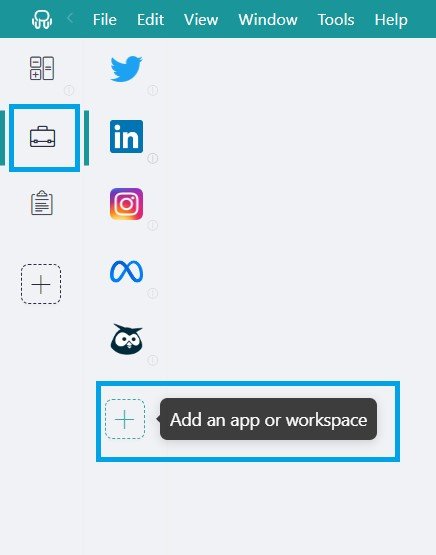
- Type ‘Keep’ in the search bar and select it.

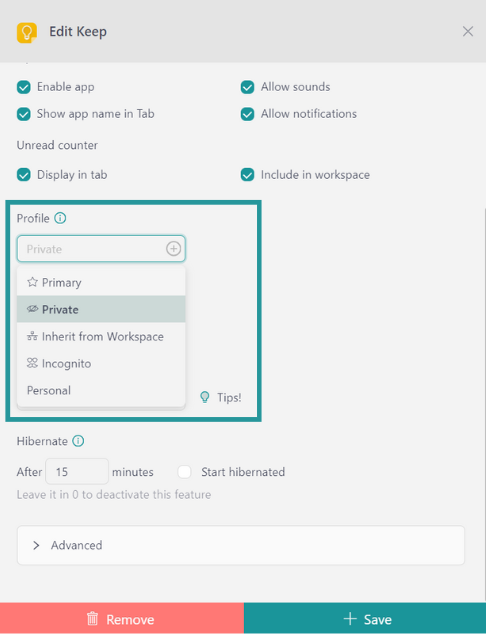
- Customize your Google Keep settings: You can choose whether to receive OS notifications, hear the app’s sounds, assign a profile, and tweak other settings that Rambox offers.

And voila! You’re all set to use Google Keep right from your desktop without needing to open your browser.
Say goodbye to messy browser tabs and hello to a more organized, efficient way to manage your notes with Rambox!
Advantages of accessing your Google Keep app from Rambox
Here’s the best part: Rambox doesn’t just make accessing Google Keep easier – it also simplifies managing all your apps and accounts:
- Rambox Workspaces: This feature is the best way to organize your desktop. If you use Google Keep for both personal and work-related tasks, Rambox helps you keep everything organized. For example, you can create two separate workspaces: one for your personal apps like Google Keep, WhatsApp, etc., and another for work apps like Google Keep for work tasks, Slack, or Teams. This way, your notes and reminders are perfectly sorted between personal and professional life.
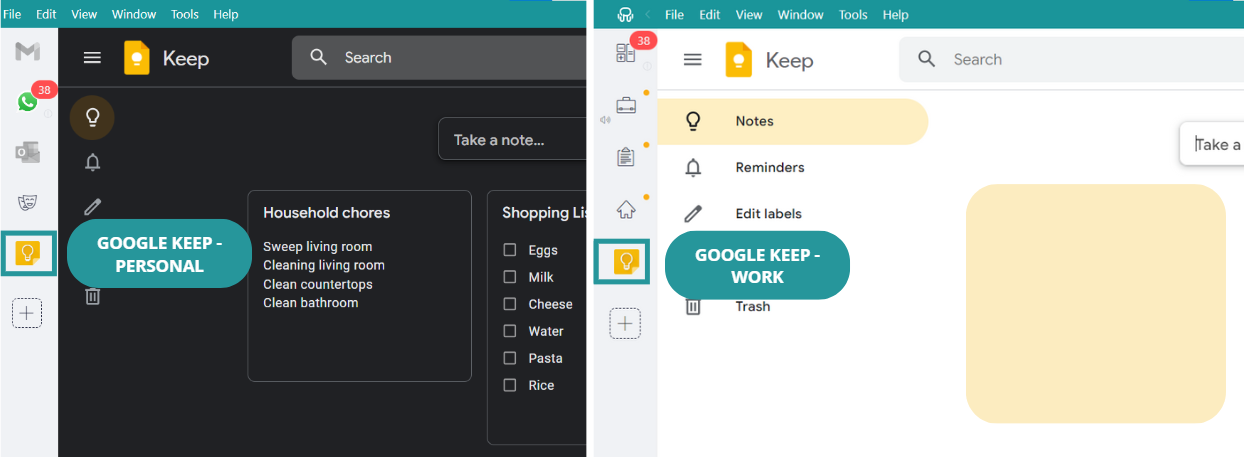
- Session Management: Managing multiple Google Keep profiles is a breeze with Rambox. Each Google Keep account can be set up with its own login credentials. So, if you use Google Keep for personal and work purposes, no problem! You can assign each Keep app its own profile and log in once, and you’re good to go—saving you time and hassle.
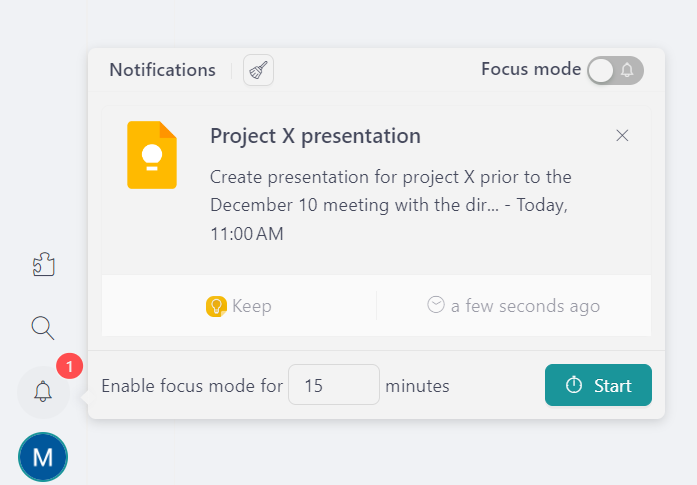
- Notification Center: With Rambox, you’ll never miss an important reminder from Google Keep. For example, suppose you have a task reminder set for Tuesday at 1:00 PM. In that case, Rambox will notify you—even if you’re using another app, like Word, at the time. This makes it easy to stay on top of all your to-dos and reminders, no matter what else you’re working on.

Google Keep shortcut on Mac as a desktop app
If you’re using macOS Sonoma 14 or later, Safari lets you turn Google Keep into a web app and add it directly to your Dock.
Here’s how to set it up:
- Open Google Keep in Safari: Navigate to the Google Keep website.
- Add Google Keep to your Dock: From the menu bar, choose File > Add to Dock. You can also click the Share button in the Safari toolbar and choose Add to Dock.
- Name your web app: Keep “Google Keep” or choose another name.
- Click “Add”: Safari will create the Google Keep web app.
The Google Keep web app is saved in the Applications folder of your home folder, and you can open it from the Dock or Spotlight.
Google Keep shortcut in Windows as a desktop app
If you want quick access to Google Keep from your desktop, you can install it as an app using Microsoft Edge.
Here’s how to do it:
- Open Google Keep in Microsoft Edge: Start by going to the Google Keep website.
- Access the menu: In the top-right corner of Edge, click the three dots.
- Install the app: Select “More tools” > “Apps” > “Install this site as an app.”
- Complete the installation: Follow the prompts to install Google Keep. Once installed, you can manage options such as creating a desktop shortcut from edge://apps.
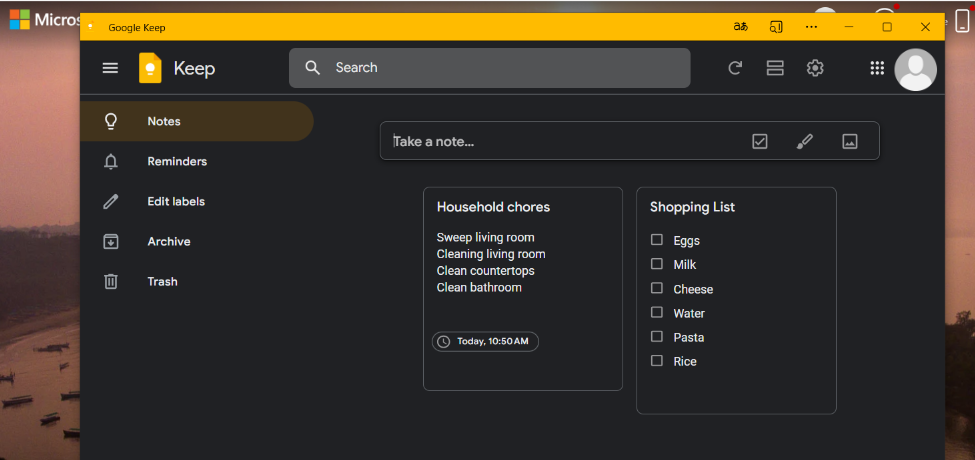
Now that you know all the options available to get Google Keep as a desktop app remember that the best choice is Rambox! It not only makes accessing your notes super easy, but it also offers great features like customizable profiles and a notification center to help you stay organized.
FAQ
How do I install Google Keep?
While Google Keep has no official standalone desktop app, you can use Rambox to access it from your desktop. Just download Rambox for free and follow these simple steps:
- Open Rambox and click on the “+ Add an app or workspace” button.
- Type “Keep” in the search bar and select “Google Keep.”
- Customize your settings and start using Google Keep right from Rambox.
You can also create a Google Keep web app with Safari on macOS Sonoma 14 or later, or install the site as an app using Microsoft Edge on Windows.
Is Google Keep available for MacBook?
Google Keep does not have a standalone desktop app for MacBook, but you can access it through your web browser or use it as a web app. Here’s how you can use Google Keep on your MacBook:
- Web Browser: Simply go to the Google Keep website in a compatible browser and log in with your Google account.
- Safari web app: On macOS Sonoma 14 or later, open Google Keep in Safari and choose File > Add to Dock.
- Using Rambox: If you want to keep Google Keep alongside your other desktop apps and accounts, you can add it to Rambox.