


Last Updated: September 14, 2026
Many people need multiple Telegram accounts. Maybe they’re running different projects and managing various teams, or they simply want to keep work and personal chats separate.
Telegram already makes it possible to add several accounts to the same app and switch between them without logging out. However, managing multiple conversations, notifications, and identities can still become difficult when you use several accounts throughout the day.
This guide will show you how to manage multiple Telegram accounts on one PC, including Telegram’s built-in account switching, Telegram Premium, the web version, and Rambox.
Can you have multiple Telegram accounts on one device?
Yes. Telegram lets standard users add up to three accounts to the same app and switch between them without logging out.
If you subscribe to Telegram Premium, you can add a fourth account to any Telegram app.
Telegram can also show notifications from multiple accounts, depending on your notification settings. This makes switching easier, but managing several work and personal conversations can still become distracting when you need to monitor them frequently.
Below, we’ll look at the main ways to use multiple Telegram accounts on a PC and when each option makes sense.
How to manage multiple Telegram accounts on PC
You can manage several Telegram accounts using the official desktop app, Telegram Web, or separate app instances in a workspace tool such as Rambox. The best option depends on how many accounts you use and whether you need to monitor them at the same time.
Telegram Desktop
Telegram Desktop supports multiple accounts in the same application. Standard users can add up to three accounts, while Telegram Premium allows a fourth account.
The exact interface can vary slightly by version, but the general process is:
- Open Telegram Desktop and sign in to your account.
- Open the main menu or account selector.
- Choose the option to add another account.
- Sign in with the additional phone number or use the available QR login option.
Once your accounts are added, you can switch between them without logging out. Telegram can also deliver notifications from multiple accounts if your notification settings allow it.
This works well for many users, but there are still some practical limitations when several accounts need frequent attention:
- Account confusion: When you move between several personal and professional accounts, it can be easier to reply from the wrong identity.
- Frequent switching: Telegram lets you switch accounts quickly, but you still interact with one account view at a time.
- Notification overload: Receiving notifications from several accounts can make it harder to decide which conversations need attention first.
- More complex workflows: If you continuously monitor multiple client, team, or project accounts, repeated switching can interrupt your workflow.
An alternative: Rambox lets you create separate Telegram app instances, which can be useful if you prefer to keep multiple Telegram sessions organized in the same workspace instead of repeatedly moving between accounts inside Telegram.
How to use multiple Telegram accounts in Rambox
Rambox is a workspace simplifier that brings your web apps together in one desktop interface. You can organize apps into different workspaces, making it easier to separate personal, professional, or project-related tools.
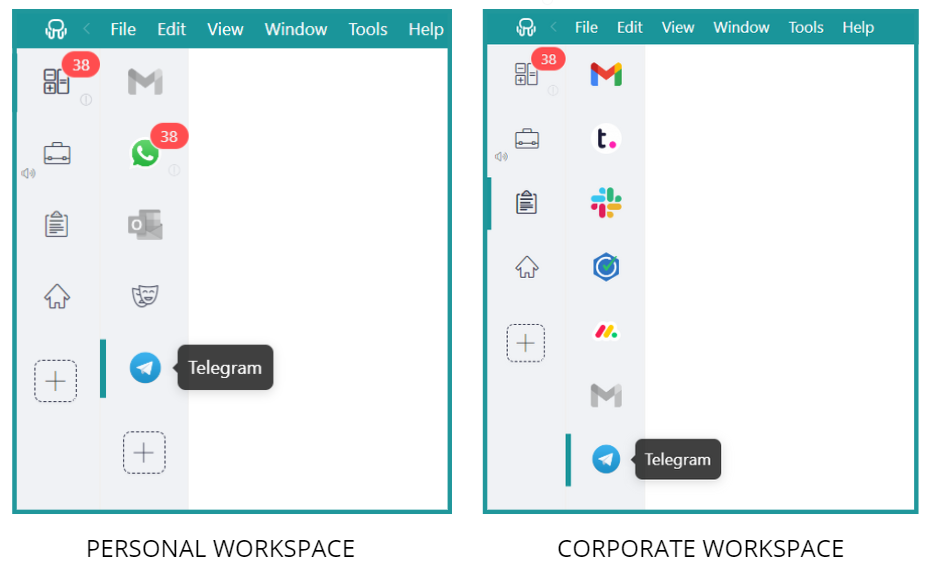
One useful feature is the ability to create separate instances of the same app. For example, you could keep one Telegram instance inside a personal workspace and another inside a work workspace alongside apps such as Gmail, Teams, or Microsoft 365.
This means you can keep separate Telegram sessions available without repeatedly changing accounts inside a single Telegram view.
Telegram Web
Telegram also has a web version that lets you access Telegram from your browser without installing the desktop app.
A practical use case is to keep one Telegram session in the desktop app and another session in your browser. You can also use separate browser profiles when you need additional isolated sessions.
This gives you more flexibility, but it can introduce some inconveniences:
- Browser clutter: Telegram tabs can become mixed with the rest of your work and personal browsing.
- Notifications in different places: You may need to monitor both Telegram Desktop and browser notifications.
- More sessions to organize: The more accounts you distribute across browsers and profiles, the easier it becomes to lose track of where each session is open.
If you only need two or three Telegram identities, Telegram’s own account switching may already be enough. If you prefer to keep sessions visually separated and available alongside other work apps, Rambox can provide a more centralized setup.
How to use more than three Telegram accounts
For standard users, Telegram supports up to three accounts in the same app. If you subscribe to Telegram Premium, you can add a fourth account.
If you need to work with more accounts than Telegram allows inside one app, or you prefer to keep several sessions open separately, you have a few options.
Use Telegram Premium for a fourth account
The simplest official option is Telegram Premium. One of its increased limits is the ability to add a fourth account to any Telegram app.
This is useful if four accounts are enough and you are comfortable switching between them within Telegram.
Use separate Telegram instances in Rambox
If you want to organize additional Telegram sessions separately, Rambox lets you create multiple instances of Telegram and place them in your main bar or different workspaces.
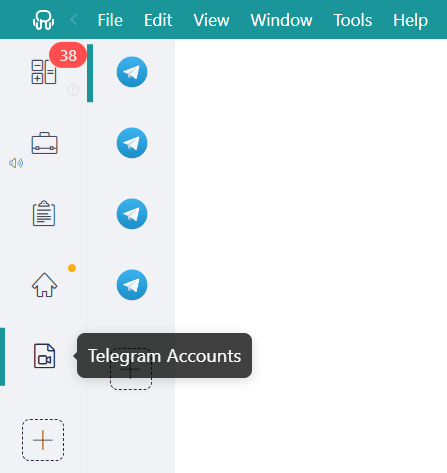
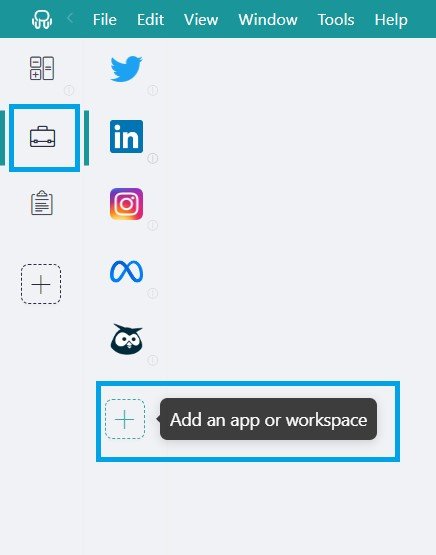
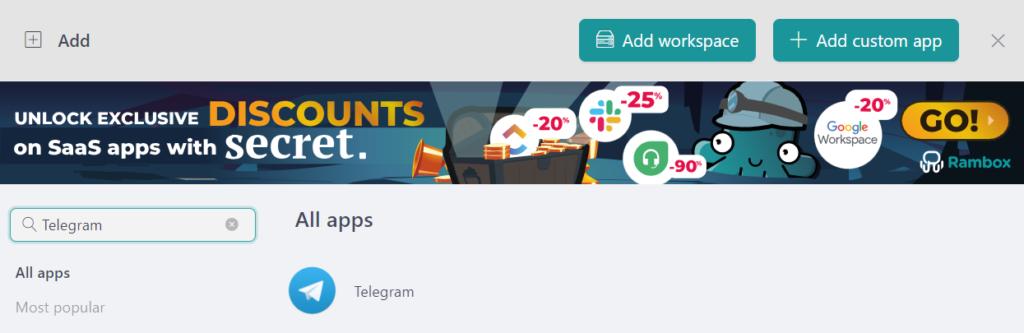
To add a Telegram instance in Rambox, follow these steps and repeat the process for the sessions you want to organize:
- Click the “+ Add an app or workspace” button.
- Type “Telegram” in the search bar and select it.
- Customize the Telegram instance according to your needs. To keep the session separate from your other Telegram instances, select the “Private” profile.
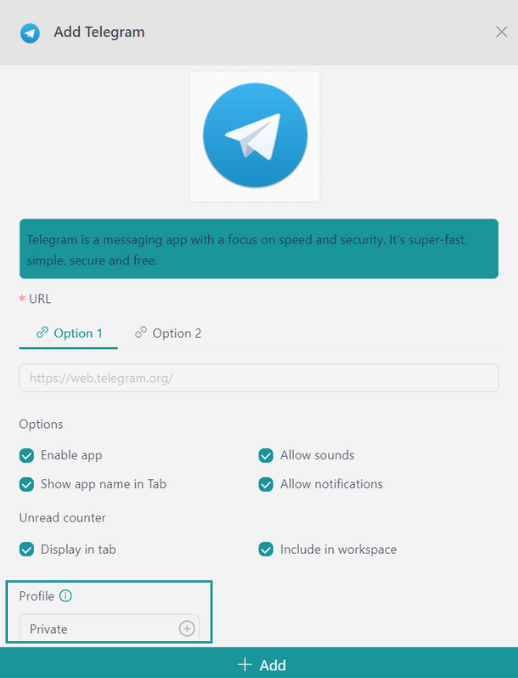
- Click “+ Add” to create the Telegram app instance.
Use different browsers or browser profiles
Another option is to combine Telegram Desktop with Telegram Web in different browsers or browser profiles. This can help you log in to multiple accounts on one computer using separate sessions.
This method works, but it can become harder to manage as the number of accounts increases:
- Scattered notifications: Notifications may be distributed across Telegram Desktop, different browsers, and browser profiles.
- Higher resource usage: Running many browser tabs, profiles, and active web apps can increase CPU and memory consumption.
- Message mix-ups: When several accounts are open in different places, it can be easier to send a message from the wrong session.
- Slower workflow: Moving between different windows and profiles can add friction when you need to respond quickly.
- More difficult organization: As the number of sessions grows, keeping track of which account is open in each browser or window can take more time.
Tips for managing notifications from multiple Telegram accounts
Telegram can show notifications from multiple accounts, so having several accounts does not automatically mean you will miss messages. However, receiving alerts from personal, work, client, and project accounts at the same time can quickly become distracting.
A good first step is to review Telegram’s own notification settings and decide which accounts, chats, groups, or channels really need immediate alerts.
If you use separate Telegram instances in Rambox, you can also control how and when notifications appear. For example, you can mute notifications from individual apps or workspaces when you need to focus.
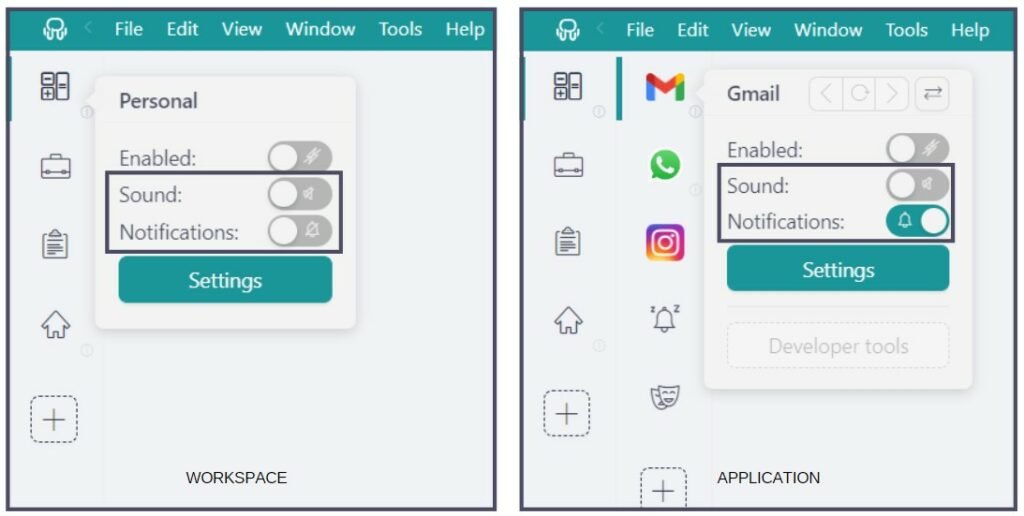
Rambox also includes a Notification Center that brings supported app notifications together, making it easier to review them from one place instead of checking each app individually.

Unread counters can also help you see which Telegram instances need attention without opening every session.
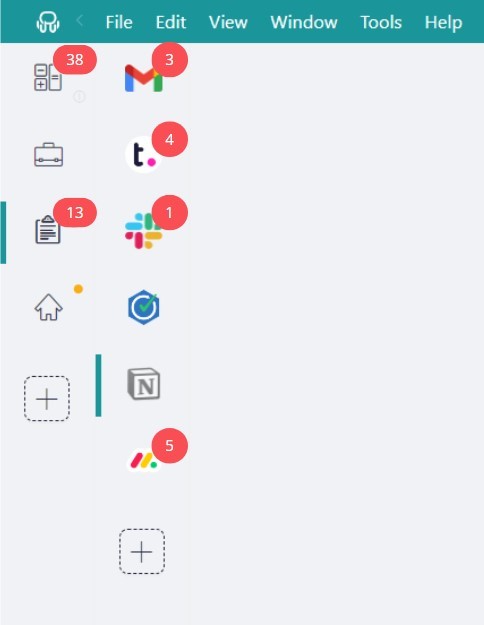
The goal is not necessarily to receive fewer messages, but to make it easier to see which accounts need attention and reduce unnecessary switching.
Telegram’s built-in multi-account support is enough for many users: standard accounts can manage up to three accounts in one app, while Telegram Premium increases that limit to four.
If you need to keep several Telegram sessions visually separated or want to organize them alongside the rest of your work apps, Rambox can be a practical complement.
Try Rambox for free, download the app, and organize your Telegram sessions alongside the rest of your work apps.