


Managing multiple accounts on the same computer sounds simple until you have to do it every day.
You may have a personal Gmail account, a company Google Workspace account, two Slack logins for different clients, separate WhatsApp accounts, several social profiles, and different project-management tools. Each account works perfectly on its own. The problem is keeping all of them available without constantly logging in and out, opening more browser windows, or wondering which account you are using.
Can you use multiple accounts on one computer?
Yes, you can use multiple accounts on one computer. The simplest options are built-in account switching, private windows, separate browsers, browser profiles, or a multi-account workspace. The best method depends on how many accounts you use, whether they need to stay open at the same time, and whether those accounts belong to different work, personal, or client contexts.
This guide explains the main options, when each one makes sense, and how to build a cleaner setup when browser profiles alone start to become difficult to manage.
What makes multiple accounts difficult to manage?
In most cases, the limitation is not the computer itself but how each app or website manages sessions.
There are three slightly different situations that are often grouped together as “multiple accounts”:
- Multiple accounts inside one app. For example, switching between two Google or social-media accounts using the app’s own account switcher.
- Multiple sessions of the same service. For example, keeping different Gmail or Slack logins open at the same time without signing out.
- Multiple digital contexts. For example, having a Personal environment, a Company environment, and separate Client A and Client B environments, each with its own combination of apps and accounts.
The third situation is where things usually become complicated. The problem is no longer just how to log into Account A and Account B. It is how to keep the right accounts, apps, notifications and work context together.
Managing multiple accounts is really a context-separation problem
If you only use two accounts occasionally, switching between them may be enough. But once several identities are involved, mistakes become much easier to make.
You can send an email from the wrong address, upload a document to the wrong Google Drive, reply from the wrong Slack workspace, post using the wrong brand profile, or simply waste time checking which browser window belongs to which client.
This is why a good multi-account setup should do more than save passwords. Ideally, it should help you:
- Keep different logins and sessions separate
- Identify immediately which context you are working in
- Keep related apps together
- Avoid repeated login and logout cycles
- Switch between contexts without rebuilding your setup each time
- Keep notifications from every account under control
There is no single solution that is best for everyone. The right setup depends on how complex your account structure has become.
Ways to manage multiple accounts on one computer
Depending on how many accounts you use and how often you switch between them, there are several ways to keep those sessions organized.
1. Use the app’s built-in account switcher
Many services let you add several accounts and switch between them from inside the app or website.
This is usually the easiest option if you only have a small number of accounts and do not need to monitor all of them continuously. You stay inside the same service and change identity when required.
The limitation is that account switching is not the same as keeping independent environments open simultaneously. Support also varies from one service to another. Some apps make multiple accounts easy; others still require more manual switching.
If the problem is limited to one particular service, a service-specific guide is usually more useful. For example, see our guides to managing multiple Google accounts, multiple WhatsApp accounts, multiple Instagram accounts in a browser, or multiple Telegram accounts.
2. Use private or incognito windows
A private window gives you a temporary browser session that is separated from your normal session. That makes it useful when you occasionally need to access a second account.
For example, you can keep your normal Gmail account open in your main browser window and use a private window for another login.
It works, but it is not a particularly good system for accounts you use every day. Private sessions are designed to be temporary, and managing several of them quickly becomes another collection of windows to identify and maintain.
3. Use different browsers
Another simple approach is to assign different accounts or contexts to different browsers.
You might use Chrome for your company account, Edge for one client and Firefox for another. Because the browsers maintain their own cookies and sessions, the accounts remain separated.
This can work surprisingly well for a small setup. The disadvantage is fragmentation: your tabs, bookmarks, extensions, history and notifications are now spread across several browsers.
4. Use browser profiles
Browser profiles are one of the best free solutions for separating a small number of persistent digital identities.
A Chrome or Edge profile can maintain its own browser data and logged-in sessions. Instead of logging out of Client A and signing into Client B, you switch browser profile and return to a browser environment where Client B’s accounts are already available.
A setup might look like this:
Personal profile
Gmail Personal · Google Drive Personal · personal social accounts
Company profile
Gmail Work · Slack Company · Microsoft Teams · company tools
Client A profile
Gmail Client A · Slack Client A · Canva · project tools
For a few contexts, this is simple and effective. It also makes it easier to recognize where you are if you give each browser profile a clear name, avatar or visual identity.
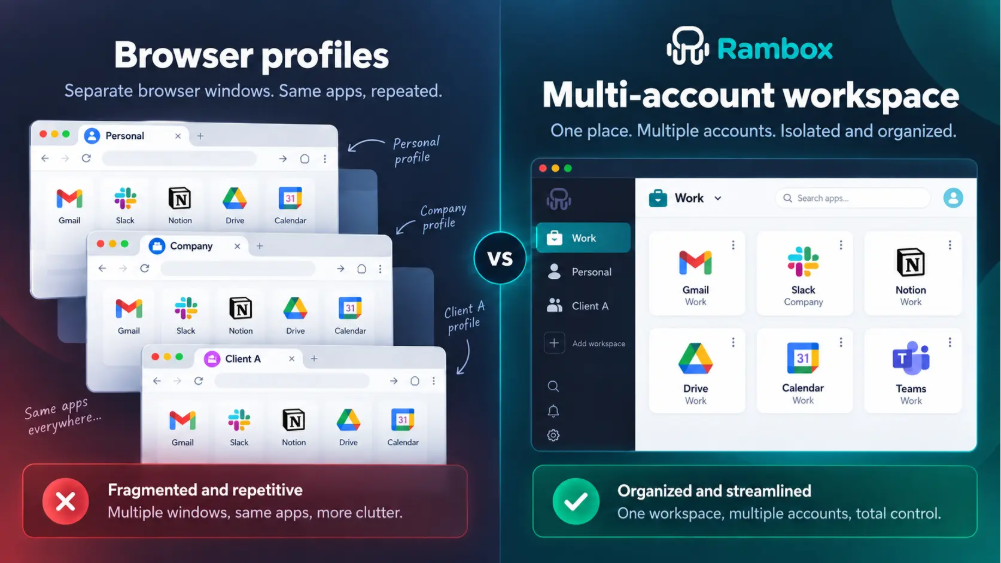
But browser profiles can become cumbersome when the number of accounts grows. Ten clients can mean ten browser profiles. If each client also uses Gmail, Slack, WhatsApp, project tools and dashboards, your work is still distributed across a growing collection of browser windows and tabs.
That is the point where it becomes useful to think about multi-account management rather than only browser-profile switching.
5. Use a multi-account workspace
A multi-account workspace is designed for people who need several apps and accounts available as part of the same daily workflow.
Instead of treating each browser profile as a complete browser environment, you can keep separate account sessions and organize them around the context in which you actually use them: Personal, Company, Client A, Client B, Project X, Support, Sales, or any other structure that makes sense for your work.
This approach is especially useful when:
- You use several accounts every day
- You need different accounts of the same app available at the same time
- Each client or project uses several different apps
- You want persistent sessions rather than temporary logins
- Switching between browser profiles has become part of the problem
What is a multiple account manager?
A multiple account manager is a tool that helps you keep several accounts or sessions available without repeatedly logging in and out. Depending on the product, it may isolate sessions, let you run multiple instances of the same web app, and organize those accounts by client, project or another work context.
The term can describe different types of software, so the important question is not the label but what the tool actually separates and organizes.
Some tools focus mainly on multiple sessions of the same website. Others, such as workspace organizers, also let you combine those accounts with the other apps that belong to the same context.
Browser profiles vs. a multi-account workspace: which one do you need?
Browser profiles and multi-account workspaces solve related problems, but they are not the same thing.
Browser profiles are usually enough when you have only a few contexts, switch between them occasionally, and do most of your work inside a traditional browser. They are familiar, free and effective at keeping browser sessions separate.
A multi-account workspace becomes more useful when you repeatedly work across many accounts and apps, especially when the same apps appear in several different contexts.
There is no need to choose one forever. A workspace app and a normal browser can complement each other.
Browser profiles
- Best for: a small number of separate browser identities
- Session separation: yes
- Multiple accounts: yes, by using different profiles
- Organization model: browser profile
- Main limitation: work is spread across separate browser windows and profiles
Multi-account workspace
- Best for: repeated daily work across many accounts and apps
- Session separation: depends on the tool
- Multiple accounts: can keep several app instances available in parallel
- Organization model: accounts and apps grouped by context
- Main advantage: the account structure and the work structure can live in the same environment
How to organize multiple accounts with Rambox
Rambox is a workspace organizer designed to bring web apps and different account contexts into a single desktop environment. For multi-account work, the most important distinction is between Profiles and Workspaces.
Profiles keep account sessions separate
In Rambox, Profiles let you assign separate sessions to different app instances. This means that two instances of the same service can use different logins without sharing the same session.
For example:
- Gmail — Personal
- Gmail — Company
- Gmail — Client A
Each can remain available as a separate session instead of requiring you to log out of one account before opening another.
This is particularly useful with services that you use repeatedly across customers, teams, brands or roles.
Workspaces organize those accounts by context
A Profile answers the question “which session is this?”. A Workspace answers a different question: “which apps and accounts belong together?”.
For example:
- Personal: Gmail Personal · WhatsApp Personal
- Company: Gmail Work · Slack Company · Teams · Google Drive
- Client A: Gmail Client A · Slack Client A · WhatsApp Client A · Jira
- Client B: Gmail Client B · Microsoft Teams Client B · Notion · Google Drive Client B
This lets you organize the environment around the way you actually work rather than around individual app types.
Keep several accounts available at the same time
Account switching means that several accounts exist but you move from one to another. A multi-login setup can go a step further by keeping separate account instances available in parallel.
That distinction matters when you need to check several communication channels throughout the day, respond quickly for different clients, or move between company and personal contexts without restarting sessions.
Additional features that can help
Rambox also includes tools for managing notifications and focus, but those are secondary to the central multi-account problem here. If your main challenge is managing many communication apps and notification channels rather than several identities, see our guide to managing multiple communication apps.

Example multi-account setups
The best structure is usually based on context, not on the type of app.
Personal + company
A simple setup might have two environments:
- Personal → Gmail Personal, WhatsApp, Calendar
- Company → Gmail Work, Slack, Teams, Drive
For this level of complexity, browser profiles may already be sufficient. A workspace becomes useful if you prefer keeping those recurring apps available in a dedicated desktop environment.
Freelancer with several clients
A freelancer may repeatedly use the same services with different credentials:
- Client A → Gmail, Slack, Canva, Drive
- Client B → Gmail, Teams, Notion, WhatsApp
- Client C → Gmail, Slack, Jira, Drive
Here the benefit of separate sessions becomes much clearer. Instead of treating “Gmail” as one app that you repeatedly switch, each client can have its own Gmail instance alongside the rest of that client’s tools.
See how Rambox for freelancers helps keep client accounts and tools separated.
Marketing or support across several brands
A marketing or support professional may need several social, messaging and customer-service accounts available throughout the day.
- Brand A → Gmail, WhatsApp Business, Messenger, social accounts
- Brand B → Gmail, Slack, WhatsApp Business, project management
- Brand C → Teams, support tools, Drive, social accounts
In this scenario, organizing by brand or client reduces the chance of mixing identities and makes it easier to see which environment is currently active.
See how Rambox works for marketing teams and for support & operations teams managing multiple tools and accounts.
When are browser profiles enough?
Browser profiles remain a very good solution when:
- You have two or three main contexts
- You do not need many accounts visible simultaneously
- Most of your work happens in browser tabs
- Switching between complete browser environments does not interrupt your workflow
There is no reason to replace a simple solution if it already works.
When do browser profiles stop scaling well?
The warning signs are usually practical rather than technical:
- You have created a long list of client profiles
- The same apps appear in many profiles
- You keep several browser-profile windows open anyway
- Identifying the correct window takes attention
- Notifications are distributed across several environments
- You increasingly need several accounts of the same service available at once
At that point, the problem has moved from “how do I separate browser sessions?” to “how do I organize all of these sessions as one working system?”.
That is the use case where a multiple account manager or workspace organizer becomes more relevant.
Rambox does not have to replace your browser
Using Rambox does not mean that every website or task has to move out of Chrome, Edge, Firefox or another browser.
A practical setup can be hybrid:
- Rambox → recurring apps, communication tools and account-based workspaces
- Browser → general browsing, research, websites and workflows where a conventional browser is more convenient
The purpose is not to force all computer activity into one application. It is to give persistent accounts and recurring work contexts a clearer home.
Tips for avoiding mistakes when you manage many accounts
Use clear names. “Gmail — Client A” is safer than having three identical Gmail instances with no obvious distinction.
Organize by context. A Client A workspace containing Gmail, Slack and Jira is usually easier to understand than separate workspaces called Email, Messaging and Projects.
Separate sessions when identities must remain independent. If two accounts should never share a login state, do not reuse the same session for both.
Use visual cues. Names, icons and workspace organization can reduce the mental effort required to confirm which context is active.
Keep credentials in a password manager. Multi-account organization does not replace secure credential management. A password manager remains the right place for passwords and shared credentials.
Control unnecessary notifications. Being logged into every account does not mean every account needs to interrupt you continuously.
A cleaner way to think about multiple accounts
The easiest way to manage multiple accounts is not necessarily to find a more complicated login trick. It is to choose the right level of separation for the way you work.
For two accounts, an account switcher may be enough. For a few stable identities, browser profiles are often an excellent solution. When you manage many accounts across different apps and need several sessions available every day, a multi-account workspace can give those accounts a clearer structure.
Rambox combines separate Profiles with Workspaces so you can keep different logins independent while organizing the apps around personal, company, client or project contexts.
Instead of asking “Which account am I logged into?”, the goal is to make the answer obvious before you even start working.
Ready to simplify your multi-account setup?
Try Rambox for free and keep your apps, accounts and workspaces together in one place.
Frequently asked questions
Can I use two accounts on the same computer?
Yes. You can use built-in account switching, different browsers, browser profiles, or separate app sessions. The best method depends on whether you only need to switch occasionally or want both accounts to remain available at the same time.
How can I stay logged into multiple accounts at once?
Use a method that maintains independent sessions. Browser profiles can do this in separate browser environments, while multi-account tools can keep separate sessions or app instances available in the same broader workspace.
What is the best way to separate work and personal accounts?
For a simple personal/work split, separate browser profiles may be enough. If both contexts contain many recurring apps and accounts, dedicated workspaces can make the separation clearer and easier to manage.
Are browser profiles the same as separate accounts?
No. A browser profile is a container for browser data, settings and sessions. You can use a different account inside each profile, but the profile itself is not the account.
Can I use multiple Gmail, Slack or Teams accounts at the same time?
In many cases, yes, although the exact native options depend on each service. Browser profiles and separate sessions provide additional ways to keep different logins available. For Google-specific setups, see our guide to managing multiple Google accounts.
How do I manage accounts for multiple clients without logging out?
Give each client a clearly separated digital context and keep its sessions persistent. With a workspace-based setup, each client can have its own combination of Gmail, Slack, Teams, WhatsApp, project tools and other apps, with separate account sessions where required.
Is it better to use multiple browsers or a workspace app?
Multiple browsers are simple and work well for a small number of separated accounts. A workspace app is more useful when you have many recurring accounts and apps and want to organize them by client, project or another context instead of distributing them across browser windows.
Does Rambox merge messages from all my accounts into one inbox?
No. Rambox organizes apps and account sessions in one desktop environment, but the underlying services remain separate. Your Gmail, Slack, WhatsApp and other accounts keep their own interfaces and message structures.