
Last Updated: September 2026
Is your Mac running hotter than usual? Overheating can slow down your Mac, cause unexpected shutdowns, and affect its performance over time. But don’t worry; you can take plenty of simple steps to cool things down. In this guide, we’ll explore why your Mac might be overheating and walk you through some easy and more advanced solutions to help keep your Mac cool and running smoothly.
Let’s get started!
Why is my Mac overheating?
There are several reasons why your Mac might be overheating. By identifying the cause, you can take the right steps to reduce heat and prevent the issue from happening again:
- High CPU usage: When your Mac runs many applications or handles demanding tasks such as video editing or gaming, the CPU works harder and generates more heat.
- Poor ventilation: Heat cannot escape properly if your Mac’s ventilation is restricted. Using your Mac on a soft surface such as a bed or couch can reduce airflow.
- Dust and debris: On Mac models with active cooling, dust can accumulate around vents and fans over time and reduce airflow.
- Software issues: A misbehaving application, background process, or outdated software can cause unusually high CPU usage and make your Mac run hotter.
- Hardware problems: A battery, cooling system, or other hardware component that needs service can also contribute to excessive heat.
Simple steps to cool down your Mac
Now that we know some common reasons why your Mac might be overheating, let’s look at some straightforward steps you can take to cool it down. These tips are easy to follow and can make a noticeable difference in keeping your Mac running smoothly.
Check CPU usage and quit resource-intensive apps
One of the first steps is to check what is using your CPU. High CPU usage can make your Mac heat up quickly, so identifying an app or process that is consuming an unusual amount of resources can help you find the cause.
- Open Activity Monitor: You can find it in Applications > Utilities or search for it with Spotlight.
- Check CPU usage: In Activity Monitor, click the CPU tab and look for apps or processes using an unusually high percentage of CPU.
- Quit resource-intensive apps: If an app is using excessive CPU and you do not need it, select it and click the stop button at the top of the Activity Monitor window.
Are the most CPU-intensive applications necessary for your daily tasks?
Have you ever checked which apps use the most CPU on your Mac, only to realize that you need them for your daily tasks? You cannot simply close or uninstall everything without disrupting your workflow.
One option is Rambox.
Rambox helps you bring the web apps you use into one desktop interface, reducing the need to keep many browser windows and separate apps open at the same time.

Here’s how Rambox can help you manage resource usage:
- App Manager: Rambox includes an App Manager that helps you see how much CPU and memory individual apps are using. This makes it easier to identify apps that are consuming more resources than expected and pause or close them when necessary.

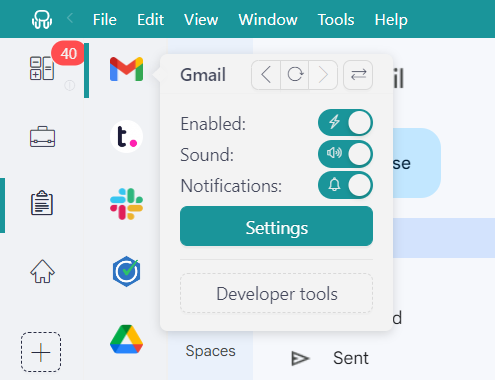
- Quickly turn off apps: Rambox lets you disable apps you are not currently using, which can help reduce unnecessary resource consumption.
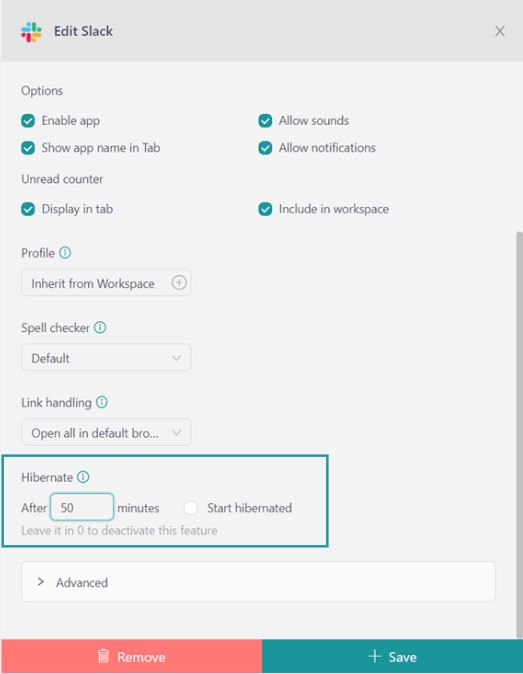
- Hibernation: Rambox can automatically hibernate apps after they have been inactive for a set period of time, preventing them from continuing to consume resources in the background.
- High CPU consumption alerts: Rambox can warn you when an app is consuming a high amount of CPU, so you can disable, hibernate, or reload it if necessary.

Sounds useful? Try Rambox for free. Just sign up and download Rambox for Mac to keep the apps you use organized and manage their resource consumption more easily.
Use an efficient browser for Mac
A browser with many active tabs, extensions, videos, or background processes can increase CPU usage and heat. If your browser regularly consumes a large amount of resources, try closing unnecessary tabs and extensions or comparing its resource usage with another browser.
- Safari: Safari is optimized for macOS and is a sensible first option if energy efficiency is a priority.
- Brave: Brave blocks ads and trackers by default, which can reduce some unnecessary page activity.
- Firefox: Firefox is another mature option and can be worth testing if your current browser is consuming too many resources.
- Opera: Opera includes built-in features such as ad blocking that may help reduce some background activity.
Keep the Mac properly ventilated
Good ventilation is important for keeping your Mac within its normal operating temperature. Apple recommends using Mac laptops on a stable work surface that allows good ventilation and avoiding soft surfaces such as beds, pillows, or bedding.
- Use a stable, hard surface: Avoid using your MacBook on surfaces that can restrict airflow.
- Keep ventilation openings clear: Do not cover or insert anything into ventilation openings.
- Clean the exterior safely: Shut down your Mac and disconnect it from power before cleaning. Use a soft, lint-free cloth and avoid allowing moisture into any opening.
If your Mac continues to run unusually hot even when it is not performing intensive tasks, or its fans run for long periods without an obvious cause, consider contacting Apple or an Apple Authorized Service Provider rather than opening the computer yourself.
Update macOS and your apps
Keeping macOS and your applications up to date is important for performance, security, and stability. Updates can include bug fixes and performance improvements that may resolve software-related resource issues.
Check for macOS updates
- Open System Settings from the Apple menu.
- Go to General > Software Update.
- Install available updates and restart your Mac if required.
Update third-party apps
- Apps from the App Store: Open the App Store and check the Updates section.
- Apps installed elsewhere: Use the application’s built-in updater or download the latest version from the developer’s official website.
Enable automatic updates
In current versions of macOS, go to System Settings > General > Software Update and open the automatic update options to choose which updates your Mac installs automatically.
Advanced solutions
If the simple steps above have not resolved the overheating issue, there are a few additional checks you can make. Avoid opening the Mac or modifying internal cooling components unless you are qualified to do so.
Restart or reset the SMC on Intel-based Macs
If your Mac has an Apple silicon chip, you do not need to reset the SMC. Restarting the Mac is the appropriate first step.
On older Intel-based Macs, resetting the System Management Controller (SMC) can help with some power, battery, thermal, and fan-related issues. The exact reset procedure depends on the Mac model, so follow Apple’s current SMC reset instructions for your specific Intel Mac.
Adjust power settings
On supported Mac models, adjusting the power mode can help reduce energy consumption and heat during less demanding tasks.
- Open System Settings.
- Go to Battery on a Mac laptop, or Energy on supported desktop Macs.
- Choose Low Power Mode when available if you want to reduce energy use during lighter workloads.
You can also adjust display sleep and other sleep-related options in System Settings > Lock Screen. The options available vary depending on your Mac model.
When to get your Mac serviced
If your Mac remains unusually hot while doing light tasks, shuts down unexpectedly, shows battery warnings, or has fans that run continuously without an obvious software cause, the problem may require hardware diagnosis.
Instead of opening the Mac or replacing thermal paste yourself, contact Apple or an Apple Authorized Service Provider. They can inspect the cooling system, battery, and other components safely.
Now that you know why your Mac may be overheating, we hope these steps help you identify the cause and keep it running more comfortably.
If several web apps are contributing to high CPU usage, Rambox can help you keep them organized and monitor their resource consumption from one place.