


You use an iPhone, but your work computer runs Windows. Or maybe you switched from a Mac to a PC and left a lot of your stuff tied to your Apple account. In both cases, accessing your notes from iCloud on a Windows device quickly becomes something you need to solve.
You can access this app on your PC, but spoiler: the experience is not the same as using iCloud Notes on macOS or iOS.
In this guide, you’ll see what actually works on Windows, what changes compared to using Notes on a Mac, and how to set things up so your notes are easy to reach while you work.
Can you use iCloud Notes on Windows?
Short answer: yes, you can.
You don’t need a Mac to open or edit your notes. As long as your notes are saved in iCloud, you can access them from any Windows PC using a web browser.
That said, “you can use it” and “it’s the same as on iOS” are not the same thing. On Windows, you’re working with the web version of iCloud Notes, not a native desktop app.
What’s the difference between iCloud Notes on Mac vs Windows?
On a Mac, iCloud Notes runs as a native desktop app. You open it like any other program, keep it pinned, and switch to it instantly while you work. It stays available even when you close your browser, and it fits naturally into how you move between apps during the day.
On Windows, iCloud Notes runs as a web app inside your browser. That means your notes live in a tab. If you close the browser, your notes are gone until you open iCloud again. You also depend on your browser session, cookies, and logins.
How to access iCloud Notes on Windows
As we’ve seen, from Windows you access your iCloud Notes through the web. That part is simple. The difference is how you do it. There are a few ways to bring iCloud Notes into your Windows setup, and honestly, some of them work much better than others. A couple of options even get pretty close to the feel of a desktop app.
In this section, we’ll walk through the main ways to use iCloud Notes on Windows and what each one is like in day to day use.
Using Rambox
Meet Rambox, your new best friend for accessing iCloud Notes right from your desktop!
Rambox is a workspace simplifier that lets you use your web apps as if they were desktop apps. For iCloud Notes, this means you don’t have to keep them lost in a random tab. You can add iCloud Notes to Rambox and keep your notes open in the same place where you work, with one click access whenever you need to check or edit something.
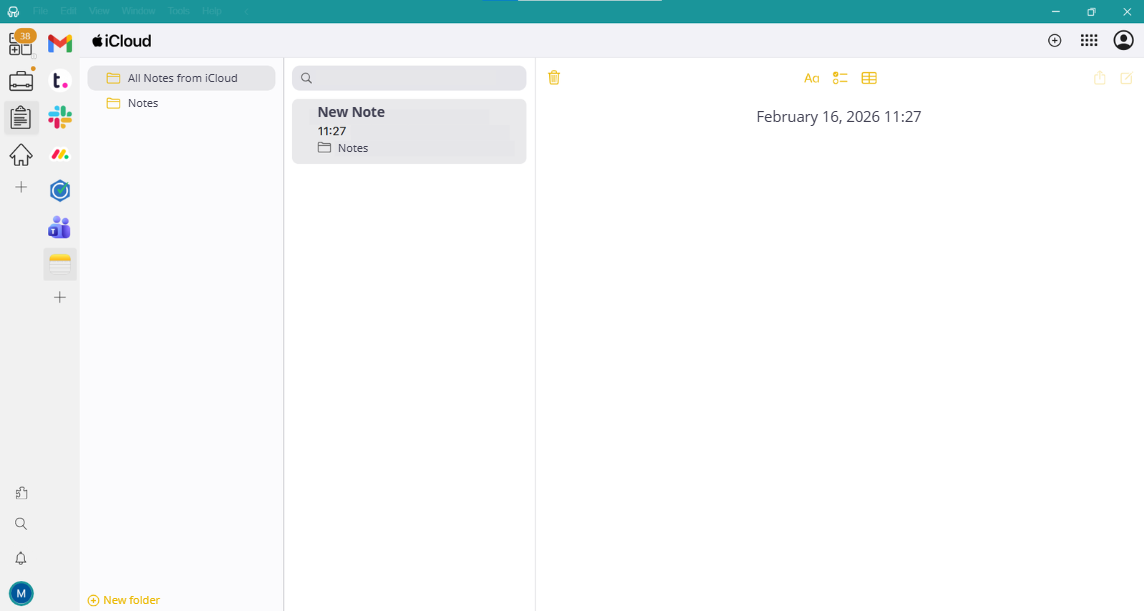

And that’s not all. On top of having iCloud Notes behave like a desktop app, you can keep all your other apps in the same interface. Plus, Rambox lets you organize your apps in a way that actually makes sense for how you work.
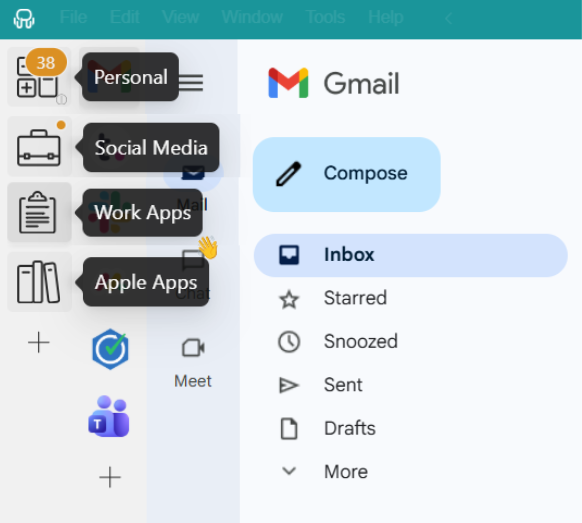
This is done through workspaces, which work like folders for your apps. For example, you can have one workspace for your work tools (Slack, Trello, and similar apps) and another one for your Apple apps, like Mail, Calendar, Notes, etc.
Using iCloud Notes web
This is the simplest way to access iCloud Notes on Windows. You use them directly from your browser. It works well if you only need your notes from time to time or just want quick access.
To open your notes using iCloud Notes on the web:
- Open your browser on Windows
- Go to iCloud Notes
- Sign in with your Apple ID
That’s it. Your notes open in a browser tab and you can read, create, and edit them from there.
The downside is that everything lives inside your browser. If you close the tab or the browser, your notes are gone until you open iCloud Notes again.
Using iCloud for Windows (official app)
Apple does offer an official iCloud app for Windows. You can install it on your PC and use it to sync things like photos, files, mail, contacts, and calendars with your Windows setup.
However, iCloud Notes are not available as a native feature inside this app. If you try to access iCloud Notes from the iCloud app for Windows, it simply opens your browser and takes you to the web version of Notes.
So while iCloud for Windows is useful if you want tighter integration with photos or files, it doesn’t change how you work with iCloud Notes. For notes, you’re still using the web version, just like in a regular browser.
What’s the best way to access iCloud Notes on Windows?
All options let you open and edit your notes, but they don’t feel the same in day to day use. The difference is not about features, it’s about how easy it is to keep your notes close while you work.
Here’s a quick comparison of the main ways to use iCloud Notes on Windows:
| Option | How it works | What’s good about it | Main downside | Best for |
| iCloud web | Notes open in a browser tab | No setup | Easy to lose between tabs, closes with browser | Occasional access |
| iCloud for Windows | Notes open in a browser tab | Official Apple app | Notes still live in the browser | Users who already use iCloud for Windows |
| Rambox | Notes live inside your desktop workspace | One click access, stays open with your other tools | Requires installing an extra app | Daily use of notes while working |
So, what’s the best option?
The best way to use iCloud Notes on Windows is to keep them inside your workspace with Rambox. It’s still the web version of iCloud Notes, but this setup gives you the closest thing to a desktop app on Windows today.
Limitations you’ll notice when using iCloud Notes on Windows
When you use iCloud Notes from a Windows PC there are a few real limitations worth knowing. These come from how Apple supports Notes on the web and from what users report when using the web version on non-Apple devices:
- You can only work with notes that are saved in iCloud. Notes stored under other accounts (like Gmail or Exchange) won’t show up on Windows.
- Some features available on Apple devices don’t exist on the web version. You’ll notice fewer options and small gaps in functionality.
- Locked notes are limited. You can view them once unlocked, but managing lock settings is tied to Apple devices.
- Actions that depend on Apple hardware aren’t available. For example, scanning documents into Notes from a camera is something you do from an iPhone or iPad, not from Windows.
- A few interactions feel more basic. Things like working with attachments or certain editing actions can be more limited than what you’re used to on iOS or macOS.
Bottom line: you can work with your notes on Windows just fine, but some features you may use on Apple devices won’t be there.
How to add iCloud Notes to Rambox (Step by Step)
If you want your iCloud Notes to stop living in some random browser tab and actually stay close while you work, adding them to Rambox takes a minute.
Here’s how to do it:
- Sign up for free on Rambox.
- Download Rambox on your computer.
- Click on your main panel’s “+ Add an app or workspace” button.
- Type “iCloud Notes” in the search bar and select it.
- Customize your iCloud Notes settings to your liking: Decide if you want to receive OS notifications, hear the app’s sounds, assign a specific profile, and other options Rambox offers.
- And voila! You’re all set to use iCloud Notes app right from your desktop without opening your browser.
Want to see how to add apps in Rambox in action? This short step-by-step video shows you how to set it up in minutes:
Say goodbye to cluttered browser windows and hello to a more organized, efficient way to handle your notes with Rambox!
FAQs about iCloud Notes on Windows
Is there an official iCould Notes app for Windows?
No. Apple does offer iCloud for Windows, but that app does not include a dedicated Notes app. When you try to open Notes from iCloud for Windows, it simply launches the web version in your browser. There is no official native iCloud Notes app for Windows.
Does iCloud Notes work in all browsers on Windows?
Generally, yes. You can sign in to iCloud Notes from major browsers like Chrome, Edge, or Firefox on Windows and access your notes. Apple supports Notes through iCloud.com, where the Notes feature is available after signing in with your Apple ID.
Can you use iCloud Notes offline on Windows?
No. The official way to use iCloud Notes on Windows is through the web interface at iCloud.com. Since this requires an internet connection and runs in the browser, you cannot view or edit your notes offline on Windows.
Why do some notes or attachments fail to load on Windows?
Sometimes iCloud Notes in a browser may fail to load certain attachments or notes (especially large files or images) depending on browser behavior or sync glitches.
Yes. Notes shared with you via iCloud should be accessible when you sign in to iCloud.com and open Notes, because the web interface supports viewing and editing shared notes alongside your own.