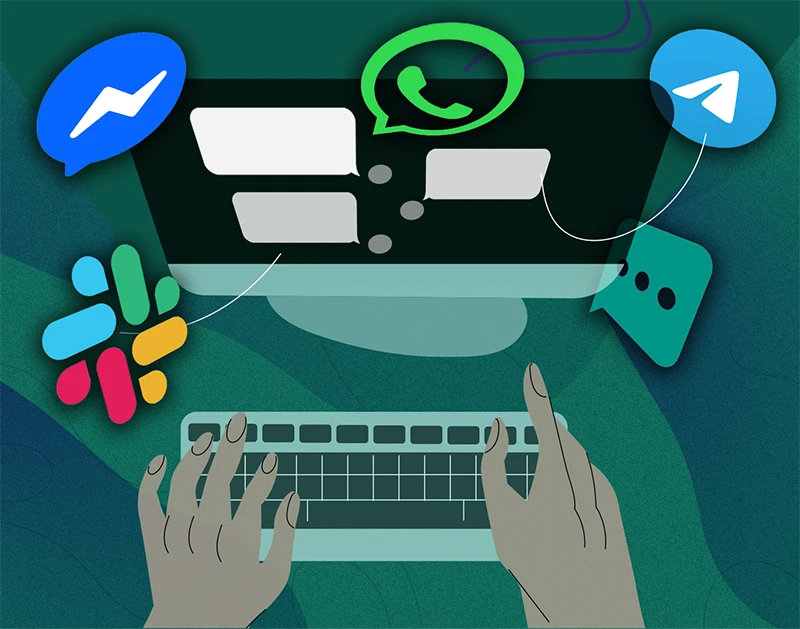
When a text comes in while you’re working on your computer, you don’t always want to reach for your phone, especially when your reply needs more than a few words.
You can send and receive messages right from your keyboard. For regular texts using your existing phone number, the main options are Google Messages for web, Microsoft Phone Link, and Apple Messages. The right one depends on your phone and computer.
You can also use your keyboard to reply in messaging apps, from personal chats to conversations with clients and coworkers. We’ll use WhatsApp and Telegram as practical examples, then look at how to keep the different services you use within easy reach.
Choose a method for your phone and computer
The easiest place to start is with the phone and messaging apps you already use. Find your setup below, then follow the steps for that option.
| Your setup | Start with | Messages | Main requirement |
|---|---|---|---|
| Android + Windows, Mac, or Linux | Google Messages for web | SMS, MMS, supported RCS | Android phone stays online |
| Android + Windows | Phone Link | SMS, MMS; limited RCS | Paired Android phone |
| iPhone + Mac | Apple Messages | iMessage; forwarded SMS, MMS, RCS | Connected iPhone for forwarding |
| iPhone + Windows | Phone Link | Limited phone messaging | Nearby iPhone via Bluetooth |
| Messaging app account + compatible computer | Service’s web or desktop app | Chats within that service | Availability and sign-in vary by service |
Before you choose, it helps to know what kind of message you’re sending. SMS is standard carrier texting, while MMS lets you include media such as photos. RCS adds richer messaging over Wi-Fi or mobile data when the devices and services on both sides support it.
App-based messaging covers a much wider range of conversations, including personal chats, customer messages, and team discussions. Services such as WhatsApp and Telegram use their own accounts and networks, rather than sending a regular SMS to any phone number.
Send texts with Google Messages for web
If you have an Android phone, Google Messages for web is a straightforward way to continue your text conversations on a Windows, Mac, or Linux computer. You can open it in a supported browser and reply with your keyboard while you work. Before getting started, make sure Google Messages is your phone’s default texting app.
- On your phone, open Google Messages, tap your account icon, then Device Pairing. Select your Google Account if prompted.
- Open Google Messages for web on your computer and sign in with that same account.
- On your phone, tap the emoji that matches the one on your computer to confirm pairing.
- Open a conversation, or start a new one and enter a contact or phone number. Type your message and select Send.
Keep your phone on and connected to the internet. SMS and MMS still use your mobile plan. RCS availability depends on the conversation and the services involved.
These steps follow Google’s current setup instructions. If an older guide tells you to scan a QR code, Google says QR pairing is no longer available in the US.
Send texts on Windows with Phone Link
If you spend your day on a Windows PC, Phone Link gives you another way to read and reply to your phone’s messages. It works with both Android and iPhone, although the experience differs quite a bit. Follow the setup for your phone below, and check the limitations before deciding whether it’s the right fit.
With an Android phone
- Open Phone Link on your PC, select Android, and sign in to your Microsoft account.
- Open or install Link to Windows on your phone. Follow the pairing prompts, use the same Microsoft account, and allow access to messages. Start with both devices on the same Wi-Fi network.
- On your PC, choose Messages, then New message. Enter a name or number, write your text, and send it.
Phone Link supports SMS and MMS on Android. Microsoft limits RCS support to selected Samsung devices and carriers, with Samsung Messages set as the default. If you use Google Messages for RCS, use its web version.
With an iPhone
- Enable Bluetooth on your iPhone and PC. In Phone Link, select iPhone and scan the on-screen QR code with your iPhone’s camera.
- Confirm pairing and allow the requested message, notification, and contact permissions. Keep the iPhone within Bluetooth range.
- In Phone Link, open Messages, select New message, choose a recipient, and send your text.
Check Microsoft’s device requirements if pairing is unavailable, including Bluetooth Low Energy support on the PC.
The iPhone connection has substantial limits: you can’t send photos or create group messages. It doesn’t import your full conversation history, and the displayed history disappears when Bluetooth disconnects. Microsoft’s messaging guide explains these restrictions.
Send texts from an iPhone on your Mac
If you use an iPhone and a Mac, you can keep the conversation going in Apple’s Messages app. You may already use it for iMessage. To send SMS, MMS, or supported RCS messages through your iPhone as well, you’ll need to enable text message forwarding. Here’s how to set it up.
- On your Mac, open Messages, then Messages > Settings > iMessage. Sign in with the same Apple Account you use on your iPhone.
- On your iPhone, go to Settings > Apps > Messages. Turn on iMessage and check that Send & Receive uses the same Apple Account.
- Open Text Message Forwarding and turn on your Mac. Enter a verification code if prompted.
- In Messages on your Mac, compose a message, enter the recipient’s name or number, and send it.
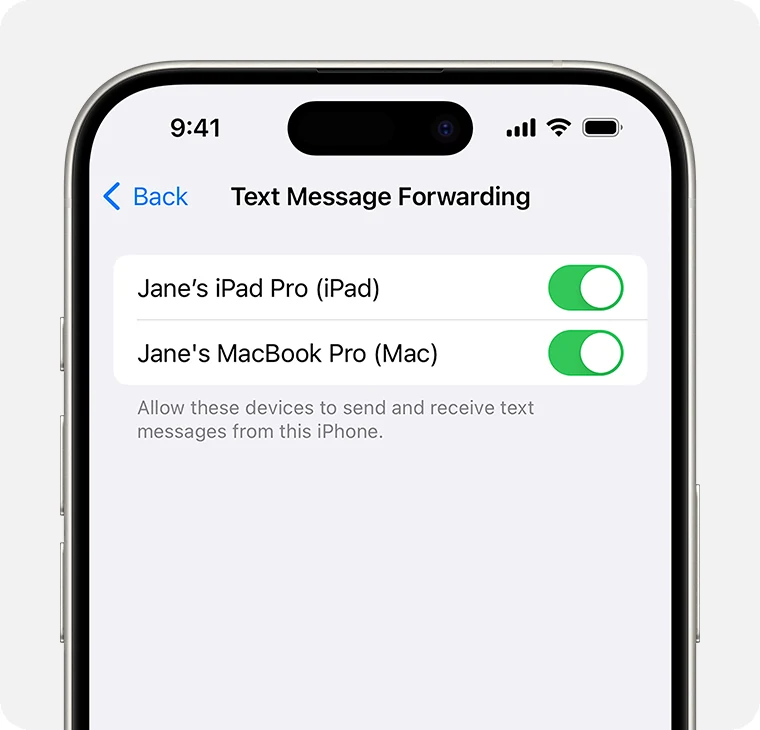
If you already use Messages in iCloud on both devices, forwarding is included. Your iPhone must stay on, connected, and able to send messages for SMS, MMS, and RCS forwarding. RCS availability varies by carrier and region. See Apple’s forwarding instructions if your Mac doesn’t appear.
iMessage can work on a Mac through your Apple Account without an iPhone. That doesn’t give the Mac an independent SMS connection.
Use your messaging apps from your computer
Of course, plenty of conversations happen outside your phone’s regular texting app. You might answer clients in a messaging app, catch up with a project group, or exchange quick messages with coworkers. Many of these services offer a web version, a desktop app, or both, so you can keep the conversation going from your keyboard.
Start with the services you and your contacts already use. For work conversations, Slack and Microsoft Teams also offer browser access, with sign-in and access requirements that depend on your account or organization. The available desktop features vary by service.
If you use Messenger, see our guide to using Facebook Messenger without the app. Still choosing a service? Our comparison of messaging apps for Windows can help you weigh the options.
Below, we’ll walk through WhatsApp and Telegram as two examples. They aren’t the only options, and you don’t need to switch to either of them to message from your computer.
WhatsApp Web
- Open WhatsApp Web on your computer.
- On your phone, open WhatsApp and find Linked devices in Settings on iPhone or the three-dot menu on Android. Select Link a device.
- Complete any identity check and scan the computer’s QR code with your phone.
- Select a chat, type your reply, and send it.
You can keep messaging while your phone is offline after linking. You still need to use WhatsApp on your primary phone at least every 14 days to keep linked devices connected. See WhatsApp’s linking guide if you need help.
If you’d rather open WhatsApp from its own desktop app, that’s an option too: WhatsApp offers apps for Windows and Mac.
Telegram Web
- Open Telegram Web.
- On your phone, open Telegram > Settings > Devices > Link Desktop Device, then scan the QR code. You can also choose the phone-number login option and complete the verification shown.
- Open a chat, type your message, and send it.
Your cloud chats are available across signed-in devices without keeping your phone online. Secret Chats stay on their original device and aren’t available in Telegram Web. Telegram’s FAQ explains the distinction.
You can put your phone aside once everything is set up, but whether it can be switched off depends on the service. Google Messages for web and iPhone text forwarding still rely on a working, connected phone. With Phone Link and iPhone, the phone also needs to stay within Bluetooth range.
WhatsApp and Telegram give you more flexibility here. A linked WhatsApp session and Telegram’s cloud chats can keep working while your phone is offline, subject to the account requirements described above.
If you need browser-based SMS with a separate number, Google Voice is another option for eligible users. With an existing Voice number, open voice.google.com, choose Messages > Send a message, enter a recipient, and send. Check Google’s destination and account restrictions first. Voice uses your Voice number, not automatically your current mobile number, and isn’t intended for bulk texting.
If you have an iPhone and Linux computer, the Apple and Phone Link methods above won’t apply. You can use WhatsApp or Telegram on Linux, but those won’t expose your iPhone’s SMS conversations.
Keep several messaging apps together with Rambox
Once you’ve moved your messages to your computer, you may notice another small frustration: your conversations are still spread across different tabs and windows.
Say you’re putting together a proposal and a client asks a question on WhatsApp. You can check the document and type your reply without picking up your phone. But if you also have delivery updates arriving by SMS and a project group chatting on Telegram, it helps to keep those apps together while you work.
Rambox gives those conversations a regular place on your desktop. It brings the supported web apps you use for messaging and work into one application on Windows, macOS, or Linux. Google Messages, WhatsApp, and Telegram are examples of the services you can add, rather than a fixed set you have to use. You can switch between their icons to read and reply, with each service keeping its own conversations and account.
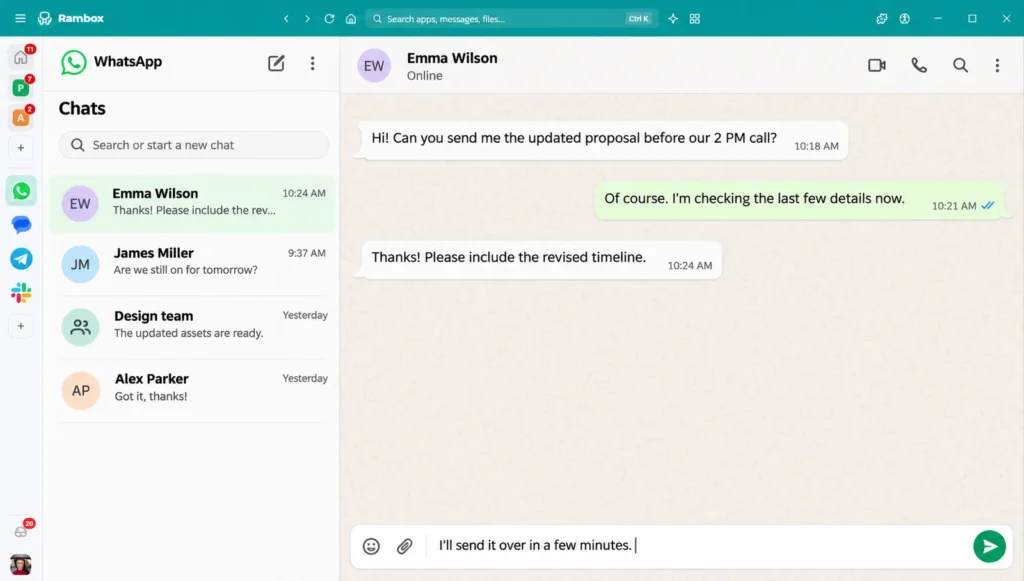
To get started, add the messaging apps you use most:
- Open or create a workspace, then use Add app to find the messaging service you want.
- Add the service and sign in or pair it using that service’s own process.
- Repeat for your other apps, then select their icons whenever you want to read or reply.
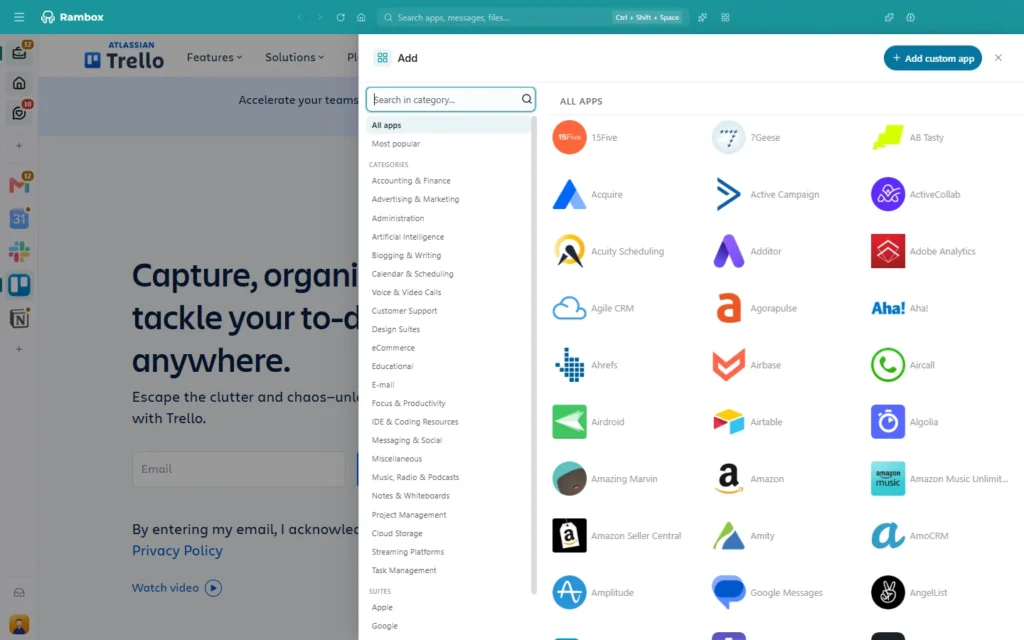
This can also be useful when you have separate personal and work accounts. For example, you can keep both WhatsApp accounts accessible without signing out of one to check the other. Our guide to multiple WhatsApp accounts on one computer walks you through that setup.
Your messages still go through the service you choose. Rambox provides the place to access those web apps, so their connection requirements and feature limits still apply. It doesn’t send SMS itself or combine the conversations into a shared inbox. Apple Messages and Phone Link remain separate applications.
If your team needs to assign customer conversations or automate SMS, you’ll need a messaging platform with those features. Rambox’s role here is to make the apps you already use easier to keep within reach.
To try this with your own conversations, download Rambox and add the messaging apps you use throughout the day.
A couple of things to know before you start
Will texts sent from my computer cost extra?
Using a computer doesn’t remove your mobile plan’s SMS or MMS charges. WhatsApp and Telegram messages use internet data rather than your SMS allowance. Check your carrier’s rates, especially for international texts.
What should I check if a message won’t send?
For phone-linked SMS, first try sending from the phone. If that fails too, check its connection, service, and recipient number. If the phone works, check the computer’s connection and pairing permissions. With Phone Link and iPhone, also check Bluetooth. Google’s troubleshooting guide covers additional connection problems.
On a shared computer, sign out or unlink your messaging sessions when you’re finished.