

If you have been looking for the best apps to cleanup desktop Windows 11, you are probably dealing with a desktop full of random files, screenshots, shortcuts, and apps that slowly turned into visual chaos. The good news is that fixing this is way easier than it looks.
In this guide I will walk you through visual organizers, smart cleaners, and tools that keep everything in one place. No matter how messy things look right now, you will find something that makes your Windows desktop feel fresh again.
Let’s clean this up!
Contents
Why your Windows desktop gets messy so fast
Most desktops do not get messy overnight. It happens little by little. You drop a file there “just for a minute”. You take a quick screenshot. You install an app that adds another shortcut. You download something and leave it on the desktop because you will “move it later”. Later never happens.
Windows also makes it really easy to turn your desktop into a parking lot for everything. New folders, new downloads, new shortcuts, they all end up in the same place. And once things start piling up, it becomes harder to find what you need, so you keep adding more stuff on top of the old stuff.
The result is a desktop that looks busy, feels slow, and makes it harder to focus. The good part is that it is not your fault. Windows just works this way by default. But with the right tools, you can take back control and stop the clutter from growing every day.
Quick things you can do before installing anything
Before jumping into apps, there are a few simple moves that can already make your desktop look much cleaner:
- Remove shortcuts you never use. Many desktops fill up with icons you opened once and forgot about, and deleting the shortcut does not remove the app, it just clears space.
- Create one temporary folder and drop all loose files inside. Screenshots, documents and images go there so the clutter disappears, and you can sort that folder later.
- Pin the apps you use every day to the taskbar so you can open them fast without letting them take over your desktop.
These quick moves already make a difference and set things up before you start using the apps in the list.
10 Best apps to cleanup your desktop in Windows 11
Now that your desktop looks a little lighter, it is time to bring in the apps that actually make a long term difference.
Some of these apps focus on the look of your desktop, others help you organize how you work, and a few take care of the system side so everything feels smoother. Together, they cover every angle: icons, windows, storage and performance plus the overall feeling of having a calmer space.
Desktop cleanup and workspace organization
This first category is all about the part you actually see every day. These tools help you organize icons, group things in a cleaner way, reduce visual noise, and make your desktop feel way less chaotic.
If your screen looks busy or overloaded, these are the apps that make the biggest difference with the least effort.
1. Rambox
Think of all the apps you use every day: WhatsApp, Slack, Gmail, Teams, Discord, Notion and all the others. Normally you would download each one, fill your desktop with shortcuts, open a bunch of windows, and end up with a messy screen.
Rambox is the best desktop organizer app for Windows. It solves that by putting all those apps inside one single interface. You open one window and everything is there. No extra downloads. No extra shortcuts. No extra windows fighting for space. Just one place where all your tools live.
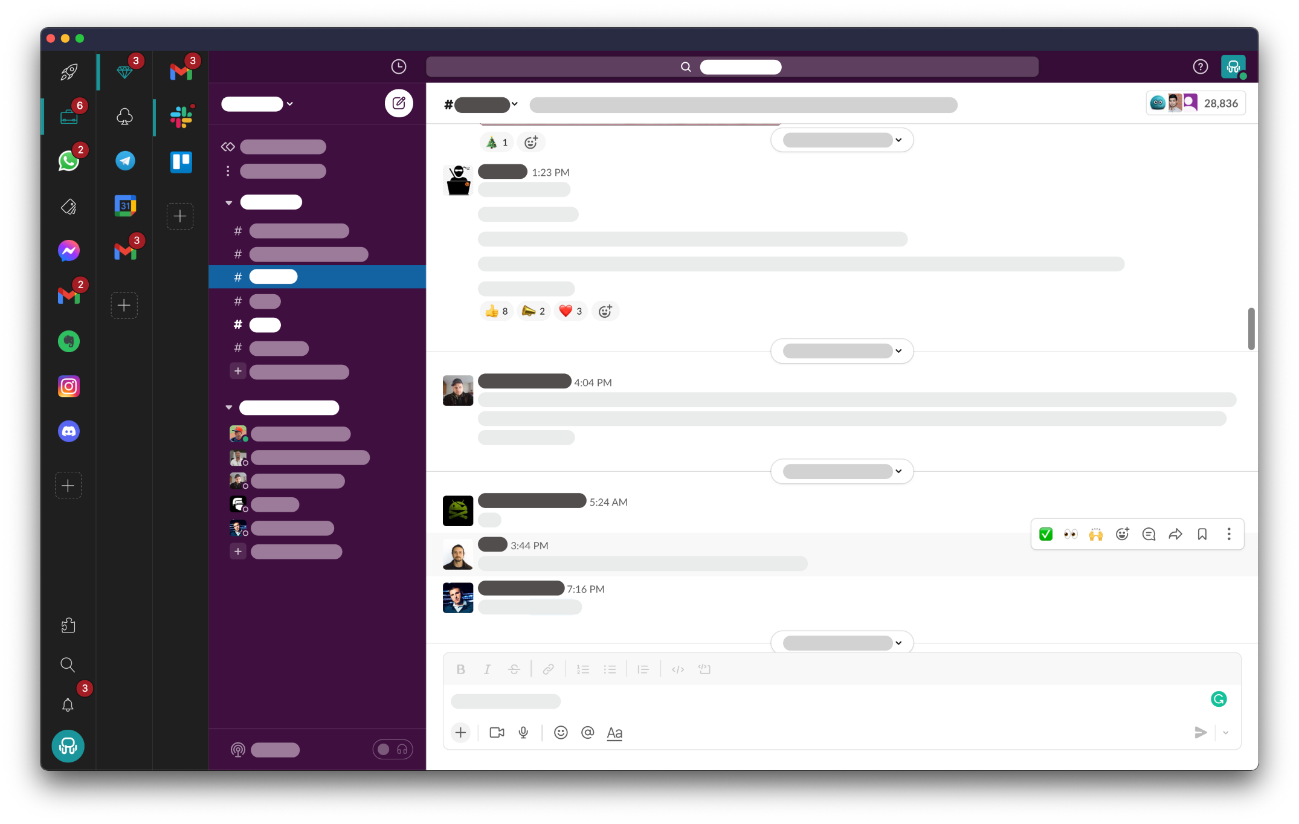

This already makes your desktop look way cleaner, but it also makes your computer lighter because you are not running ten apps and browser tabs separately.
And if you need an extra layer of organization, Rambox gives you something even better: You can create Workspaces, which are like folders where you group the apps you need for each project/client. One workspace for your job, one for a side project, one for personal stuff. Everything stays organized, separated and easy to find.
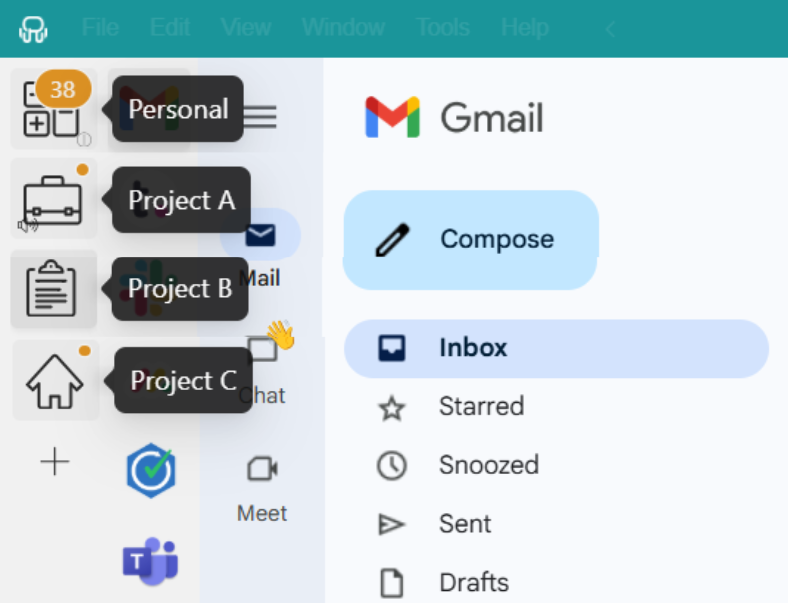
Do you want to see how easy it is? Check out this video where we walk you through creating your first Workspaces in Rambox:
Your desktop stays clean, you stop wasting time jumping between apps, and everything feels a lot more organized without you having to change how you work.
2. Stardock Fences
Once you have all your daily apps inside Rambox and you have removed the unnecessary desktop apps and shortcuts, it is time to take the next step. Some tools still need to be installed on your computer, like Adobe apps, and you also have files, screenshots and images that live on your desktop. That is where Stardock Fences becomes really useful.
Fences lets you group everything on your desktop into clean, customizable boxes so nothing feels scattered. You can create a box for design tools, another one for project files, another one for screenshots, and keep everything exactly where you want it.
New files automatically land in the right place, and you can hide entire groups with one click when you want a cleaner view. It is a simple way to keep the few things that must stay on your desktop organized without doing it manually every day.
✔️ Pro tip
Create a Fence called “New files” so everything you drop on your desktop lands there automatically. It keeps your screen clean even on busy days.
3. iTop Easy Desktop
iTop Easy Desktop is a really good alternative to Fences if you want a more automated tool. Instead of placing everything by hand, it can group your icons, files and folders into boxes for you, so your desktop goes from chaos to something structured in just a couple of clicks.
You can customize those boxes with different sizes and colors, and decide how you want things to be sorted inside each one. It also makes it easy to quickly hide everything on the desktop when you want a clean view and bring it back when you are ready to keep working.
If you like the idea of having your desktop divided into clear zones but do not want to spend time dragging every icon manually, iTop Easy Desktop is a nice way to let the app do most of the work for you.
✔️ Pro tip
Start with two or three simple zones. Over organizing your desktop makes it harder, not easier.
4. Portals
Portals works in a different way. Instead of creating boxes for your icons, it lets you turn any folder into a live window on your desktop. Think of it like having a mini version of a folder always open and ready, without needing an extra File Explorer window.
You can resize each portal, move it wherever you want and drop files inside instantly. It is especially handy if you work with the same folders every day and want quick access without digging through your directories every time.
If your desktop gets messy because you constantly move files around or you keep opening the same folders over and over, Portals makes everything faster and a lot more organized.
✔️ Pro tip
Turn your main project folder into a portal. It saves you from opening File Explorer ten times a day.
5. Rainmeter
Rainmeter is a tool that lets you add small widgets to your desktop so you can keep the things you actually need in view and remove everything else that gets in the way. You can add clocks, calendars, system stats, notes, quick app launchers and many other elements that replace the usual mess of icons and files.
The best part is that you can customize every detail. You decide what shows up, how it looks and where it sits. Many people use Rainmeter to turn their desktop into a clean, minimal dashboard that helps them stay focused and keeps clutter from building up again.
✔️ Pro tip
Keep your Rainmeter setup minimal. One or two widgets are usually enough to replace dozens of icons.
File cleanup and organization
Some of the things that clutter your desktop come from everyday file actions: screenshots you save quickly, documents that pile up, images you need to adjust or small tasks that leave files you did not plan to keep.
This section focuses on keeping those routine actions more organized so your desktop stays cleaner over time.
6. Microsoft PowerToys
PowerToys brings a bunch of small tools that help you stay organized without installing extra apps. Everything is inside one single download, and each tool solves a common problem that usually fills your desktop with random files. Here are a few useful ones:
- PowerRename: lets you rename many files at once, so you do not end up with dozens of files called screenshot one, screenshot two or document final final.
- File Locksmith: shows you what is blocking a file when Windows says you cannot delete it. Super helpful when you want to clean things up.
- Image Resizer: lets you resize images instantly without opening heavy software that adds more clutter.
- Quick Accent: helps you write special characters easily, so you do not need to create temporary notes or extra files.
All these tiny tools help you avoid creating unnecessary files, keep things under control and make your desktop feel cleaner just by making everyday tasks faster.
System cleanup
Cleaning your desktop is one part of the process, but sometimes the real problem is inside Windows. Temporary files, old updates, cached data or leftover software can make your computer feel slower and heavier even if your desktop looks organized.
This section focuses on apps that clean the system itself, free up space and help your PC run smoother behind the scenes.
7. Microsoft PC Manager
Microsoft PC Manager focuses on cleaning the parts of Windows that usually get ignored: temporary files, leftover system data and small things that slowly take up space in the background. It gives you a simple panel where you can free up storage, clear browser clutter and close apps that are using more resources than they should.
It is light, easy to use and does not add anything extra to your desktop. If you want basic system cleanup without installing something heavy, this is a straightforward way to keep your PC running a bit smoother.
✔️ Pro tip
Run the “Storage cleanup” once every week. It removes small leftover files Windows never handles on its own, and it keeps your system feeling fresh without doing a full deep clean.
8. CCleaner
CCleaner is one of the most well known apps for cleaning Windows, and it is still a solid option if you want to free up space quickly. It removes temporary files, old browser data and other things that pile up over time without you noticing. The interface is simple, and you can run a cleanup in just a couple of clicks.
It also has a section to manage startup apps, which helps your computer boot a little faster. If you want a familiar, easy to use cleaner that handles the basics well, CCleaner gets the job done without complicating anything.
✔️ Pro tip
Before running a cleanup, check the “Startup apps” section. Disabling a few unnecessary launch items usually speeds up your computer more than deleting temporary files.
9. BleachBit
BleachBit is a good choice if you want something simple, fast and focused on removing unnecessary files without installing a heavy program. It clears temporary data, cached content and other small leftovers that often take up space in the background. Everything is easy to understand, and you pick exactly what you want to clean before running it.
It does not try to do everything, but it is effective at freeing space and getting rid of clutter that builds up over time. If you prefer a lightweight option that stays out of the way, BleachBit is a clean and straightforward option.
✔️ Pro tip
Start with the recommended cleaning options. BleachBit lets you pick a lot of items, but keeping it simple avoids deleting things you may still need.
10. Advanced SystemCare
Advanced SystemCare goes a bit further than basic cleaners. It removes temporary files and leftover data, but it also looks for small issues that may slow down your system, like unnecessary background processes or items that launch when your PC starts. Everything runs from a simple panel where you can scan and clean with one click.
It is still easy to use, but it feels more complete if you want something that tidies up your system and helps it run a little smoother. If you are looking for a cleaner that does more than just free up space, Advanced SystemCare is a solid pick.
✔️ Pro tip
Use the one click scan, but review the results before cleaning. Advanced SystemCare finds many small issues, and choosing only what you really need keeps your system stable and fast.
If you want to keep improving your PC beyond this cleanup section, here are a few helpful reads from our blog:
👉🏼 Best PC optimization tools for Windows 11
👉🏼 10 Easy steps to speed up your computer
👉🏼 PC optimization guide for Windows
👉🏼 How to free up RAM in Windows 11
When to use each type of app
Now that you have a full list of tools, the next step is knowing when each type of app makes sense. Not all cleanup problems come from the same place. Sometimes you need to organize icons, other times you want your workflow to feel lighter, and in many cases the real issue is inside Windows itself.
This quick table helps you choose the right category depending on the situation.
| When to use it | Why it helps | |
| Rambox | When you want fewer desktop apps, fewer windows and everything in one place | It centralizes all your daily apps in a single interface, removes shortcuts and reduces desktop chaos instantly |
| Stardock Fences | When you still have files and icons on your desktop that you need to keep visible | It groups everything into clean boxes so your desktop looks organized without extra effort |
| iTop Easy Desktop | When you want your desktop icons and files auto organized without doing it manually | It creates structured zones automatically and keeps new files sorted for you |
| Portals | When you often open the same folders or move files around all day | It shows your folders as live windows on the desktop, making file access and organization much faster |
| Rainmeter | When you want a cleaner desktop that shows only useful info | It replaces unnecessary icons with widgets you actually need, creating a minimal dashboard |
| Microsoft PowerToys | When small file tasks (renaming, resizing, sorting) start filling your desktop | It handles everyday file actions quickly so you stop generating extra clutter |
| Microsoft PC Manager | When Windows feels slow or storage fills up | It cleans temporary data, frees storage and closes background apps draining resources |
| CCleaner | When you want a quick, simple cleanup you can run often | It removes temporary files and browser clutter in seconds |
| BleachBit | When you want a lightweight cleaner without installing anything heavy | It clears unnecessary files and frees space with a simple, straightforward interface |
| Advanced SystemCare | When you want deeper system cleanup plus small optimization fixes | It removes leftovers, finds small issues and helps Windows run smoother overall |
Tips to keep your desktop clean every day
Cleaning your desktop once feels great, but keeping it clean is what actually makes a difference. Most of the clutter comes back because of tiny habits, not because you are doing anything wrong. These simple routines and smart app combinations make it much easier to stay organized without thinking about it too much.
- Use Rambox to avoid having apps and browser tabs everywhere: When all your daily apps live inside one window, you avoid browser tabs, shortcuts, extra downloads and the usual pile of icons. It stops most clutter before it even starts.
- Combine Rambox with Fences or iTop Easy Desktop: Rambox handles your apps, and Fences or iTop keep the files that must stay on your desktop organized.
- Use Portals if you always open the same folders: Turn your most used folders into mini windows on your desktop. It keeps quick access clean and saves you from opening extra File Explorer windows.
- Save files anywhere except the desktop: Dropping things on the desktop “for a moment” is the number one reason clutter comes back. Save new files directly into the folder where they belong so your desktop stays clean by default.
- Create one folder for quick stuff: Screenshots, small notes and temporary files go inside one single folder. It keeps your desktop empty and makes cleanup much easier later.
- Pin your daily apps to the taskbar or keep them inside Rambox: If an app is essential, it should be one click away without becoming another icon floating on the desktop.
- Clear your Downloads folder often: A lot of desktop chaos starts with downloads that you never sort. Keeping this folder under control prevents files from spreading everywhere.
- Run a quick system cleanup regularly: Temporary files build up fast. Running a cleaner once in a while keeps Windows smooth and prevents slowdowns that make your workspace feel heavier.
- Restart your PC more often: It resets small issues, frees memory and makes everything feel lighter.
Once you get used to these habits and you combine the right apps, your desktop stays clean naturally and your workspace feels calm every single day.
Why a clean desktop actually makes you faster and calmer
A clean desktop is not just about looks. It changes the way you work. When your screen is full of icons, windows and files, your brain keeps trying to process everything at once, even if you are not using most of it. That visual noise slows you down and makes simple tasks feel heavier than they should.
A tidy setup removes all that friction. You open your computer and immediately know where everything is. You do not waste time hunting for apps, digging through layers of windows or checking which browser tab has the thing you need. Everything feels more direct.
A clean desktop also helps you stay focused. When the only things you see are the ones you actually need, your mind stays on the task instead of jumping from distraction to distraction. It creates a sense of space that makes your workflow smoother and your day feel less chaotic.
And the best part is that once you get used to this way of working, it becomes the new normal. Your computer feels faster, you feel calmer and your desktop stops being something you have to fight with. It just works.
I hope this guide has helped you find the apps you need to cleanup your desktop in Windows 11. If you are overwhelmed by the number of applications you have to work with, try Rambox for free! Just sign up, download the app and you can start enjoying all its features. No cards, no cheating, it’s that simple!

Do you want to learn more about Rambox? Check out how to build your perfect interface, and explore all its features step by step in our YouTube series where we show you how to set up Rambox from scratch.
Happy working!