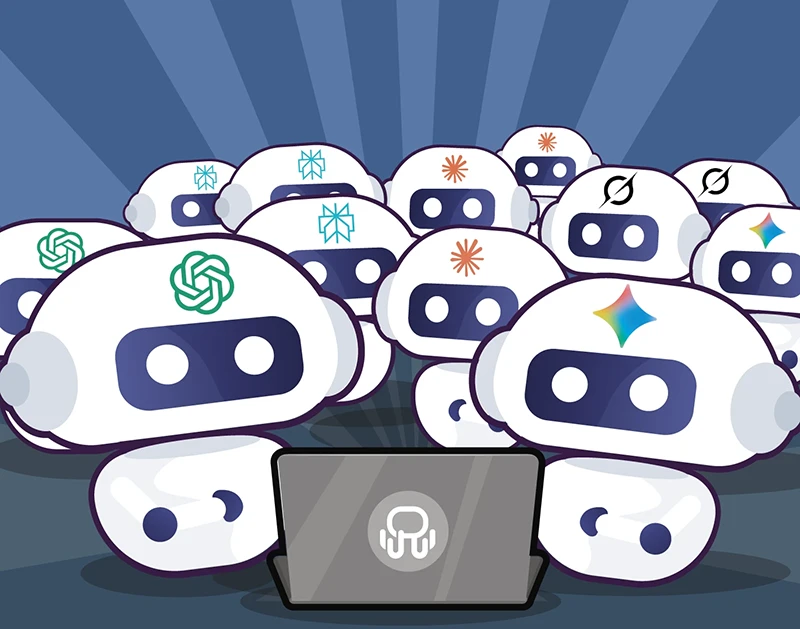
Using more than one AI tool is quickly becoming part of how people work. What often starts with a single tool evolves into using several, depending on the task or the moment.
At first, this feels like a clear improvement. You get more flexibility and better results. But over time, things start to get harder to manage.
In this post, we’ll look at why that happens and how to bring structure to the way you work with multiple AI tools, especially when you’re juggling different projects, contexts or types of work.
Why working with multiple AI tools gets messy
Working with multiple AI tools is not a problem by itself. In fact, it often improves the quality of your work. Different tools tend to be better at different things, so it’s natural to combine them as part of your daily workflow.
For example, you might use ChatGPT to draft content, Perplexity to research a topic, Gemini to explore ideas or Claude for longer outputs or coding tasks. Using more than one tool quickly becomes the norm.
This is especially true for professionals who work across different tasks throughout the day, such as freelancers, developers, marketing or operations teams.
The issue appears when this setup grows without a clear structure.
As more tools become part of your workflow, small inefficiencies start to add up. You keep multiple tabs open, conversations are spread across different places, and you spend more time switching between tools just to move a task forward.
None of this feels like a big problem on its own. But together, it creates a constant layer of friction that makes it harder to stay focused and work efficiently.
Each AI tool solves a different problem
One of the reasons people end up using multiple AI tools is simple: each one tends to be better at something.
Over time, it’s common to combine them as part of a single workflow. You might start a task in one tool, continue it in another and refine it somewhere else. Instead of relying on a single AI, you use several, depending on what you need at each step.
Here’s a quick overview of some of the main AI tools and how I tend to use them based on my own experience.
ChatGPT for writing and structuring ideas
ChatGPT is often the starting point for many tasks. It’s commonly used to draft content, summarize information or turn rough ideas into something more structured.
Because of its flexibility, it ends up being used across many different types of work, from quick notes to more complete pieces. This makes it one of the most frequently used tools in a typical AI workflow.
Perplexity for research and sources
Perplexity is usually used when the goal is to explore a topic or find reliable information quickly. It helps gather context, validate ideas and access sources without leaving the workflow.
For many users, it becomes the go-to tool at the beginning of a task, especially when research is involved.
Gemini is often used when working within the Google ecosystem. It can be especially useful for tasks related to Google Analytics, Tag Manager, Search Console or Workspace tools.
It’s also used to explore ideas or generate alternative approaches, particularly in workflows connected to marketing, data or SEO.
Claude for longer outputs or coding tasks
Claude tends to be used for more detailed work. This can include longer content, deeper reasoning or technical tasks like coding.
It’s often part of the workflow when the task requires more depth or a more structured output.
Other AI tools depending on your workflow
Beyond these, there are many other AI tools that professionals use depending on their preferences or specific needs. Tools like Copilot, Grok or DeepSeek are also becoming part of many workflows.
In many cases, the choice comes down to how each person works and what they feel most comfortable using.
Using multiple AI tools is easy to understand. The complexity appears when you look at how they are actually used in day-to-day work.
It’s not just about switching between tools. It’s about everything that happens around them.
The same AI tool is often used for different purposes at the same time. A conversation can be related to a specific client, another to an internal project, and another to something completely unrelated. All of this ends up living in the same place.
At the same time, your work is rarely linear. You move between tasks, projects and priorities throughout the day. A piece of research becomes a draft, a draft becomes a refined version, and each step might happen in a different tool or conversation.
This is where things start to get harder to manage. Workflows become fragmented. Context is spread across different tools, chats and tabs. And even when everything is technically “there”, it’s not always easy to find, reuse or continue from where you left off.
The complexity is not visible at first. It builds up gradually as more tools, projects and conversations become part of your daily workflow.
What actually slows you down: unmanaged context switching
At this point, the issue is no longer the number of tools you use. It’s how you move between them.
Switching contexts is part of the job, especially if you work across different projects, clients or types of tasks. You might go from researching a topic to drafting content, then reviewing something else, and back again. That’s normal. The problem is when this switching happens without any structure.
You move from one tool to another, from one conversation to the next, often without a clear boundary between them. You lose track of what you were doing, repeat steps to recover context, or spend time figuring out where something happened.
This kind of friction is subtle, but constant:
- You reopen tools just to find a previous answer
- You reread conversations to understand where you left off
- You repeat prompts because the context is no longer clear
- You hesitate before continuing a task because you’re not sure you’re in the right place
None of this stops you from working. But it slows everything down.
Context switching itself is not the problem. It’s unavoidable in most modern workflows. The real issue is when it happens without a clear structure that helps you keep track of what you’re doing at any given moment.
How to organize your work across multiple AI tools and contexts
If you’re working with multiple AI tools, the goal is not to reduce them. It’s to bring structure to how you use them.
Instead of thinking in terms of tools, it’s more effective to think in terms of contexts. The way you organize your work should reflect how you actually switch between projects, clients or types of tasks during the day.
When you do this, context switching doesn’t disappear, but it becomes much easier to manage. You move between defined environments instead of jumping randomly between tools and conversations.
Use context-based workspaces
Each project, client or type of work can have its own workspace, with the AI tools you need already available inside it. This means you don’t have to search for the right tool or conversation every time you switch tasks. Everything is already in place, aligned with what you’re working on.
More importantly, it reduces mistakes. You’re less likely to write a prompt in the wrong place or mix conversations from different contexts.
Keep your tools where the work happens
A common mistake is to treat AI tools as something separate from the rest of your workflow. You open them in new tabs, use them when needed, and then move back to what you were doing. This creates unnecessary switching.
Instead, your AI tools should be part of the environment where the work happens. When they are integrated into your workflow, moving between tasks becomes much more natural and requires less effort.
Create a general AI workspace for non-contextual tasks
Not everything belongs to a specific project or client. Sometimes you just need to ask a quick question, explore an idea or compare how different tools respond to the same prompt.
For this type of work, it helps to have a separate workspace where all your AI tools are available in one place. This becomes your “AI hub”, a space for general use that doesn’t interfere with your more structured workflows.
Example: working with multiple AI tools without losing track
To see how this works in practice, it helps to look at a simple example. I’ve created a simple workspace setup in Rambox to show how this could work in a real scenario.
Imagine a typical workflow where you need to research a topic, draft some content and refine it before publishing. This could be a marketing task, but the same pattern applies to many other roles.
Without any structure, this usually means jumping between tabs, tools and conversations, trying to keep track of where everything is.
With a structured setup in Rambox, the workflow looks different.
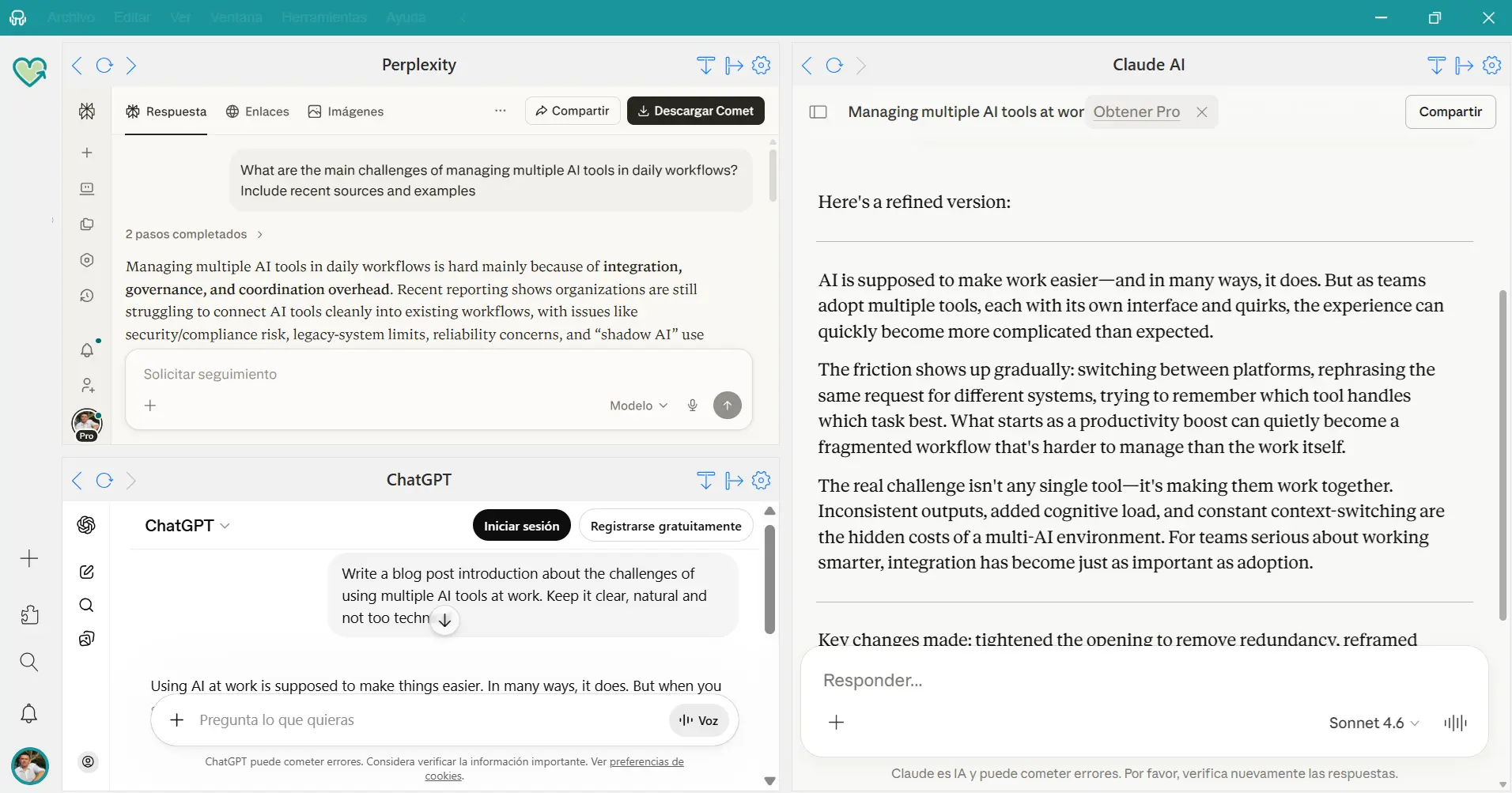
This kind of setup doesn’t remove context switching, but it makes it intentional. You switch between clearly defined environments, instead of jumping between tools and tabs without structure.
A dedicated workspace for the task
You create a workspace for this specific type of work, for example “Content” or “SEO”.
Inside that workspace, you add the AI tools you need:
- Perplexity for research
- ChatGPT for drafting
- Claude for refining
All of them are available in the same place, without needing to open new tabs or switch environments.
Working across tools without losing context
Instead of jumping randomly between tools, you move within a defined space.
You start researching in Perplexity, switch to ChatGPT to draft your content, and then move to Claude to refine it. Each step is part of the same workflow, and everything stays visible and accessible.
If you use Tile View, you can even keep multiple tools open at the same time, making it easier to compare outputs or move faster between steps.
Keeping different types of work separate
At the same time, this workspace is separate from everything else you’re working on.
Your other projects, clients or tasks live in their own workspaces, with their own tools and conversations. This reduces the risk of mixing contexts or working in the wrong place.
Organize all your AI tools with Rambox
In Rambox, you can create different workspaces, which act as separate environments for your apps. For example, you might have one workspace for a specific project, another for a client, and another for general tasks or personal use. This way, you always know where to find the tools and conversations you’re looking for.
This works especially well when using multiple AI tools. You can group them by context, keeping the right setup ready depending on what you’re working on.
Want to see how Workspaces in Rambox work? In this video, you’ll see how to create your workspaces and add apps to them in just a few seconds.
You can also rearrange your apps using drag and drop, so you can place them in the order that works best for you.
With everything organized, it’s easier to find the tool you need and move between tasks without wasting time looking for the right app or conversation.
A more organized way to work with AI tools
Using multiple AI tools is not the problem. In many cases, it’s what allows you to work better and get better results. The challenge is how you organize that setup.
When your tools, conversations and projects are spread across different places, even simple tasks start to feel harder than they should. But when everything is structured around how you actually work, things become much easier to manage.
You still switch contexts, but you do it with intention. You know where your work lives, where to continue it and how to move between tasks without losing track.
That’s the difference between using multiple AI tools… and actually working efficiently with them.