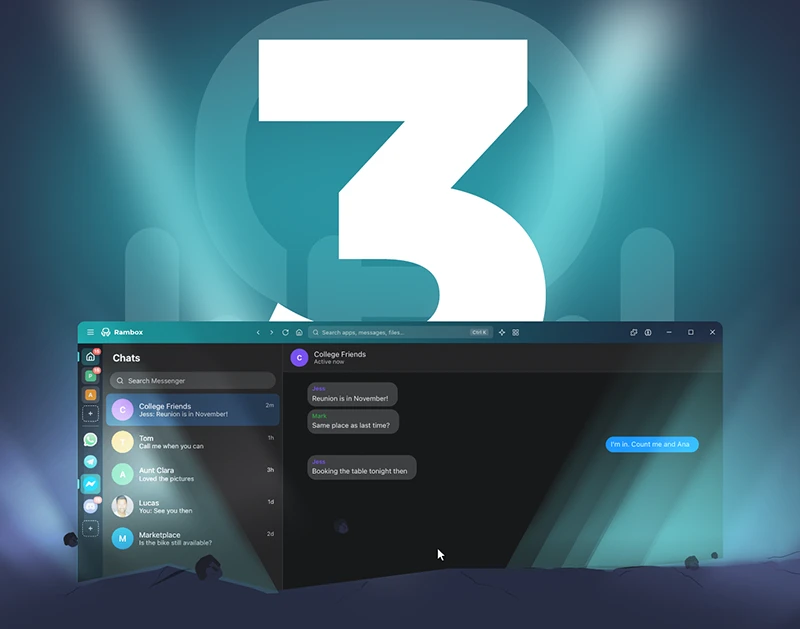


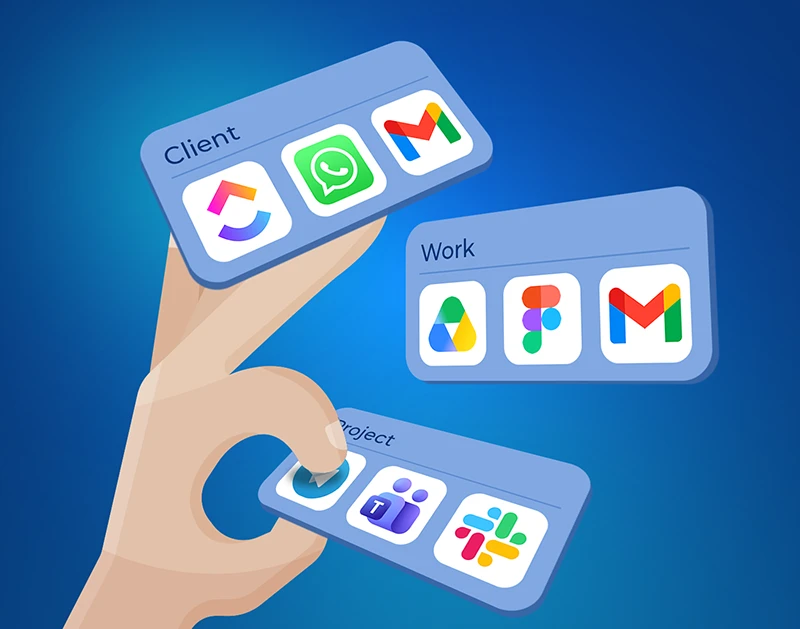
Organizing work apps by task, project or client means grouping the tools, accounts and settings you need for each work context, rather than keeping one long list of apps. A workspace manager such as Rambox lets you build these separate environments around your existing tools, so you can keep a client’s Slack, project board and documents together, or prepare a quieter setup for research and writing.
The starting point is the work you already do. Answering a client request and writing an article require different app combinations, even if both involve Google Docs. Here is how to choose useful groups, decide which sessions belong in them and build Workspaces you can return to in Rambox.
Why can a long app list be difficult to work from?
Having all your apps in one place is useful, but it doesn’t always make your work easier. For example, when a client asks about a deadline, you might need to check a Slack conversation, review a task in Jira and find a document in Google Drive.
Managing multiple accounts adds another layer of complexity. It’s not just about opening Gmail or Slack, but knowing which account, project or client you’re working with. Organizing your apps around those contexts makes it easier to find what you need.
A task list helps you keep track of what needs to be done. A workspace brings together the apps and accounts you need to do it.
Rambox is a workspace manager for people and teams working with multiple apps, accounts and work contexts. This guide explains how to organize those environments around your work. If you’re looking for tips on planning your day and managing priorities, check out our guide on being more organized at work.
Choose the right way to organize your work apps
Think about what changes when you move from one piece of work to another. Do you need a different set of tools, another client’s accounts or fewer interruptions? That can help you decide how to group your apps.
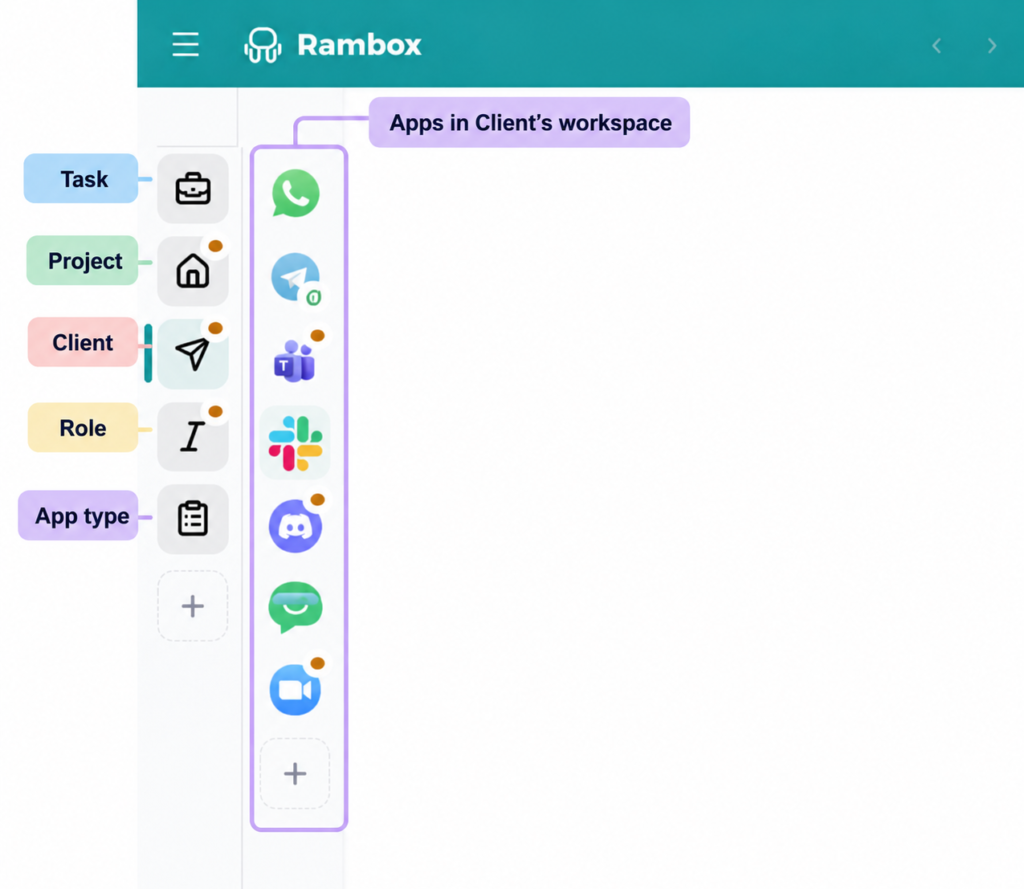
Choose the structure that makes it easiest to find what you need and get started. Use this table to compare the options and decide which fit your day-to-day work.
You don’t have to stick to one approach. A consultant might use Client A Delivery, Client B Delivery and Research & Writing. Since Rambox 3 displays Workspaces at the same level, choose clear, recognizable names rather than relying on nested groups.
Create Workspaces for activities or contexts you return to regularly. Start with a few that reflect how you actually work and add more as needed.
| Organize by | Choose this when | Example |
|---|---|---|
| Task | A recurring activity with familiar tools | Research & Writing |
| Project | One deliverable supported by several tools | Website Relaunch 2026 |
| Client | Customers with different accounts and tools | Client A Delivery |
| Role | Responsibilities with distinct priorities | Support Desk |
| App type | Reviewing one category of tools together | Email Review |
By task
For recurring tasks, such as preparing monthly reports, bring together the apps you use each time. A reporting workspace might contain your analytics platform, spreadsheet, presentation tool and email. Keep the group focused on the complete activity rather than creating a separate Workspace for every small action.
By project
To organize apps by project, bring together the tools needed for a specific deliverable, even when they serve different purposes. A website relaunch might need design files, a task board, shared documents and a staging site. Review the group when the project ends so finished work does not clutter daily navigation.
By client
Client Workspaces are useful when you manage different customers, accounts and projects. Keep the services you need for each customer together, including any shared agency tools. Check which account each app should use: working for a client does not mean every service needs a client-specific sign-in.
By role
Role-based groups help when, for example, support requires immediate attention while analytics needs longer periods of concentration. A Support Desk workspace might contain customer messages, tickets and reference documents, while an Analytics workspace holds reporting tools. Decide which channels must remain available when you switch roles, especially if you are responsible for monitoring incoming requests.
By app type
Organize by app type when you regularly review one category of tools together. For example, an Email Review workspace could bring several inboxes into one group for a scheduled review. If you constantly leave that group to consult project boards or documents, organizing those tools by client or project may fit your routine better.
Design each workspace before adding apps
Plan the work context, apps, accounts and alerts as one setup. These decisions help you build a Workspace that contains the tools you need and behaves appropriately while you use them.
Define the work context:
What am I working on? Identify the client, deliverable, responsibility or recurring activity. Choose a name that makes that purpose recognizable when you return to it.
Select the apps you need
Which apps do I need? Include the tools required to complete that work. Start with the ones you use throughout the activity, then add occasional extras when you keep reaching for them.
Decide on accounts and Profiles
Which accounts should they use? Identify the session needed in each service. Choose a default Profile for the group, then note the apps that need a different one.
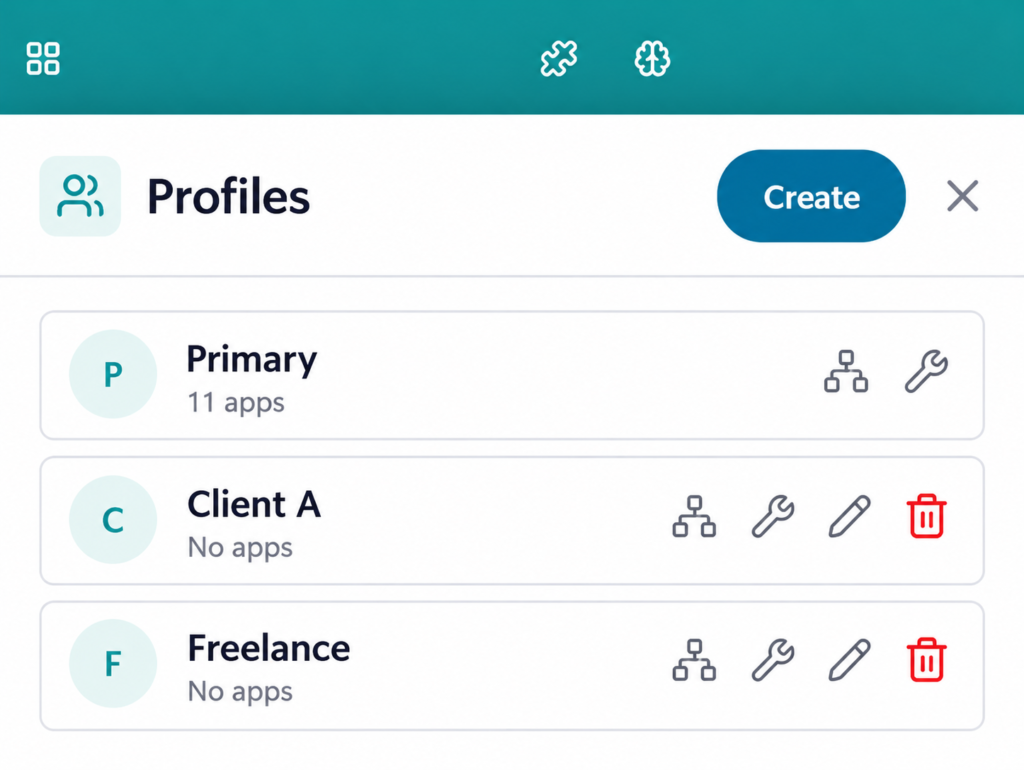
Before adding your apps, make sure each one will use the right account. Workspaces group apps by client, project or task, while Profiles let you manage their sessions. Apps can share a Profile or use separate ones, depending on which accounts you need.
For example, you might create a Client A Workspace with Gmail using your Agency Profile, while Slack, Jira and Google Drive use a Client A Profile.
This keeps the tools for that client together while each app uses the account relevant to its role.
After assigning a Profile, check the account and organization displayed inside each service and sign in where needed. Our guide to managing multiple accounts on one computer covers that wider challenge.
Set notification priorities
Decide which alerts matter and when they should arrive. For client delivery, that might mean keeping direct messages and assigned-ticket alerts while silencing general activity updates. Consider your working hours and any channels you must monitor, so reducing interruptions does not hide requests you are responsible for handling.
Choose how links should open
Decide where linked pages should open. A shared document may be convenient in an internal tab, while another page may need your browser’s extensions. Identify a few typical links to test and check the destination account, particularly when the same service contains both agency and client information.
Build ready-to-use workspaces in Rambox
Rambox lets you create multiple Workspaces and choose which Profiles your apps use, giving you control over how you organize different clients, projects and work contexts. Follow these steps to turn your plan into a working setup.
Creating multiple Workspaces, choosing Profiles and connecting Unified Search require Rambox Pro or an active Pro trial.
For step-by-step instructions, see the Workspace setup guide.
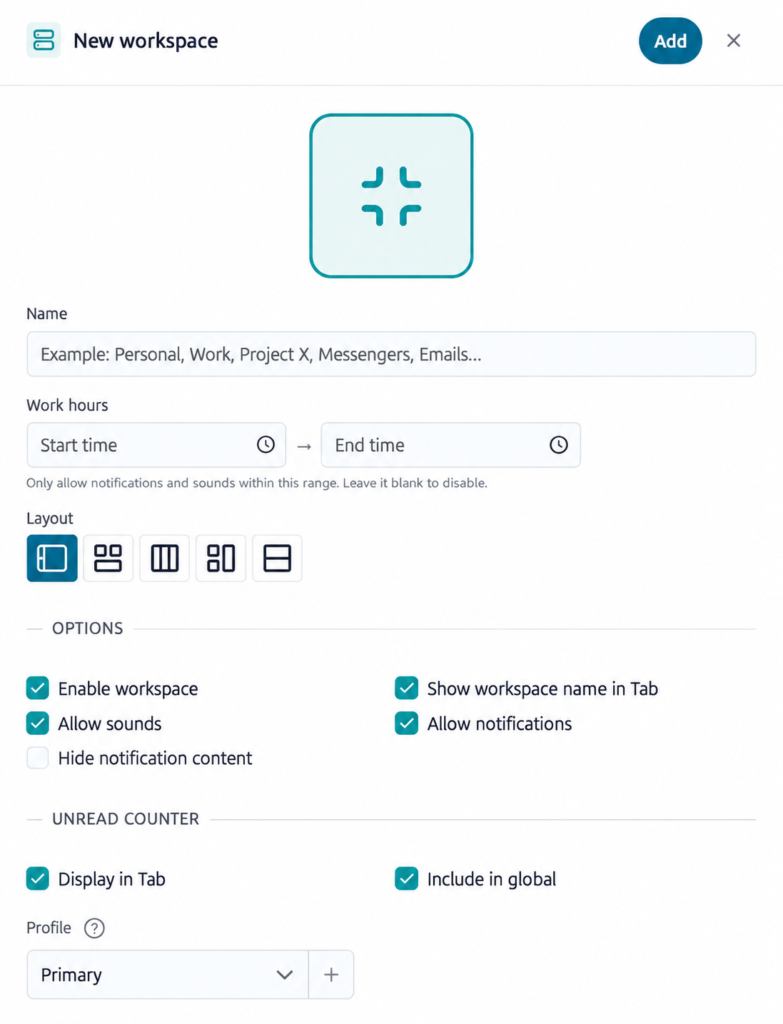
1. Create and name your Workspace
Click the sidebar + labeled Add workspace, enter a name and choose an icon or upload an image. For the examples below, use the default layout that shows one app at a time, then click Add.
The layout is set when you create the Workspace. If you later want a different layout, create a new Workspace with that choice. The default layout used in this guide supports tabs inside each app.
2. Choose the default Profile
In Workspace settings, select a Profile or create a custom one, such as Agency or Work. To edit an existing Workspace, right-click it in the sidebar and select the gear icon (Settings).
Use the Profile selector to choose or create a custom Profile when you want a named session shared by the relevant apps. Save the settings when you finish.
3. Add apps and set Profile exceptions
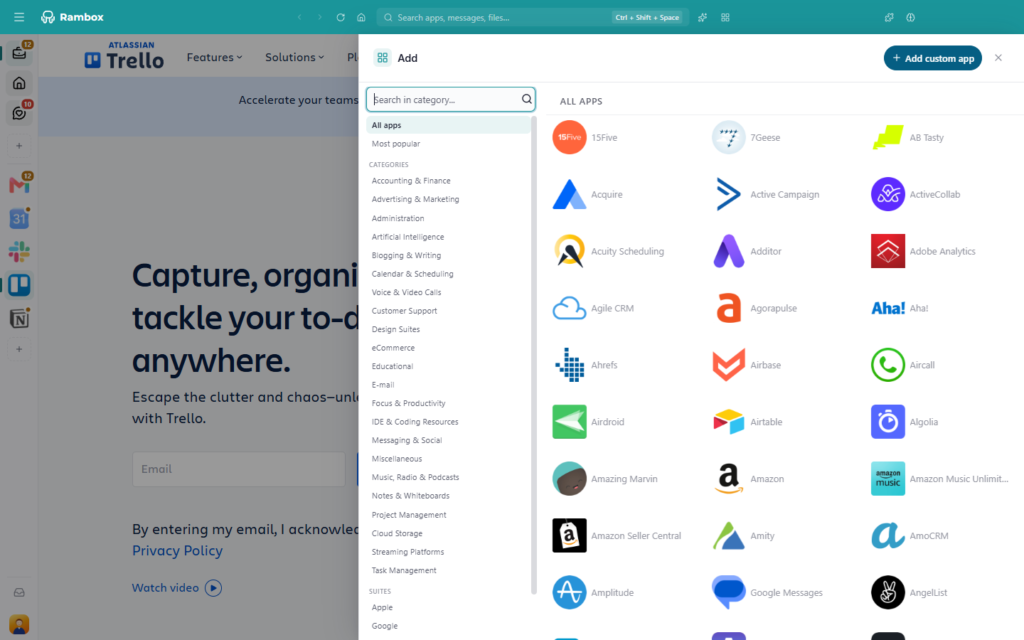
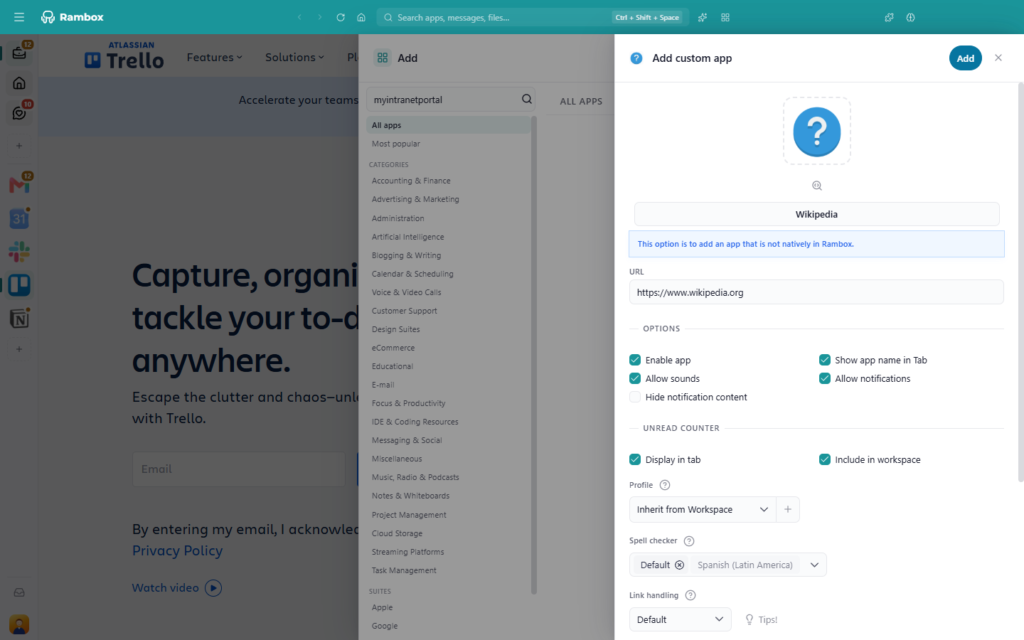
Open the Workspace, choose Add app and select your tools. Use Add custom app for an app outside the catalog, such as an internal tool or staging website.
New apps use Inherit from Workspace. Open an app’s settings and select a different Profile if it needs a separate session. Changing an existing app’s Profile reloads it, and you may need to sign in again.
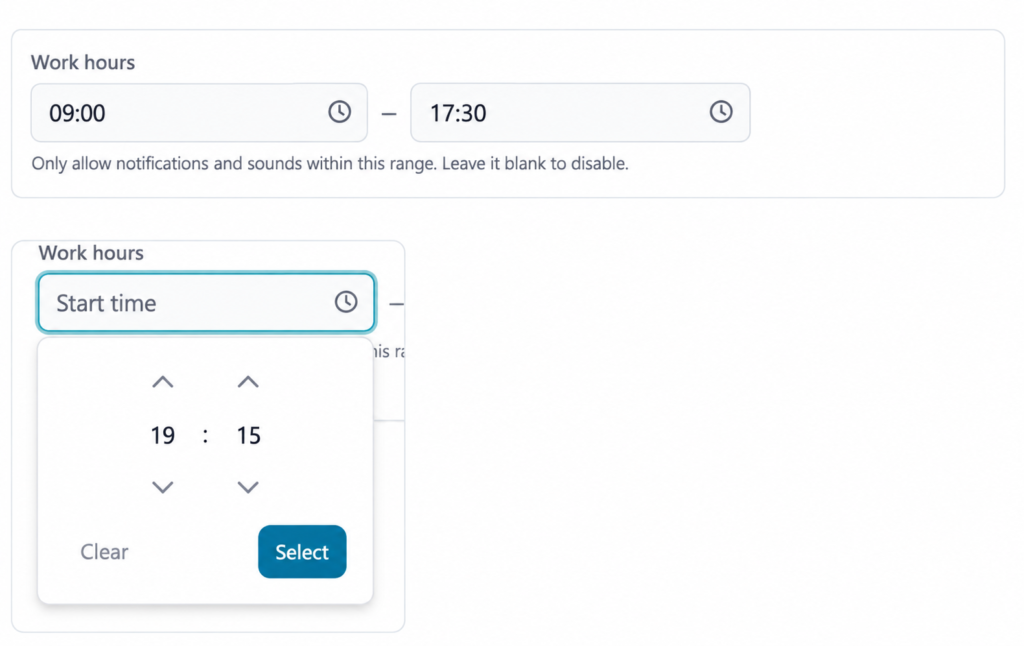
4. Set hours and notification priorities
Use the Workspace’s Work hours to choose when its apps can notify you. Set a daily range with an end time later than its start time, such as 09:00–18:00. Outside those hours, notifications and sounds stop, and the Workspace’s unread badge is hidden. The apps keep running, and their individual unread counts remain visible when you open the Workspace.
Then review individual apps. Both the Workspace and the app must allow notifications for an alert to appear. Choose the tools that need attention and silence peripheral updates. Configure channel or ticket priorities inside the original service.
5. Review badges, links and search
Choose which apps contribute to the Workspace’s unread total and whether that total contributes to Rambox’s global indicator. Set link handling per app.
You can refine these settings after trying a real request. The aim is to make the environment useful without configuring every advanced option first.
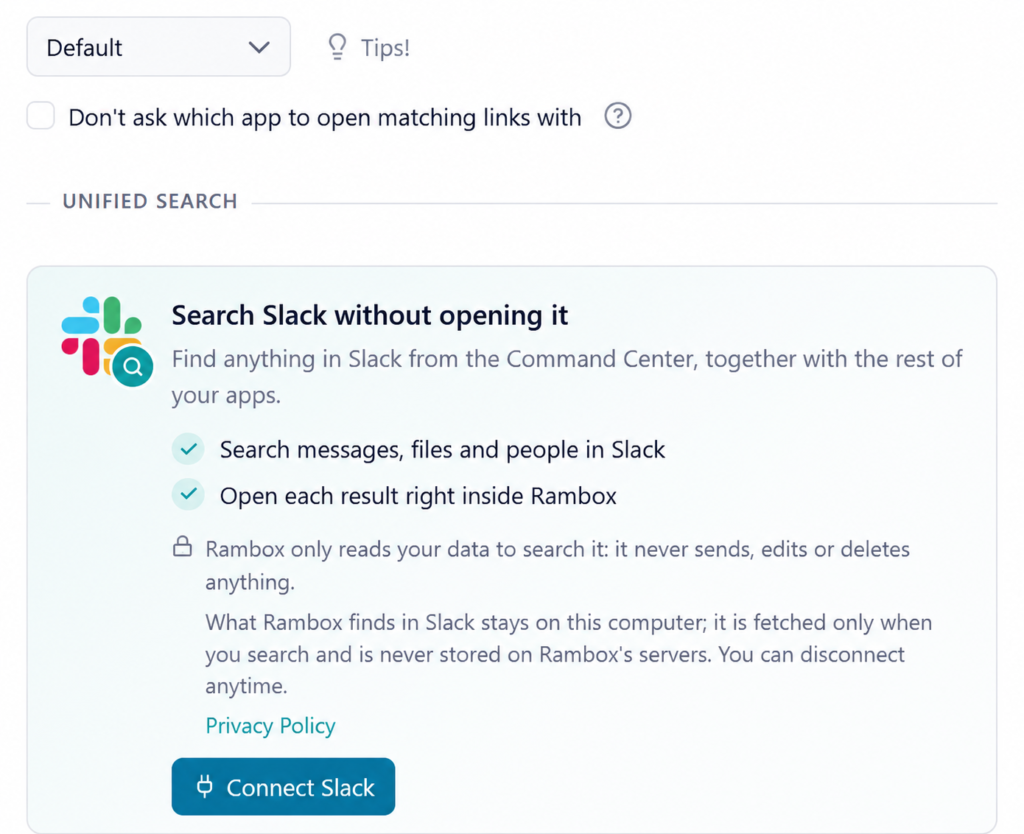
6. Connect Unified Search where supported
Connect Unified Search for supported services you frequently search. For Slack, open its app settings in Rambox, select Connect Slack, review the requested access and confirm that you are connecting the right account.
Then use Command Center to search for a message, file or person you know is in that account. Each supported service needs its own connection; adding an app to a Workspace does not automatically include it in Unified Search.
7. Test the complete workflow
Open a request, consult its project board and follow a document link. Check the destination account, then switch to another Workspace and back.
Changing Workspaces does not automatically silence or hibernate all the others. Test those settings separately, especially if you need to monitor more than one client.
Examples: client, project and task workspaces
These three examples show how to turn a client, project or recurring activity into a working environment. Adjust their Profiles, notification priorities and link settings to the accounts and responsibilities involved.
Client A Delivery
A client asks for a change in Slack. You check the Jira ticket, review the specification in Drive and send an update from your agency Gmail account.
To keep everything together, add these four apps to a workspace called Client A Delivery. Use Agency as the default Profile, then select the Client A Profile for Slack, Jira and Drive. Gmail stays signed in to your agency account, so you can work from one workspace while using the right account for each app.
Allow relevant client alerts during your working hours. Hide notification content if you share your screen, and keep essential communication apps awake. For broader agency workflows, see managing accounts and apps for multiple clients.
Include Slack and Jira in the Workspace’s unread total, and include that total in the global indicator if you monitor this client throughout the day. Use internal tabs for compatible Slack links, your browser where needed, and connect Slack search if you regularly look up past messages.
Website Relaunch 2026
A website relaunch involves design feedback, project decisions, tasks and staging site checks. Group Figma, Notion, Trello, Gmail, Analytics and the staging URL together in one Workspace throughout the project.
Use Agency as the default Profile, and switch Figma or the staging site to a Project Review Profile if it needs a separate session.
Set hours that match your project work and keep useful task-board alerts active. Let the board contribute to the Workspace’s unread total, and keep the global indicator focused on updates you monitor across projects. Use internal tabs for compatible review links and consult the Unified Search compatibility guide before connecting services you want to search.
Once the project is finished, review the Workspace and decide whether to disable it or reuse the setup. Keep your daily navigation focused on the projects that are still active.
Research & Writing
A writing session often moves between research, a draft and reference notes. Bring those tools together so you can follow a source, develop the article and return to your outline within the same work context.
For regular writing sessions, keep Google Docs, Perplexity, your preferred AI assistant (ChatGPT, Gemini or Claude), Notion and your SEO tool in one Workspace. Choose Work as the default Profile and select a different Profile for any app that needs a separate team account.
Turn off notifications you don’t need and mute Workspace sounds. Keep useful app badges visible within the Workspace and exclude its total from the global indicator if you check it during writing sessions. Open compatible sources in internal tabs, use your browser for browser extensions, and check the Unified Search compatibility guide before connecting services for retrieving drafts or reference material.
If you can take a break from incoming messages, turn on Focus Mode. It silences notifications across Rambox, so first check whether you need to keep an eye on any channels.
Fine-tune your setup: notifications, links, search and advanced options
After a few real sessions, adjust the settings that affect how you move through your work. Focus on the alerts you need, where linked pages open and how you find information; use advanced options when a specific task calls for them.
Keep notifications and badges relevant
Use Hide notification content to conceal notification previews. Under Unread counter, the controls have different scopes:
- Display in tab: shows the badge on the app or Workspace icon.
- Include in workspace: adds an app’s unread count to its Workspace total.
- Include in global: adds a Workspace’s count to Rambox’s overall indicator.
You might keep a client’s Slack badge visible inside its Workspace while excluding that Workspace from the global total. Badges and notification permissions are separate choices.
For temporary concentration, Focus Mode holds back notifications and app sounds across Rambox, except for streaming apps and active calls. That addresses interruptions alongside the navigation changes described in our guide to context switching.
Choose where linked pages open
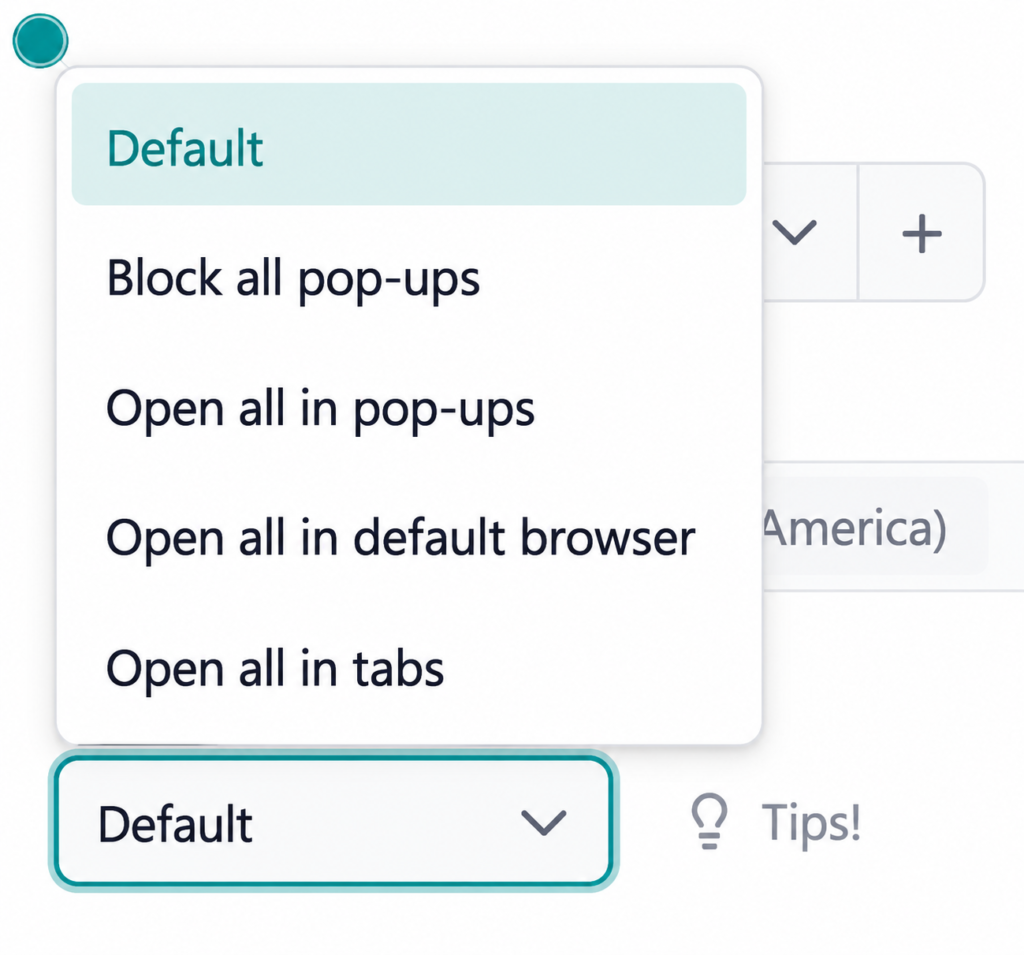
In an app’s settings, Link handling offers five choices:
- Default: follow Rambox’s general link setting.
- Block all pop-ups: block links that try to open a new window.
- Open all in pop-ups: open links in a separate Rambox window.
- Open all in default browser: use your usual browser.
- Open all in tabs: open links in tabs inside the app in Rambox.
These settings control how links that would normally open a new window are handled. Links that navigate within the same service continue to open inside the app as usual.
Internal tabs can keep a document close to the conversation that led to it. For this workflow, use the default Workspace layout. Open a typical shared link and check the account displayed on the destination page before relying on it for client work.
Search the services you actually use
Unified Search lets Rambox users search supported, connected services from Command Center. For Slack, it can find messages, files and people. Open Slack’s settings, choose Connect Slack, review the requested access and confirm the connected account.
Search access is read-only, and results open in Rambox. Each supported app has its own connection, so connect the services you want to include. Consult the current Unified Search guide for compatibility.
Adjust resources and appearance selectively
For an app you check occasionally, review its Hibernate idle time, Start hibernated and Auto wake-up settings. Keep essential communication tools awake so they can deliver notifications and update unread counts.
Use names and icons to distinguish contexts. To adjust Rambox’s overall visual theme, open Settings > Appearance.
Advanced customization for power users
Advanced options include JavaScript/CSS injection, User Agent and proxy settings. Use them only for a specific technical need. The interface warns about security risks and restarting the app to apply changes. The setups above work with standard settings.
Keep your workspaces useful over time
Review your setup as responsibilities change. A short check of active contexts, account identities and notification priorities helps keep each Workspace relevant to the work you actually do.
- Create Workspaces for recurring contexts. A reporting activity can have one group that you return to for each new report.
- Separate sessions where accounts differ. Check repeated services across clients and confirm the identity shown before sending a message or uploading a file.
- Keep essential channels available. Review Workspace permissions, app settings, hours and hibernation together so the updates you monitor can reach you.
- Test the links you use regularly. Open a shared document and verify its destination account before using that path in client work.
- Keep each tool’s role clear. Use the Workspace to move between related apps, then handle conversations, tickets and documents in their respective services.
- Connect the services you search regularly. Use the compatibility guide to select supported apps, then confirm the account for each connection.
- Choose what belongs in the global unread count. Include the contexts you monitor throughout the day and keep other useful badges visible within their Workspaces.
FAQs
Should I organize my work apps by task, project or client?
Start with what usually makes you switch tools or accounts. Organize by task for repeated activities, by project when several tools support one deliverable, and by client when each customer has different accounts or tools. Combine approaches when each group serves a clear purpose in your routine.
How do I choose which apps belong in each workspace?
Walk through one real activity from start to finish. Include the tools you use along the way, such as email, messaging, documents and task tracking. Add less frequent tools when repeated use shows they belong in that context.
How many workspaces should I start with?
Start with a few contexts you use regularly, such as two clients and a recurring writing activity. Try them during real work, then add a group when it has a distinct purpose that makes navigation easier.
How should I organize the same app for different clients?
First, check whether you use one shared account or separate client accounts. Keep client-specific sessions clearly separated and named. If you use one account across several clients, make the relevant projects, folders or conversations easy to identify.
How can I keep my work apps organized as projects change?
Review a workspace when a project ends or your responsibilities change. Keep the apps you still need, remove those you no longer use and update the workspace name, accounts and notification priorities to reflect your current work.
Start with one work context
Choose an activity you will repeat this week. Group its essential apps, verify their accounts and decide which alerts matter. Use the Workspace for a real session, then adjust what gets in your way before adding more.
Try Rambox Pro free for 30 days to build Workspaces around your clients, projects and recurring tasks. No credit card required.