


If you use more than one Facebook Messenger account, constantly logging out and back in quickly becomes frustrating. Maybe you keep personal and work conversations separate, manage messages for different clients, or simply need more than one Facebook identity available during the day.
The good news is that you can use multiple Facebook Messenger accounts on the same computer. The best method depends on whether you only need a second account occasionally or want several Messenger sessions open and ready at the same time.
In this guide, we’ll look at the main ways to manage multiple Messenger accounts on desktop, from browser workarounds to keeping independent Messenger sessions together in Rambox.
Can you use multiple Facebook Messenger accounts on one computer?
Yes. You can access different Facebook Messenger accounts from one computer by switching profiles, using separate browser profiles or browsers, opening a private window, or using a desktop workspace that keeps each account in an independent session.
What changes from one method to another is how convenient it is to keep those accounts available throughout the day.
If you only check a second account occasionally, switching accounts may be enough. But if you need two or more Messenger inboxes open at the same time, you will usually want each account to keep its own session so you do not have to sign in and out repeatedly.
What are the options for using multiple Facebook Messenger accounts on one computer?
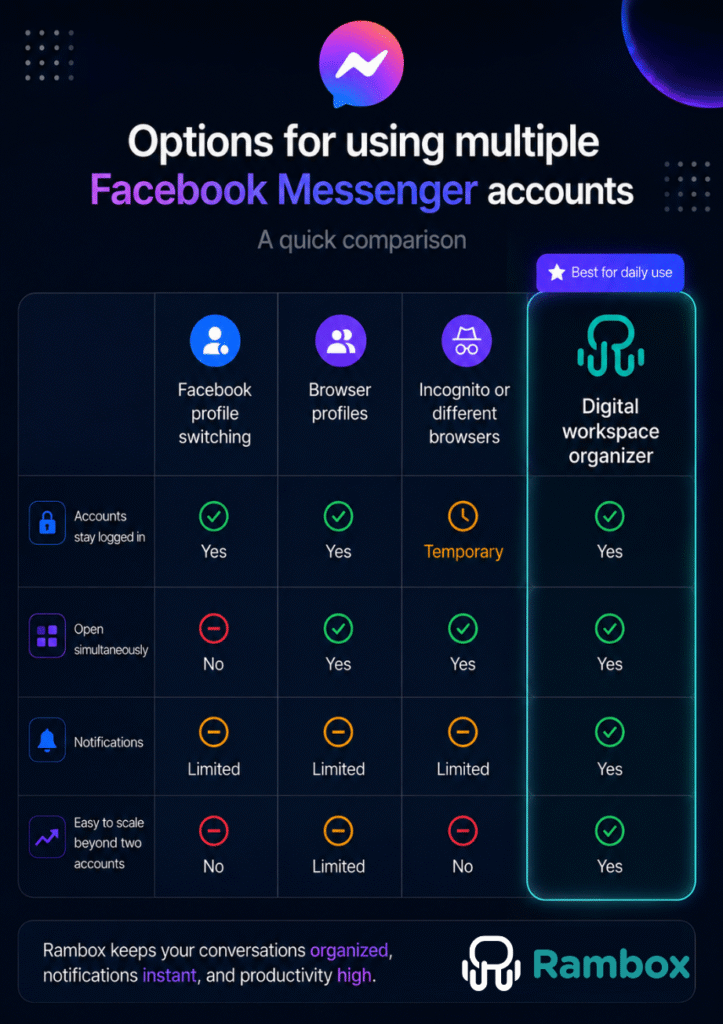
Option 1: Switch between Facebook profiles
The simplest option is to use Facebook’s own account or profile switching. If your use case is occasional, for example, checking a second account once or twice a day, this may be all you need.
The limitation is that switching is not the same as working with several accounts simultaneously. You still move from one active context to another, which can become inconvenient when conversations are arriving in more than one inbox.
This method works best when:
- you only need two accounts;
- one of them is used infrequently;
- you do not need to monitor both inboxes continuously.
Option 2: Use separate browser profiles
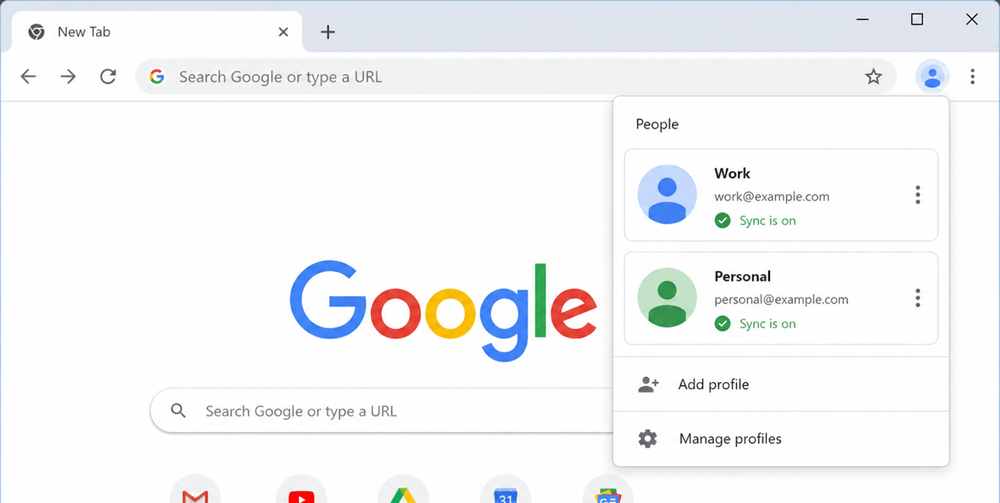
A more flexible approach is to create different browser profiles. Each Chrome profile, for example, keeps its own cookies, history, passwords and settings, so you can sign in to one Facebook account in one profile and another account in a second profile.
This avoids repeatedly logging out, and both accounts can remain available in separate windows. The trade-off is desktop clutter: once you combine several browser profiles with email, chat, project management and other tools, finding the right window can become part of the problem.
Option 3: Use an incognito window or different browsers
For a quick second Messenger session, you can also combine a normal browser window with a private or incognito window, or use two different browsers.
For example, you could keep one Messenger account open in Chrome and another in Firefox, or use one account in a regular Chrome window and a second account in an incognito window.
This is easy to set up, but it is better treated as a workaround than a long-term multi-account system. Private sessions may disappear when you close the window, notifications can be inconsistent, and adding a third or fourth account makes the setup increasingly awkward.
If you just need temporary access to another account, it works. If Messenger is part of your daily workflow, there is a cleaner approach.
Option 4: Use a digital workspace organizer
A digital workspace organizer gives you a cleaner way to manage multiple Messenger accounts without spreading them across different browsers and windows. These tools let you keep different app instances and sessions organized in one place.
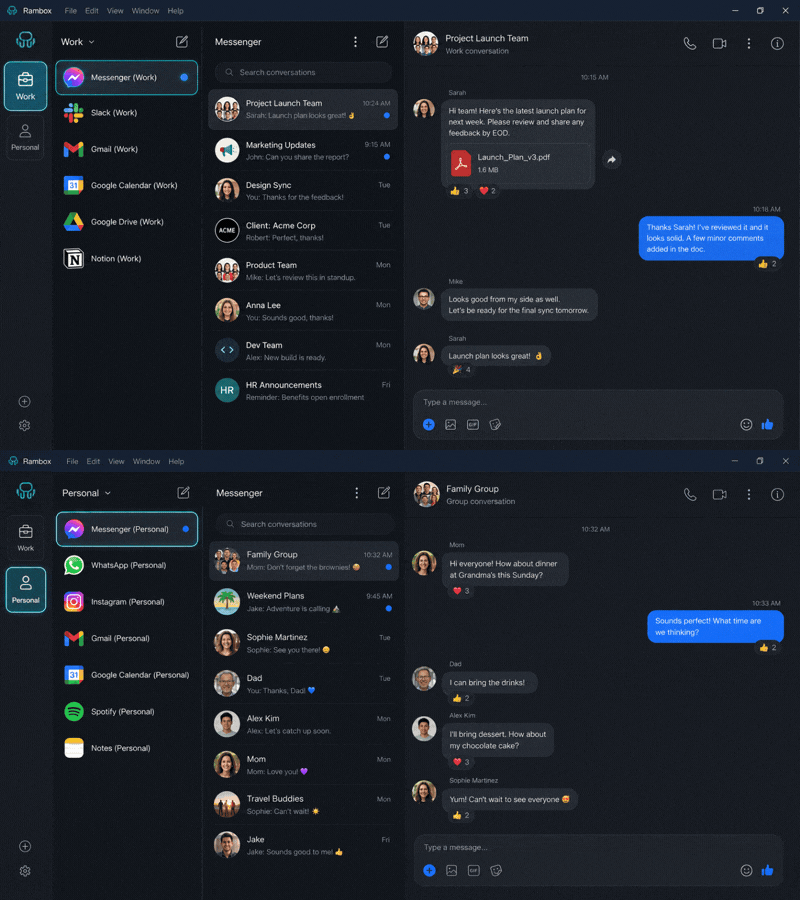
Rambox, for example, lets you add Facebook Messenger more than once and keep each instance in its own session.
That means you can have, for example:
- Messenger (Personal)
- Messenger (Company)
- Messenger (Client A)
- Messenger (Client B)
Each instance can stay logged in with the correct account, so you can move between conversations without signing out or trying to remember which browser contains which login.
Rambox Profiles are what make this possible. A Private profile creates an isolated session, while custom profiles let you organize sessions around the way you work. If you already use Rambox for multiple accounts of the same app, the same logic applies to Messenger.
And Messenger does not have to live on its own. You can place each account next to the other tools that belong to that context: Gmail, WhatsApp, Slack, Teams, a CRM, project management software or any of the other web apps you use during the day.
How to add multiple Facebook Messenger accounts to Rambox
Setting up more than one Messenger account in Rambox only takes a few steps.
- Open Rambox and go to the workspace where you want to add Messenger.
- Click to add an app and search for Facebook Messenger.
- Add Messenger and sign in with your first Facebook account.
- Add Facebook Messenger again as a second app instance.
- Assign the second instance a different Profile, ideally a Private or separate custom Profile, so its session stays isolated from the first account.
- Sign in with your second Facebook account.
- Rename each Messenger instance so you can identify it instantly, for example “Messenger (Personal)” and “Messenger (Work)”.
- Repeat the process if you need additional accounts, then configure notifications and organize the apps into the workspaces that match your workflow.
If you want a deeper explanation of how Profiles can help you separate different accounts and projects, see our guide on how to manage multiple projects with Rambox.
Organize Messenger accounts by client, team or context
Keeping several accounts logged in is only half the problem. The other half is knowing where each account belongs.
Rambox Workspaces let you group apps by context instead of by app type. So rather than placing every Messenger account in one long list, you could build setups such as:
- Personal workspace: personal Messenger, Gmail and WhatsApp.
- Client A workspace: Client A Messenger, email, Slack and project board.
- Marketing workspace: company Messenger, social networks, analytics and content tools.
This becomes especially useful when the same app appears in several parts of your work. A workspace gives the account a context, while the Profile keeps its session separate.
If you want to go further, see our guide on how to get the most out of Rambox Workspaces.
Keep notifications from multiple Messenger accounts under control
Having every account open is useful only if it does not turn your desktop into a wall of interruptions.
Rambox lets you manage notifications and unread badges by app and workspace. That means a Messenger account used for customer or sales conversations can stay visible, while a lower-priority account can remain quieter until you are ready to check it.
This is one of the biggest differences between simply opening more browser windows and creating an actual multi-account workspace: you are not only keeping the sessions alive, you are also deciding how each account should fit into your day.
Which method should you use for multiple Messenger accounts?
There is no reason to overcomplicate a simple use case.
- If you occasionally check a second Messenger account, Facebook profile switching or an incognito window may be enough.
- If you regularly use two accounts, separate browser profiles can work well and keep logins apart.
- If you manage several Messenger accounts, or Messenger is only one part of a larger mix of communication apps, Rambox gives you a cleaner way to keep sessions separated, accounts identifiable and notifications under control.
The practical question is not just whether you can open another Messenger account. It is whether your setup still feels manageable after a full day of switching between conversations, clients, apps and notifications.
Use Messenger without the official desktop app
You no longer need, or have the option to use, a standalone Messenger desktop app for Windows or Mac. In 2026, desktop web access is available through Facebook.com/messages. Meta discontinued the standalone desktop apps, and Messenger.com no longer works as a separate messaging website.
If your main question is how to access Messenger without installing its former official desktop app, rather than how to manage several accounts, read our separate guide to the easiest ways to use Facebook Messenger without the app.
That distinction is useful: one problem is how you access Messenger; the other is how you keep multiple Messenger accounts organized on the same computer.
FAQ
Can I have two Facebook Messenger accounts open at the same time?
Yes. The easiest way is to keep each account in a separate session. You can do this with different browser profiles or browsers, or add Messenger multiple times in Rambox and assign a separate Profile to each instance.
Can I use multiple Messenger accounts without logging out?
Yes. Separate browser profiles can maintain different logins, and Rambox can keep multiple Messenger instances in isolated sessions so each account remains signed in.
Can I open two Messenger accounts in Chrome?
Yes. Create separate Chrome profiles and log in to a different Facebook account in each one. Each browser profile keeps its own cookies and login data, allowing both accounts to remain available in separate windows.
Can I use multiple Facebook Messenger accounts in Rambox?
Yes. Add Messenger more than once and use a different Rambox Profile for each account. This keeps the sessions separated so you can remain logged in to several accounts from the same desktop app.
Can I receive notifications from multiple Messenger accounts?
Yes, provided the sessions remain active and notifications are enabled. In Rambox, you can configure notifications and unread badges for the individual Messenger instances or the workspaces that contain them.
Can I use Messenger without installing the Messenger app?
Yes. If you have a Facebook account, you can access Messenger through Facebook.com/messages without installing a standalone desktop app. You can also use that web access inside a desktop workspace such as Rambox.
Our dedicated guide covers the different ways to use Messenger without the app.
Manage all your Messenger accounts in one place
If you only need a second Facebook Messenger account from time to time, browser workarounds may be perfectly adequate.
But when several accounts are part of your everyday workflow, constantly switching profiles, browsers and windows becomes unnecessary friction. Rambox lets you keep each Messenger account in its own session, label it clearly, place it in the right workspace and control its notifications, alongside the rest of the apps you already use.
Start using Rambox and bring your Messenger accounts together in one organized desktop workspace.